
Conversation Extensions for Zendesk Messaging and AI Agents
Conversation Extensions enhance Zendesk AI Agents by embedding custom web views in conversations, enabling interactive UIs for complex tasks like bookings and refunds. They integrate metadata, support context-driven actions, and improve customer experience offering flexible, reusable solutions.

Conversation Extensions for Zendesk Messaging and AI Agents
Conversation Extensions enhance Zendesk AI Agents by embedding custom web views in conversations, enabling interactive UIs for complex tasks like bookings and refunds. They integrate metadata, support context-driven actions, and improve customer experience offering flexible, reusable solutions.

On this page
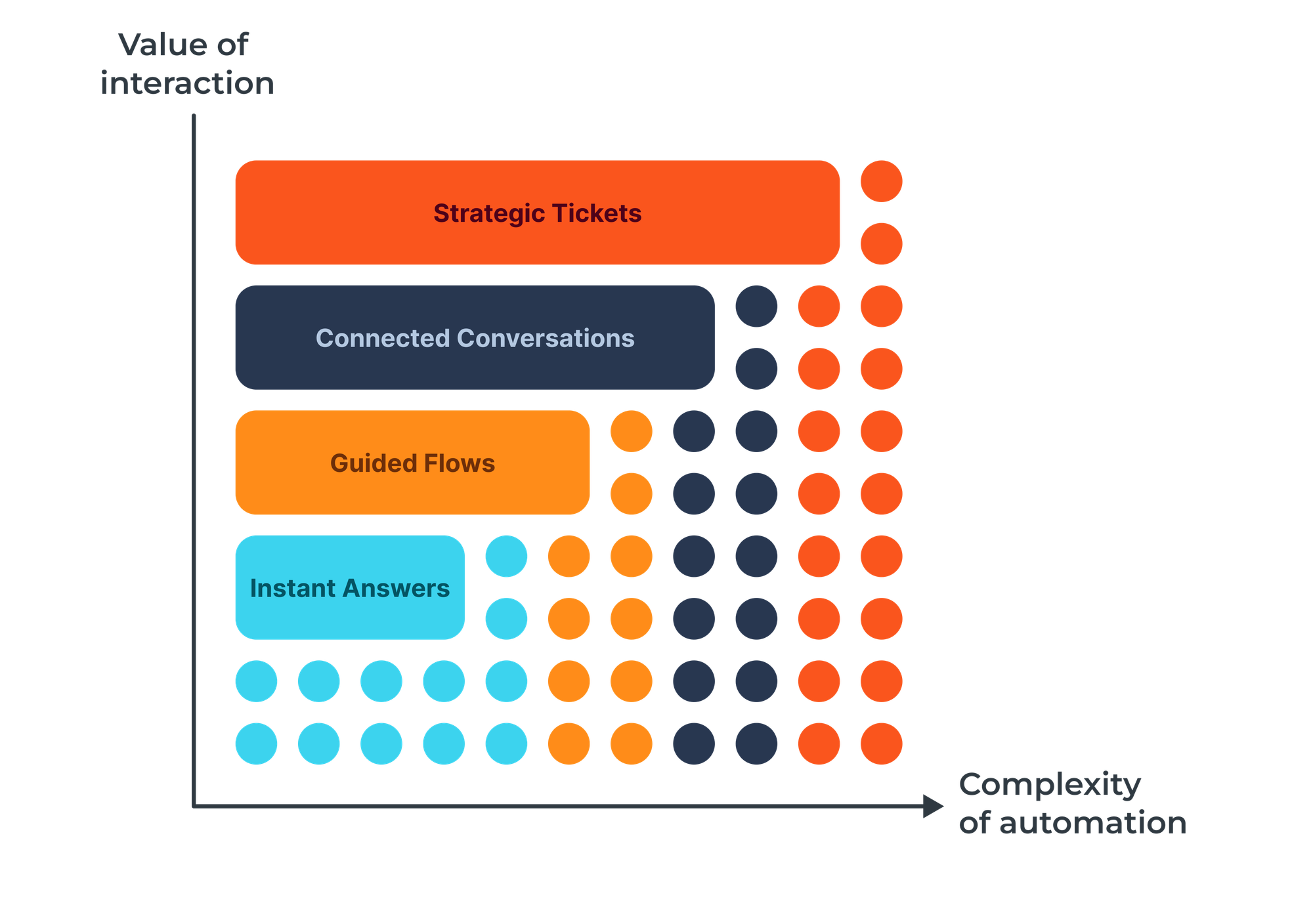
When it comes to resolving customer inquiries there's a couple of approaches we can take. One approach is to use knowledge sources and provide answers to common, generic questions.
But sometimes just answering a question isn't enough. We need to do something for the customer. Or we need to gather context and provide a more personal, unique answer.
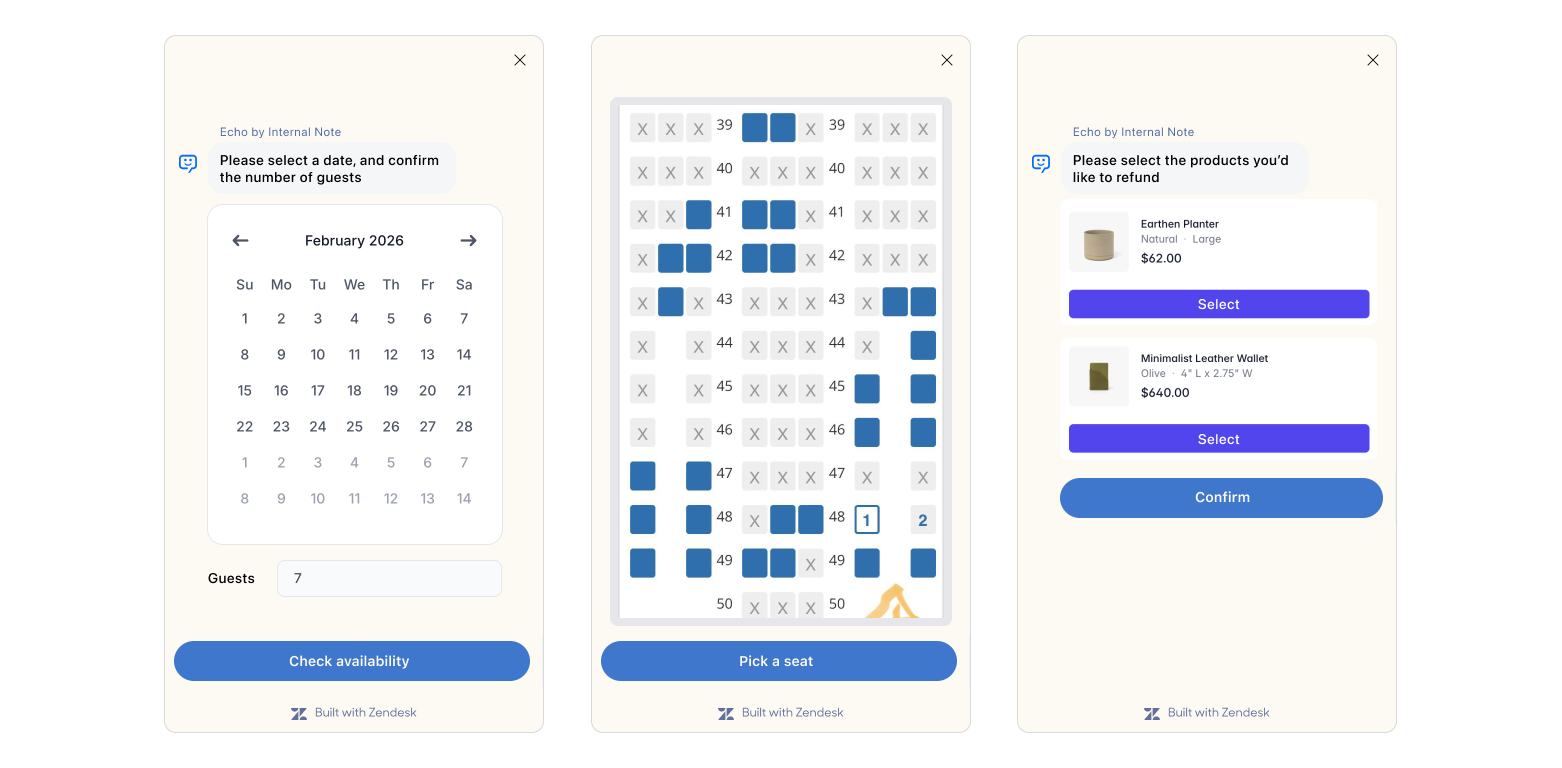
And while conversations and messages are a natural way for people to interact, they might not always be the most efficient format. A date picker is a nicer interface to select a date than writing down March 17th, 2026. When booking a flight, selecting a seat from a plan is a better experience than entering Seat A12. And when you want to select three out of five products in a return flow, seeing the products and selecting them is just faster.
Conversation Extensions
This is where Conversation Extensions come into play. They are web views you can invoke as part of an AI Agent Advanced Dialogue Flow. Since they are just embedded webpages you can design them to fit your needs and run any custom code and logic as part of that view.

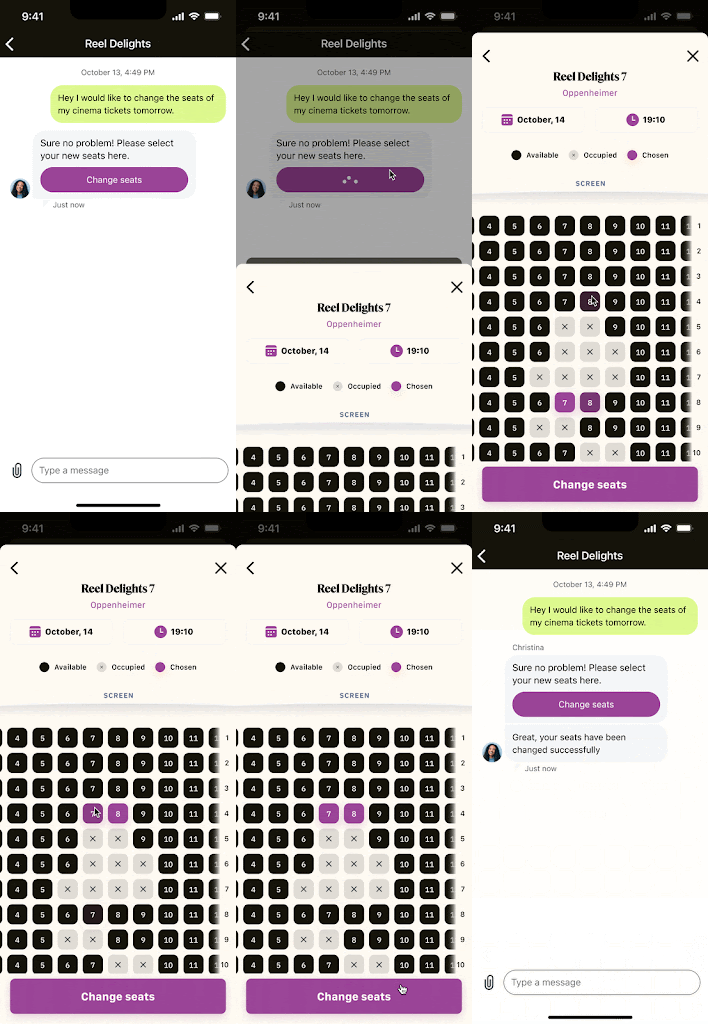
But as they are loaded as part of an existing conversation, these views have the context of a Sunshine Conversation available. This means we can get or set metadata values, or even post messages back to the conversation either impersonating the AI Agent, or the customer themselves.
Combined with traditional AI Agent procedures or dialogue flows, they allow for some pretty powerful interactions. You could build out a use case that handles a customer rebooking their flight. The procedure takes care of asking for a booking number, asking the customer if they want to cancel, upgrade or modify their booking, and validates what's possible. Once we know what the customer wants to do, we can show a conversation extension that handles the entire rebooking, picking the date and handling the payment. Once they complete that step, the extension passes control back to the AI Agent and the conversation can resume.
What's great is that this offers a lot of reusability. Your existing website probably has that entire rebooking logic and payment endpoint already built out. So instead of rebuilding that entire stack within an AI Agent, you can render (part of) your website within the extension, leveraging all the work you did before.
And while you can reuse a lot, Conversation Extensions are not just a simple plug-and-play solution. If you want to get context from the conversation, or pass the results of customers actions back to the conversation, there is some additional work to be done.
Demo Conversation Extension
In this article we'll reference a sample Conversation Extension I built. This extension does a couple of things:
- When launched it retrieves the current conversation metadata
- It shows two ticket fields the customer can fill in, and it allows the customer to modify the existing metadata.
- Upon submit it stores the customers input as metadata on the conversation
These three actions combined are the basis for any extension, so if you're planning to build your own, it's a good start.
Sample Code
You can find the code for the example I use in this article in the following GitHub repo.
The sample code for the Conversation Extension we're using in this article runs on Cloudflare Workers. The same approach will work on any hosting or cloud environment, I just use Cloudflare because it's free and it's what I'm used to.
As always, all code is provided as is with no guarantee for correctness and safety. Please validate any code you put in production in your own environment.
How they work
In their most basic form, Conversation Extensions are just web pages loaded in an iFrame within the Zendesk Messaging Widget.
In our demo the website loads a form that calls an /action endpoint upon post. The form preloads existing metadata on the conversation and pre-fills fields in the form with their values.
<form id="metadataForm" method="POST" action="/action">
  <h2>Add New Metadata</h2>
  <div>
    <label for="color">Color</label>
    <input type="text" id="color">
  </div>
  <div>
    <label for="movie">Movie</label>
    <input type="text" id="movie">
  </div>

  <h2>Edit Existing Metadata</h2>
  <div>
    <label for="existingMetadata">Edit existingMetadata</label>
    <input type="text" id="existingMetadata" value="{firstMetadataValue}}">
  </div>

  <button type="submit">Submit</button>
</form>
That /action endpoint then takes the submitted form data and sends it to the Sunshine Conversation as metadata value.
Once completed, we post a message back to the conversation, which lets the AI Agent know it can resume its conversation.
Conversation Metadata
Conversations your customers have with AI Agents are stored in Sunshine Conversations.
When we define our web view in AI Agents Advanced we can opt to include both a conversationId as well as a userId when the webpage is loaded. These are important since we need them to retrieve the full context of our conversation.
https://conversation_extension.domain.com?userId=12345&conversationId=67890
When we retrieve our conversation via https://{{subdomain}}.zendesk.com/sc/v2/apps/{{app_id}}/conversations/{{conversationId} we get the following data back:
{
    "conversation": {
        "id": "699ec20639b97e12ea786017",
        "type": "personal",
        "isDefault": false,
        "businessLastRead": "2026-02-25T10:10:02.688Z",
        "lastUpdatedAt": "2026-02-25T10:10:02.688Z",
        "createdAt": "2026-02-25T09:33:58.970Z",
        "metadata": {
            "userId": "693fcc1847a0a348bb7229a8",
            "origin_source_integration": "61ea8723f4aa6100eb8a69e5",
            "fruit": "apple",
            "vegetable": "tomato",
            "color": "Green",
            "movie": "Alien"
        }
    }
}
What we're interested in for this project is the metadata. Metadata is basically freeform JSON elements you can assign to a conversation. AI Agents Advanced can use Actions to retrieve these values and use them as parameters in a conversation.
Sunshine Conversations API
Since our metadata lives within Sunshine Conversation, we need to store credentials for that API within our extension. In my scenario I leveraged Cloudflare Worker Secrets to safely store the credentials.
You can generate a set of credentials via Admin Center > Apps and Integrations > APIs > Sunshine Conversation API.
Once you have your credentials, you can retrieve data as follows:
const app_id = env.SMOOCH_APP_ID;
const key_id = env.SMOOCH_KEY_ID;
const secret = env.SMOOCH_SECRET;

const auth = btoa(`${keyId}:${secret}`);

const response = await fetch('https://${subdomain}.zendesk.com/sc/v2/apps/${appId}/conversations/'
    {
      method: 'GET',
      headers: {
        'Authorization': `Basic ${auth}`,
        'Content-Type': 'application/json'
      }
    }
);
Get conversation context
The first thing we want to do is retrieve whatever context is available within our conversation before we move forward. This will allow you to get access to the data the AI Agent already retrieved, as well as any user information stored on the conversation.
So if our AI Agent already retrieved an order number or booking number from the customer, we can retrieve these values and use them in our extension page to load the correct data, pre-fill fields,...
Retrieving the conversation context happens via:
async function fetchConversationMetadata(conversationId) {
    const response = await fetch(`https://${subdomain}.zendesk.com/sc/v2/apps/${appId}/conversations/${conversationId}`);
    const data = await response.json();
    return data.conversation?.metadata || {};
}
Retrieving Conversation Metadata
This returns:
"metadata": {
  "userId": "693fcc1847a0a348bb7229a8",
  "origin_source_integration": "61ea8723f4aa6100eb8a69e5",
  "fruit": "apple",
  "vegetable": "tomato"
}
Similarly you can call https://{{subdomain}}.zendesk.com/sc/v2/apps/{{app_id}}/users/{{userId}} to retrieve user information.
{
    "user": {
        "identities": [
            {
                "type": "email",
                "value": "[email protected]",
            }
        ],
        "externalId": "bWF4aW11c0BnbGFkaWF0b3IuZXhhbXBsZQ==",
        "profile": {
            "surname": "Decimus Meridius",
            "givenName": "Maximus",
            "email": "[email protected]",
            "locale": "en-GB",
            "localeOrigin": "apiRequest"
        },
        "authenticated": true
    }
}
Depending on the use case you're building you might need either or both of these payloads.
Sending data back to the conversation
Retrieving data from our conversation is useful to provide the customer with the right context, but once they wrap up their work within our web view, we also want to send data back to the conversation as new metadata elements.
This way the AI Agent can use that output and move the procedure further, or wrap up the conversation.
If we format our new metadata keys in a specific format, we can make sure that these values are not only stored on the conversation level, but will be passed to Agent Workspace as ticket field values too.
{
  "metadata": {
    "zen:ticket_field:1234567890": "Blade Runner"
  }
}
Replace 1234567890 with an actual ticket id
Updating conversation metadata is done as follows:
var metadata = {
  "metadata": {
    "color": color,
    "movie": movie
  }
}

async function updateConversationMetadata(conversationId, metadata, appId, keyId, secret) {
    const response = await fetch(`https://${subdomain}.zendesk.com/sc/v2/apps/${appId}/conversations/${conversationId}`,
      {
        method: 'PATCH',
        body: JSON.stringify({metadata})
      }
    );
    return await response.json();
}
You can send data back to the conversation at anytime. If the key matches an existing metadata element, it'll update the value. If you provide a new key, it'll add that value to the conversation metadata.
Post Message
Once the work in the web view is done we need to let our AI Agent know it can continue its flow. Currently, the only way to do so is to pass a message to the AI Agent as a customer.
And since our customer probably wants a confirmation of what they just did in the conversation transcript, you can combine this in a single step by doing just that.
var messageText = `I pick the color ${color} and the movie ${movie}`;

async function postMessageAsCustomer(conversationId, userId, messageText) {
    const response = await fetch(`https://${subdomain}.zendesk.com/sc/v2/apps/${appId}/conversations/${conversationId}/messages`,
      {
        method: 'POST',
        body: JSON.stringify({
          author: {
            type: 'user',
            userId: userId
          },
          content: {
            type: 'text',
            text: messageText
          }
        })
      }
    );
    return await response.json();
}
It might be you don't want to move the conversation forward and your web view is the last step of the flow. In that case you can also impersonate the AI Agent and submit a final message when the form is submitted:
var messageText = `Thanks! We'll process your refund now. This can take 2-3 days.`;

async function postMessageAsCustomer(conversationId, messageText) {
    const response = await fetch(`https://${subdomain}.zendesk.com/sc/v2/apps/${appId}/conversations/${conversationId}/messages`,
      {
        method: 'POST',
        body: JSON.stringify({
          author: {
            type: 'business'
          },
          content: {
            type: 'text',
            text: messageText
          }
        })
      }
    );
    return await response.json();
}
If the customer doesn't react, the conversation timeout will trigger, and the customer will get a BSAT pop-up after which the session will end.
Handle close
You can also combine this AI Agent message with additional logic in your web view. For example, when we detect a dismissal of the extension before the customer completes the expected actions, we could send an AI Agent message "Please reopen the view and complete the refund process".
close()instructs the platform to close the current Web view. If you want to specify a callback function to be executed after the Web view is closed, you can pass it as an argument, like this:WebviewSdk.close(() => console.log('Web view closed!')).
Adding Conversation Extension to AI Agents
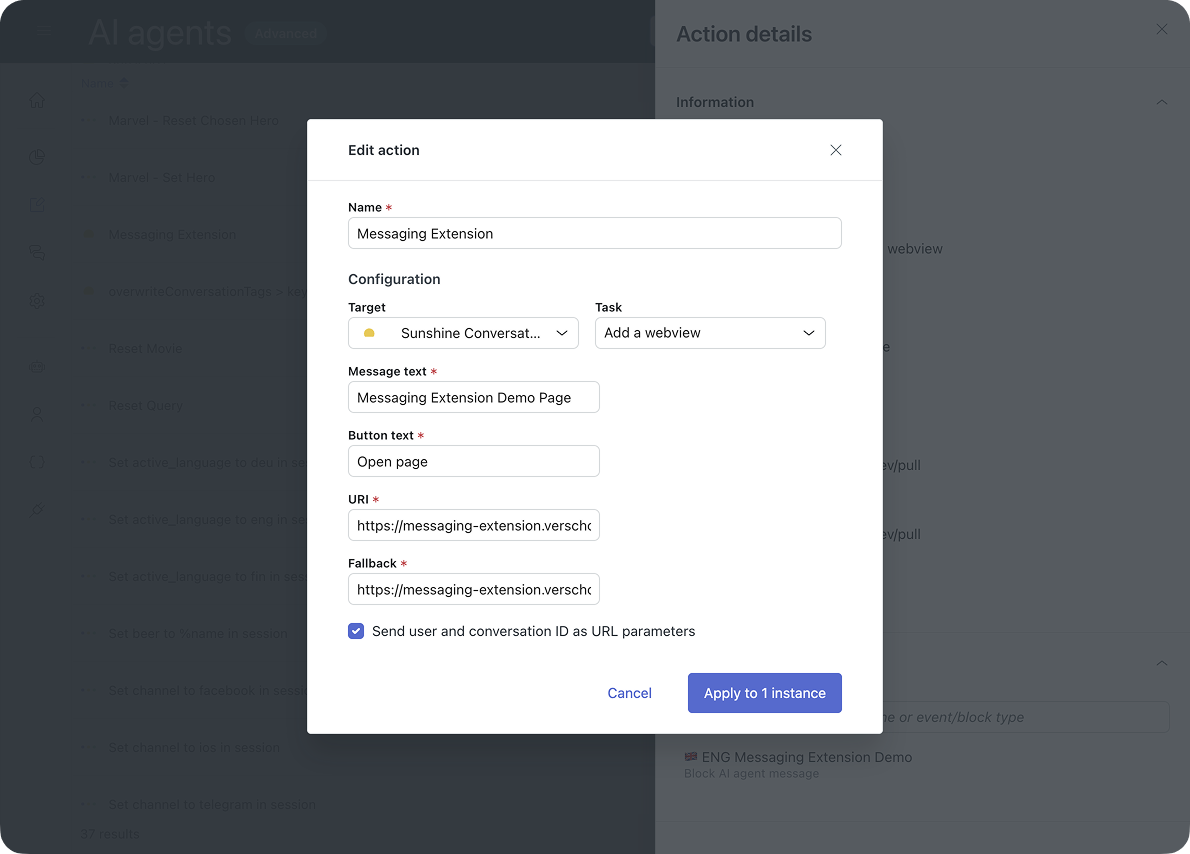
In order to be able to handle our Conversation Extension in AI Agents Advanced we need to create two Actions via AI Agent Dashboard > Content > Actions.
The first action targets Sunshine Conversations and adds a web view. You can set the message text, a button to open the view, and the URL of the web page that hosts our extension.
The system also allows for a fallback URL. This could be a webpage on your regular website that allows customers to execute the same actions. This is used for channels where Extensions aren't supported like WhatsApp.
Don't forget to make the conversationId and userId available to your extension by selecting the checkbox!
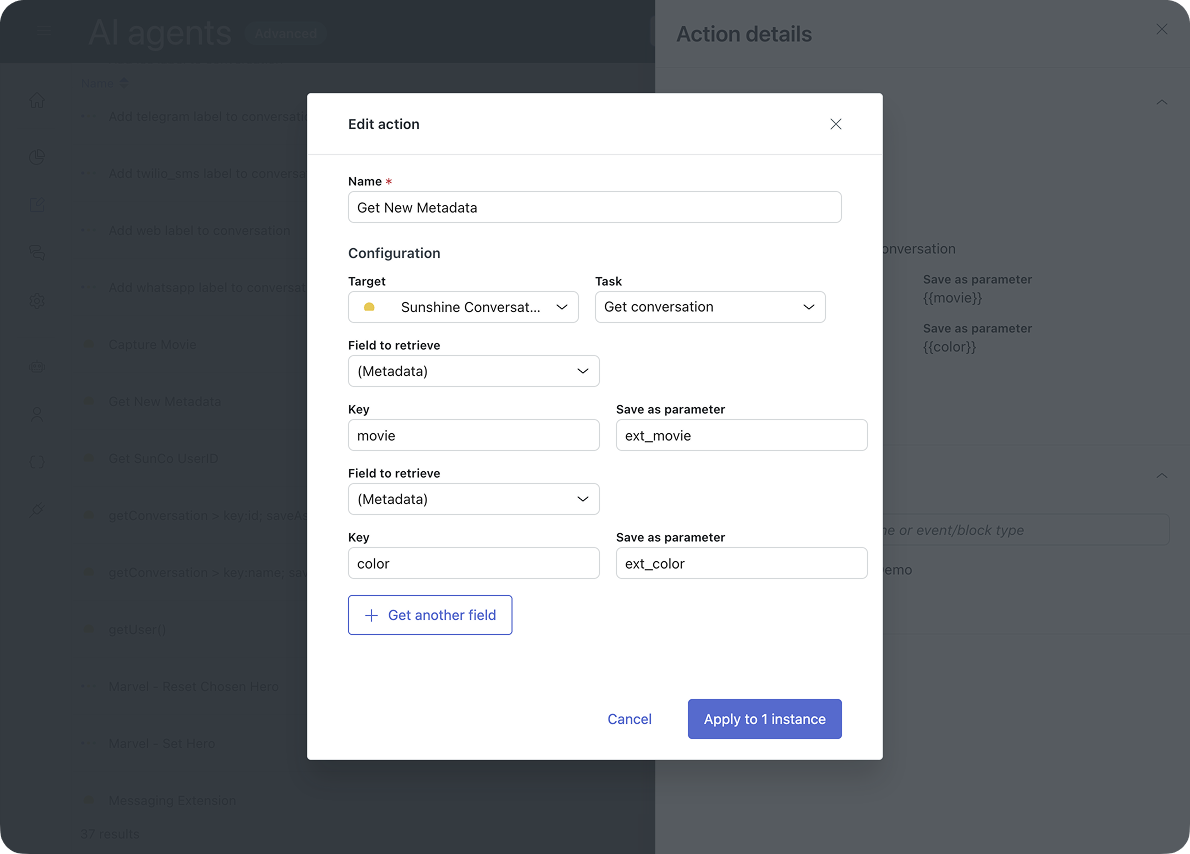
The second action retrieves the metadata our extension adds to the conversation, and stores these values as parameters available to our AI Agent. (Someday AI Agents will hopefully be able to use this SunCo metadata directly instead of relying on its own parameters, but today's not that day).
Note that this action is only required if you want to use any of the customers' information in further steps done by the AI Agent. But since the data stored on the SunCo level isn't viewable without leveraging the API, I prefer tho store them on the conversation level either way.
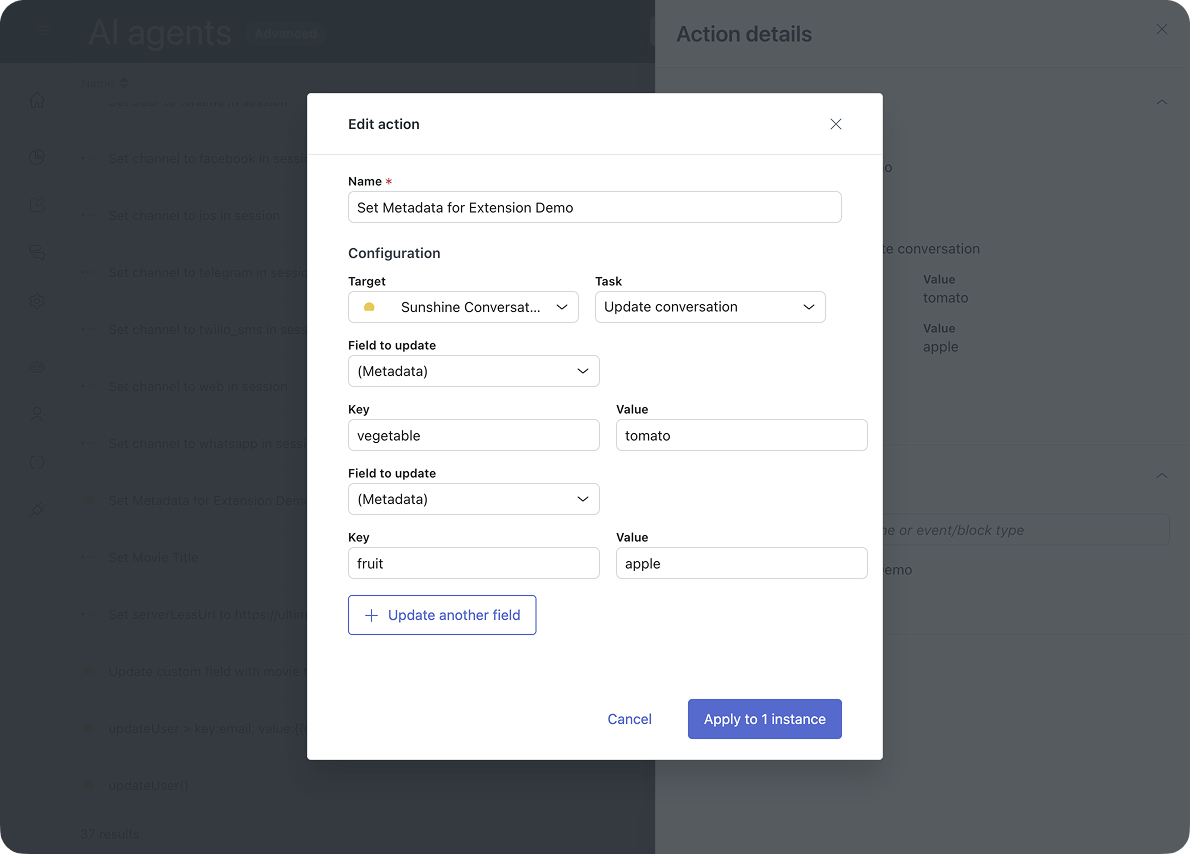
And finally, just for reference, if you want to send data from your AI Agent to SunCo, you can do that with an Action too. This is required if e.g. your AI Agent asks for an order number, and you want to make that data available to your extension.
Invoking our Conversation Extension
You can make a Conversation Extension available for customers in two ways.
If you're still using traditional Dialogue Builder flows, you can link your web view action to any step in your Dialogue. This will append an additional AI Agent message to the conversation with the message and button text you defined in the Action.
Once done so, you need to append a Customer Message > Free Text to capture the message your extension sends once the customer completes their actions. This is the trigger for your AI Agent to take over. And finally, if you want use the output of those actions, link your 'Get updated metadata' action.
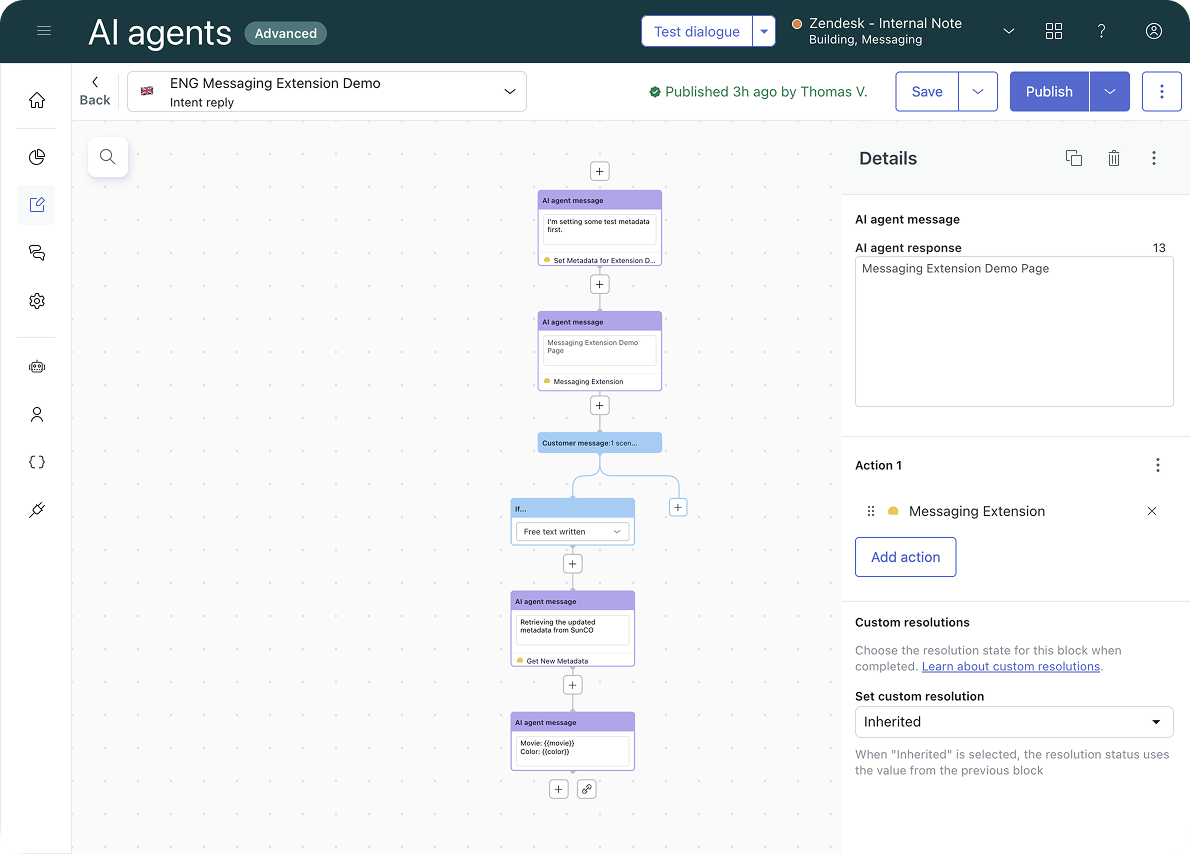
If you're using the new Agentic Procedures, it's the same flow, but this time you link to the Actions via /.
First set our metadata needed for the demo.Set Metadata for Extension Demo.
Then invokeMessaging Extension
Once the customer replies with their chosen movie and color, useGet New Metadatato get the updated metadata and make it available in our conversation. Then retrieve theext_movieandext_colorand reply to the customer with these values.
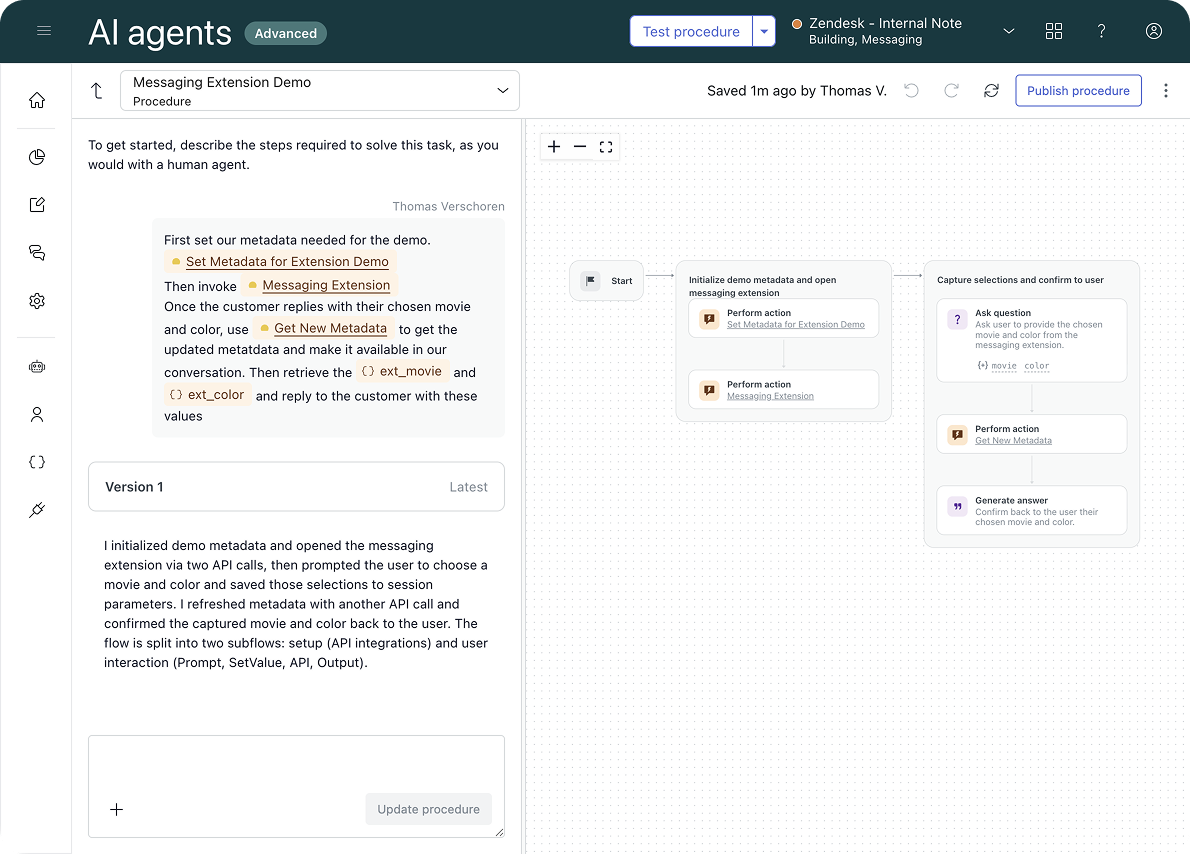
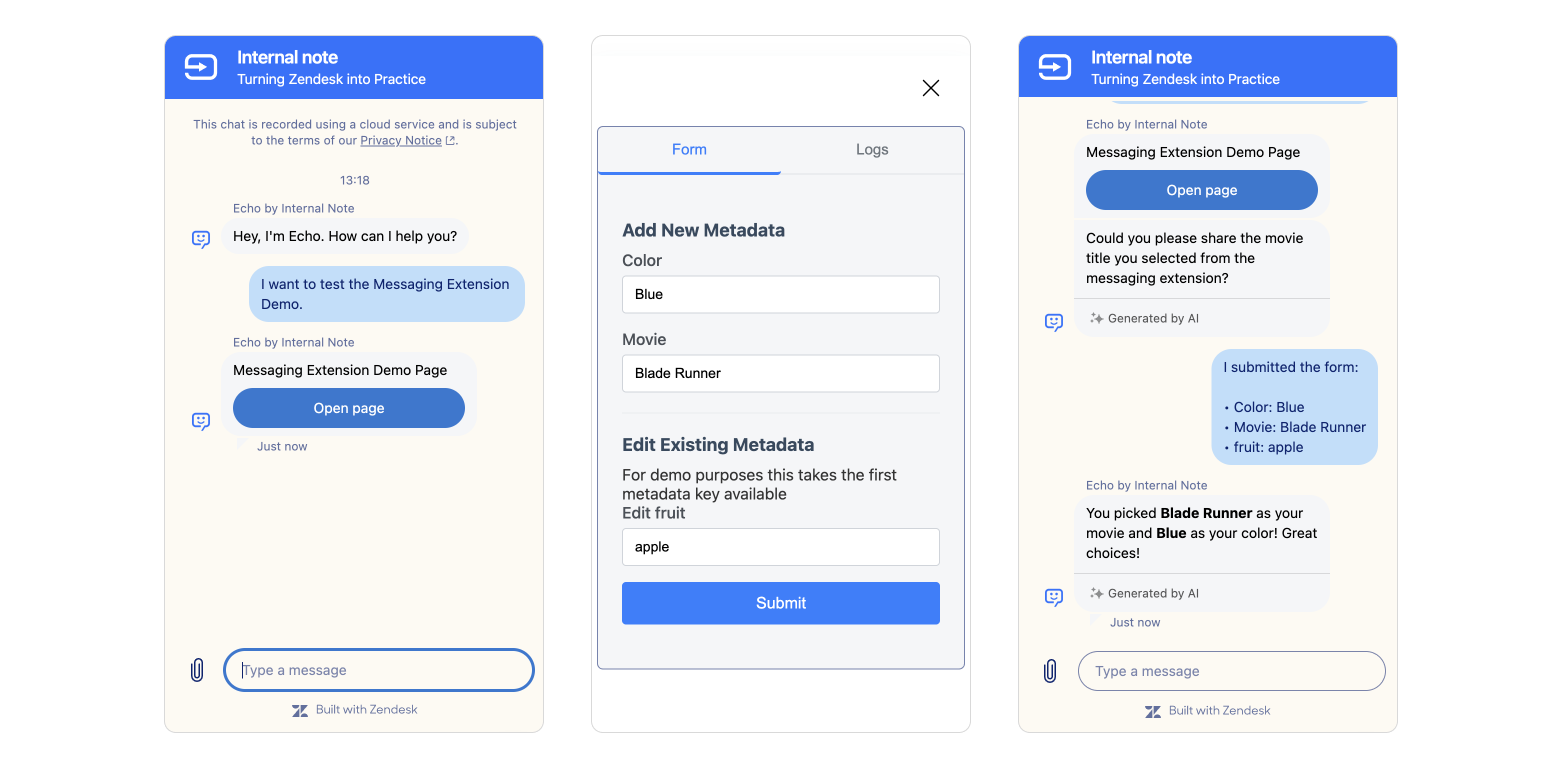
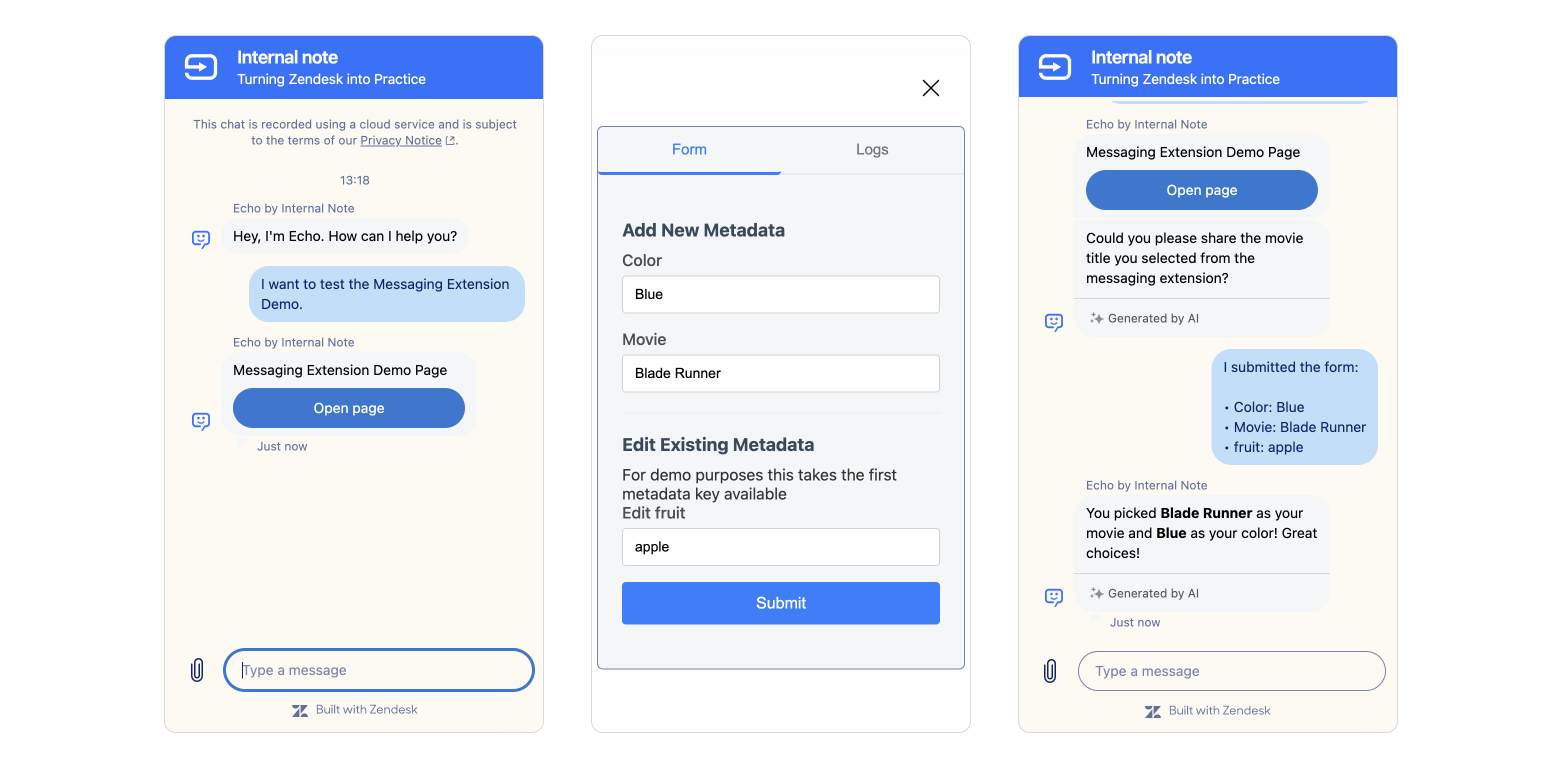
If done correctly, you'll end up with a flow similar to this one
- Our AI Agent shows the Messaging Extension message and button
- Once clicked it overlays a web view with our extension page
- We can see metadata being used to pre-fill fields, and the customer can enter data in the form
- Upon submit we close the overlay and we see a log of the updates in an automated customer message
- And finally we have our AI Agent return the data it retrieved from SunCo
Security
Zendesk's implementation of web views and Messaging Extensions does not allow for any custom headers. We also load our webpage from within an iFrame on the customer side. This means that if we want to restrict access to our web view, we can't use a simple authentication headers or other source restrictions.
One way to protect your web view from most unauthorised access is by leveraging the metadata we do when the view is loaded.
When we load our view Zendesk appends ?userId={{userId}}&conversationId={{conversationId}} to the URL.
So when we build our extension we can do a check to see if the combination of these two values is correct. While this does not protect you from every kind of misbehaviour, it does force bad actors to know a valid combination of these two elements, highly reducing the risk.
async function validateUserConversationAccess(userId, conversationId) {
    const response = await fetch(`https://${subdomain}.zendesk.com/sc/apps/${appId}/conversations/${conversationId}/participants`);
    const data = await response.json();
    const participants = data.participants;
    const isParticipant = participants.some(
      participant => participant.userId === userId
    );

    return isParticipant;
}
Conclusion
So that's a basic overview of Conversation Extensions. They allow you to build custom UIs on top of the Messaging widget and are invoked from within an AI Agent conversation. They can be used to move complex parts of a conversations into an interface that fits them better.
If you're a travel agency or restaurant, you can build a booking tool that allows passengers or guests to select a location, date and amount of people. Or you can even include a payment module and get customers to pay for their flight or pay a reservation fee.
As a retail store you can build a checkout module, or an extension to better handle refunds. And as a services company you can build a tool to get customers to upgrade their licenses or renew a service contract.
As an IT department you can build a tool to reset passwords, and HR can build a web view to check vacation balance and book your days off.
When we look at these extensions as part of the Resolution Platform, these solutions shouldn't be your default approach for any use case. Knowledge articles or Agentic Procedures are way faster do deploy and get the job done in most cases. But for those valuable interacts that require a lot of context and actions, they might be an ideal way to make them just that bit easier to resolve.