
Enriching Zendesk’s Knowledge Graph With External Sources
Zendesk’s Knowledge Graph turns knowledge into a connected platform layer. This article shows how Federated Search and Knowledge Connectors bring content from Help Centre, websites and internal tools into one graph, then surface, measure and improve it across channels.
Enriching Zendesk’s Knowledge Graph With External Sources

On this page
Zendesk’s Resolution Platform turns customer problems into resolutions. It does this by bringing together knowledge, processes, actionable data and rich insights. Every conversation draws on some combination of those elements, and every interaction is analysed to provide actionable recommendations on what to improve next.
The basis for this platform rests on the same foundation: good knowledge. I have written about that before in several articles, and the case for using knowledge in AI is already well established. We know it helps with self-service, answer quality and efficiency. This article is about something a bit different. It is about connecting knowledge.
Zendesk’s Knowledge Graph is a core change in the way we handle knowledge in Zendesk. It brings together content from your Help Centre, your website and external tools like Notion, Confluence and SharePoint into one unified layer. Instead of knowledge living in separate systems and being searched separately, it can now be unified and made available wherever questions get asked.
That matters because Zendesk is no longer just a place to store support content. It is a Resolution Platform that learns from every interaction, closes gaps and improves what comes next. With the capabilities recently announced at Relate, it is becoming the platform that connects knowledge across your stack, makes it available across channels and gives you one place to measure how it performs.
The rest of this article follows that lifecycle. First, getting knowledge into the graph through crawlers and connectors. Then making it available across Quick Answers, AI Agents and Agent Workspace. Next, measuring how it performs. And finally improving it with Knowledge Copilot.
The Knowledge Graph
Before getting into the how, it helps to see the graph as three distinct kinds of knowledge, where each one enters the platform in a different way.
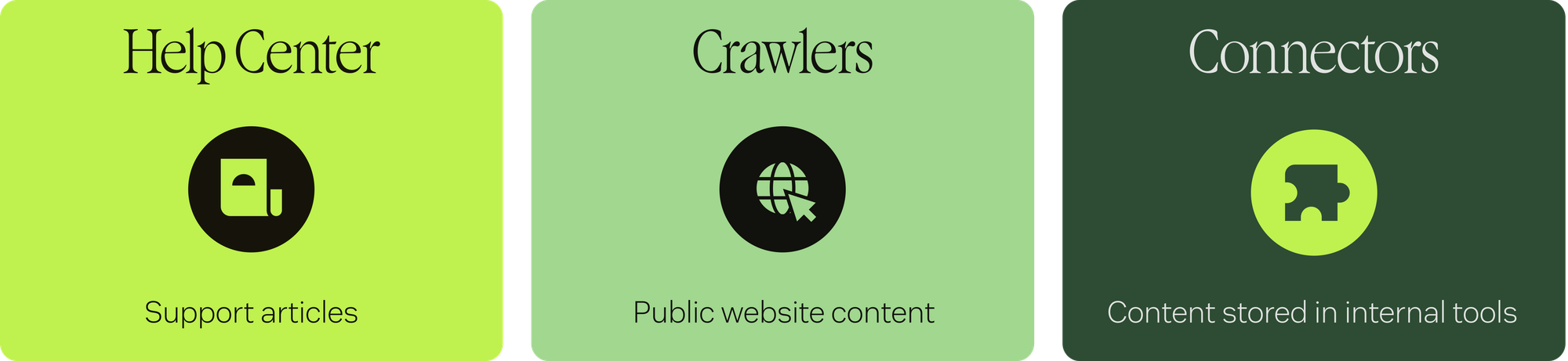
First, there’s your Help Center. This is the classic self-service approach, the content you write and own inside Zendesk specifically to answer customer questions. It is the native source, and it is still the heart of the graph.
Second, there’s content that’s already public, but lives outside the Help Center. Your website, your blog, your web shop. This content is already being indexed by everyone else, by Google, Gemini and ChatGPT, and your customers are finding it through them. If the rest of the world can leverage it, your own AI Agents and Help Center should be able to do so as well. If it is public and relevant, Zendesk should be able to use it too. That is Federated Search, where the platform crawls your webpages and indexes their content.
Third, there’s knowledge locked inside the tools you work in: Notion, Confluence, SharePoint. Until now it has lived outside the Zendesk knowledge layer. You may want to expose it to your AI Agents, Agent Copilot and Auto Assist to make their answers easier, better and richer. But because it is sensitive, you also want clear segmentation on top, so it only reaches the people who are allowed to see it. That is Knowledge Connectors.
Taken together, these three sources are what make the Knowledge Graph more than a Help Centre feature. They turn Zendesk into the layer where knowledge is connected, governed and made available across the service experience.
Indexing your knowledge
Nothing else works until the content is in the graph. So the first job is getting it indexed. That is where the connected knowledge layer begins, and there are two routes in, depending on which of the three kinds of knowledge you’re dealing with.
Federated Search
Federated Search is ideal for public content sitting outside the Help Center that you would like your AI Agents to use to answer questions.
In the past, adding a website to be crawled by Zendesk required two things: a verification tag in the <head> of your site to prove ownership, and the availability of a sitemap. Both requirements are now gone, which makes it much easier to add new sources.
Adding new sources to Federated Search is now a three-step job:
- From Knowledge Admin, go to Settings > Crawlers and add a new source.
- Enter the website URL(s).
- Choose whether to index only those URLs or the entire website.
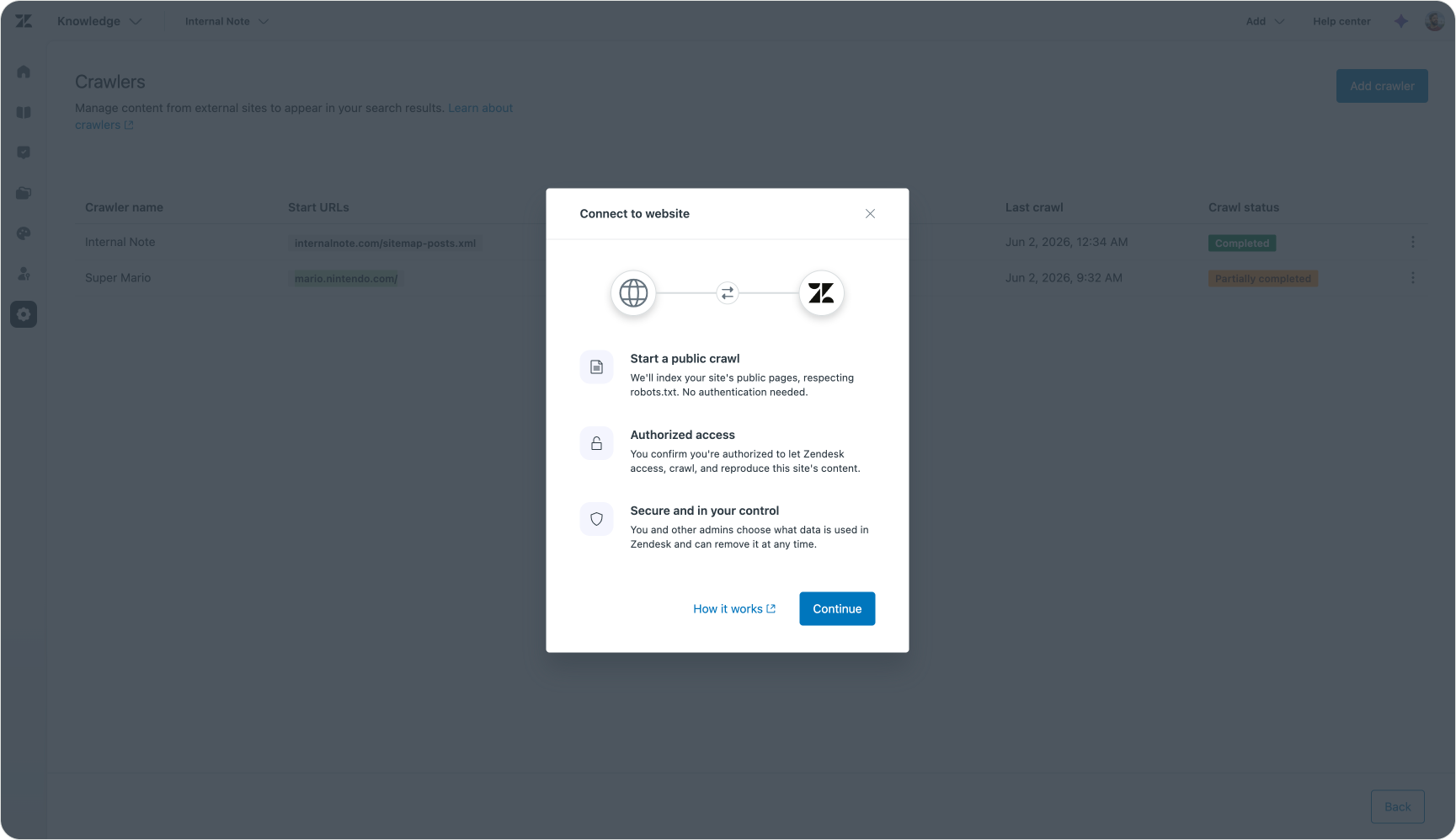
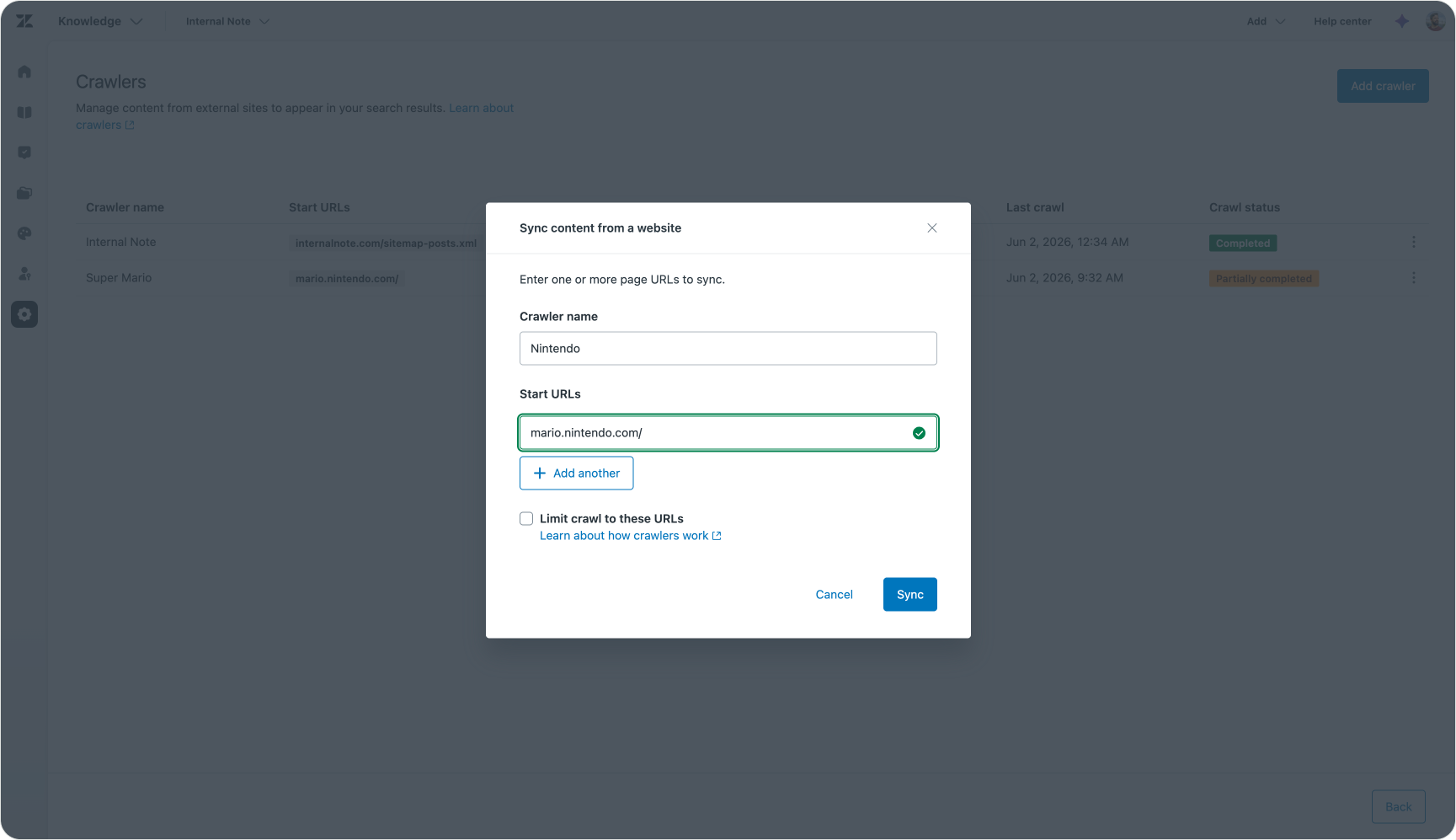
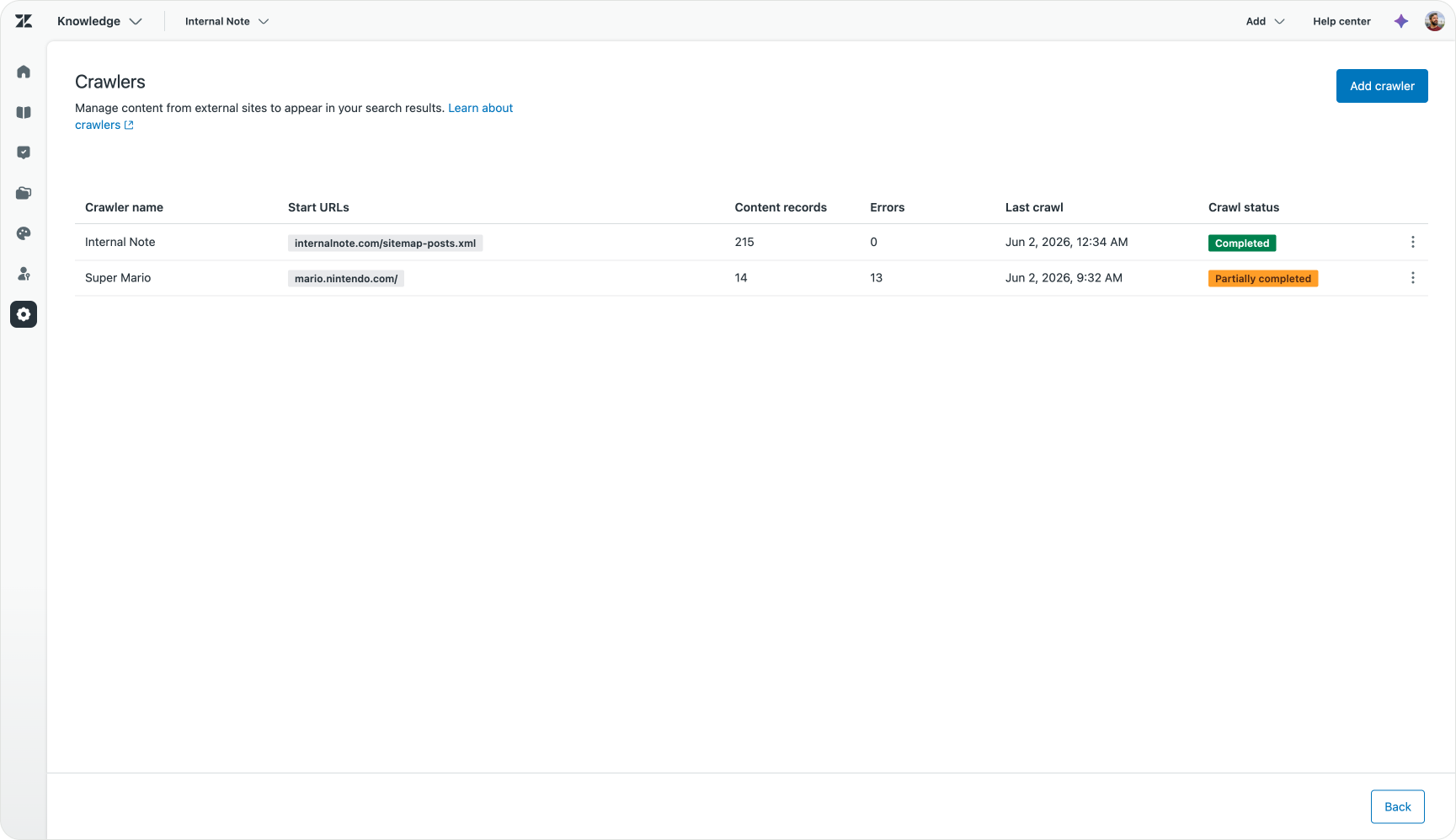
That option to limit it to specific URLs is important. Even though you want your Knowledge Graph to be as rich as possible, sometimes you only want to include a few webpages to fill specific gaps, while leaving older, unrelated or duplicate content out of the indexed set.
Knowledge Connectors
Knowledge Connectors are the way to get access to knowledge locked inside your other tools. Before connectors, you could only bring pages from these external sources into Zendesk via the Federated Search API.
Knowledge Connectors are a native alternative that makes it easy to connect and index other platforms, while respecting how each one is structured and governed. No more export, import, custom scripts or glue code to move data between tools.
Once connected, that content is discoverable across the same surfaces as your Help Center articles: Help Centre search, Quick Answers, the Knowledge panel, Auto Assist and AI Agents.
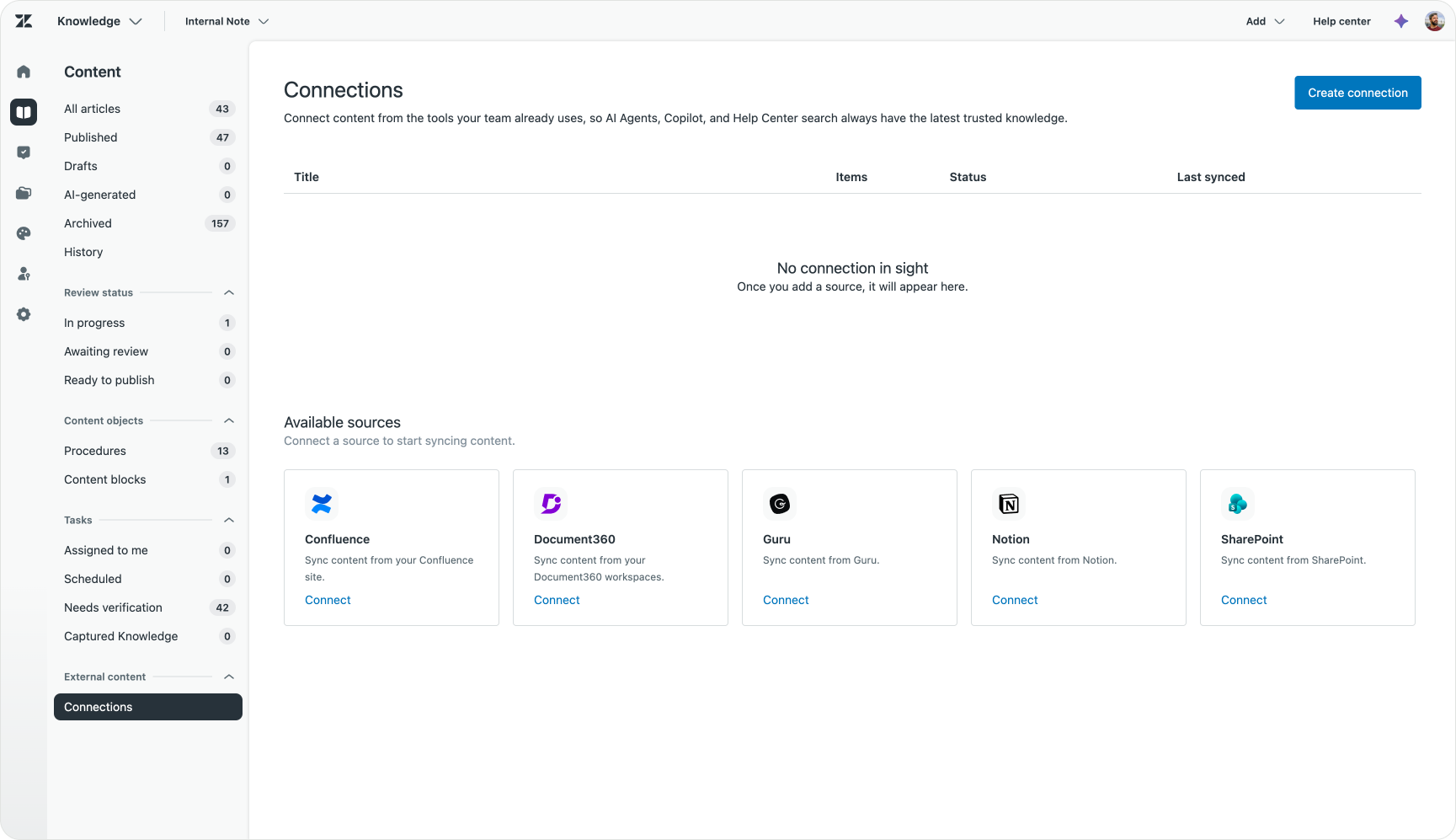
The list of supported connectors has grown quickly over the past year, and now covers most of the tools companies actually keep their knowledge in, including Confluence, Notion, SharePoint, Document360 and Box. Google Drive Shared Drives support is coming soon too, and each new connector brings another silo into the same unified layer.
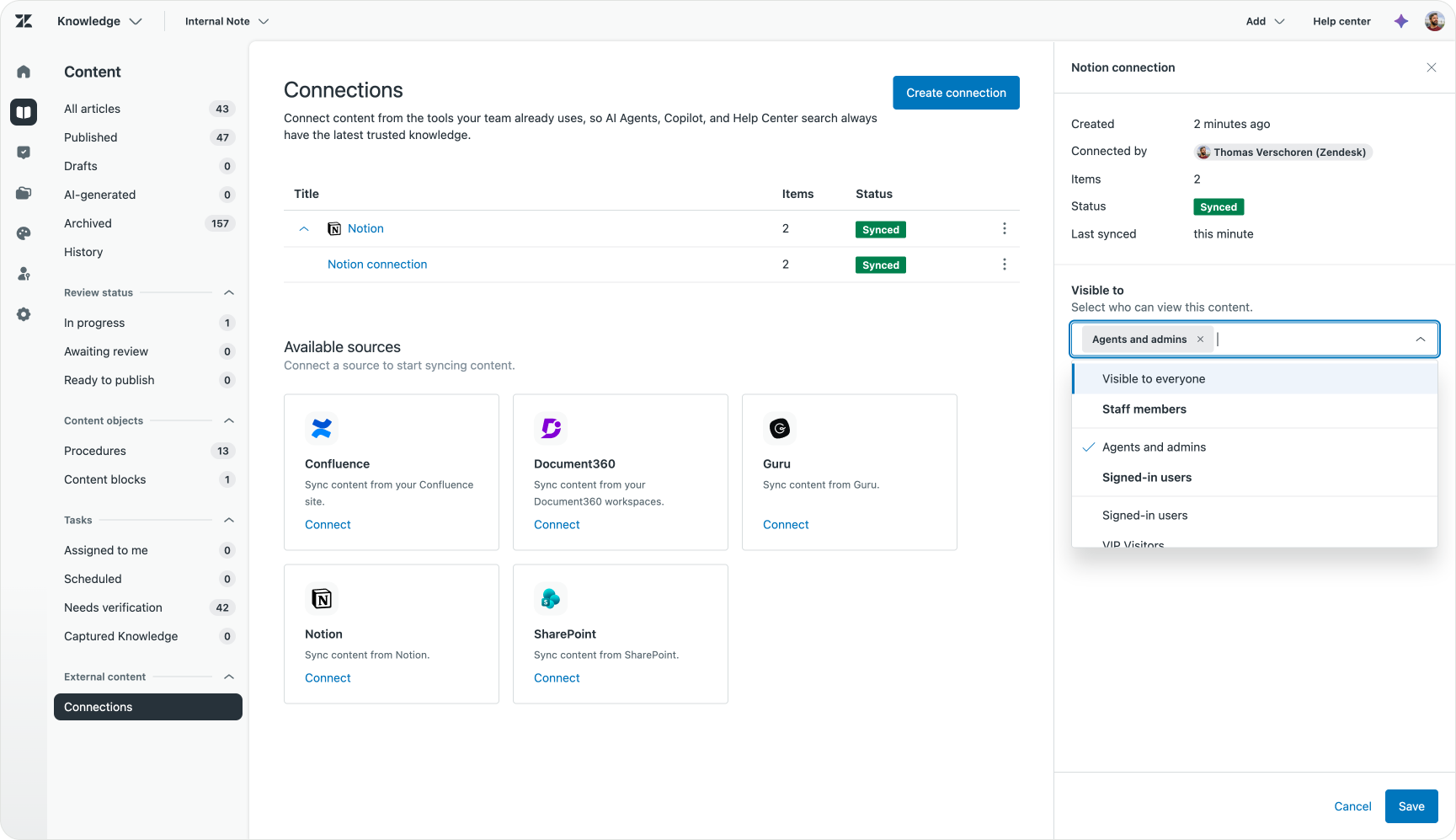
Throughout this article, we’ll follow a set of indexed articles in a Notion database. To get started, we’ll select the Notion connector and authenticate with our workspace. Once that is done, we can select the pages we’d like to index.
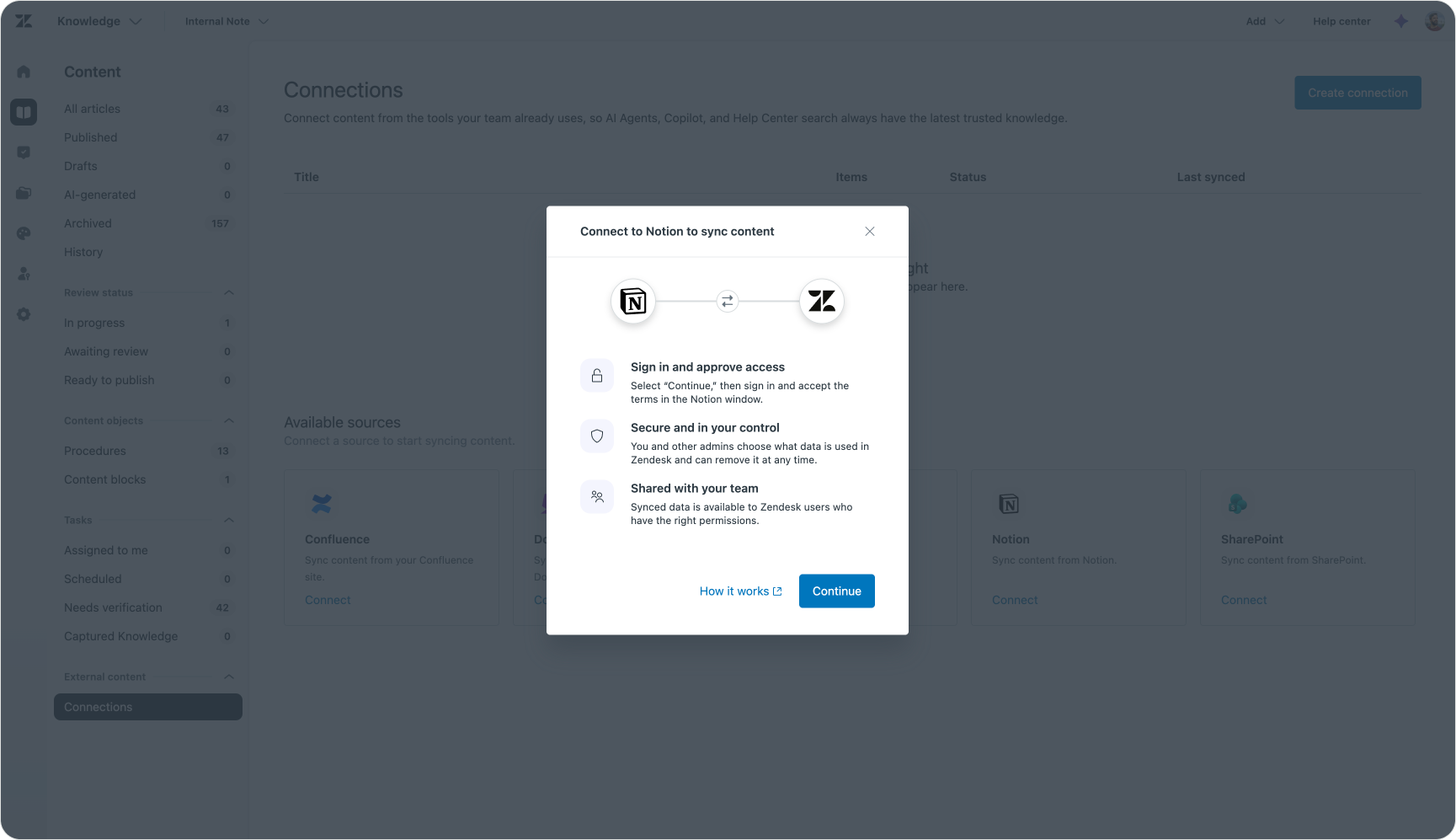
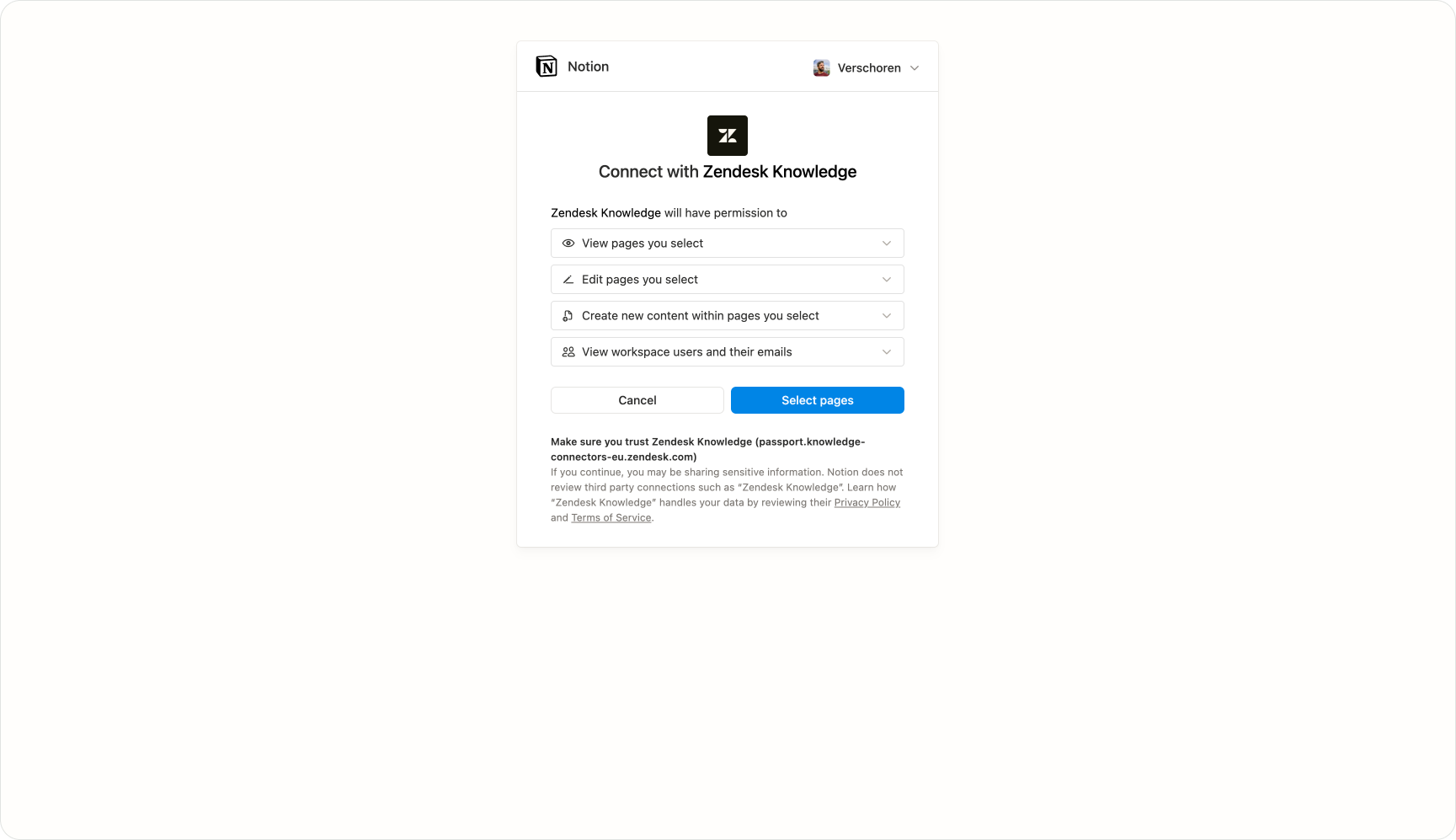
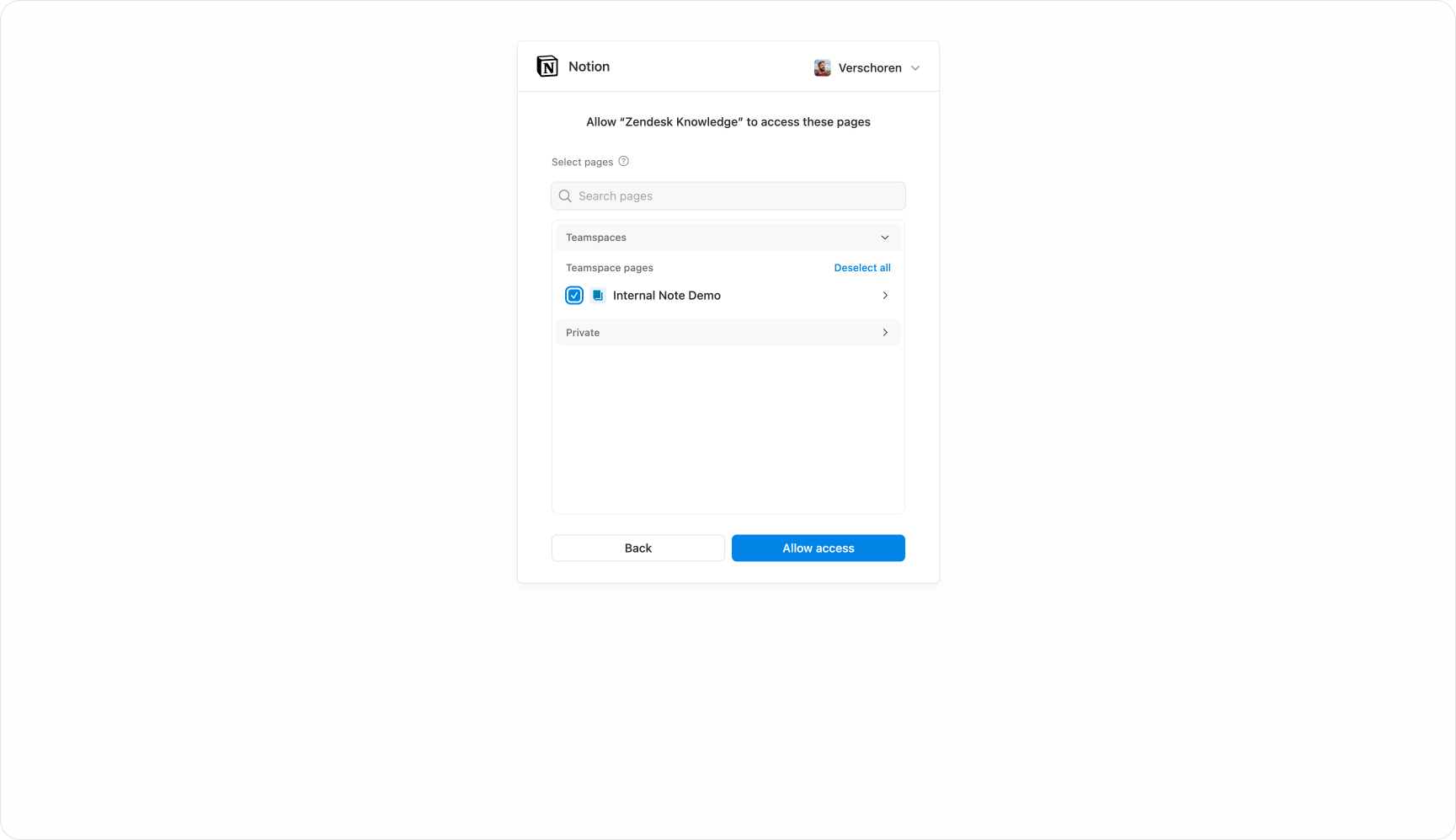
The setup gives you proper control over what is indexed and who sees it. You scope each connection with the same audience segments you know from the Help Center, so everyone, agents only, or specific groups. You also choose which pages to include, with the option to add several.
Beyond articles: PDF ingestion
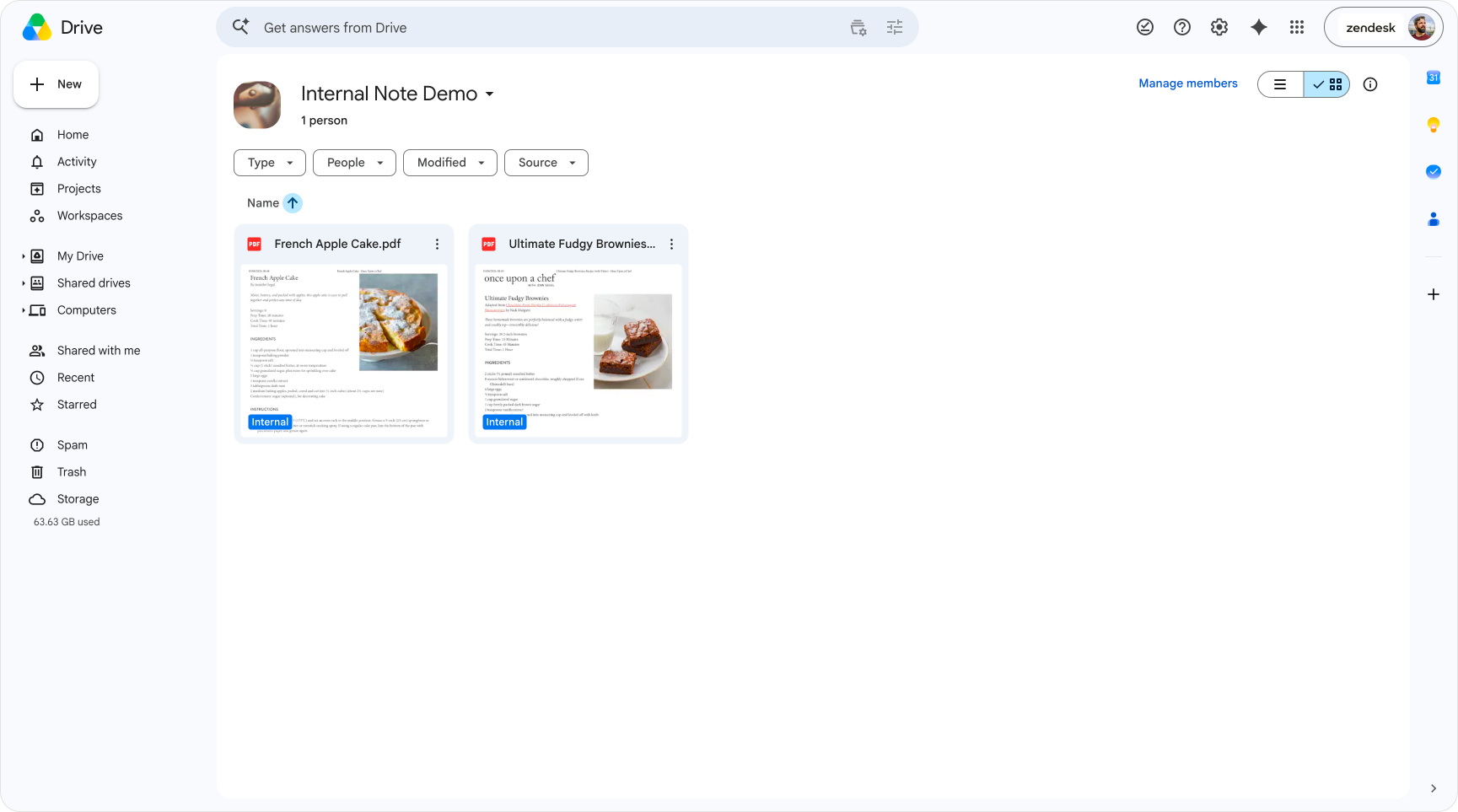
Until recently, connectors handled pages and articles, but not the documents sitting next to them. A SharePoint site full of policy PDFs, for instance, would connect, but the PDFs themselves were skipped and not indexed. PDF ingestion closes that gap.

Any PDFs hosted in your connected sources are automatically pulled in and indexed, extending connectors beyond pages and articles into the documents that sit alongside them.
Their text is extracted and made available to generative search and AI Agents, just like any other article. It unlocks a whole category of document that used to be invisible to the graph. It starts with SharePoint, with Google Drive following once that connector reaches general availability.
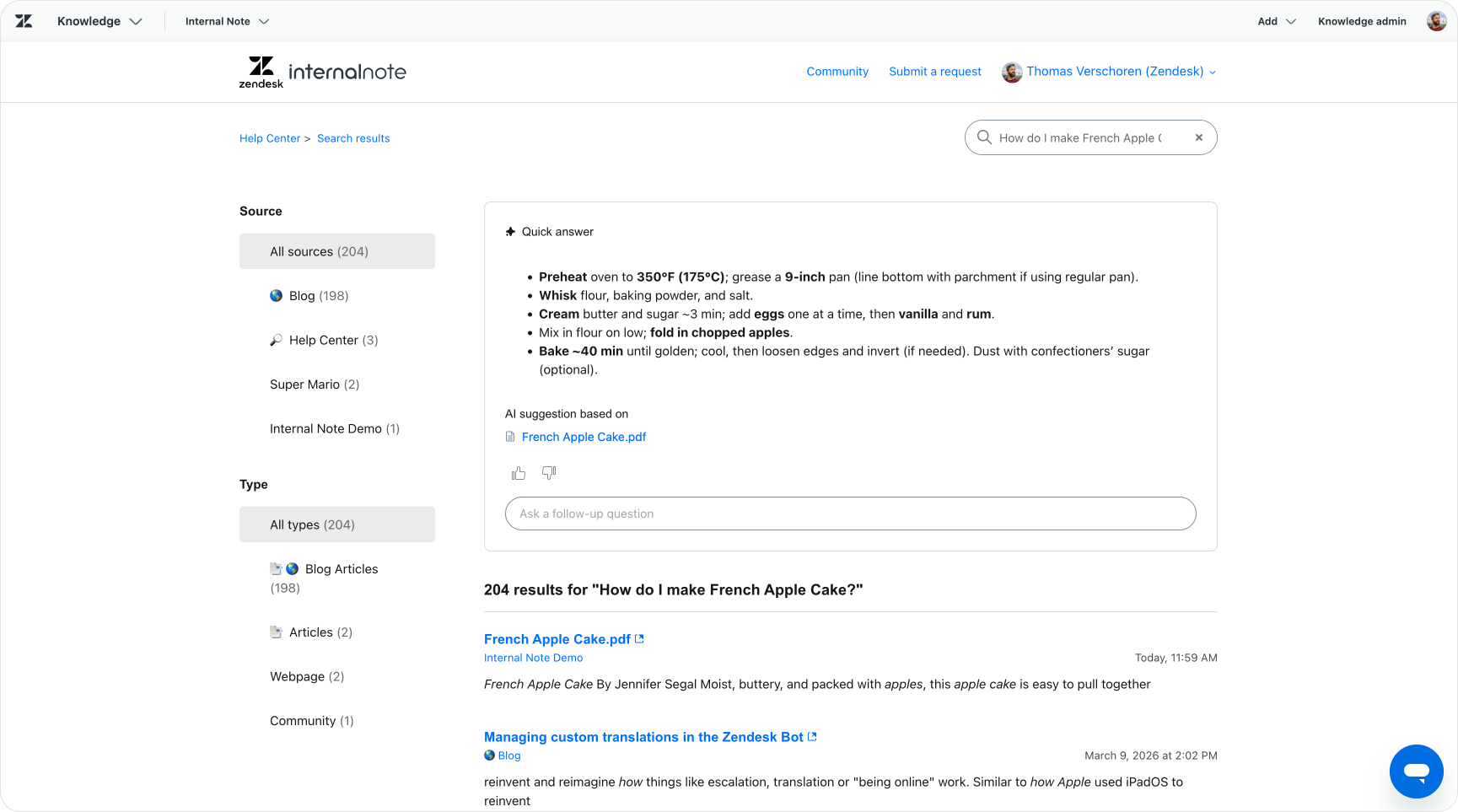
One principle still holds, though. Editable, structured text is always the better source. A clean article beats a PDF, because it is easier to keep current, easier to read and easier to correct when something is wrong. PDF ingestion is there for the cases where the knowledge genuinely lives in a document and converting it is not realistic, not as a way to index every file you own.
Making your content available across channels
Indexing gets the content into the graph. This stage is where it becomes visible for customers, powering AI Agents, and backing up human agents.
Quick Answers
Quick Answers is Zendesk’s generative search for the Help Center. Instead of returning a list of articles, it generates a direct answer to the customer’s question and puts it at the top of the search results, with a link to the sources used. This is where the connected knowledge layer first becomes visible to customers.
People are used to this now. Google, ChatGPT and Gemini have trained us to expect an answer, not a list of links that might contain the answer somewhere in paragraph six. Quick Answers brings that same experience to your Help Center, which makes Zendesk feel a good deal more modern. It is available for all Suite customers.
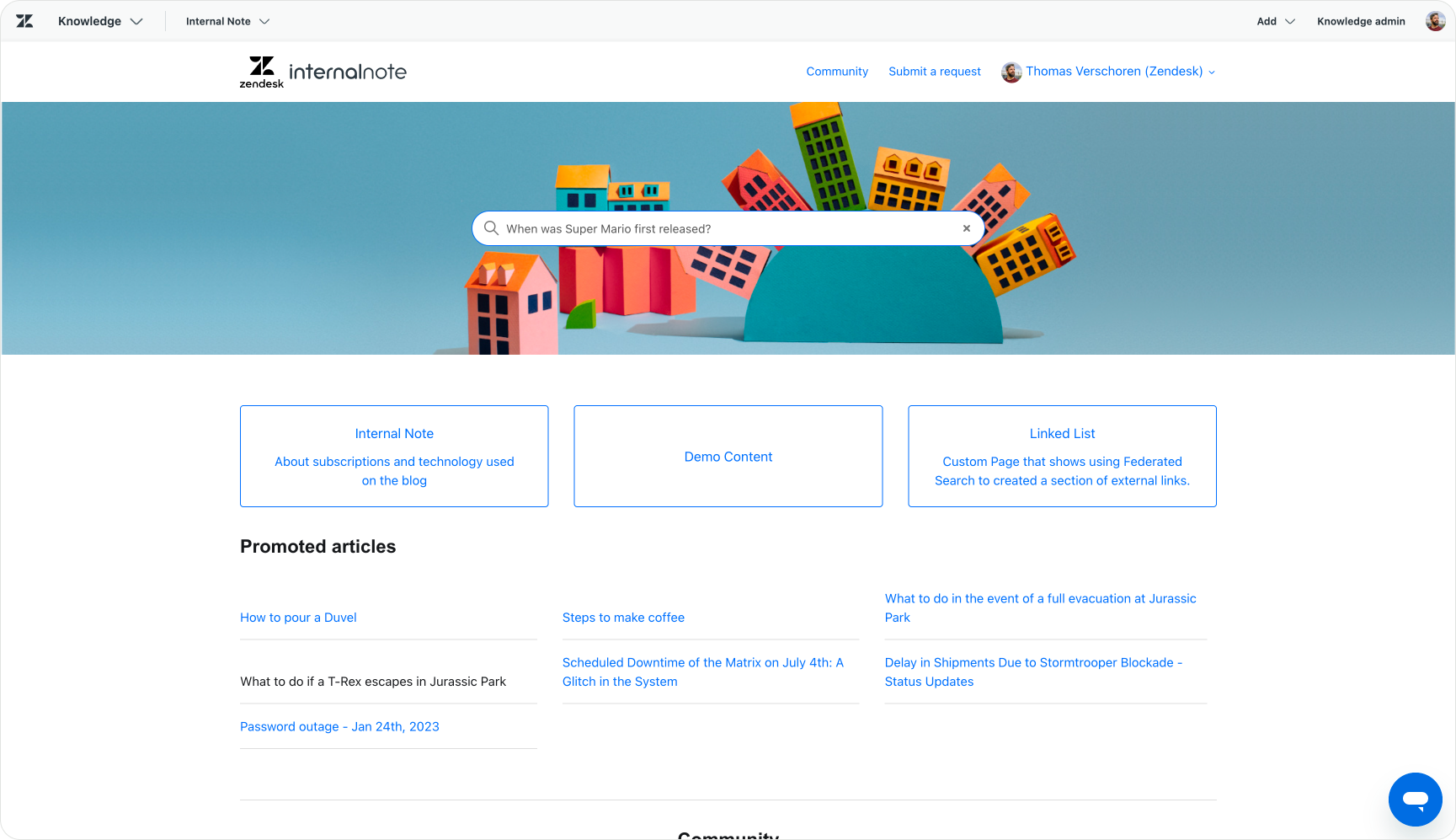
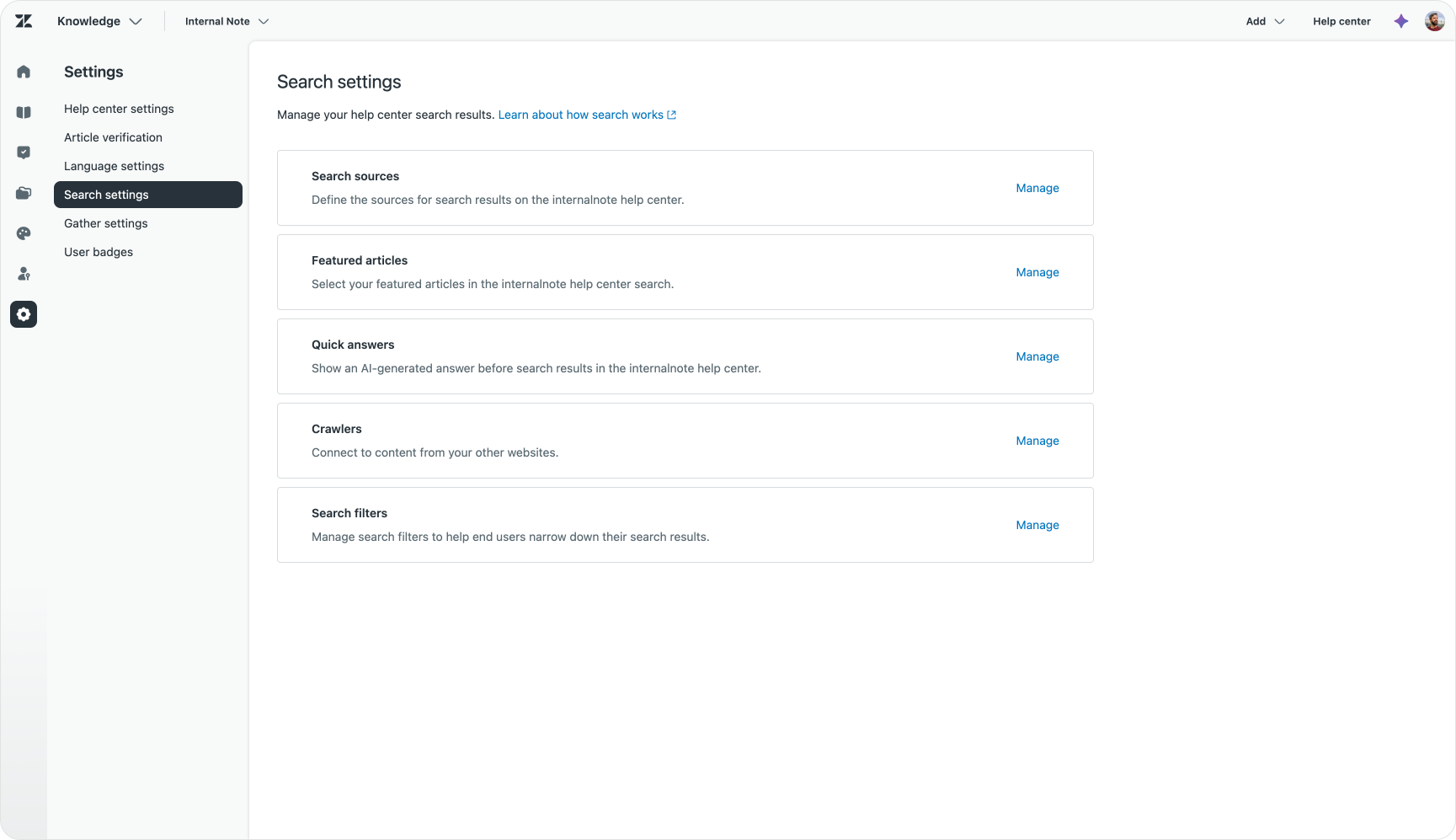
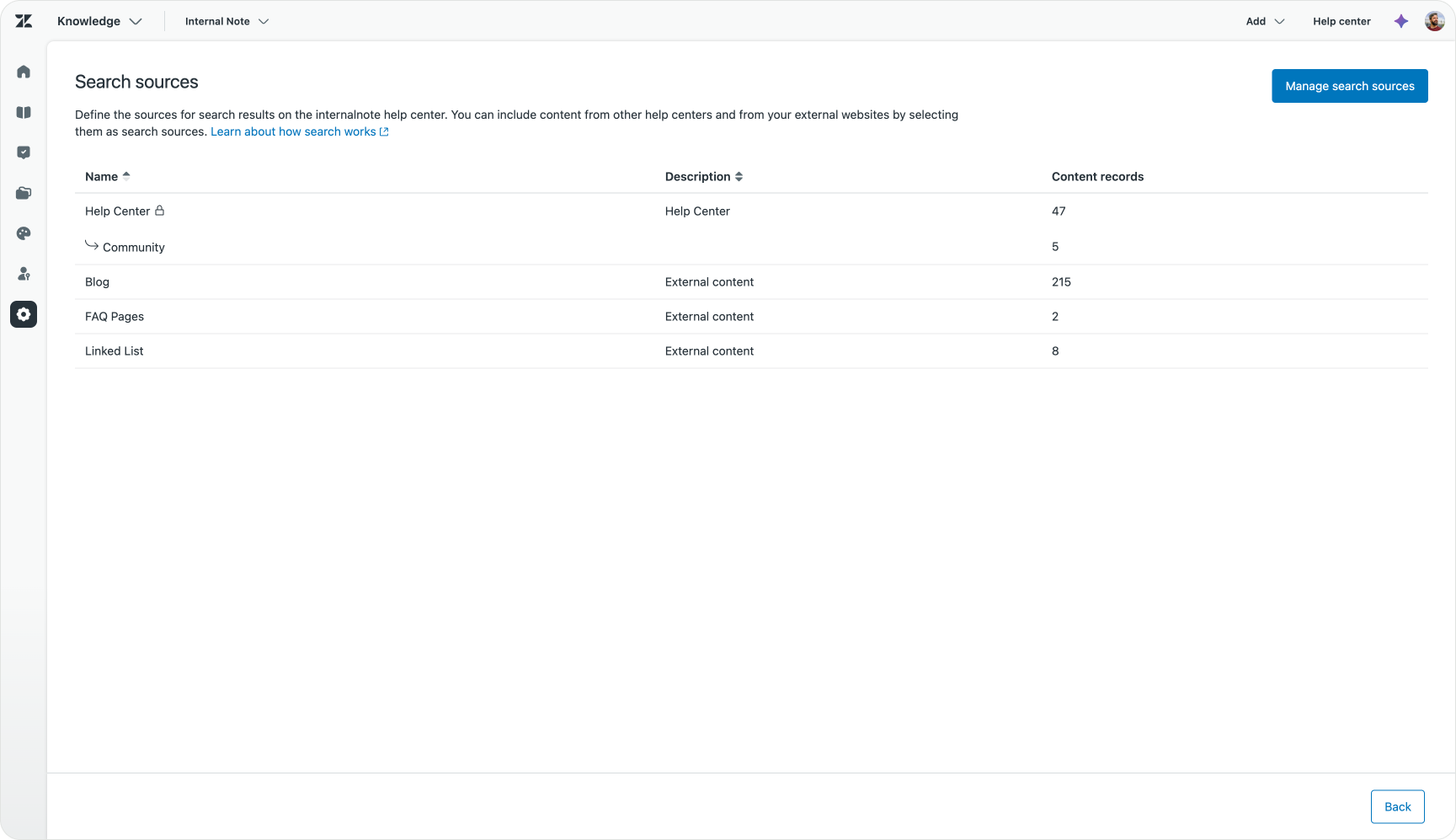
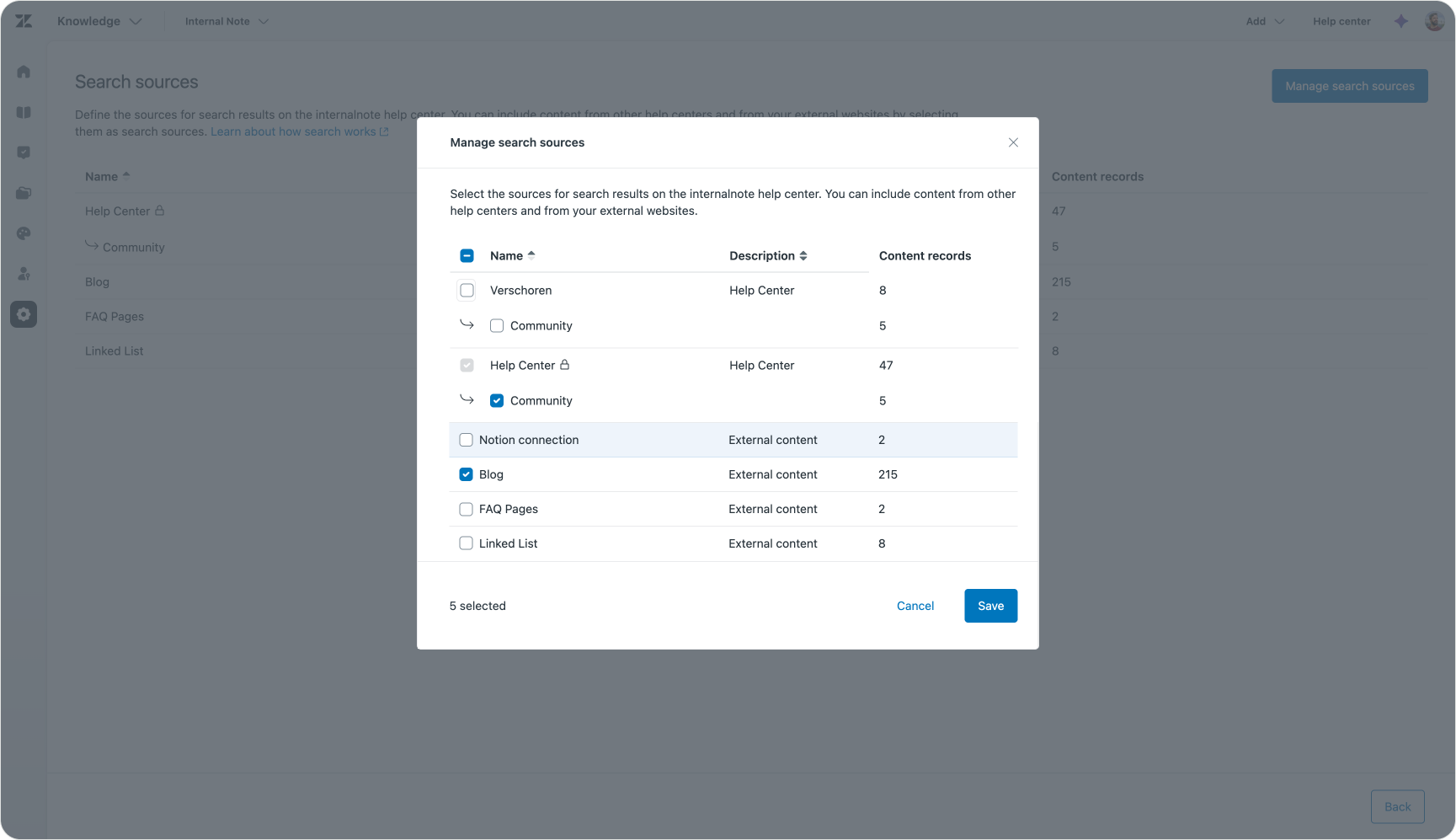
Before Quick Answers shows up in the Help Center, we need to make our indexed source available as a search source. This is done in Knowledge Admin, where you can expand search to include connected sources, other Help Center brands’ content and Federated Search sources.
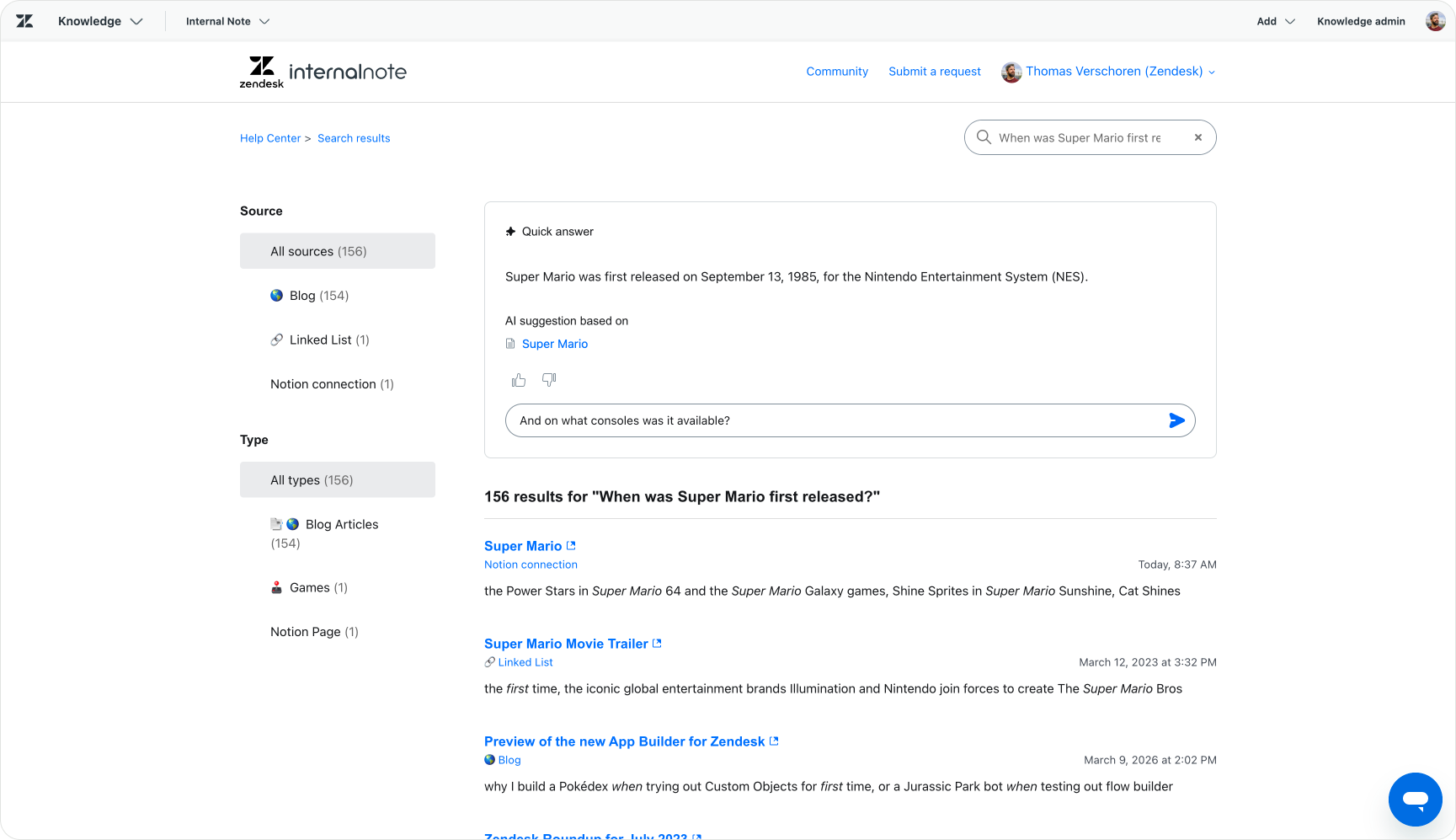
With our Notion connection enabled, we can head to the Help Center and run a search for something covered in those pages. Instead of a plain list of links, a generated Quick Answer appears at the top of the results, pulled straight from the Notion content, with a link to the original page underneath it. The same content that lived in a Notion Teamspace ten minutes ago is now answering a customer’s question in the Help Center.
Worth flagging: if you want customers to actually open that linked Notion page, the page has to be publicly accessible in Notion itself. A private page still gets used to generate the Quick Answer and still surfaces in results, but the link will not go anywhere for the customer. The answer works; the click-through does not.
Conversational Help Center
Quick Answers is no longer just a single-answer experience. If a customer has a follow-up after reading the initial answer, they can carry on the conversation directly with an AI Agent. No new conversation, the handover happens with full context.
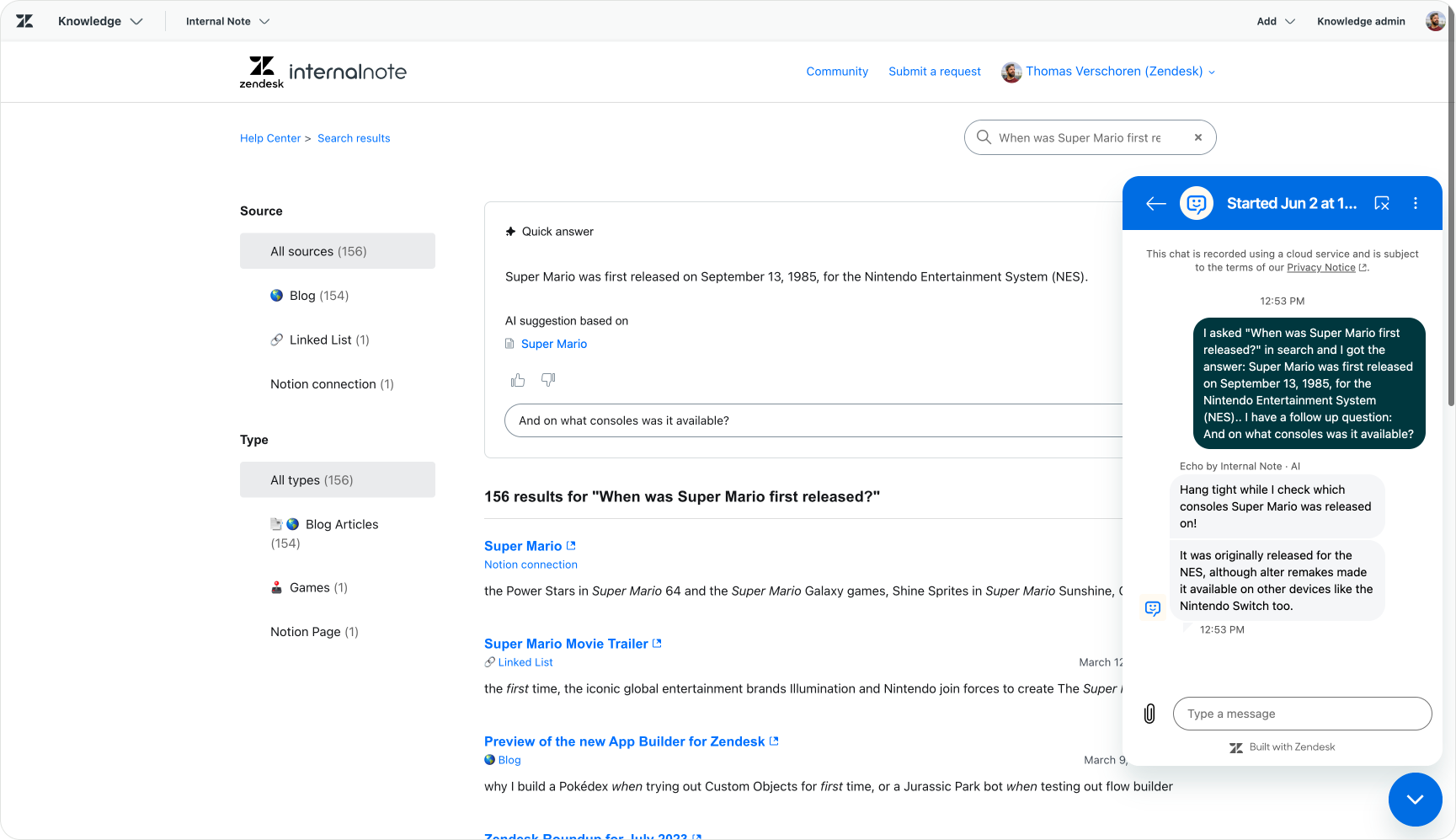
This matters because while Quick Answers is grounded in knowledge, an AI Agent can do more than answer questions. It can handle logic, take actions, ask clarifying questions and reach into external systems. So a customer gets an immediate self-service answer, and if that is not enough, they move up to a full AI-driven conversation without starting over. This is what makes Quick Answers the first response, not the only one.
AI Agents
The new External Knowledge Source option in AI Agent Advanced allows us to select the same sources added via Federated Search or Knowledge Connectors.
In AI Agent Advanced, click Content in the sidebar, then Knowledge. Select External content from the Add Source menu, and authenticate with your Zendesk domain, admin email and API token.
Select the sources you need, such as the Notion connection in this example.
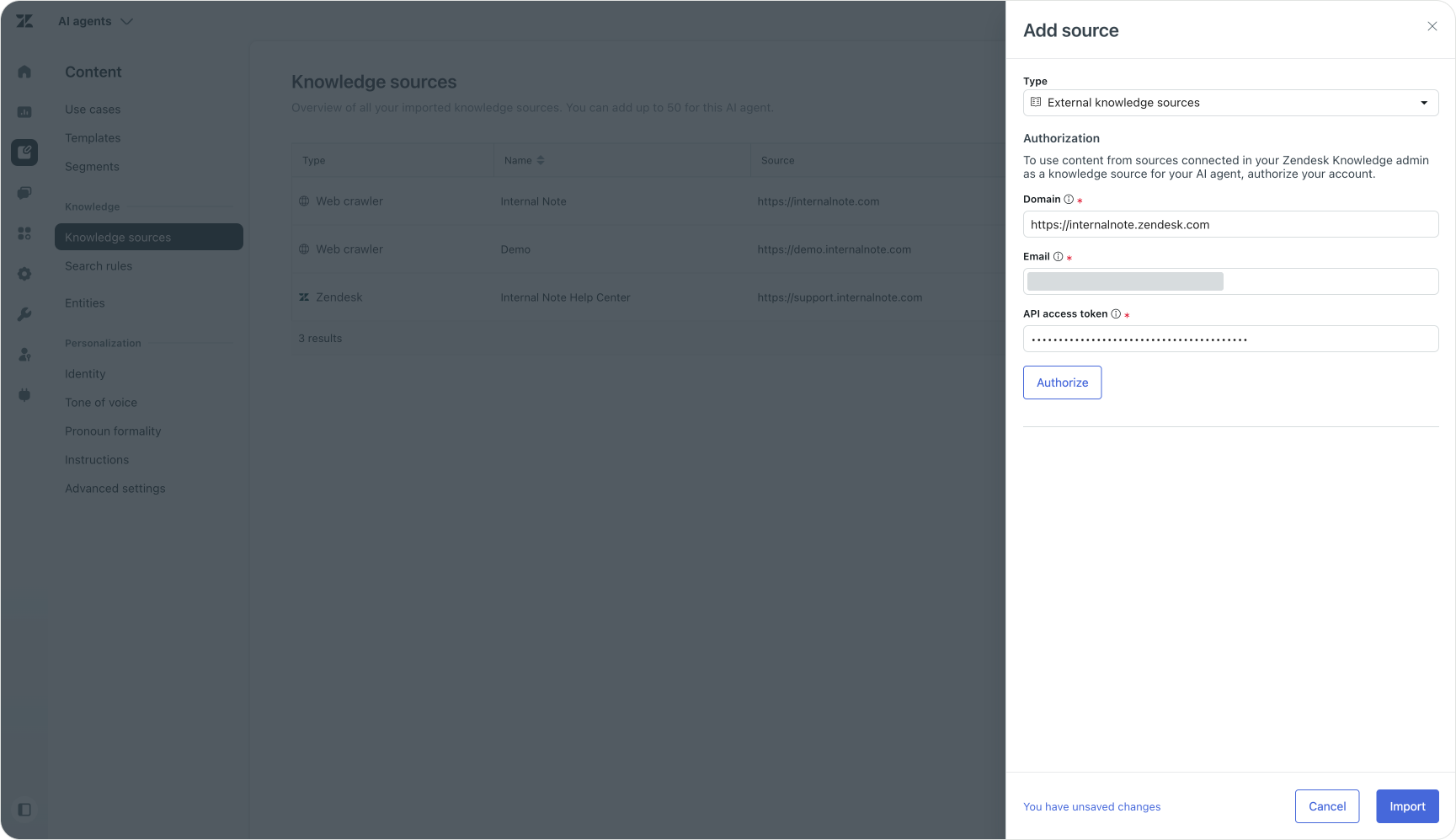
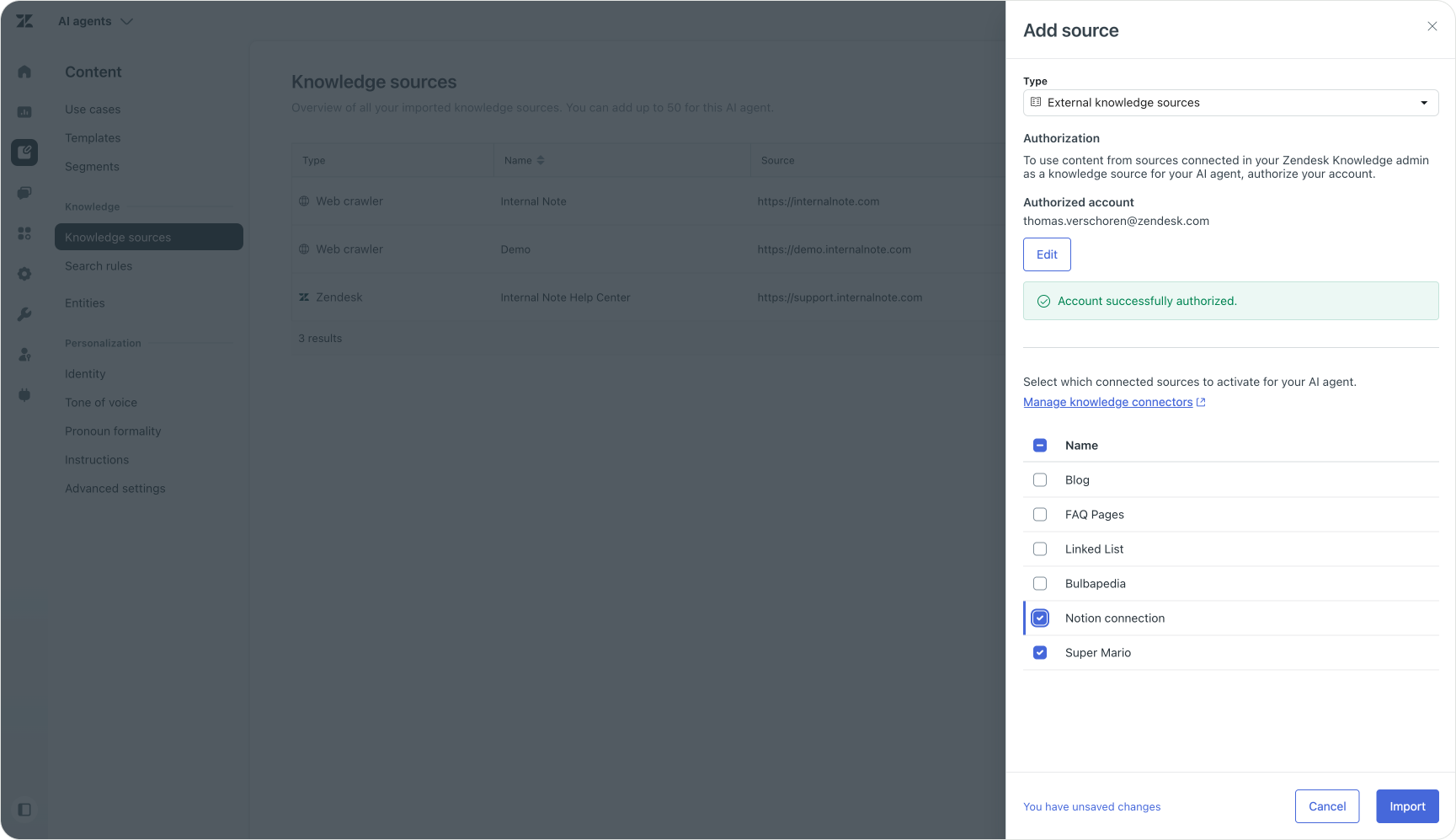
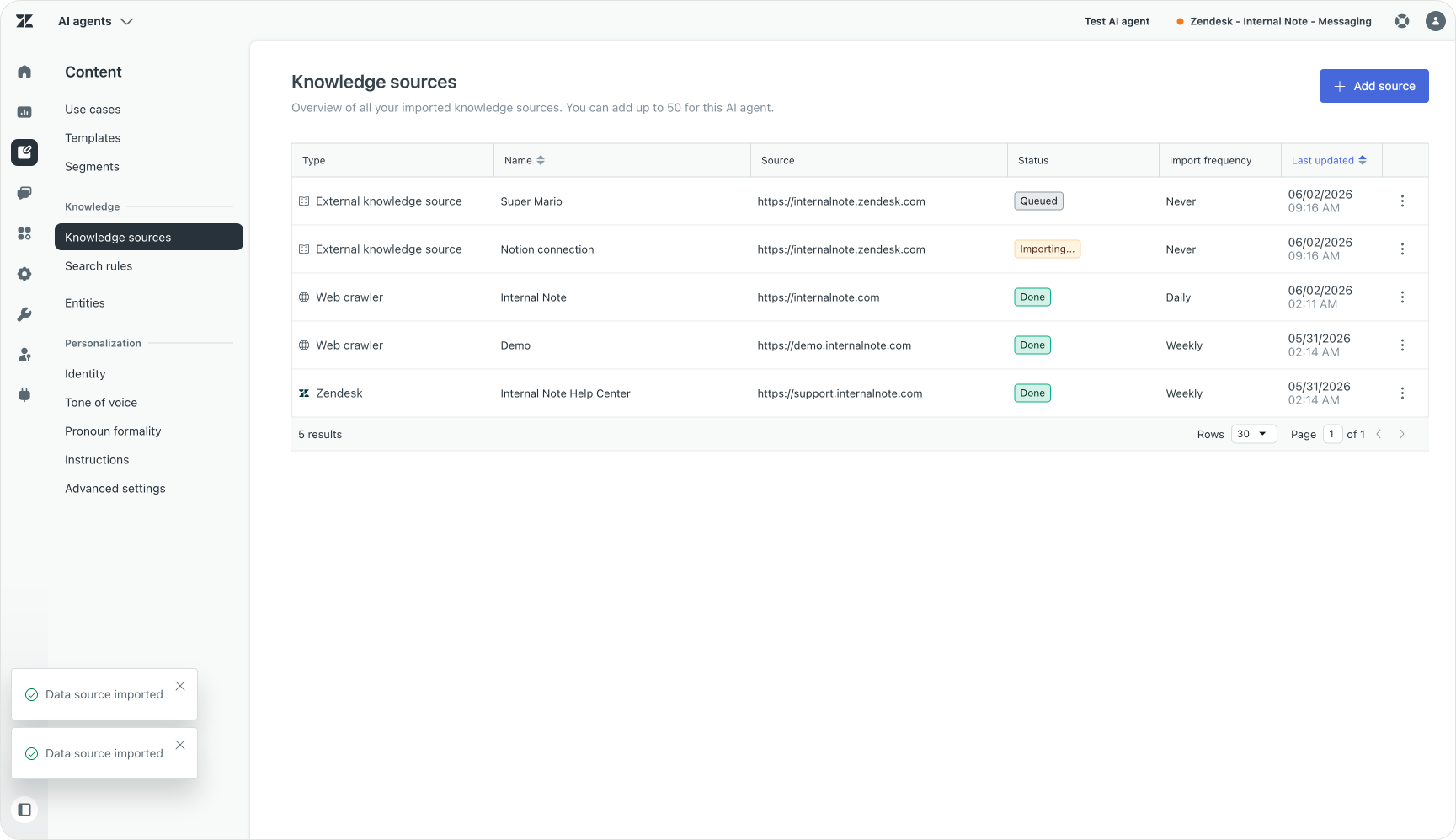
From this point, the agent can generate answers grounded in that Notion content, the same way it would from a Help Center article. The connected knowledge layer now reaches directly into the agent experience.
Segmentation
The way external sources are linked to AI Agents is, for now at least, a little different than the way it works for the Help Center or the old AI Agent Essentials.
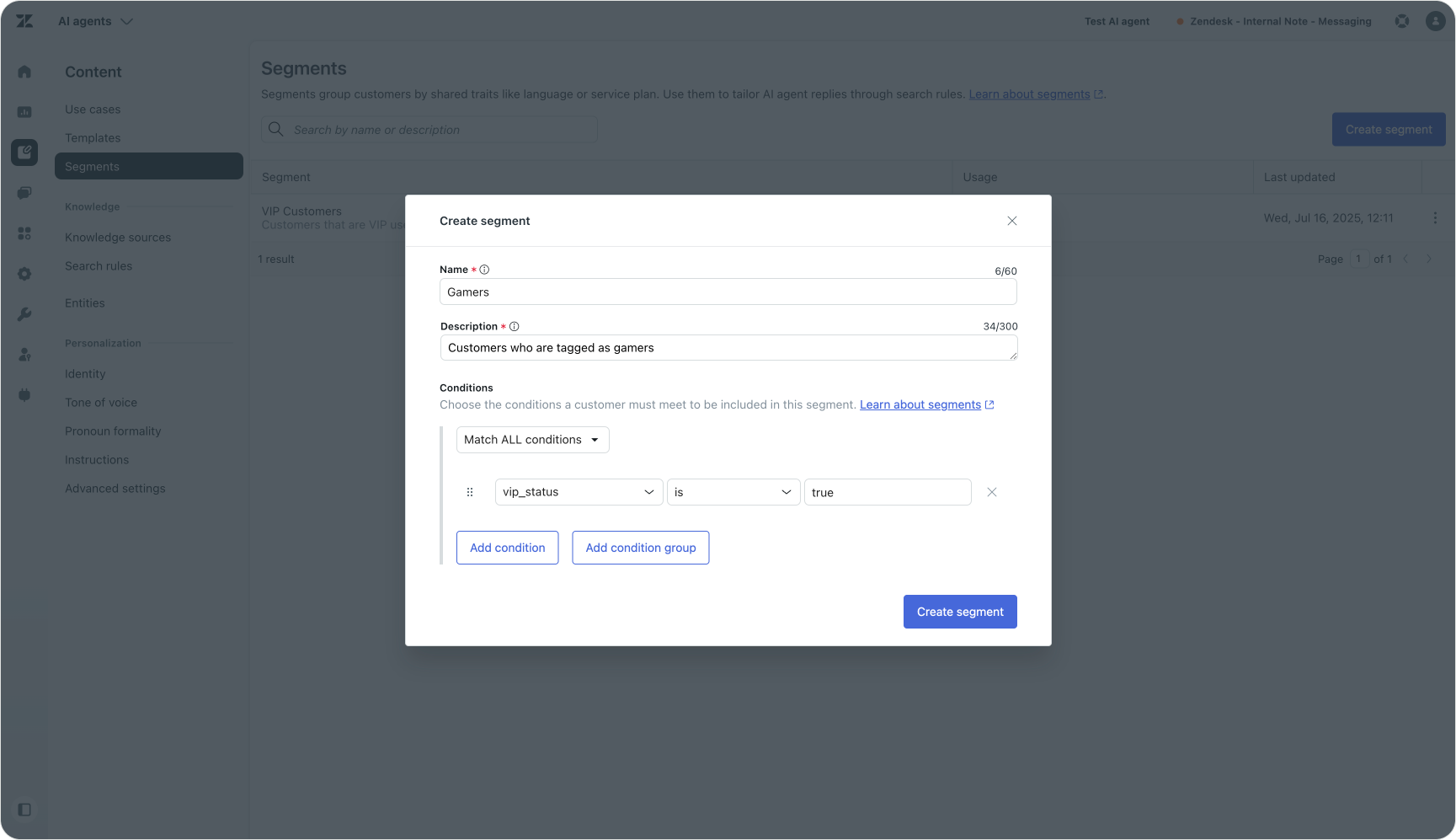
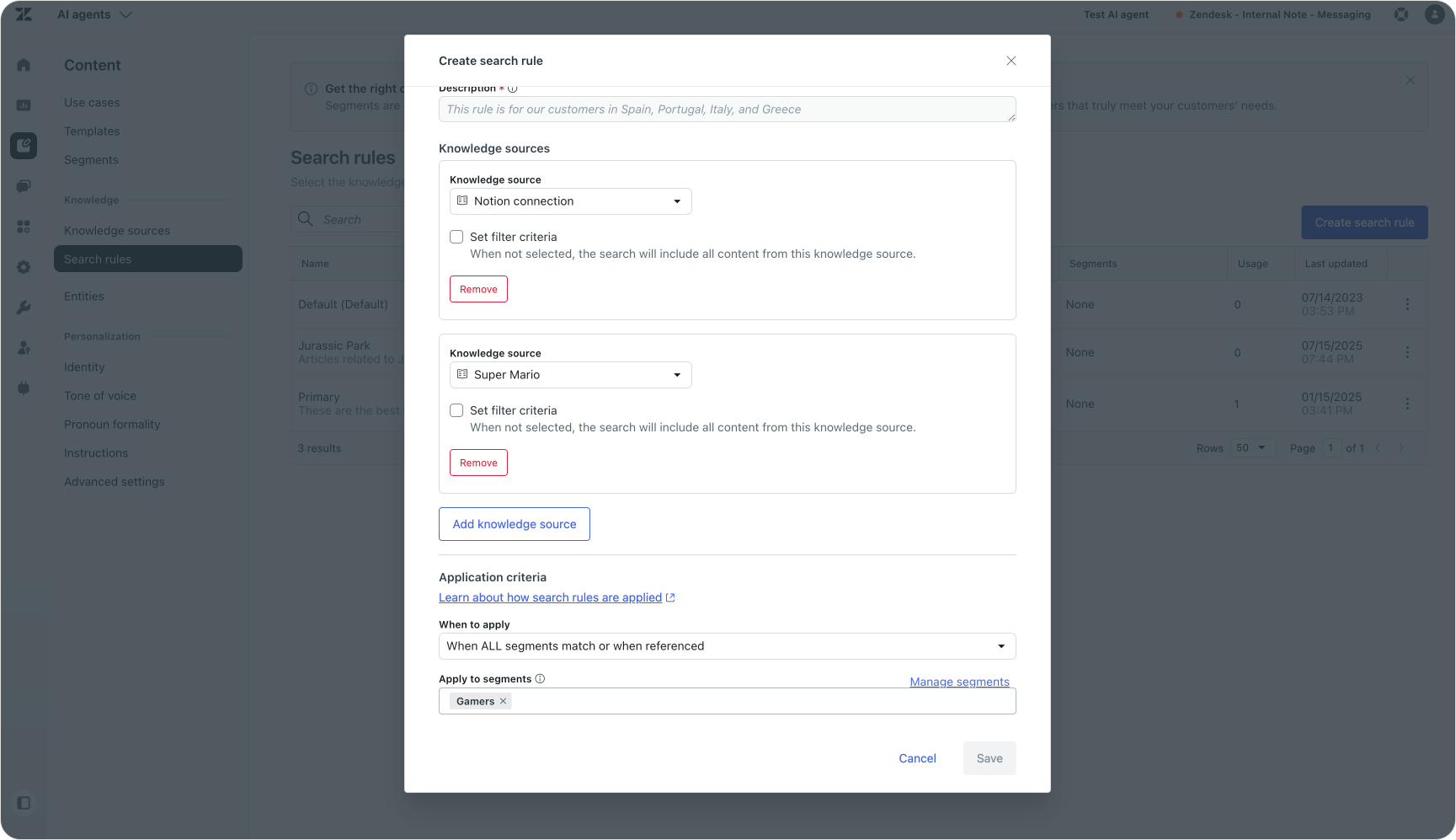
Instead of leveraging a native connection to the Knowledge Graph, AI Agents use the Zendesk API to pull in the connected sources and data. That does not affect their usage or quality, but it does mean that AI Agents, at least today, do not inherit the user segments used by the Help Center.
AI Agent Advanced manages its own audience scoping separately for now, so if you only want these articles shown to a specific audience inside the agent, you need to configure matching segments and search rules there too.
Auto Assist and Agent Workspace
The last stop is Agent Workspace, where the human side of resolution plays out.
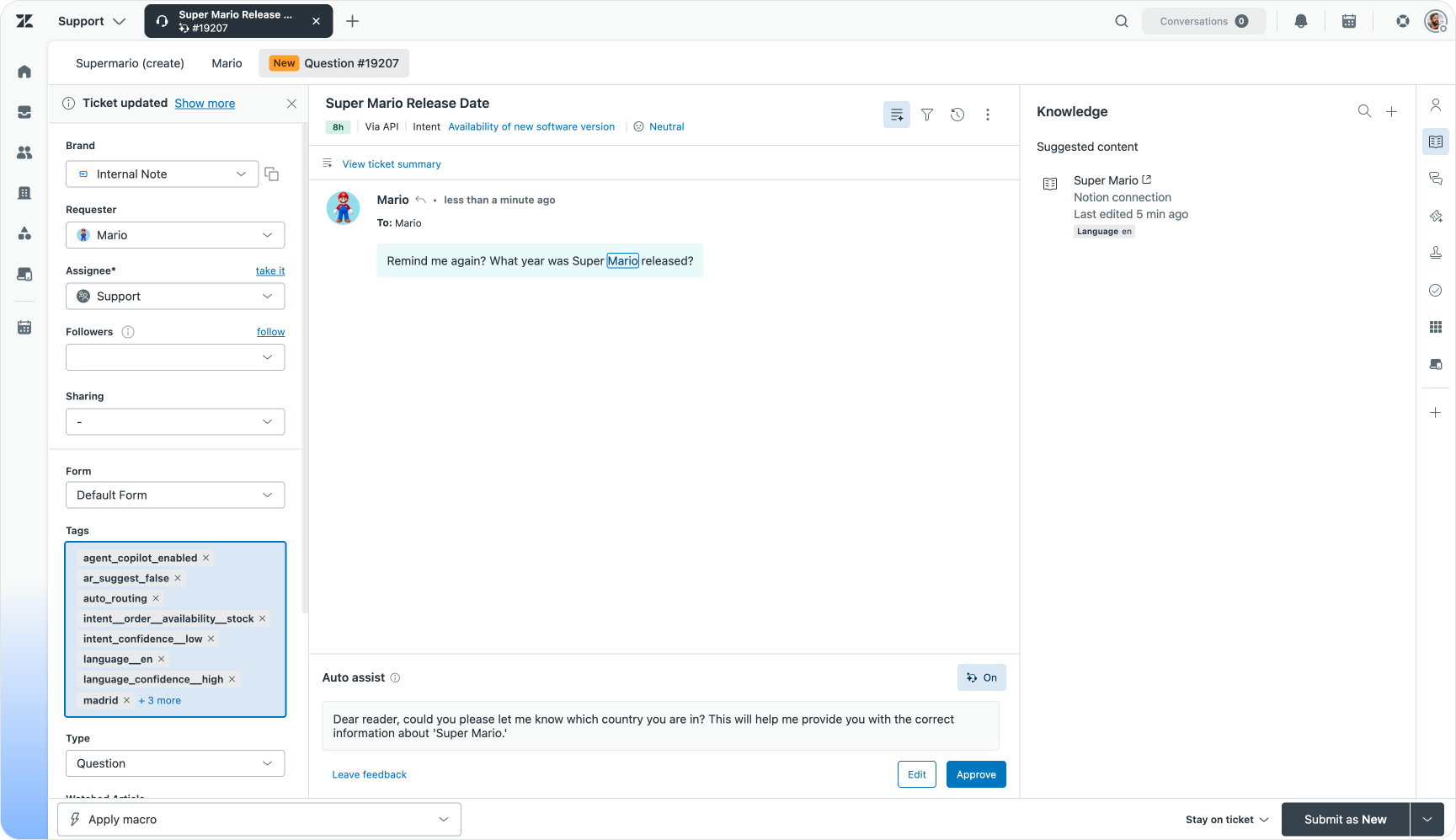
Any sources available in Help Center search also become available in Agent Workspace. Auto Assist uses that same content to generate suggested replies for the agent to approve.
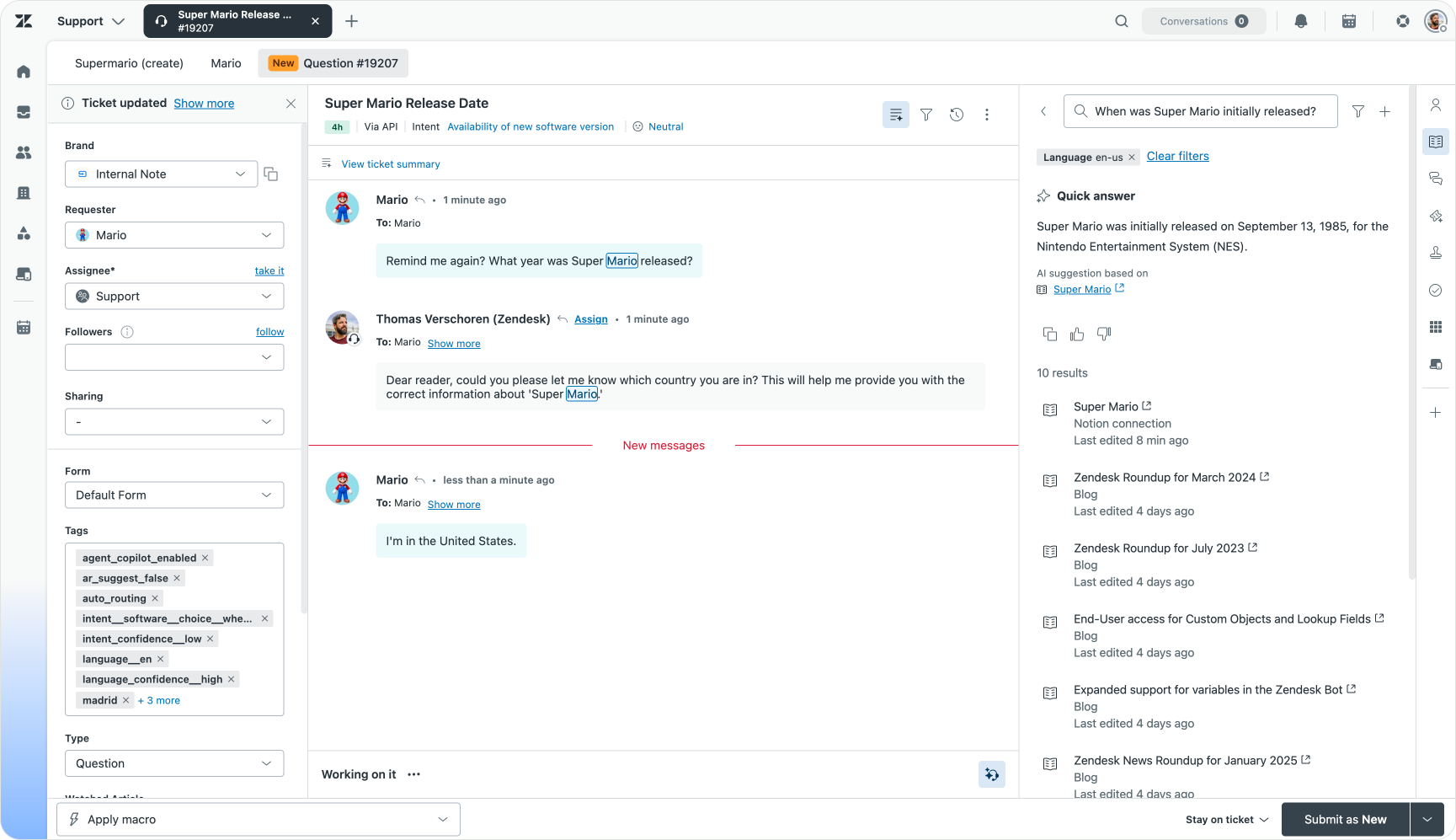
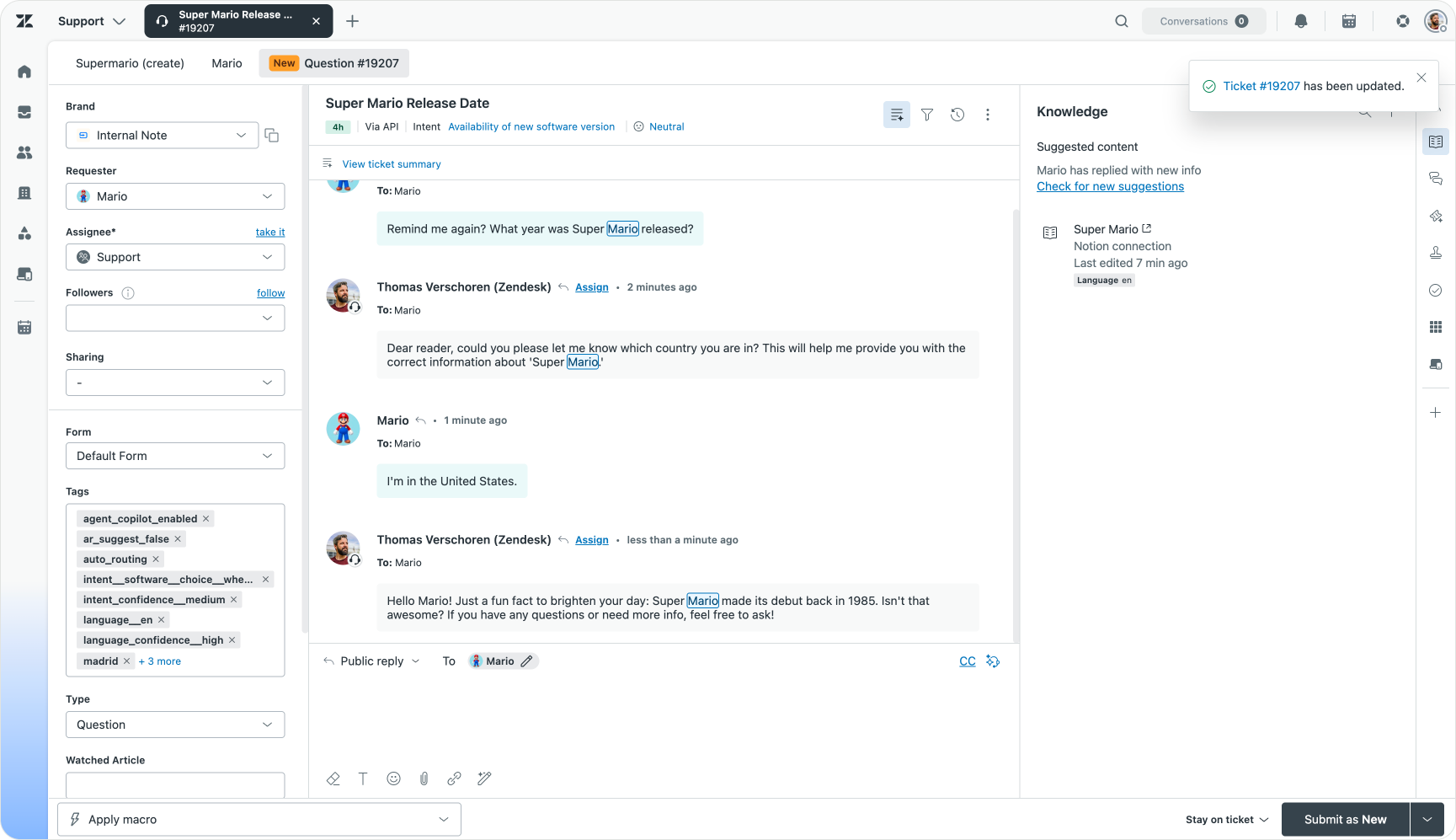
Alongside that, the Knowledge panel in the Context Panel sidebar shows the same Quick Answer and source page, so the agent can verify it before sending. The agent stays in control, but they are no longer hunting through three different tools to answer a question that was documented all along.
That is the full surface area of a single knowledge connector. I added Notion to my Knowledge Graph, and its content is now used for answering customers in the Help Center, powering AI Agents and backing up human agents in Agent Workspace. That is the Knowledge Graph doing exactly what it is meant to do.
Measuring performance with Analytics
You can’t improve what you can’t measure. Once knowledge is indexed and live across your channels, the next job is understanding how it is actually performing.
For now, performance insights are split across two surfaces: Analytics and AI Agents.
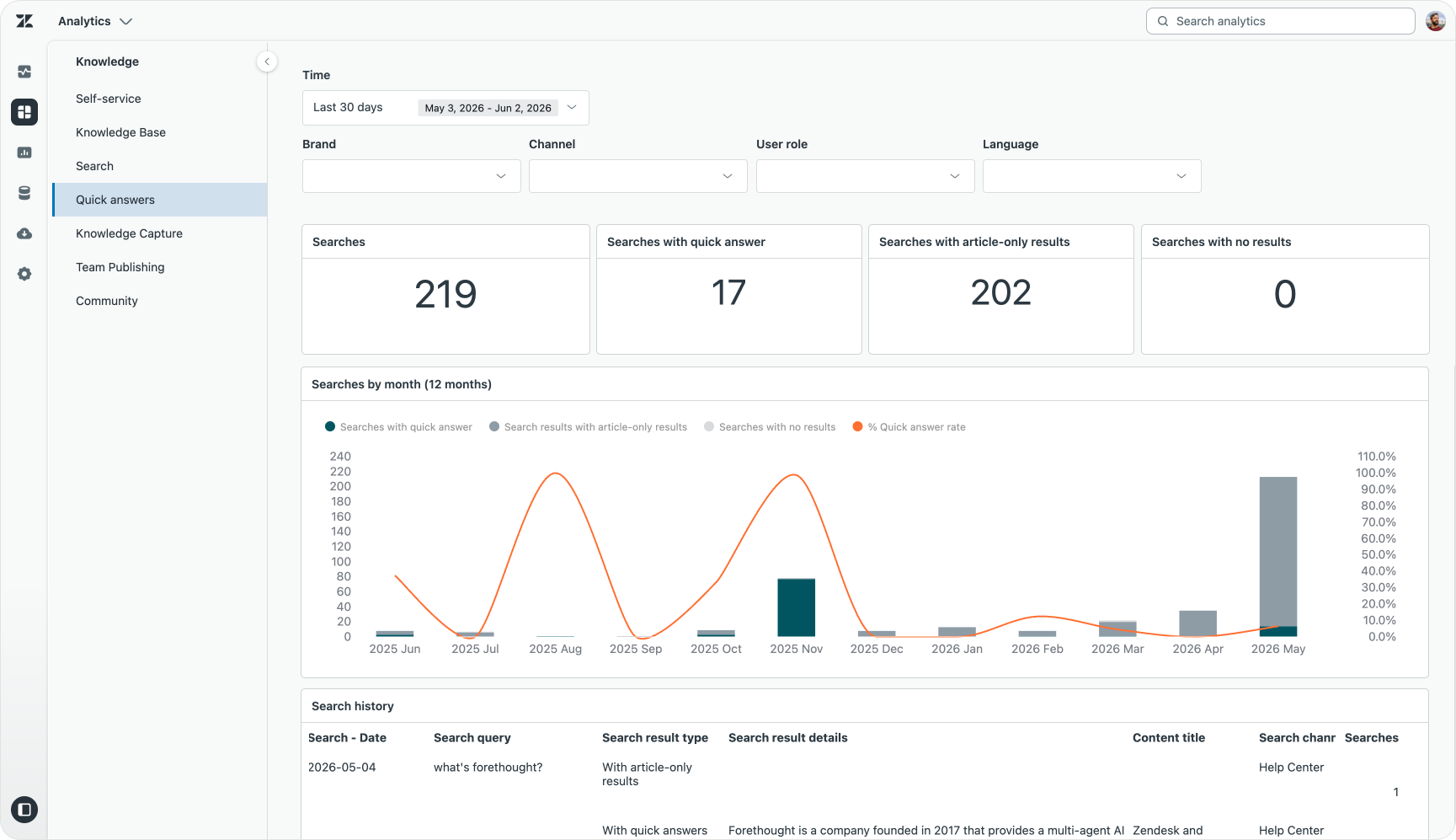
Analytics has a specific Knowledge Dashboard that gives you insight into the performance of your Help Center channel across search and Quick Answers. It shows how searches in your Help Center are being answered, whether users got a Quick Answer, an article-only result or nothing at all. You can filter by time, brand, search channel, user role and locale. It also surfaces which result types are most common, where customers are leaving a thumbs down and a full search history for each query, including the answer text and the source article behind it.
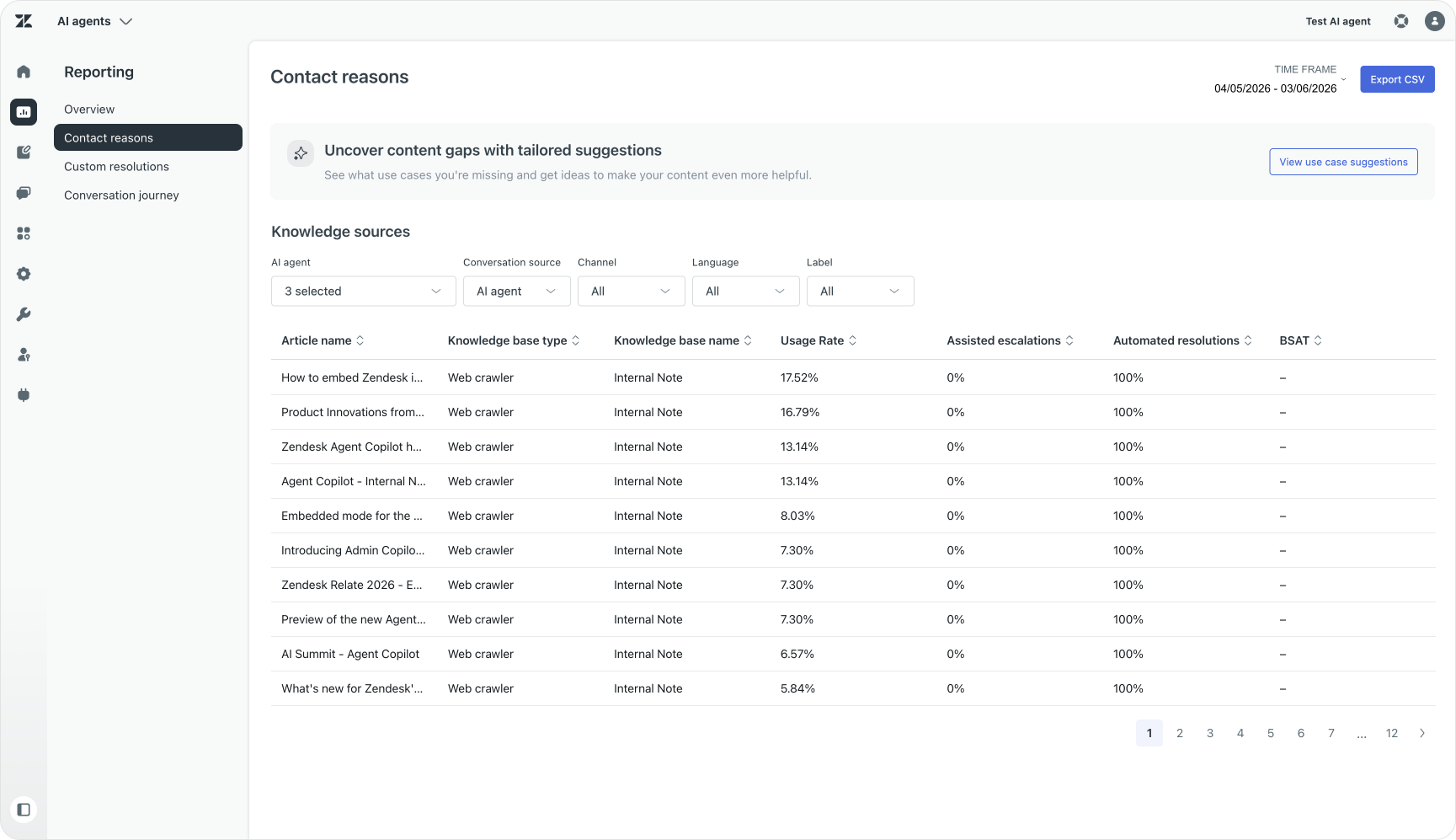
AI Agent reporting, on the other hand, shows you how your AI Agents are using knowledge. It shows which articles are used and where escalations happen.
Two signals matter most here. A high “no result” rate points to genuine gaps, questions your knowledge cannot answer yet. And a Quick Answer that keeps getting a thumbs down points to content that exists but is not good enough. The dashboard lets you trace that bad answer straight back to the source article, so you know exactly what to fix.
This is the data that feeds the final stage. Analytics tells you what is going on and how it is being used. The next step is acting on it.
Improving your knowledge with Knowledge Copilot
Reporting has three jobs. You need to know what is being searched for. You need to know the results of the answers you give. And you need to know what should be improved next. Analytics covered the first two. The third, turning all that signal into actual suggestions for improvement, is where Knowledge Copilot comes in.
This is the Learning Loop made real. Knowledge Copilot is currently in Early Access, and it is an extension of Admin Copilot, a dedicated admin tool that turns customer and agent activity into insights and proactive recommendations. Where Analytics tells you what is happening, Knowledge Copilot turns that signal into next-step guidance.
It is best understood through the jobs it does for a knowledge manager:
- Knowledge Home: Know the state of your knowledge at a glance.
- Recommendations: Know what to fix next.
- AI Assistant: Get help creating and updating knowledge.
Knowledge Home
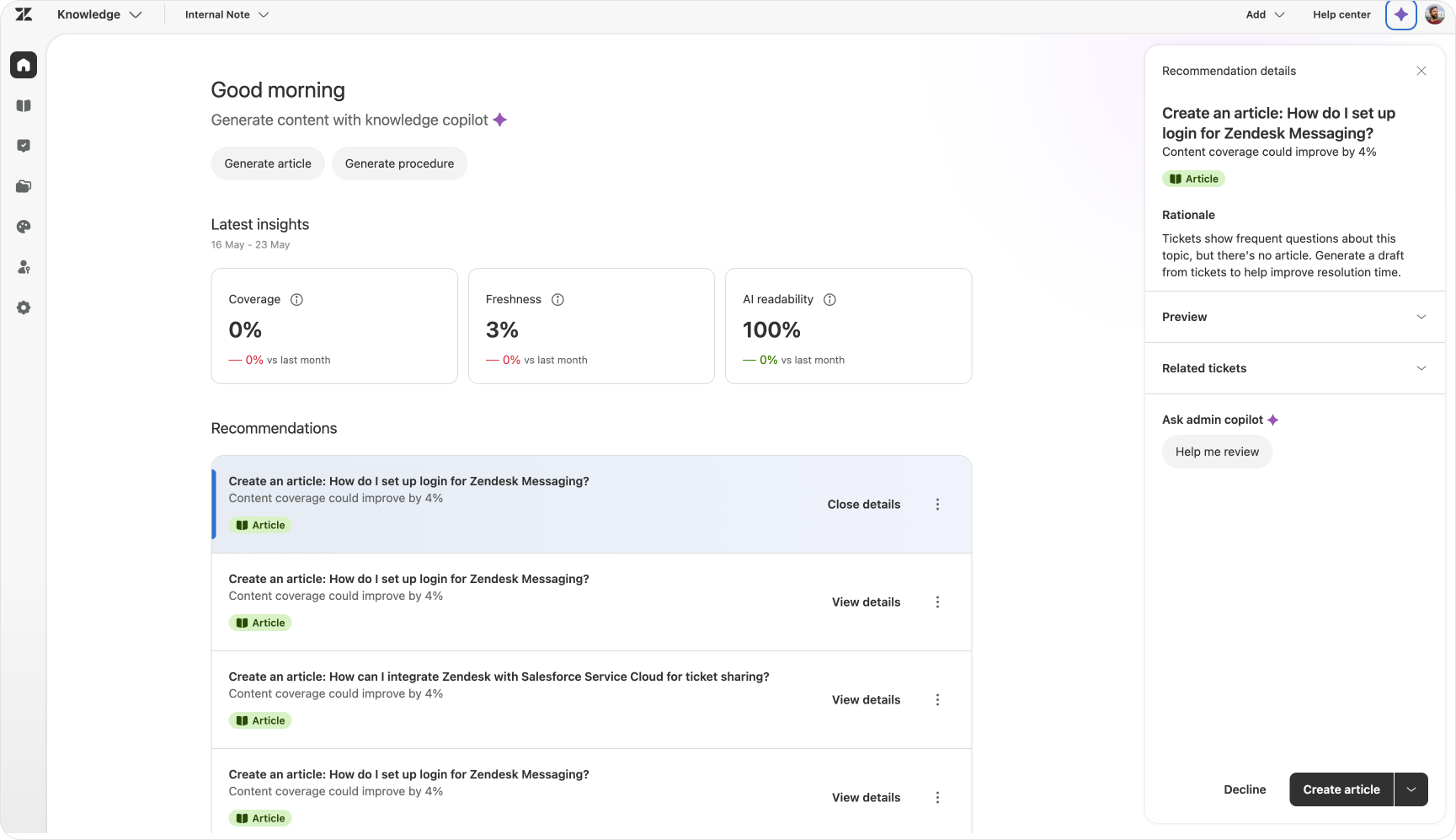
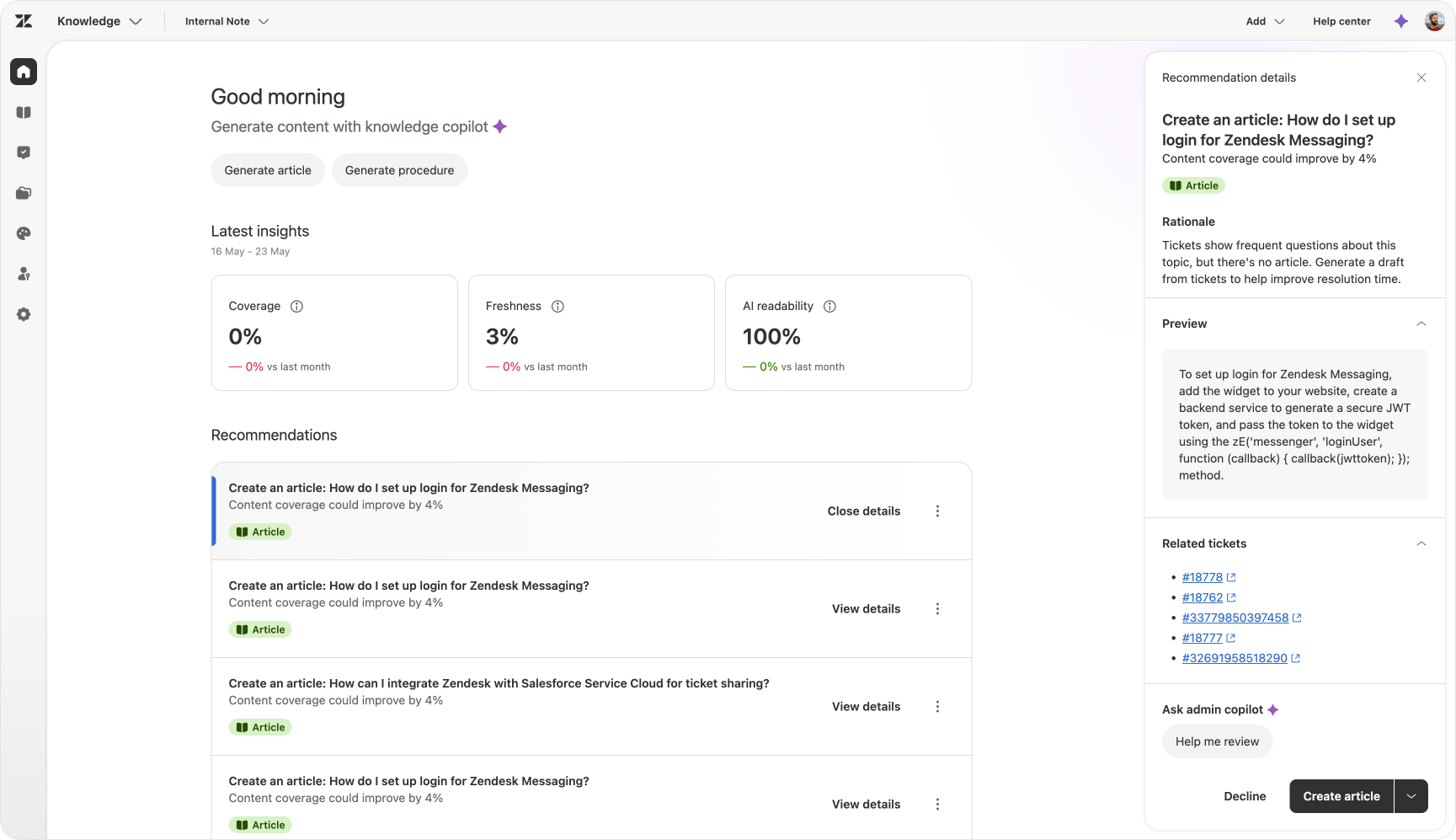
When you open Knowledge admin, you now land on a new home page instead of a list of articles. It shows your knowledge base health across three dimensions: coverage, so whether there are gaps; freshness, so whether articles are up to date; and AI readability, so whether your content is easy for Zendesk AI to use.
Recommendations
Rather than leaving you to guess, the home page surfaces proactive recommendations, starting with suggestions to create or update articles based on real ticket trends. This puts the elements that will make an impact on your resolutions front and center.
AI Assistant
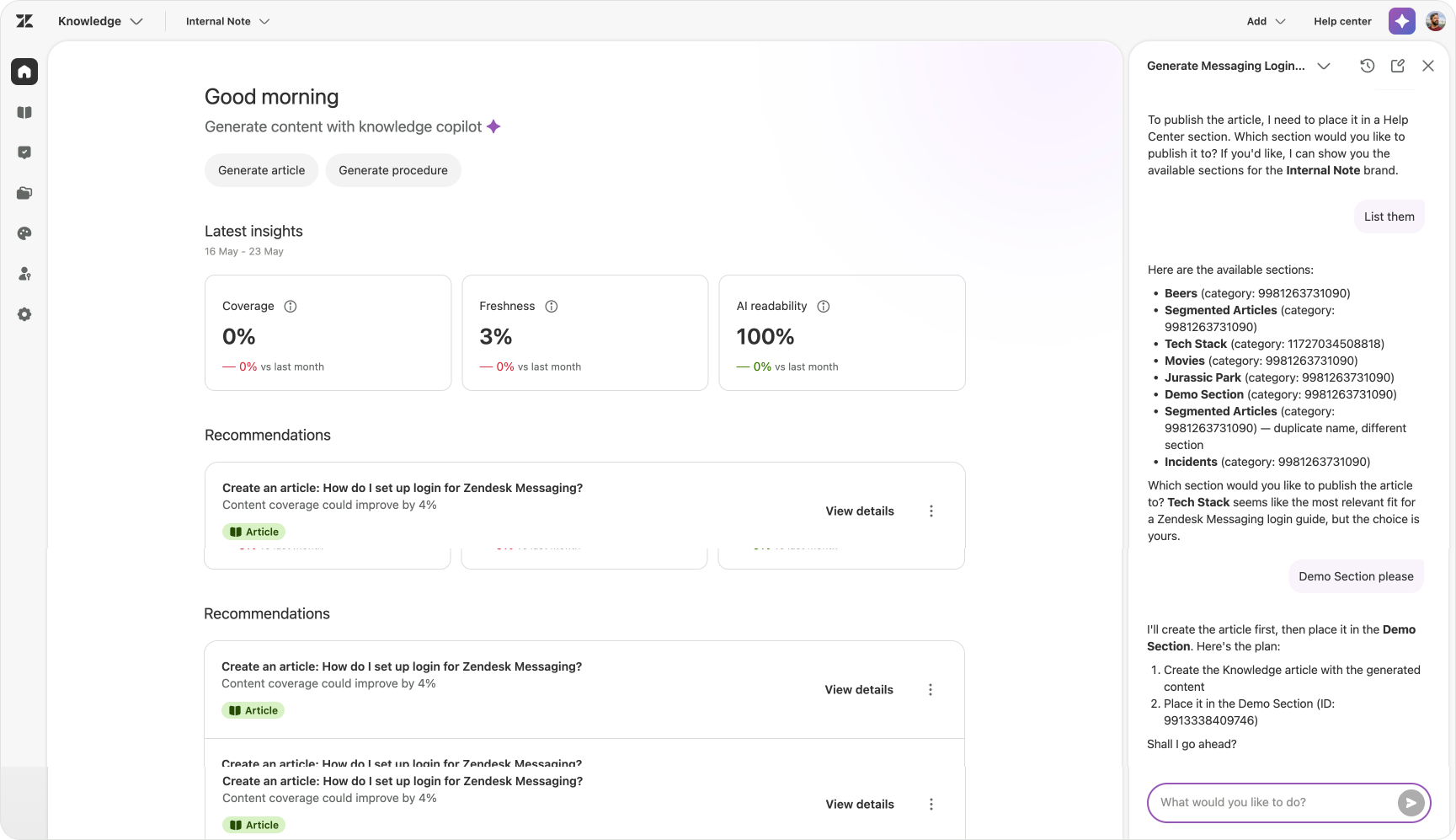
Knowledge Copilot adds a conversational assistant available on any page in Knowledge admin, with a set of tools built for the job:
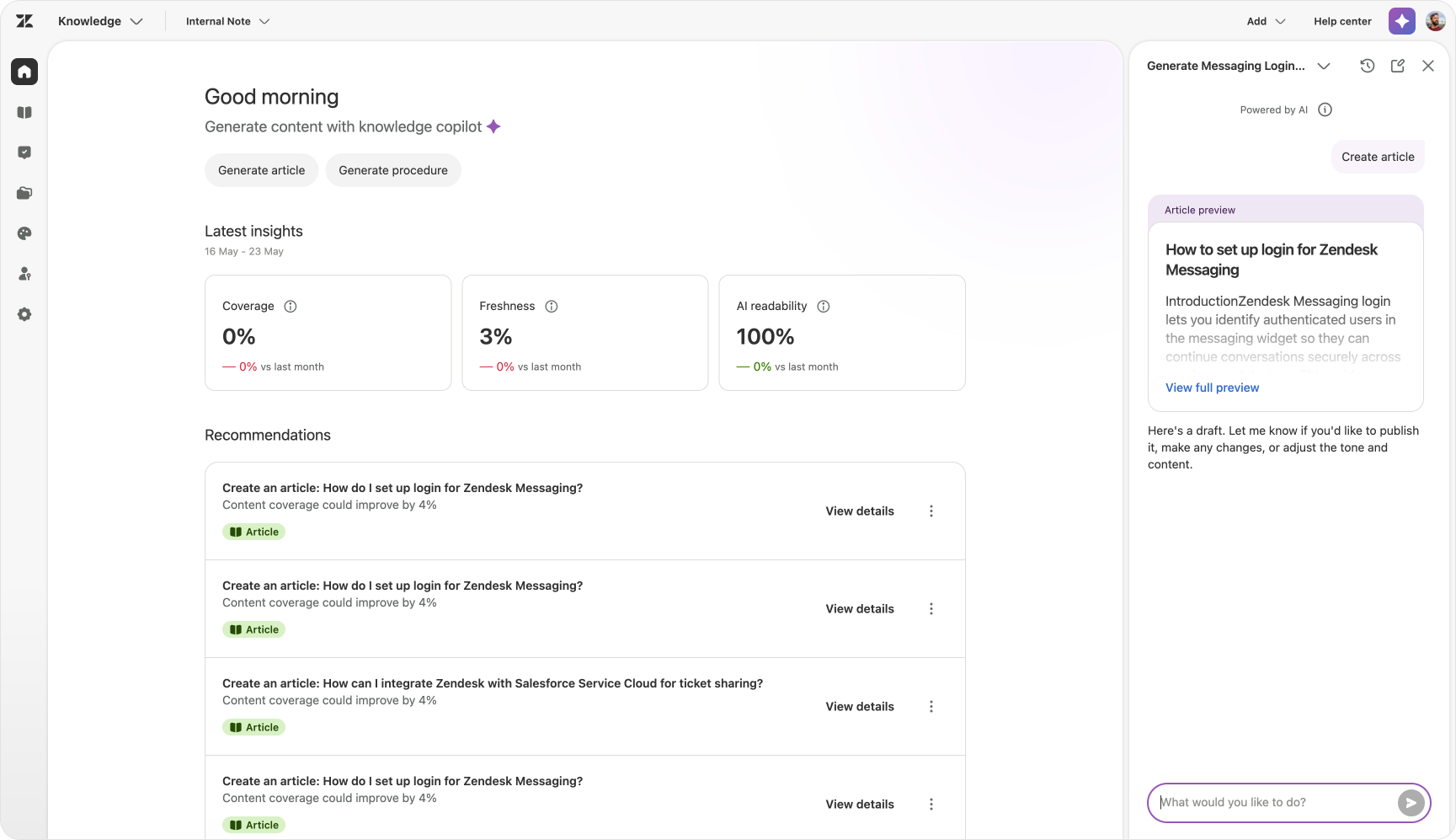
- Article builder generates article drafts from ticket data or custom prompts.
- Procedure builder generates Auto Assist procedures from tickets, Help Center articles or prompts. (Requires Agent Copilot add-on)
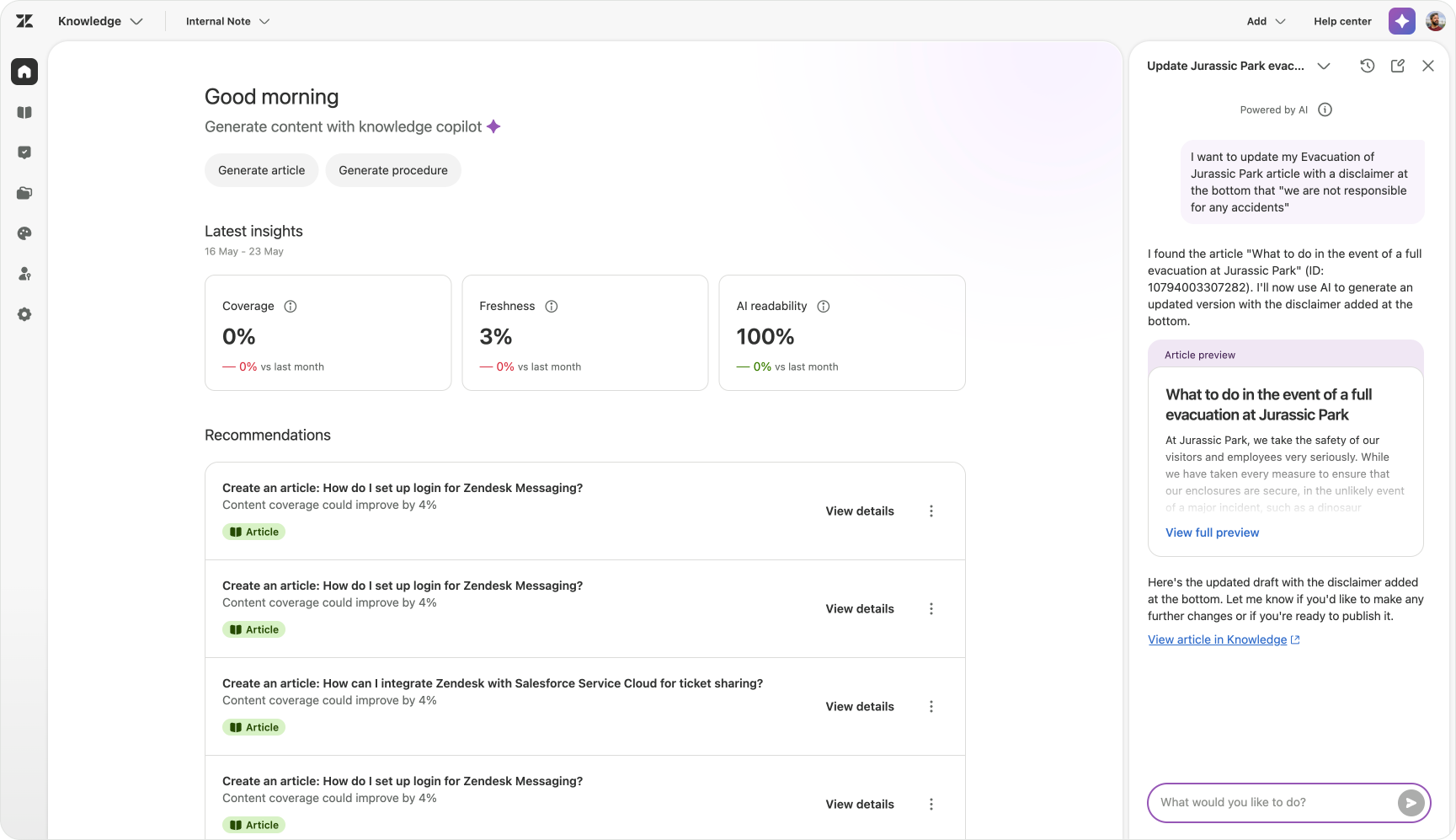
- Knowledge management assistance lets you ask the assistant to update article content, change visibility and permissions, or move articles between categories and sections, all in plain language.
When you accept a recommendation, or if you start from scratch, the assistant guides you through the entire process: gathering context, asking you where you want to publish the article and then showing you a draft to validate. This works for brand new articles, and it can also help when you want to update an existing article.
What’s next
If you take one thing from this, it is that knowledge is still the first foundation worth putting in place, but the shift now is in how you handle it. The lifecycle is clear: index it, make it available, measure it, improve it. Start with one source that matters, ideally public content through Federated Search or a single external source through a Knowledge Connector. Make sure it is reaching the right surfaces, whether that is Quick Answers, AI Agents or Agent Workspace. Then watch the data, see where the gaps are and let Knowledge Copilot point you towards the next fix.
Over the last year, Zendesk has evolved from a tool you worked in into a platform that runs your operations. The shift from Knowledge to Knowledge Graph is a clear example of that.
It is no longer just a place to store support articles and search them. It is a knowledge layer that sits across your tools, indexes what already exists and puts it to work wherever a question gets asked. That move from writing articles to managing knowledge is not just a product update. It is a different way of thinking about what support knowledge is, where it lives and who it serves.