Leveraging the Automation Potential dashboard in Zendesk
Leveraging the Automation Potential dashboard in Zendesk

On this page
At Zendesk we've been pushing automation in Customer and Employee service forward. With AI Agents running your conversations autonomously, Copilots assisting your agents and admins, or the new Custom Agents running specialised processes alongside conversations.
These agents run across a variety of channels. Most customers start by deploying them on Messaging channels like the web widget, or social channels like Facebook Messenger, WhatsApp or Instagram. Even before modern LLMs, chatbots have always been active on messaging channels. The more powerful reasoning capabilities provided by these modern LLMs have only increased the automation potential of those conversational channels.
But there's more than just Messaging. Voice, the original support channel, and email are still responsible for a major part of a company's support surface.
Traditionally, the automation numbers of those two channels have always lagged behind those of Messaging. For Voice, the reason is the complexity of turning spoken word into something a machine can understand and react to. And it needs to do so while remaining responsive, fast and understandable. Zendesk Voice AI Agents are an answer to that problem, and once they'll move out of EAP, I'll be writing about them in depth on this blog.
For email however, the complexity lies in the nature of the content within those emails. Emails are often long and can span multiple topics in one message. And there's a delay between sending and replying that does not exist in live chat making it longer and more complex to automate.
However, as trust in AI automation grows and the numbers for Messaging go up, companies want those same capabilities enabled on their email channel too.
And now that Zendesk's AI Agents support not only generative knowledge replies but also agentic procedures for email, there's no better time to start than now.
Resolution Learning Loop
If you have been following my Towards Automated Resolutions series, you know the framing. The Resolution Platform runs on two cycles. There's the Resolve loop that handles interactions: knowledge, procedures, data and actions working together to close a conversation.
And then there's the Learning loop. It takes all your conversations and turns them into recommendations that improve the next one: every resolution becomes an input that shows us how to make the next one better.
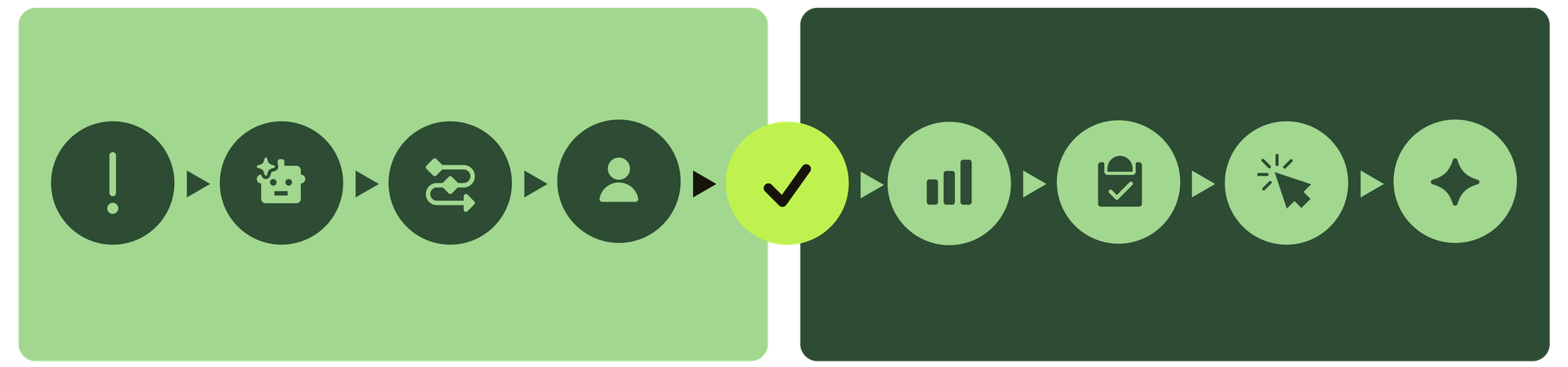
This article will walk through a structured approach to building out email automation based on the signals we get from the Learning Loop. We do that by leveraging Zendesk's Automation Potential Report. We'll go from no email automation all the way to your first fully automated use cases.
An AI deployment always runs in phases. Step one is validating your existing knowledge coverage so you have a baseline and insight into where you are today. Step two would be fixing gaps and making sure you've got a baseline that's good enough to start.
It's important to note that most customers start with these knowledge answers first. And while it's tempting to say "they start with just knowledge", a good Help Center and generative replies can make a significant impact on your escalated ticket volume already. And it's exactly this potential impact that the Automation Potential dashboard shows.
Once your knowledge is in a good place, you can start thinking about the more complex use cases where process, actions and context play a role in automating interactions.
Governance and control
Before we let an AI Agent loose on your conversations, it's important to think about governance and control. You want to be sure the AI Agent is not only doing the right thing, but that it's also acting on the right conversations. Defining those boundaries and guardrails is a key aspect of trusting your AI Agents and scaling your automation setup.
Zendesk's AI Agents have built-in secure guardrails to make sure they only use knowledge and instructions as defined in your Zendesk instance and never go outside of those boundaries. This way you can be sure that when your AI Agent reacts, it does so with information you provided. And if the answer is wrong, you know you need to start looking at your indexed knowledge sources, or the way you structured your procedures.
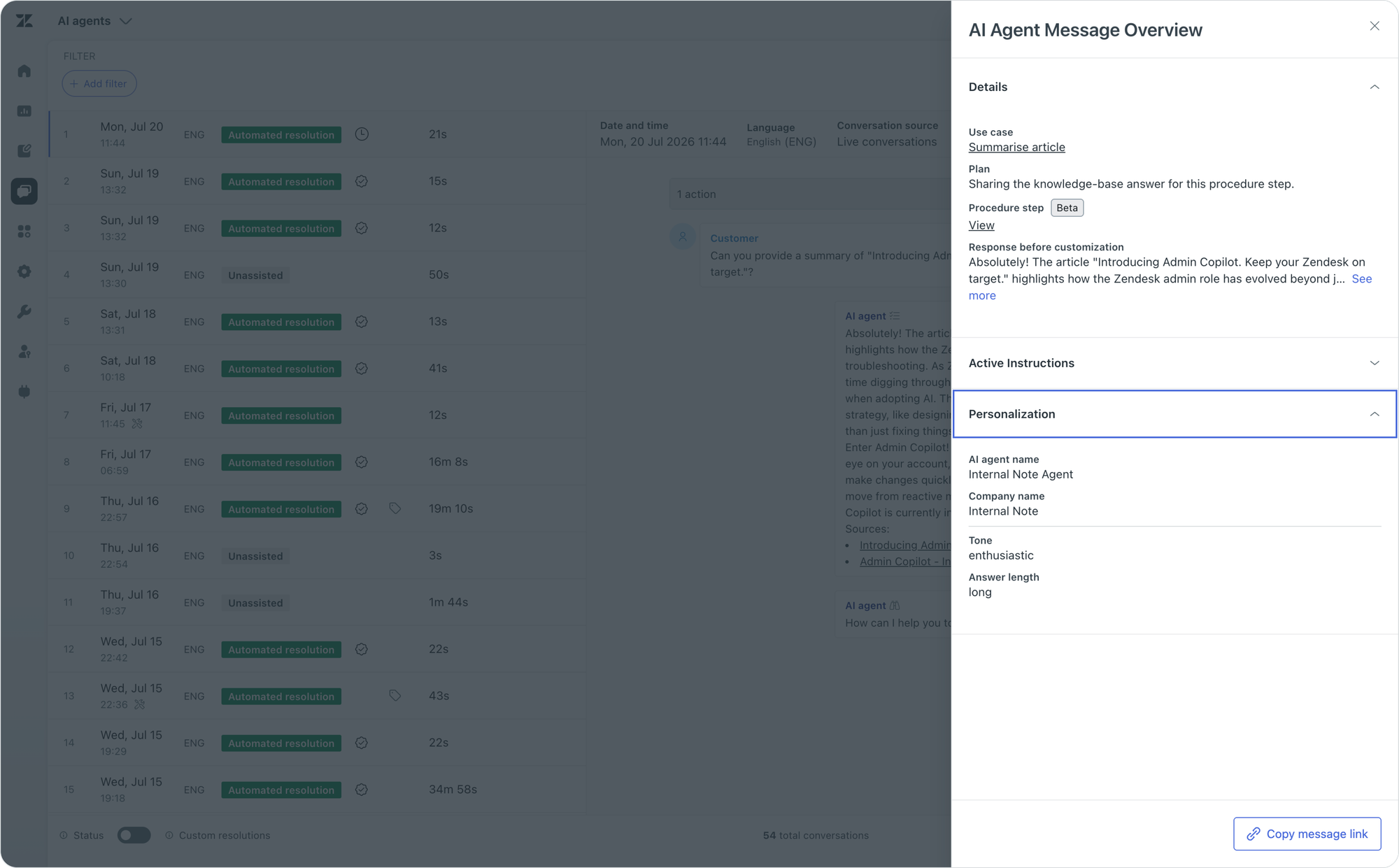
Auditing those conversations is done via the Conversation Logs, giving you the exact reasoning and sources behind every answer.
Limiting reach
Knowing why and how the agent acted is one side of the coin. But you also need to define when your agent gets triggered, and which conversations can get processed by AI
First you need to decide on which channels and for which brands you want to activate your AI Agent.
Secondly, you need to decide which use cases the AI Agent should respond to, and which knowledge sources it can use. Within those use cases you can use single sign-on and user context to personalise the response to a specific user segment.
And finally, you can use triggers in Zendesk to further narrow down which tickets get routed to the AI Agent, excluding specific email addresses or topics entirely.
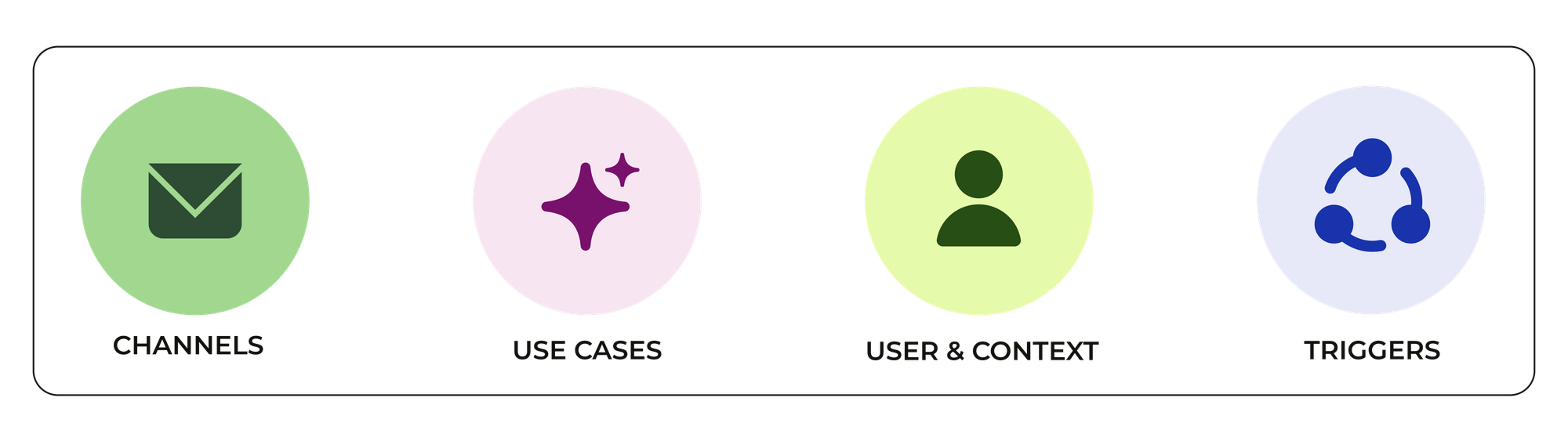
When configuring those limitations it's important to do so in order. Brands and channels are your broadest brushstrokes. They include (or exclude) whole conversation types at a time. Enabling a new brand or channel is a big decision.
Rolling out new use cases broadens your coverage and will increase your automation rates. Doing so requires understanding of the use case, but also knowing the data around it. How many times did the question get asked, how big is the impact on CSAT, how automatable is it?
Context and user information is all about deepening the process and making sure you handle specific paths, and exclude or map failure modes. This is where a lot of iterative improvement happens. At the start you'll probably automate the perfect path and escalate the others, gradually increasing your coverage.
The final layer is that of excluding specific conversations from reaching the AI Agent. This can be for legal reasons. It could be to exclude a very specific user segment. Or it might be a team that is, currently, better off without automation, like your privacy or security team.
However, since AI Agents run on a use-case-first basis, if you don't build a privacy-related use case, or have no privacy topics in your Knowledge Base, the AI Agent will not handle these tickets and they'll get escalated anyhow. The only reason to specifically exclude conversations via triggers would be to prevent AI touching the ticket, all other exclusions can be handled with the previous filters.
Regardless of your approach, the goal is to gradually and continuously increase your automations over time. By following the above logic, you can make sure that as you expand your coverage with new use cases, there are no triggers in place preventing your use cases from doing their work.
The Automation Potential Dashboard
Hidden in Zendesk's Admin Center within the AI Agents section lives the Automation Potential dashboard. It's a weekly updated dashboard that shows you how well your knowledge is performing, and what the impact would be if you made that knowledge available to an AI Agent, for example on the email channel.

The dashboard looks at the last 90 days of conversations and tells you how many of those interactions could have been resolved with Knowledge. It then splits out how many of those are already covered within your existing knowledge articles, and what's been answered by your team but not (yet) turned into an article.
This is the Learning Loop made visible, before you've even automated your first conversation. Taking information from previous tickets, and turning them into suggested improvements and insights.

The Automation Potential dashboard serves two purposes. It shows you what you already have available in your Help Center and the impact it could make if you enabled it as a knowledge source for your AI Agent. This is especially useful for customers who have no AI Agent and want to see what the potential immediate impact (and gain) would be by doing so.
For existing users of AI Agents and new customers alike, the knowledge gaps show you how to further increase your automation rate by adding new content to your Help Center and filling those gaps.
Covered by knowledge
If you don't have any AI Agents active, the Covered by knowledge tab will give you a good insight into what you can expect once you add your Help Center as an AI Agent's knowledge source and enable its Knowledge Replies.
Below the headline metrics, the report breaks volume into topic categories, each labelled high, medium or low impact based on their estimated automation rate.
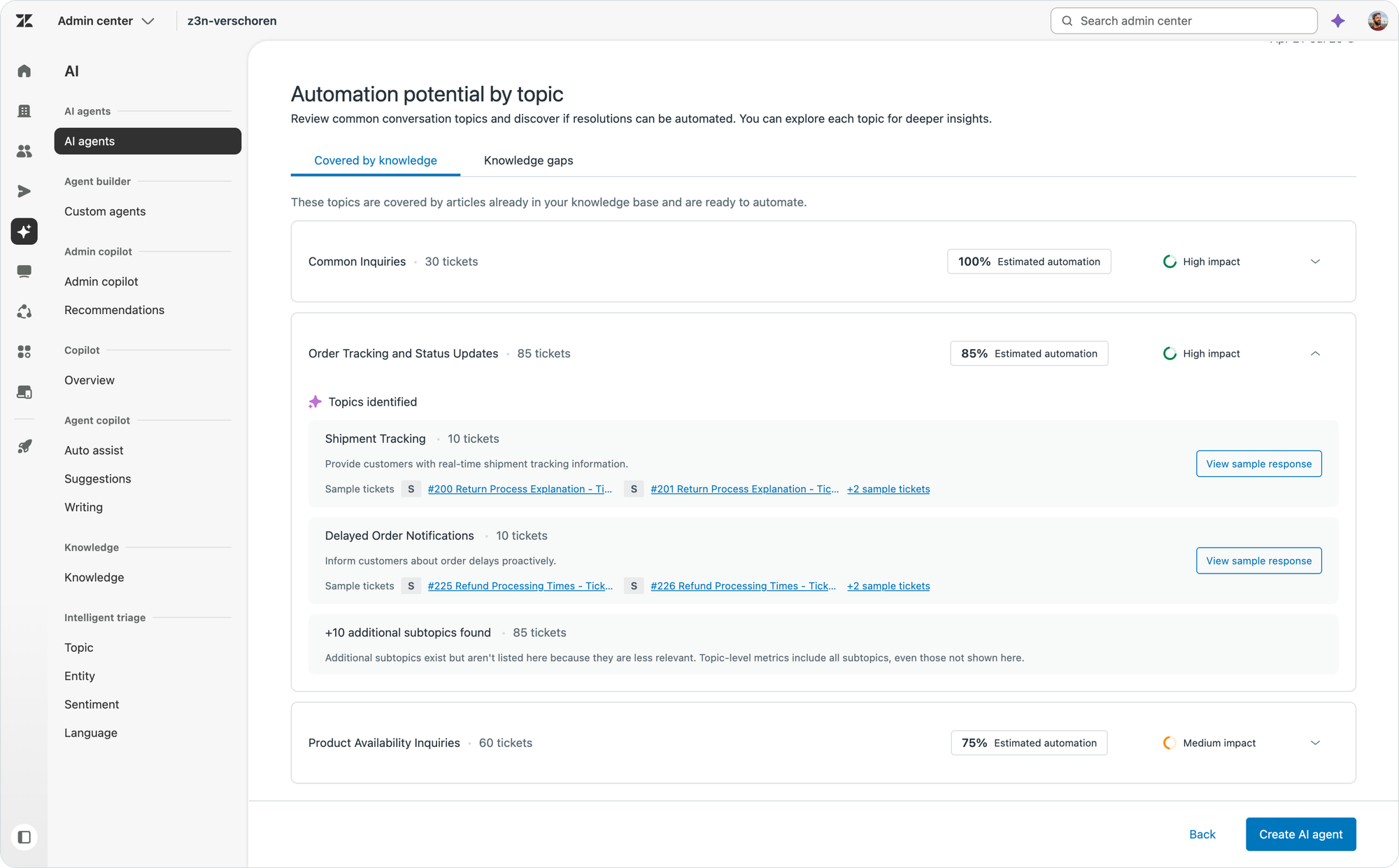
The Covered by knowledge tab shows topics where your Help Center already contains articles an AI Agent could use. Expand a topic and it shows you a list of subtopics. Each subtopic contains a list of sample tickets, and the ability to preview how the AI Agent would answer such a question. The preview shows a Messaging Agent, but the same could apply to an Email Agent.
It's important to review the provided samples. If customers reach out over email or messaging, these are the answers they'll get. So if any information in the linked article is wrong, the generated responses will be wrong too.
Once reviewed, you've got a pretty good idea of how performant your AI Agent will be on day one. If those numbers look good, you can move forward and start configuring your AI Agent, knowing that it will respond correctly to any question related to these topics.
However, if those initial numbers are too low, or if there's not enough covered knowledge, you're better off postponing your initial launch and working on filling gaps first.
Handling knowledge gaps
Knowledge gaps are any type of questions that customers ask about that have no answer in your Knowledge Base.
There's two types of gaps. Actual articles missing, and missing use cases.
Let's start with the latter. Not all of these questions should or can be handled with a support article though. Some of these are better served with a procedure that acts on behalf of the customer.
The AI Agent executing a refund. Changing an address. Modifying a booking. These are all resolved by defining a use case and writing the process down the steps to be taken in a procedure.
The second type of gap is one that could be answered with a support article but isn't currently. The answer is not written down in a publicly available source, but might live within comments made by your team on older tickets. It's these knowledge gaps and comments that the dashboard lists in its Knowledge gaps tab.
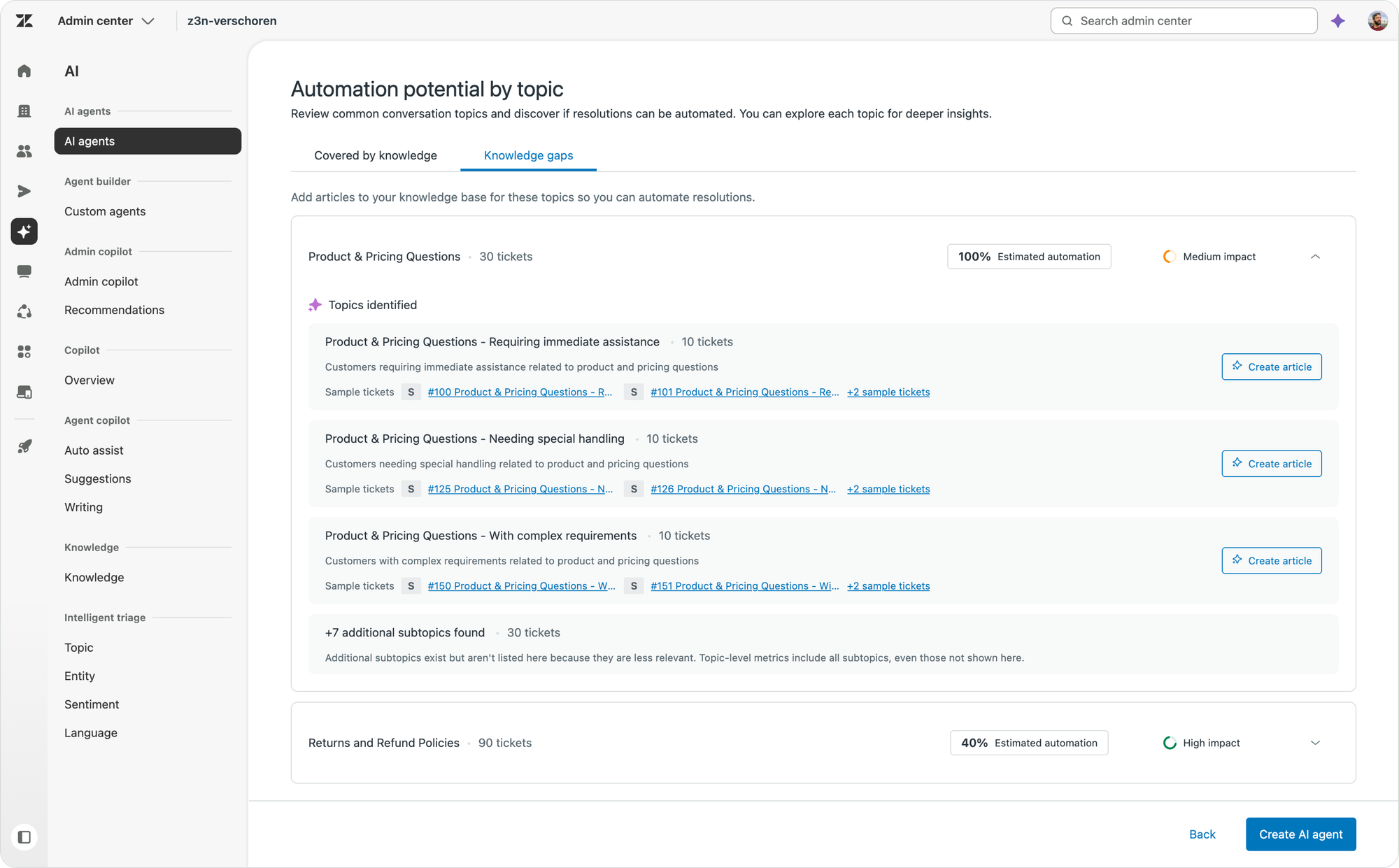
Its the topics and subtopics where it could find answers in comments provided by your agents. You can again see the impact, or the number of tickets it could be automating if it were an article. Instead of showing you a sample response, it offers to generate an article based on your team's comments.
Clicking Create article triggers Knowledge Copilot, which will generate a draft article for your Help Center. You can then proofread, edit and publish the article, which makes the content available to your AI Agents. Provided you added your Help Center as a knowledge sources already.
Knowledge Copilot
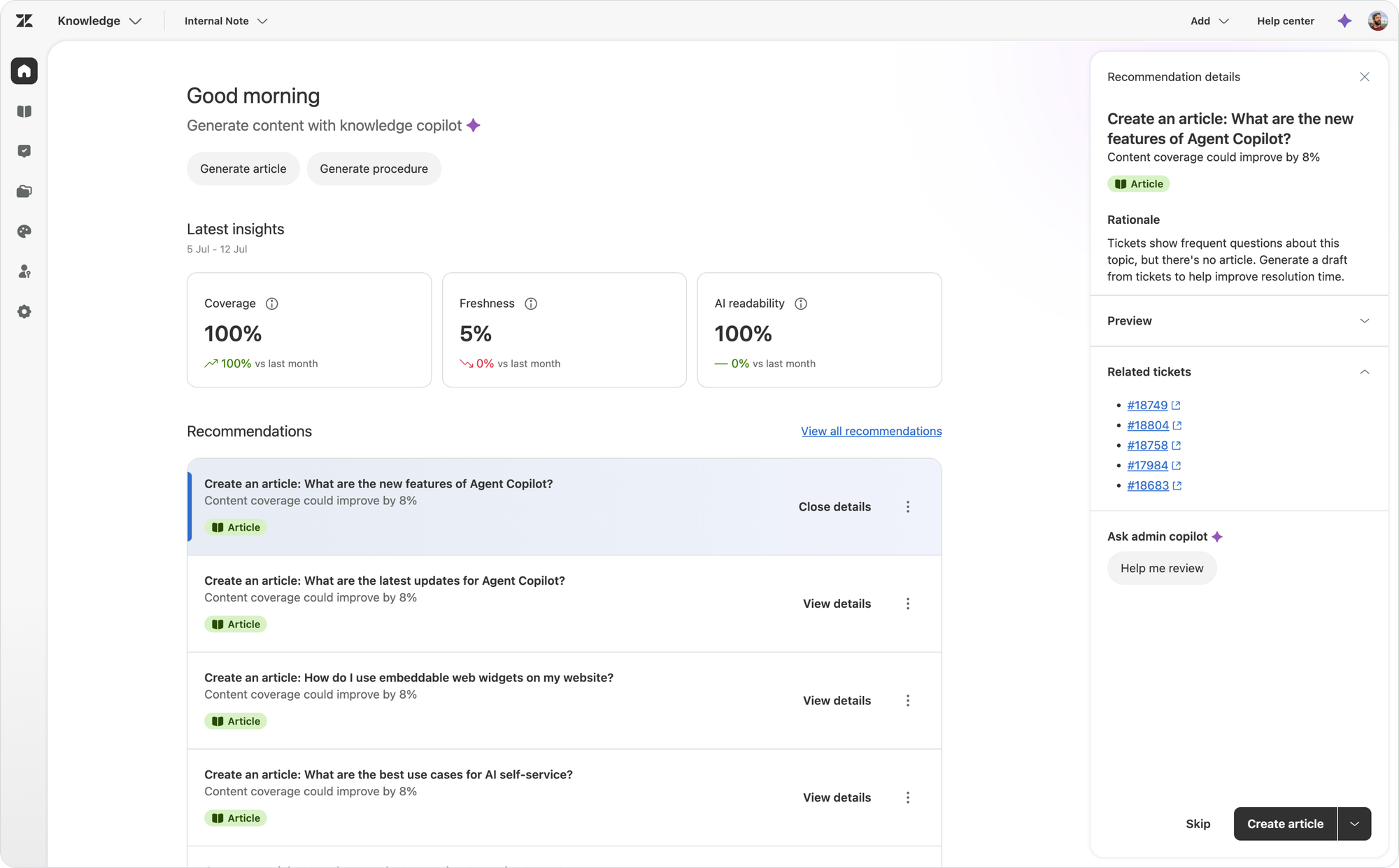
The Automation Potential dashboard is not the only place where you can find insights and recommendations related to automation. There are also the recommendations made by Knowledge Copilot.
Knowledge Copilot and Automation Potential partially cover the same data. But the Automation Potential Report should really be seen as a starting point for enabling AI automation.
Whereas Knowledge Copilot is useful once you're already using AI Agents and want to continuously improve the quality of your knowledge sources over time.
They go hand in hand. As we just saw, when you act on a Knowledge Gap in the report, it actually triggers Knowledge Copilot to generate an article based on that recommendation.
Use Cases
So far we've focused on the Knowledge recommendations made in the report, using knowledge as the starting point in deploying AI Agents for email. Now it's time to dive into use cases.
When an AI Agent uses Knowledge, it basically tries to find an answer to a customer's question. It performs a search on the indexed knowledge sources, gets the article content, and generates an answer based on that.
But as we noted earlier, not every question can be answered with Knowledge. Sometimes we need to do something. Or sometimes we don't want to generate a response but rather want to ask a few clarifying questions and guide the customer towards a generated or pre-canned response. Use Cases in Zendesk are how you "intercept" a conversation and define how the AI Agent should handle that specific topic.
An AI Agent in Zendesk will look at any conversation and will always try to match it to a Use Case first, before using knowledge to answer the question. Small talk is always excluded, and if both options fail, you can define a failure path, which often results in an escalation.
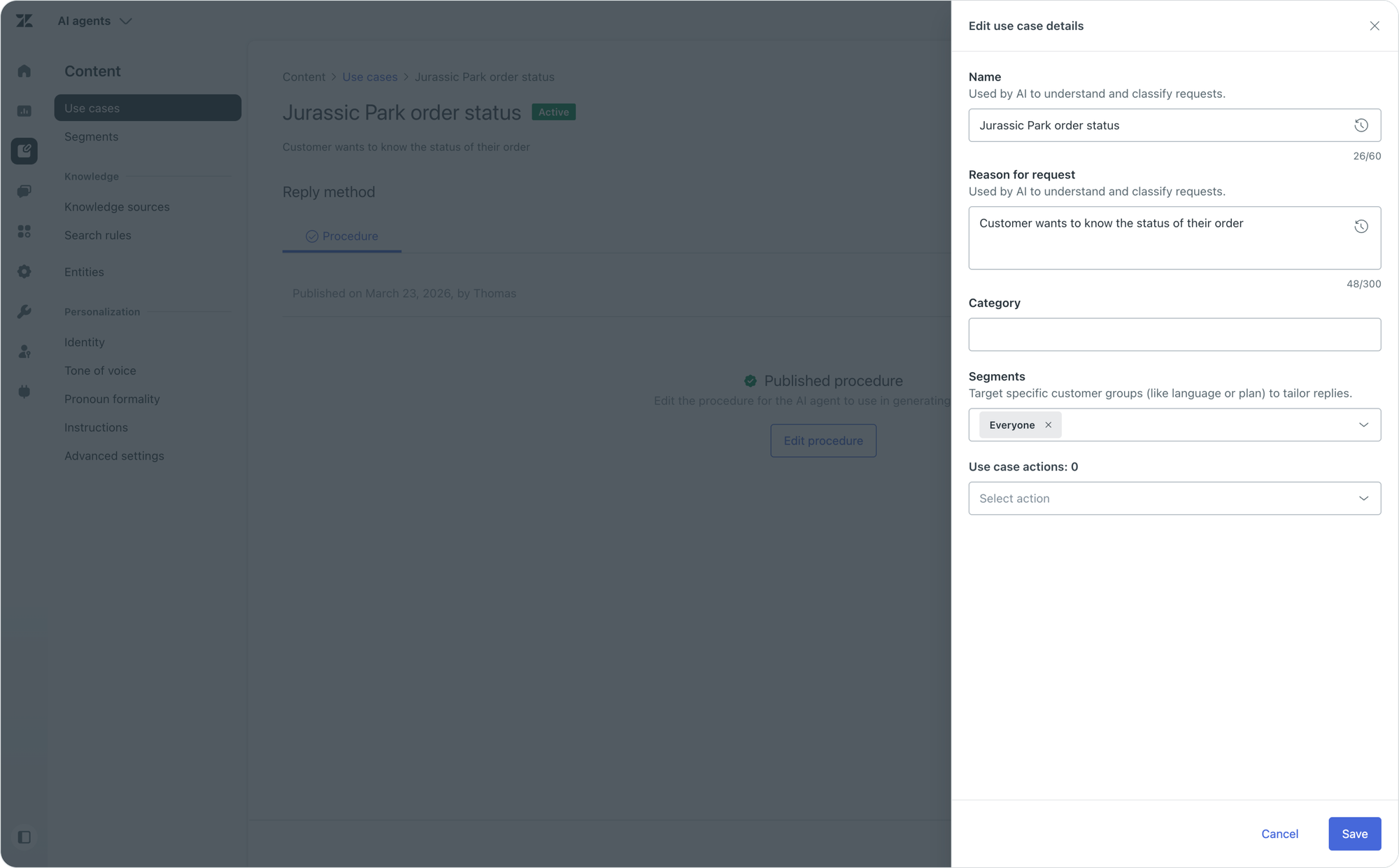
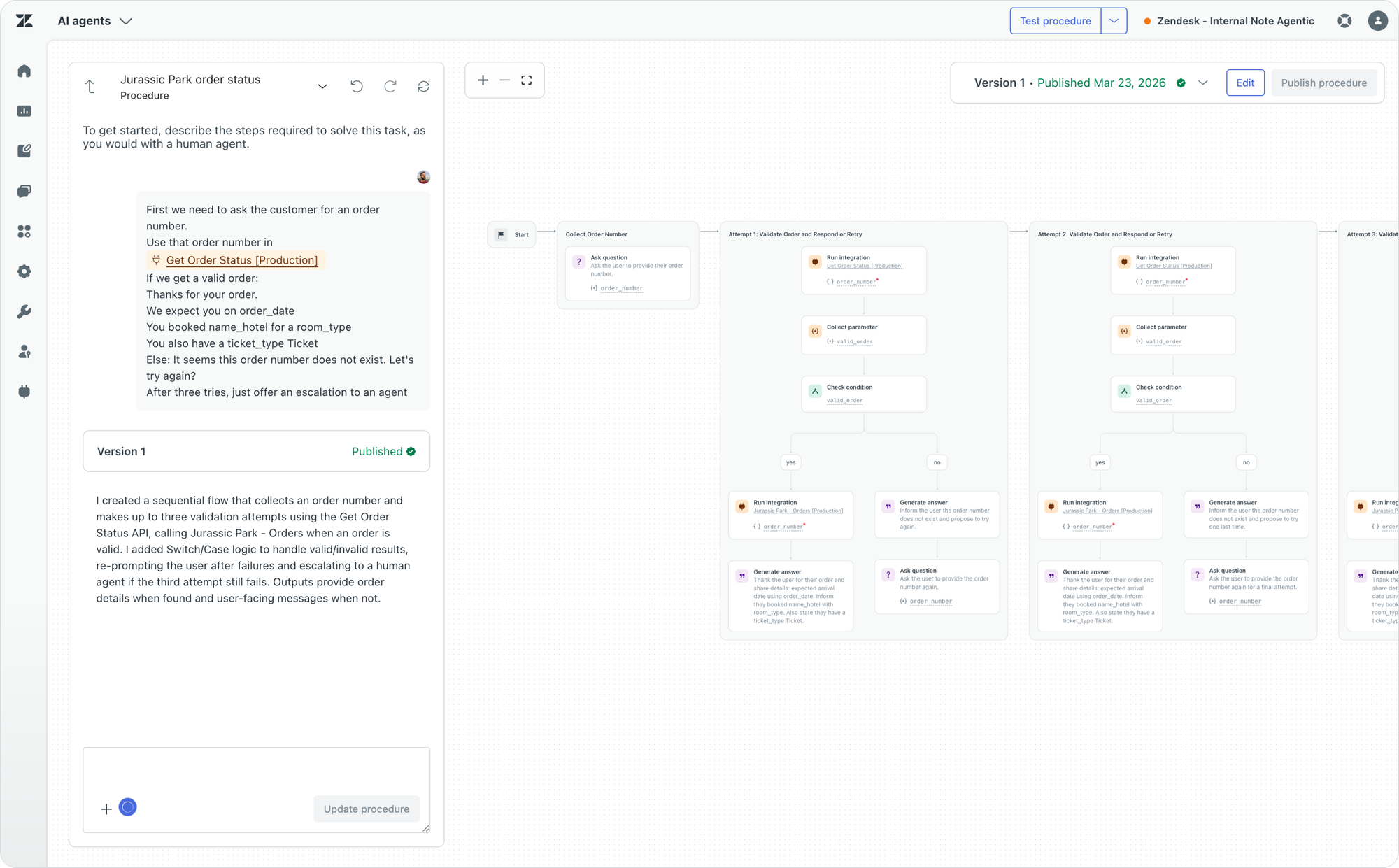
The benefit of Use Cases is that they basically work as an allow-list for the AI Agent. If a topic is covered by a use case you defined, the AI Agent will respond. If not, it won't. In the case of Messaging this means the conversation is escalated. With email the conversation gets assigned to an agent, with no changes made by the AI Agent.
You can define Use Cases in the AI Agents dashboard. Each use case gets a Name, and a description that tells the system for which type of requests the use case should be triggered. Use Cases can also be segmented, but more on that below.
For each use case you can add a Procedure. Procedures allow you to write down your logic, add actions and link to other procedures. The system will take those instructions and generate a visual map that you can use to validate the procedure.
Use Case Suggestions
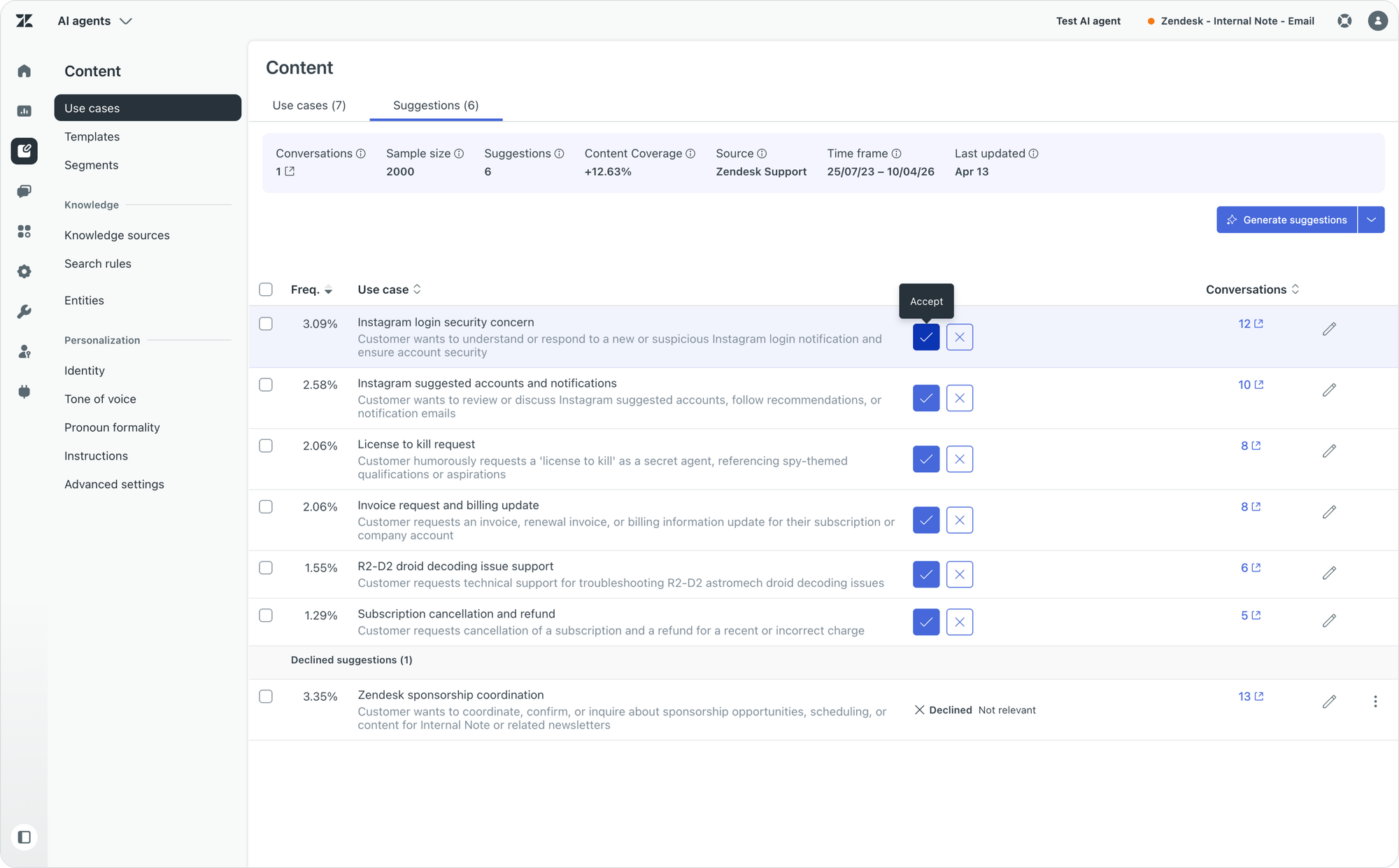
Use Case suggestions show you potential new areas you can automate with AI Agents. As the AI agents processes conversations, it aggregates the once it can't handle, and tries to combine them into suggestions for new use cases.
When you review the dashboard you can decide if this is a relevant topic, and if so accept it. You'd then need to write a procedure on how you want to handle this type of conversation.
Segmenting use cases
Not every use case should respond to every customer. This is where segments come in, and it's the context and user information layer from our control section in practice.
Segments in the AI agents workspace are collections of customers who share common traits. You define them with one or more session parameters and a matching rule: match all conditions, match any, or match none. Those parameters can come from anywhere the AI Agent gets its context. Think of the locale or language of the conversation, a customer type or plan fetched from your CRM via an API integration, or user context passed along through single sign-on.
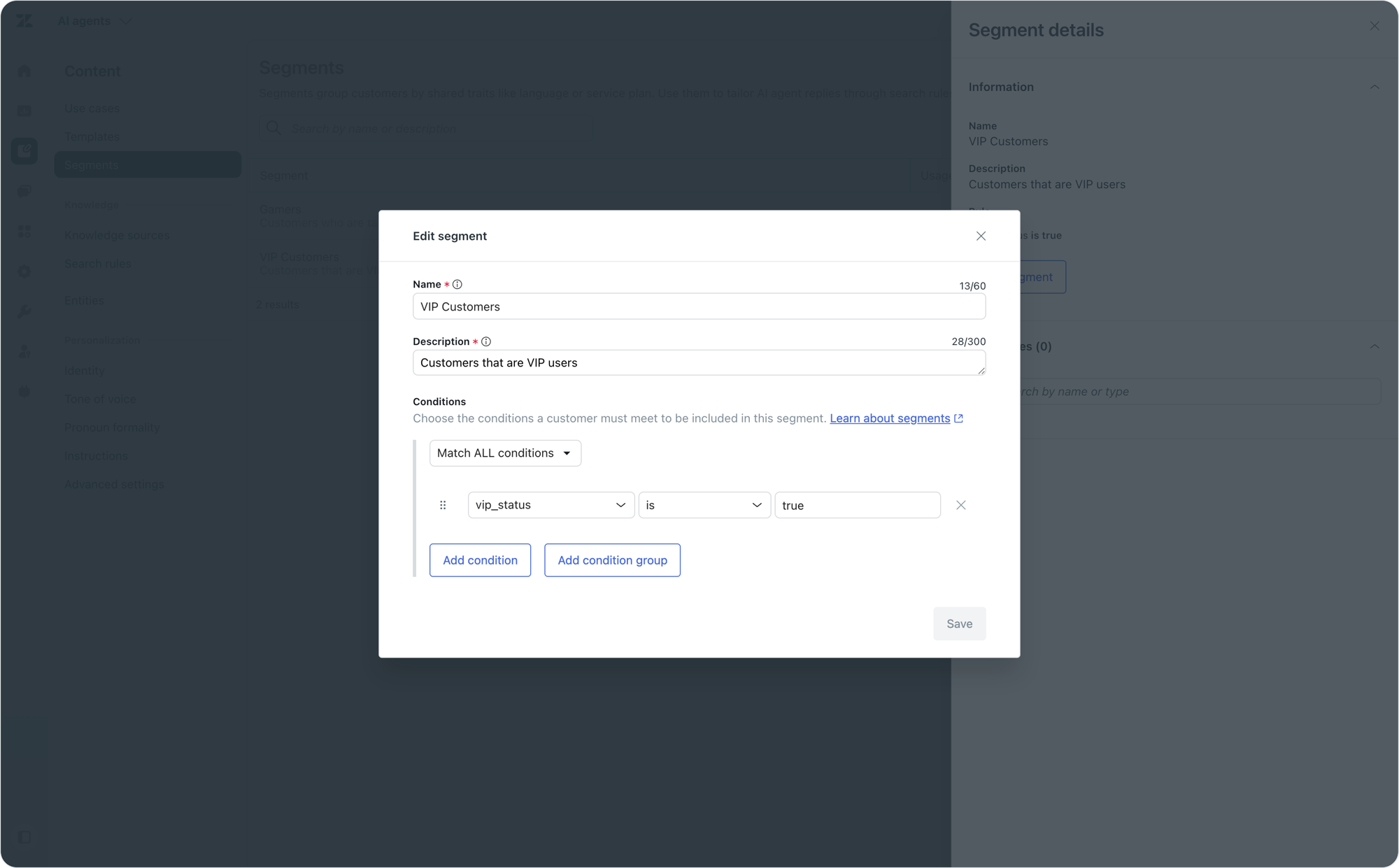
Once defined, segments let you make sure only the right customers get an automated reply for a specific use case. In a dialogue, segments power conditional blocks that split the flow per customer type. For AI Agents using agentic AI, you can also use segments to tailor search rules, so a given segment only gets answers drawn from the knowledge that applies to them. And within a procedure, that same context lets you define different paths. A standard customer gets the self-serve flow. Your enterprise tier gets an immediate, well-documented escalation.
Segments also show up in the conversation logs. You can filter conversations by segment, which makes it easy to validate that a specific customer group is getting the treatment you designed for them.
Activating your AI Agent
As we noted in our section about controlling the AI Agent, it all starts with defining for which brands and channels the AI Agent should be activated.
For Messaging this is done in Admin Center, where you can choose for which channel an AI Agent should respond. Within the AI Agents dashboard you can then further specify which specific AI Agent should respond by using routing rules.
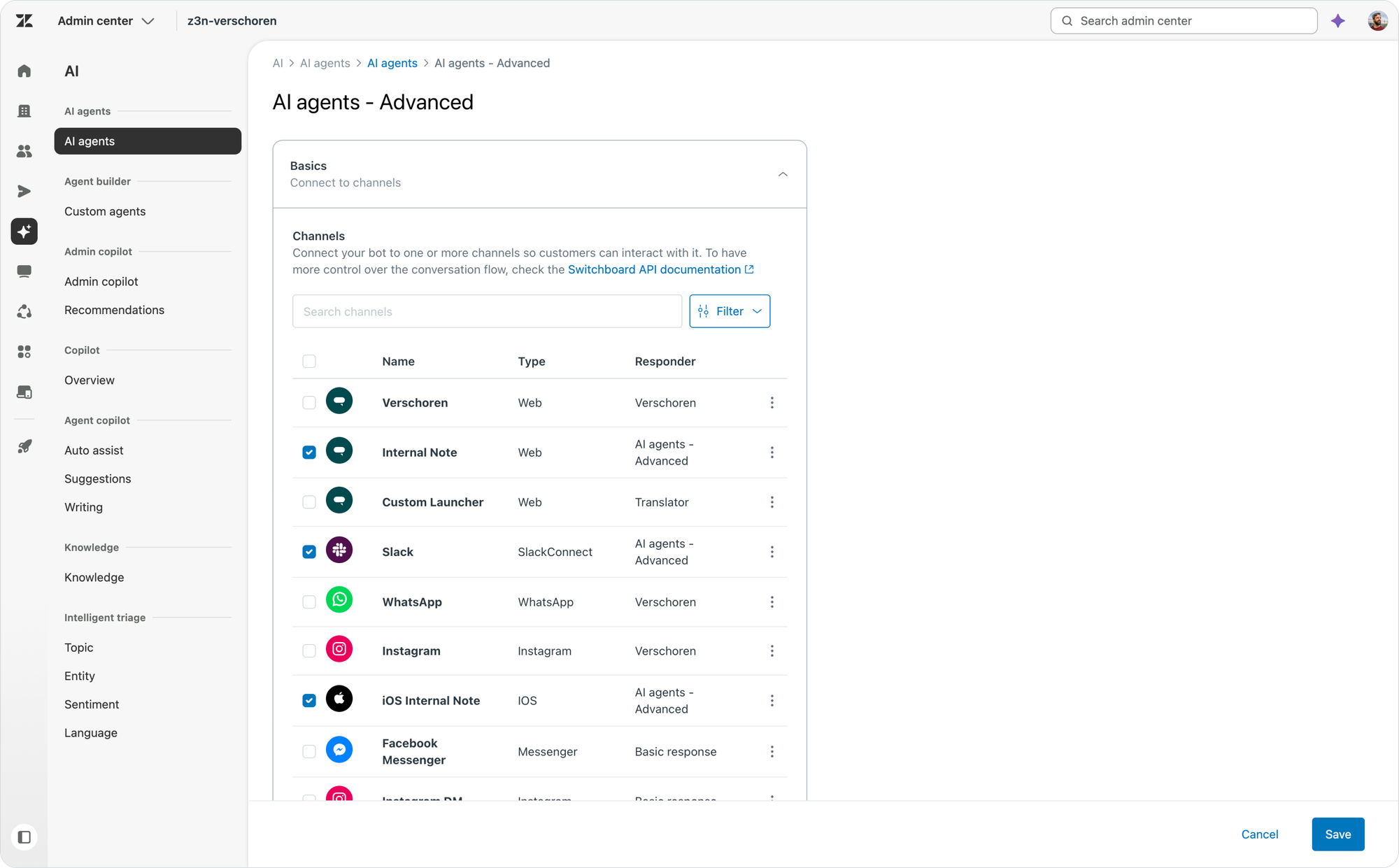
For email, things work a little bit differently. Since email is not a Messaging channel, there's no switchboard or first responders like we have with Sunshine Conversations. AI Agents interact with email-based tickets via a trigger. That trigger uses a webhook to post data from Agent Workspace to the AI Agent whenever a ticket is created or updated.
The AI Agent in turn uses the Zendesk API to update the ticket with its reply.
That setup is a consequence of the way Ultimate worked in the past, but over the last year the way this integration works has actually been upgraded significantly. Every AI Agent dashboard is automatically linked to your Agent Workspace, and you can also specify the way the AI Agent shows up in tickets.
The default is system, making it easy to exclude it from other triggers or assignment rules. But if you want, you can create a dedicated named agent in your instance, and the AI Agent will show up as that user on tickets.
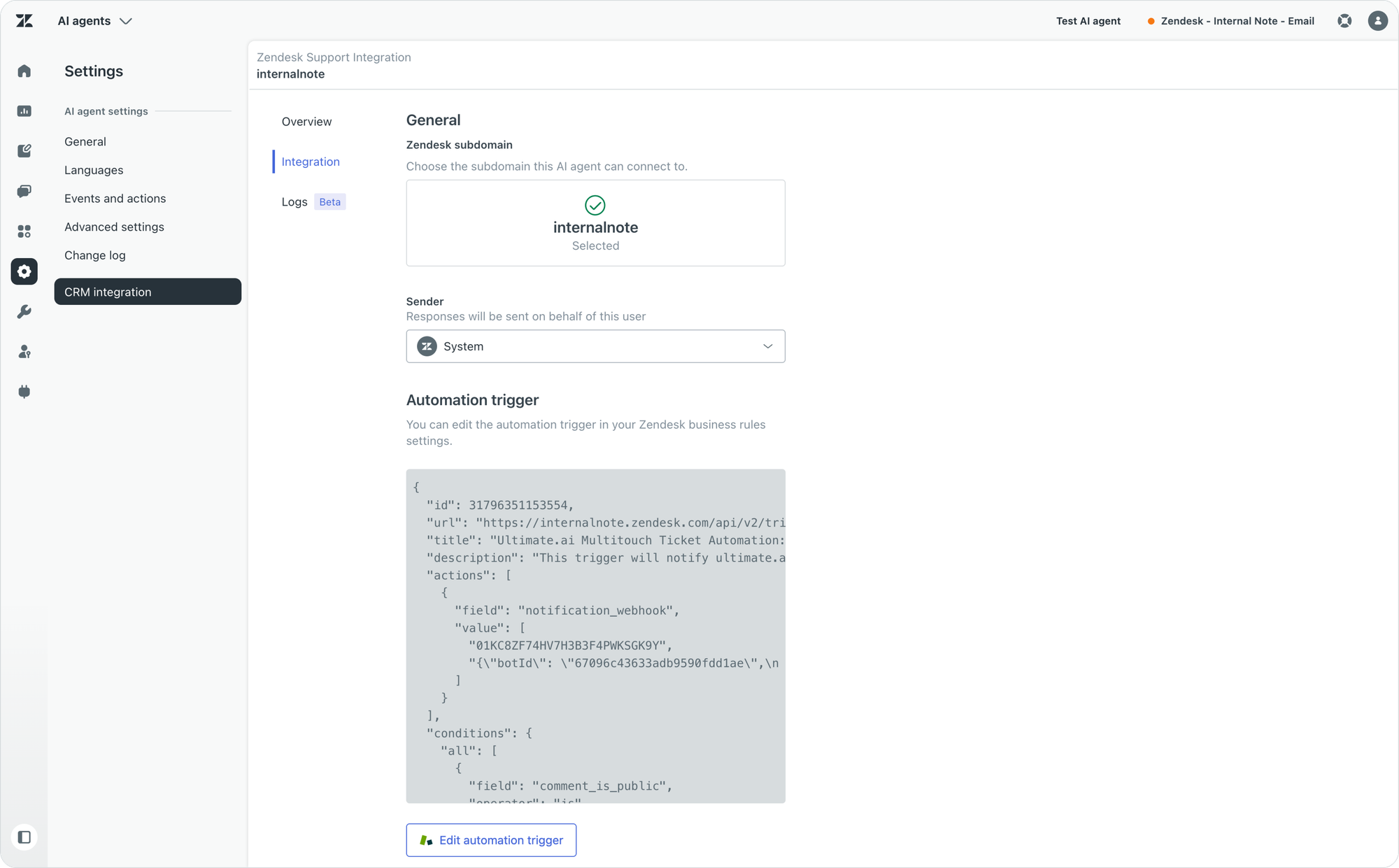
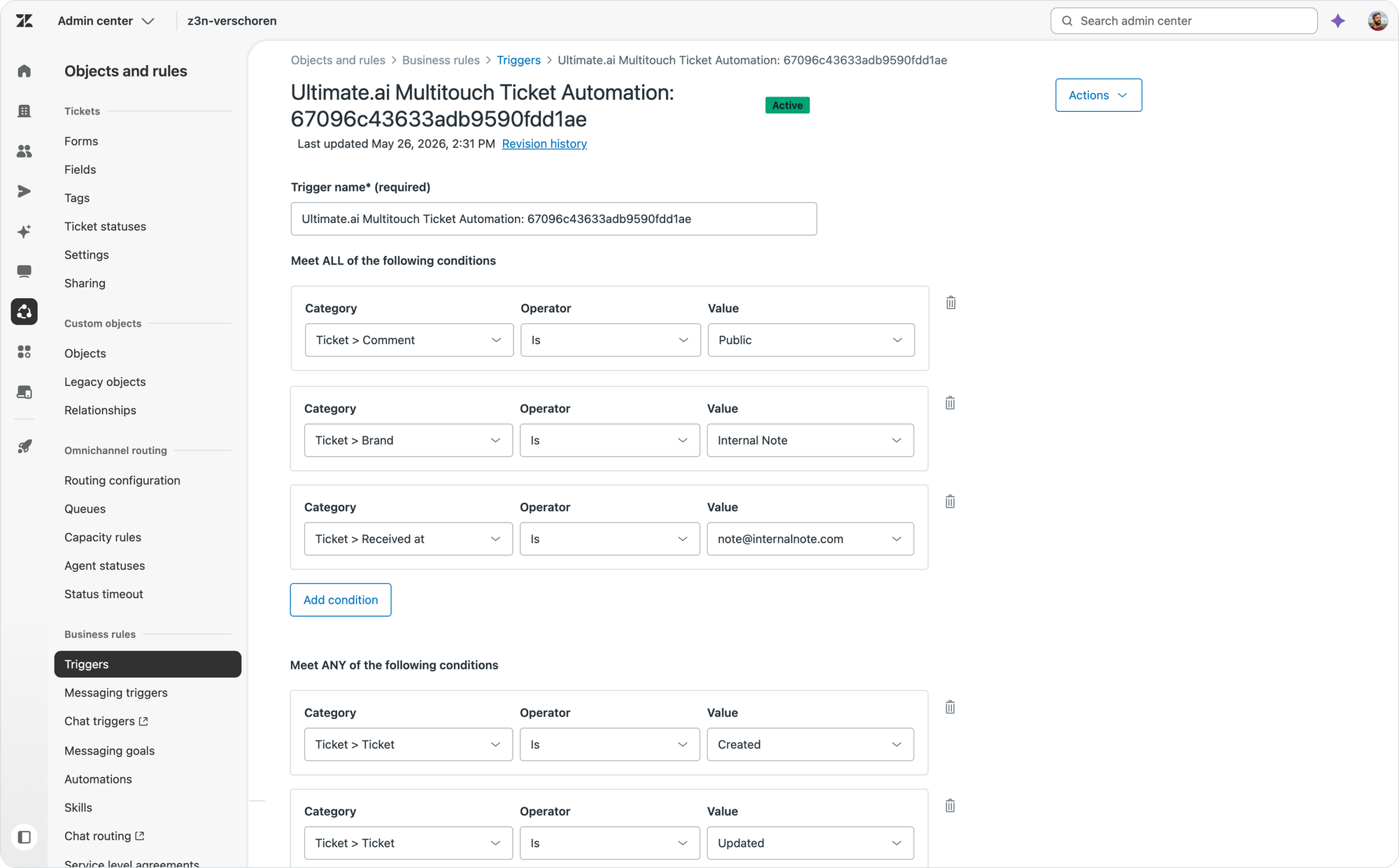
Once you enable the trigger, every ticket will be sent to the AI Agent, which will then process the conversation and try to respond with a Use Case or Knowledge Reply.
If you have multiple AI Agents in your instance, each one gets its own trigger. You can then tweak each trigger to set specific brands or support emails that AI Agent should respond to. You can thus activate an AI Agent only for specific brands or channels, as noted in the intro of this article.
Customising the trigger
That same trigger is also where you would further limit the number of tickets that reach your AI Agent.
However, the more conditions you add to this trigger, the more complex troubleshooting your AI Agent becomes. You might accidentally prevent some ticket updates from reaching your AI Agent mid-conversation.
Most customers add the aforementioned brand or support email limitations, but you can add any kind of condition to this trigger, just as you would with any other trigger in Zendesk.
- Channels: you can choose to include or exclude only webforms or email channels
- Forms: you can include or exclude specific web forms, useful for e.g. excluding requests to teams you know are not part of your automation strategy
- Customer segments: you can use user data to exclude e.g. VIP customers, or your B2B segment, or customers who speak a language or live in a region you've not yet enabled in your AI Agent.
One more controversial type of condition is one that acts upon the content of conversations. You could check for keywords, or specific subjects. But since AI Agents themselves only run on use cases or knowledge you made available to them, I personally see no reason why you would add a similar filter to exclude use cases to the trigger.
But, if you want to exclude a specific topic temporarily until you've filled all knowledge gaps, or if you are in the process of reviewing and updating content, adding it as a filter to the trigger is perfectly acceptable.
Monitor, then expand
In this article we started by looking at the Automation Potential dashboard to see how well your existing knowledge would perform if enabled for an AI Agent.
We then took a look at its Knowledge Gaps to see where we can turn existing agent responses into Help Center content and give the AI Agent even more knowledge to respond with.
Addressing those two items alone is a good indicator on your AI readiness and ability to enable an AI Agent for email or messaging. Once you're happy with the automation potential number the dashboard shows, you can enable your Help Center as a source for the AI Agent and launch it.
But that's not the end. It's actually the start of a process where you will now implement a review rhythm. If you look back at the dashboard a week later, you'll see the numbers go up, and find new gaps to address. Doing the same for Knowledge Copilot recommendations will highlight even more articles to improve or add. Keep this rhythm up and you'll see your AI Automation rate climb week after week.
Validating your AI Agent's effectiveness
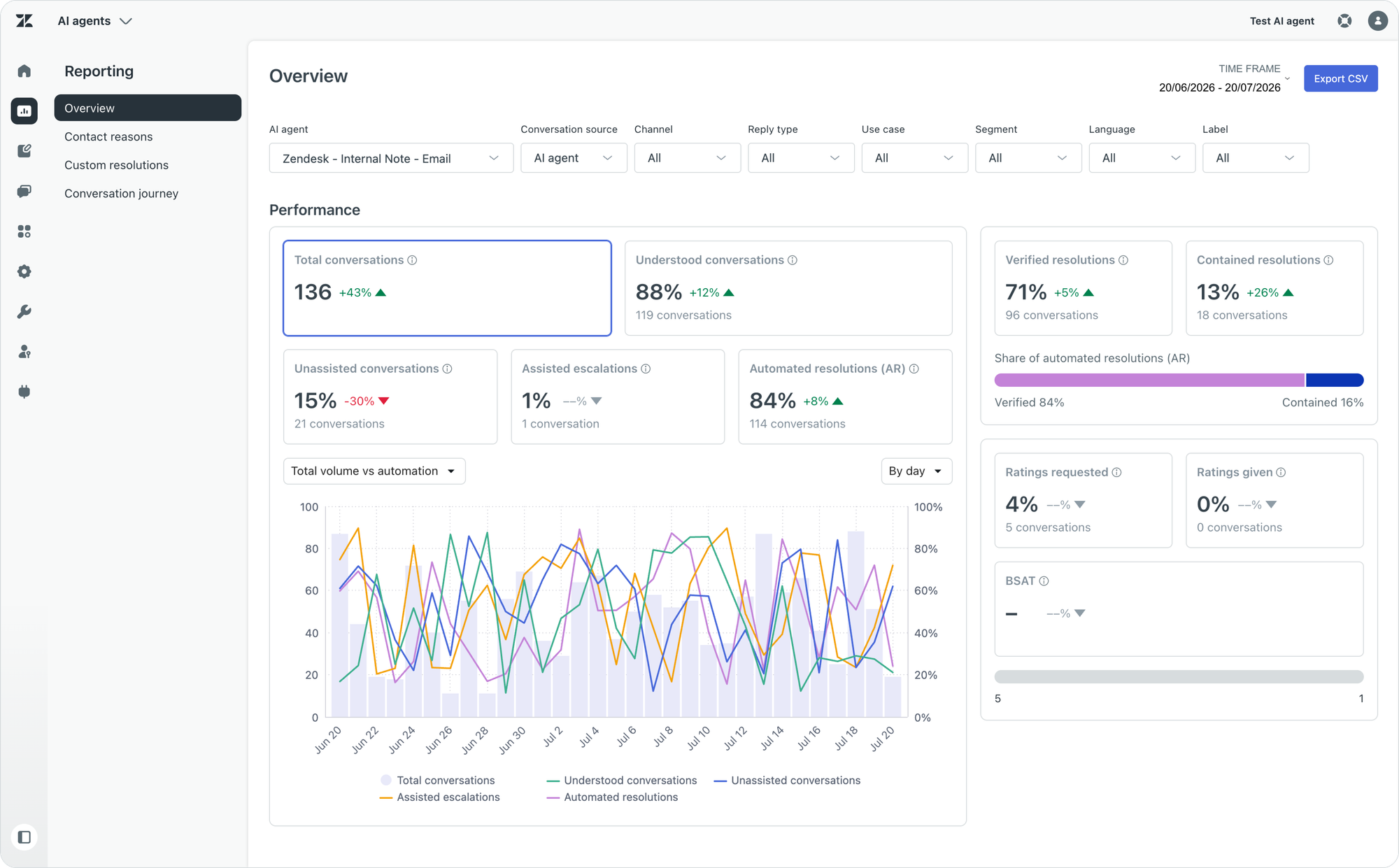
The Automation Potential dashboard tells you what could be automated. The dashboards in AI Agents' Reporting tells you what actually is working. It updates hourly, and it's where you validate whether your agents perform the way the report predicted.
The Overview tab shows your headline numbers: total conversations, how many the AI Agent understood, and how many ended in an automated resolution.
Those resolutions are split into tiers. An assisted escalation means the AI Agent contributed before a human agent completed the resolution. A contained resolution means the AI Agent handled the interaction to completion, without the customer asking for further help. And a verified resolution means the AI Agent successfully resolved the interaction. That distinction matters. Contained tells you the conversation ended with the AI Agent. Verified tells you it ended well.
The Contact reasons tab breaks performance down per use case and per knowledge source. For each use case you see total conversations, automated resolutions, escalations and BSAT, and you can click through to a detailed report over time. The Knowledge sources report deserves special attention. An article with high usage but a high escalation rate does not fully answer a customers' question. That's your signal to go update the article.
Finally, the Conversation journey tab visualises the paths customers take, from the first use case identified all the way to the end state. Focus on the assisted escalations to find use cases that might benefit from more automation. Focus on the automated resolutions to find your fastest paths to resolution, and replicate that logic across your other use cases.
The best way to start with automating those use cases, especially when it comes to email, is to think about context. For any given use case, what is the context a human agent needs before they can get to work? Things like order numbers, refund reasons, photos of a damaged product. Get your AI Agent to collect that info by adding it to a procedure as questions to ask. The AI Agent will handle the information gathering, and your team gets contextually rich tickets they can address with the help of Agent Copilot. And as you start automating actions with Agent Copilot, you can also start thinking about shifting some of those actions to the AI Agent, further automating the entire conversation.
That rhythm is the Resolution Learning Loop as an operating practice. Not just a marketing term, but a rhythm that has impact: the report learns from your tickets, you act on what it recommends, the results feed the next report.
Conclusion
Email automation does not start with switching something on. It starts with a signal. The Automation Potential Report takes ninety days of your own ticket history and shows you what your knowledge can already resolve, where the gaps are, and which questions need a procedure instead of an article.
You launch with knowledge replies where coverage is proven. You close gaps with Knowledge Copilot. You add use cases as the data supports them, and you scope the trigger around the conversations that should stay human.
None of that is a one-off project. The report refreshes, the recommendations update, and every resolution feeds the next one. That is the Resolution Learning Loop doing its job.
The Automation Potential Report does not tell you to automate everything. It tells you what is ready. You decide when to move.