

Mapping the full lifecycle of a messaging conversation in Zendesk
Zendesk’s classic email-based ticket lifecycle has evolved into a far more dynamic model shaped by messaging behaviour, conversation states, and AI Agents. This article explains how modern conversations starts and ends, and move between AI and human agents across the full ticket lifecycle.

Mapping the full lifecycle of a messaging conversation in Zendesk
Zendesk’s classic email-based ticket lifecycle has evolved into a far more dynamic model shaped by messaging behaviour, conversation states, and AI Agents. This article explains how modern conversations starts and ends, and move between AI and human agents across the full ticket lifecycle.

On this page
Zendesk’s ticketing model was originally designed around email, where conversations unfold predictably and every reply arrives in the customer’s inbox. For years, this created a clear and reliable lifecycle: tickets moved through well-defined statuses, agents controlled the pace of work, and customers responded when convenient.
Messaging changed that foundation. Instead of a slow, linear exchange, conversations became real-time, intermittent, and deeply tied to device and browser behaviour. Customers jump in and out, agents reply when the customer is no longer present, and the system must decide when to deliver messages by email, when to wait, and when to treat a conversation as finished.
As Zendesk introduced continuous conversations, conversation states, omnichannel routing, and later AI Agents, the lifecycle expanded far beyond the classic ticket model. Understanding how these pieces fit together—how conversations start, pause, resume, end, and hand off between AI and human teams—is now essential for anyone running modern support on Zendesk.
This article walks through that lifecycle step by step, starting with the traditional email-based model before layering in messaging behaviour, conversation states, and finally AI-driven automation.
Traditional email based tickets
In a traditional email based Zendesk environment managing the lifecycle of a ticket is straightforward. Any new email is send by the customer, which in its turn creates a Support ticket in the new state.
Whenever a customer replies to that ticket, it will be set to open, an indicator for the system, and agents, that there's work to be done.
If an agent replies to the customer, it's best practice to set the ticket status to pending. It will pause any running SLAs, removes the ticket from assignment queues, and it can be used as a basis for automations to send out reminders if the customer forgets to reply.
If we can't move forward we've got the On hold status. It keeps our working-time SLAs running, but clearly indicates the agent is waiting for feedback from a colleague they added as a follower, an update to a side conversation e.a. Here too, we can use automations to re-open the ticket automatically to allow agents to update both the customer on the ticket status, as well as remind those third parties.
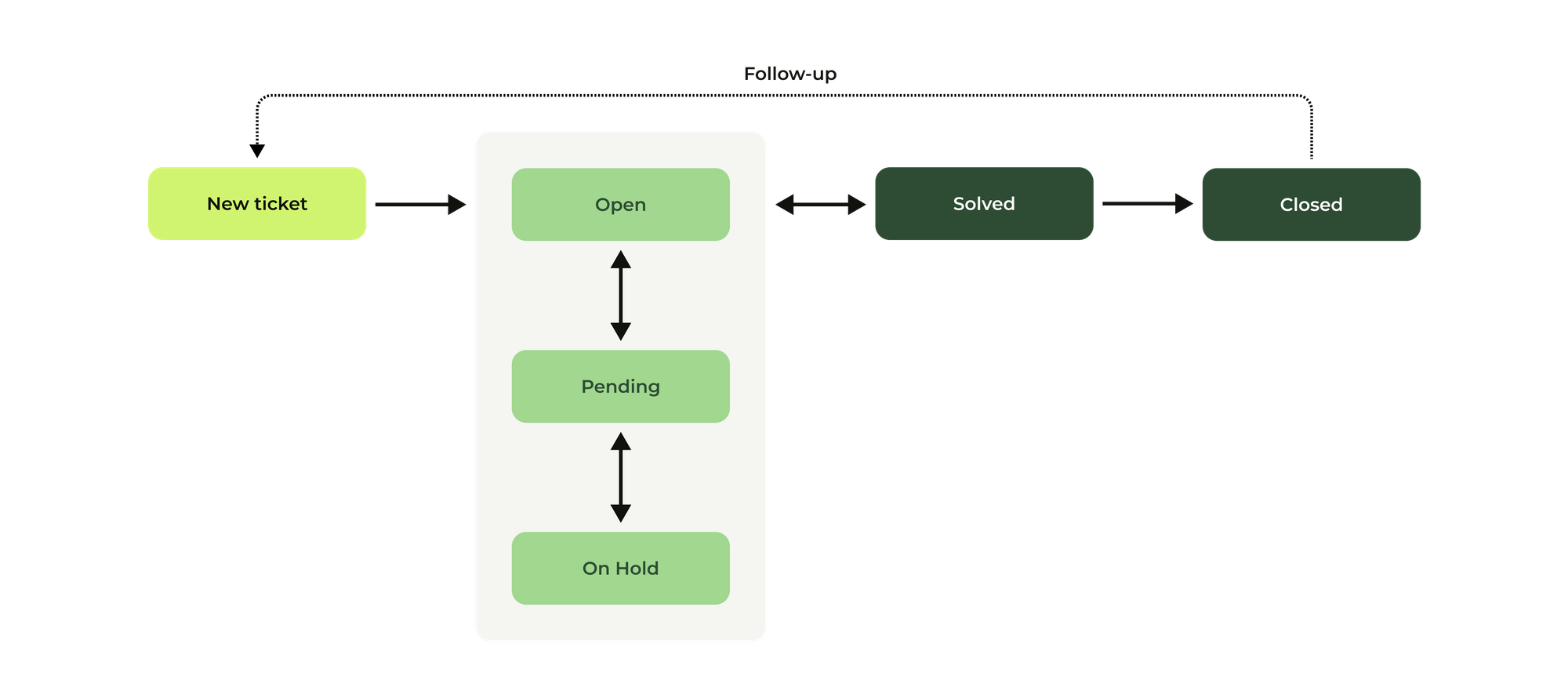
Once a Support ticket is deemed resolved by the agent, or if a customer forgets to reply and a few days have passed, we can set the ticket to a solved status. This can be the basis for a CSAT survey, and will also stop any SLA measurements. If the customer replies, the ticket reopens and the cycle continuous. If they don't, we move the ticket towards closed at which point the conversation becomes readonly. We can still update some metadata, but any reply from the customer becomes a new follow-up ticket.
This cycle of open-solved-closed is a known quantity and has been the basis for Zendesk's ticket lifecycle for over a decade. Improvements like custom statuses have been added, but they mostly serve as a way to distinguish between different reasons a ticket might be reopened, pending or on hold.
Messaging Conversations
For email conversations the above flow works great. A ticket is a direct mirror of the conversation, and customers and agent can read updates and reply to them, with reactions being visible in both the customers' inbox and Agent Workspace.
Messaging, and especially web-based messaging, is a different kind of interaction. A customer starts the conversation from the web widget (or mobile app) and in an ideal scenario they stay on that website until an agent gets the ticket assigned and replies.
But after business hours or at peak moments it might happen that the customer leaves the website before a ticket gets assigned to an agent or an agent has the chance to reply. This means the customer will never see the comment appear in the web widget, and they might assume their question was ignored.
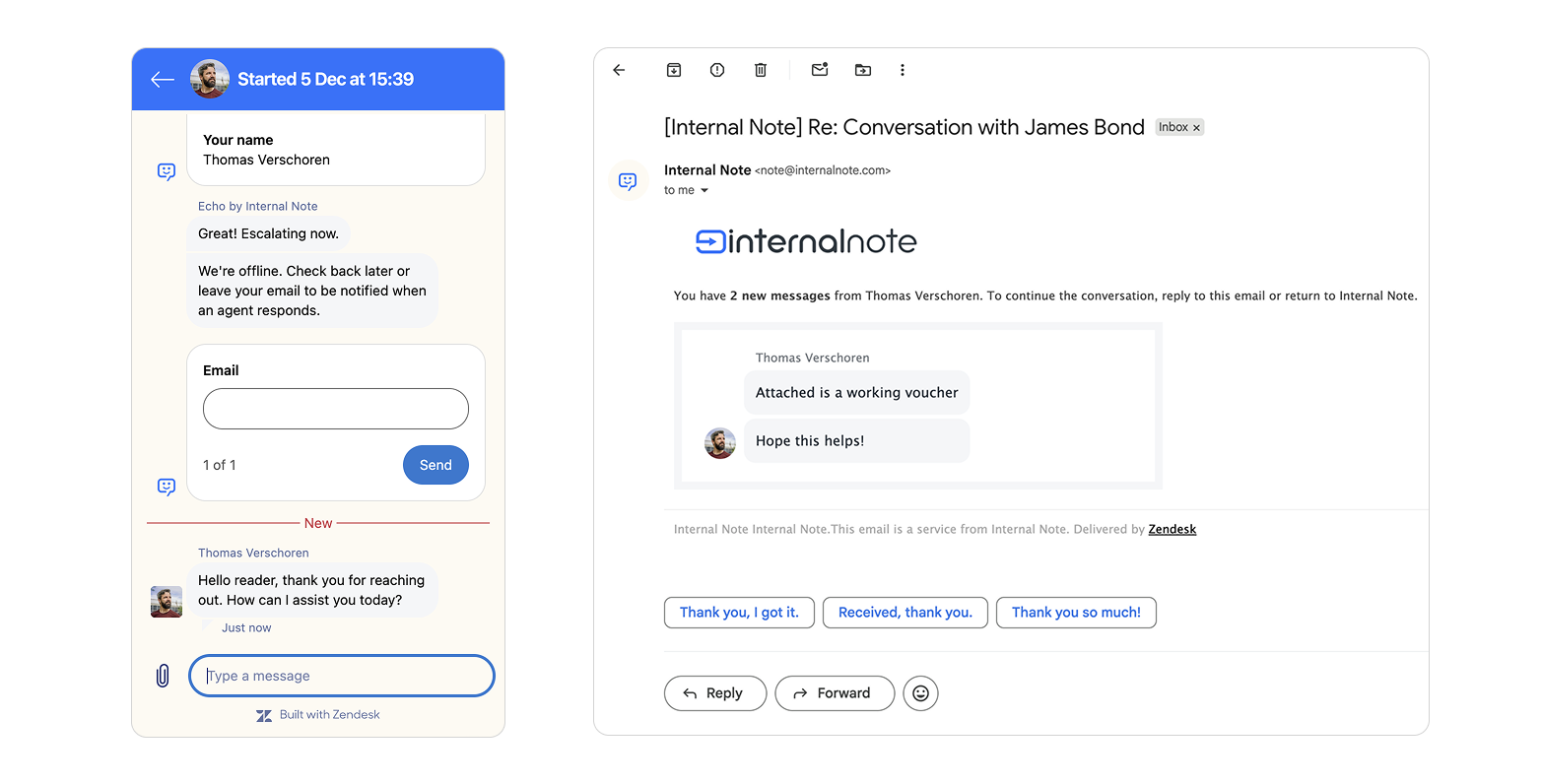
To resolve this gap, Zendesk introduced Continuous Conversations. The goal of this feature is to notify customers of pending agent replies outside the web widget. Whenever a customer starts a conversation that can't be immediately routed to an agent, the system will ask them for an email address. If they leave the widget, any agent comment will get send to them by email.
Once they receive the comment, they've got two options. They can either go back to the website and continue the conversation or they can reply via email, at which time the ticket moves from a messaging conversation towards an email conversation.
There's two important things to note here.
For one, "going back to the website and resuming the conversation" only works if they go back to the same browser and device. Or, in an ideal world, the customer is logged in and any browser or device where they visit your website will show them their running conversations.
 Thomas Verschoren
Secondly, "if they leave the widget" is actually not an accurate way to describe what happens. What actually happens is that Zendesk Messaging has the notion of a Conversation State. When a customer is actively typing in the web widget, the conversation has an active state. Ten minutes after their last message, the conversation shifts towards an inactive state. And anytime they send a message, the message shifts back to active.
It's this state-shift that Continuous Conversations uses to trigger the email notification. If a customer has not reacted to the ticket via email or messaging by the time the conversation turns inactive, the notification email gets triggered.
Messaging Conversation States
Continuous Conversations is but one of the ways Zendesk keeps track of a conversation by reacting to state changes. But before we dive into the specifics, let's first look at the overall flow of a Messaging Conversation.
Each new conversation starts as an active conversation. Based on customer messages and the time since a message was sent, the conversation shifts from active to inactive. This happens automatically after 10min of inactivity. AS the customer replies, our conversation moves from active to inactive.
If multiple conversations for the web widget are enabled, each new conversation the customer starts will have its own active-inactive cycle.
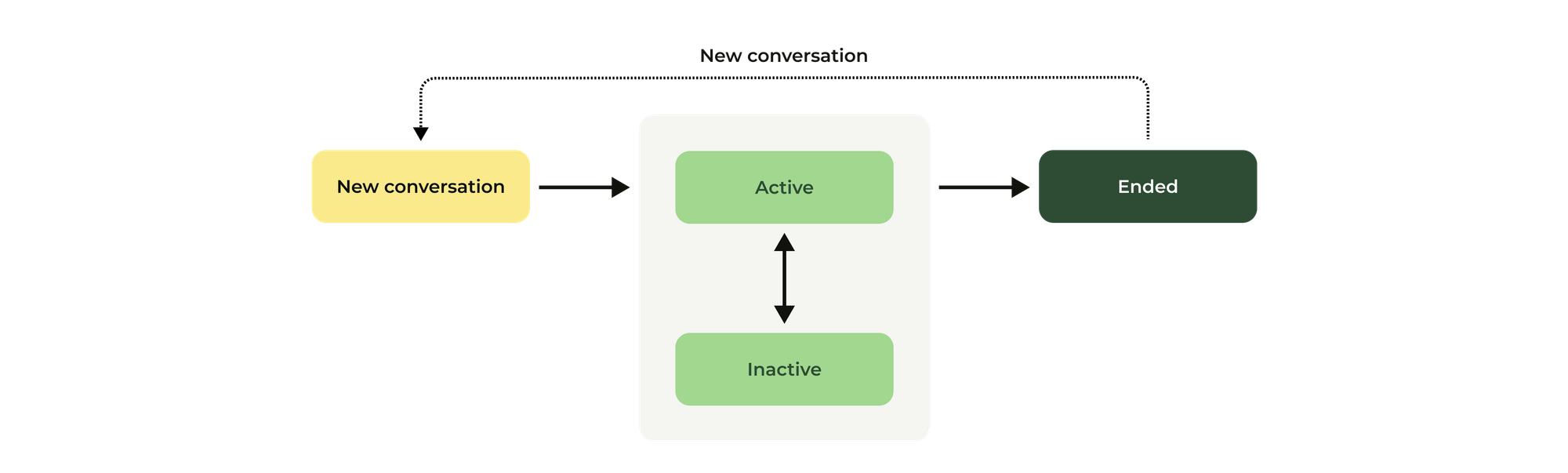
But similar to how an agent can use the closed state to indicate that this ticket has been resolved and any new reactions should become a new ticket, we need to be able to do the same for a Messaging Conversation. Otherwise we might end up with one giant conversation that spans multiple topics and is never ending.
To indicate a conversation has been resolved, we can use the ended state for a Messaging conversation. An ended conversation means that any new reaction from the customer will be turned into a new conversation for the agent in Agent Workspace. These are also clearly indicated in the web widget with an ended label in the conversation list
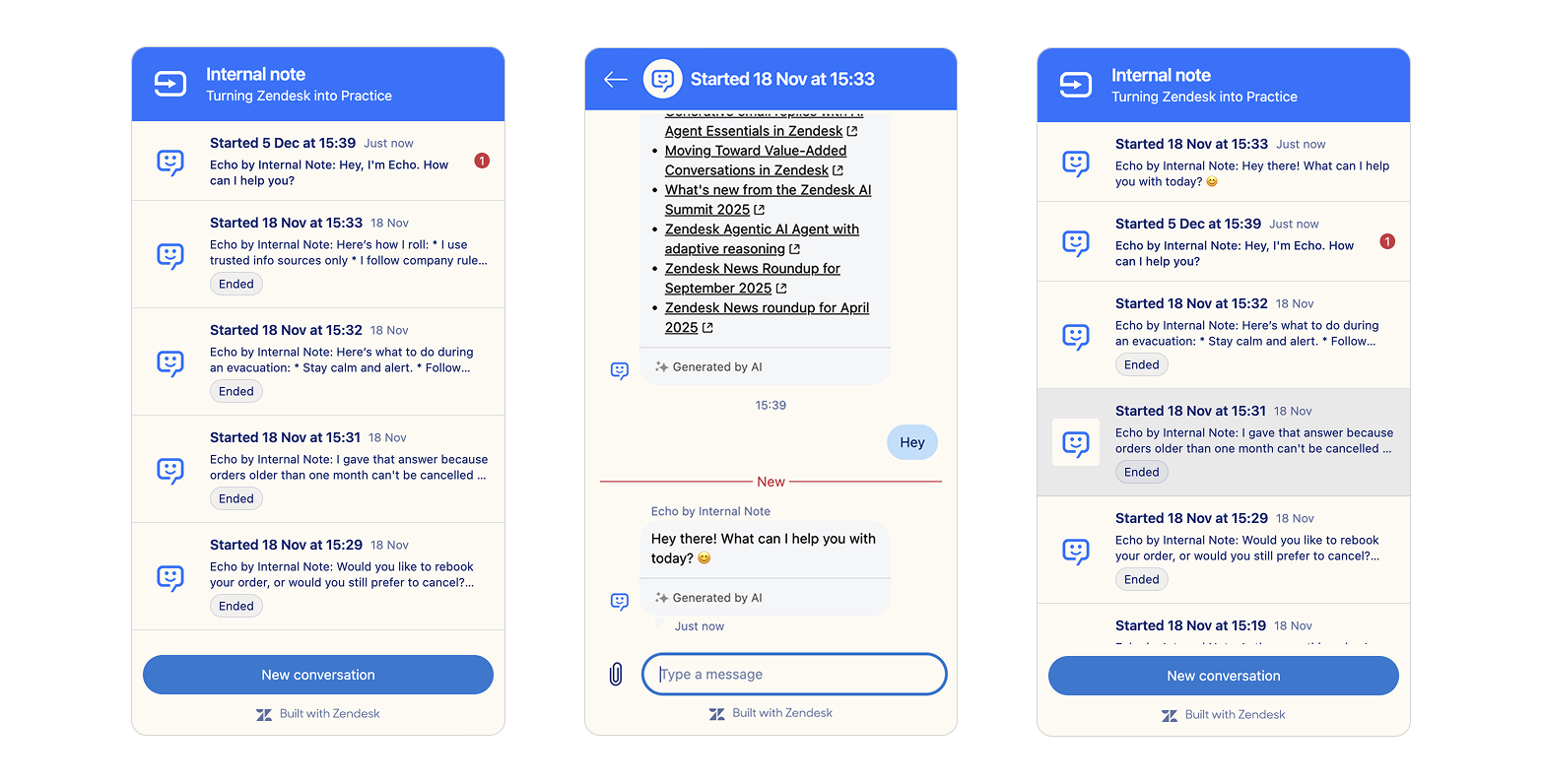
ended state indicates new reactions from customers should resolve in a new ticket in Zendesk that starts with the first new comment from the customer. The underlying conversation on the Sunshine Conversations level might have the same id. But for all intents and purposes we can ignore this and just say that a comment to an ended conversation will create a new conversation.Messaging conversations in Agent Workspace
Agents ending sessions
An important distinction between ticket statuses and conversation states, is that the former is controlled almost entirely by agents, while the latter is dependent on customer actions.
States and statuses also live mostly independent from each other. An open ticket can have an active, inactive or ended conversation state. And as an agent you shouldn't really worry about the conversation states. As long as you give tickets logical statuses when updating them, the system takes care of the rest.
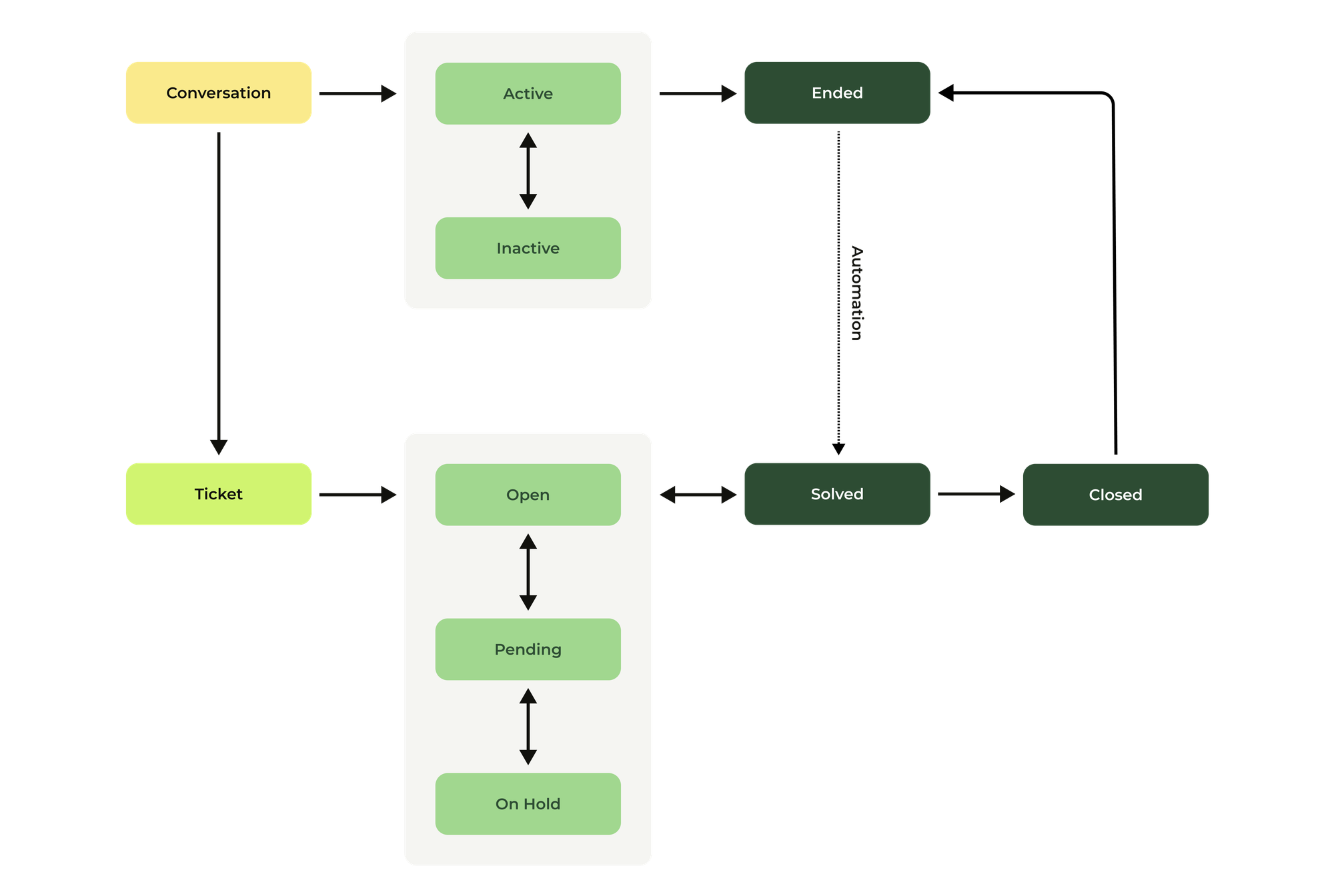
Inactive conversations trigger continuous conversation emails, and active conversations show a green dot in Agent Workspace. Useful because you can assume a customer is actively looking at the conversation and will probably reply swiftly.
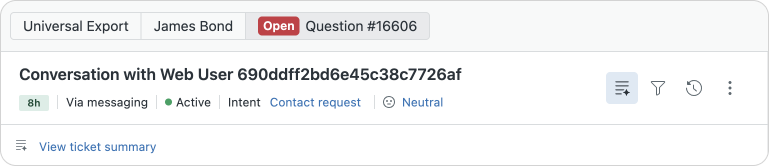
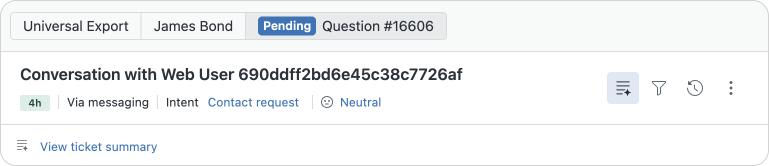
By default any ticket that moves from solved to closed will also see its conversation state move towards ended, which will then trigger a CSAT survey if it hasn't been send via other automations already.
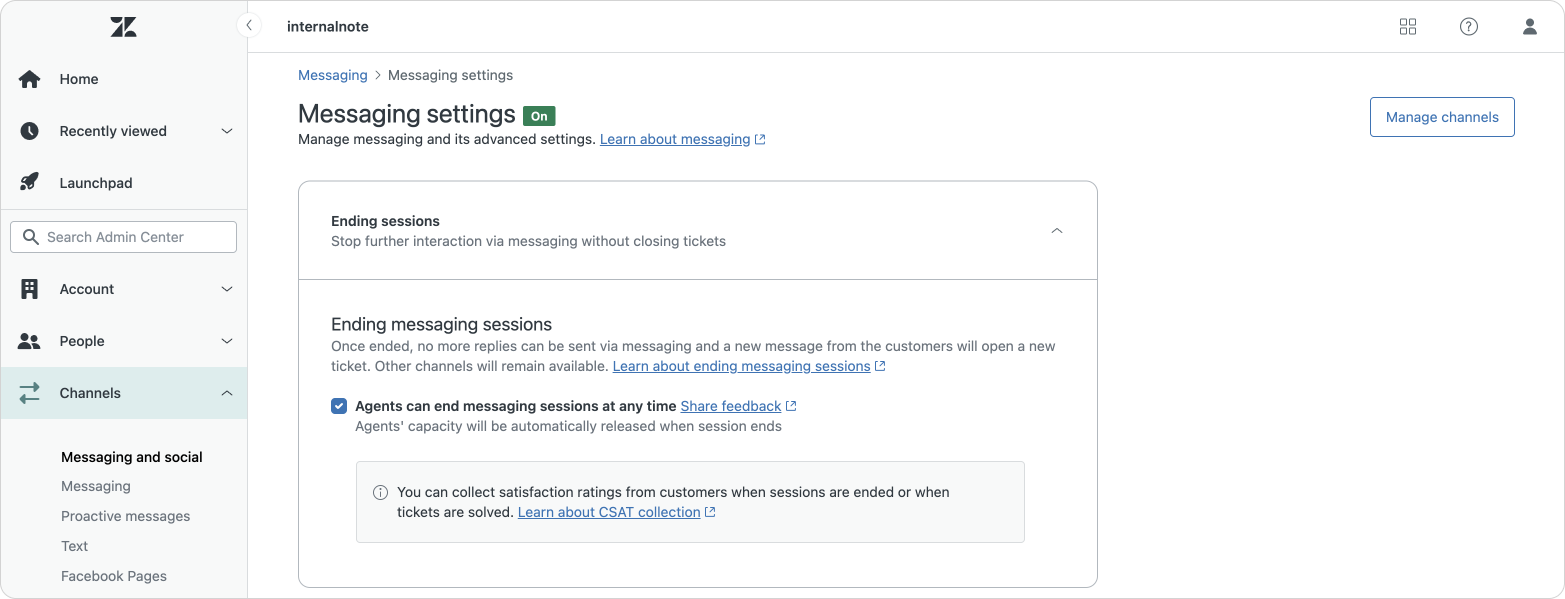
But there might be scenarios where you purposefully want to end a conversation. A conversation might be better suited to be handled over email. Or the issue has been resolved but the agent needs time to wrap up their work, but doesn't want the customer to keep talking. In those scenarios it might be useful to enable the Agents can end messaging sessions at any time feature in your Messaging settings.
Omnichannel Routing
An important area where conversation states play a key role is in Omnichannel Routing.
Agents have a specific capacity assigned to them. This means an agent can, for example, have 3 assigned messaging conversations at the same time. These interactions are active conversations with the customer where the customer is online and replying.
Whenever a conversation turns inactive, it will no longer count against an agents' capacity, and they'll get a new, additional conversation assigned to them. This makes sure that customers that no longer react aren't preventing other customers from getting their questions answered.
One thing that might happen is that inactive customers start replying again. That means the agent might have more than their maximum amount of conversations assigned to them. There's two ways to resolve this.
Capacity and reassignment.
One way is to count inactive conversations agains their capacity. It has the benefit that an agent will never go over their maximum, but it has the downside that if all the agent has are inactive tickets, the queue is stalled and other customers' wait time goes up.
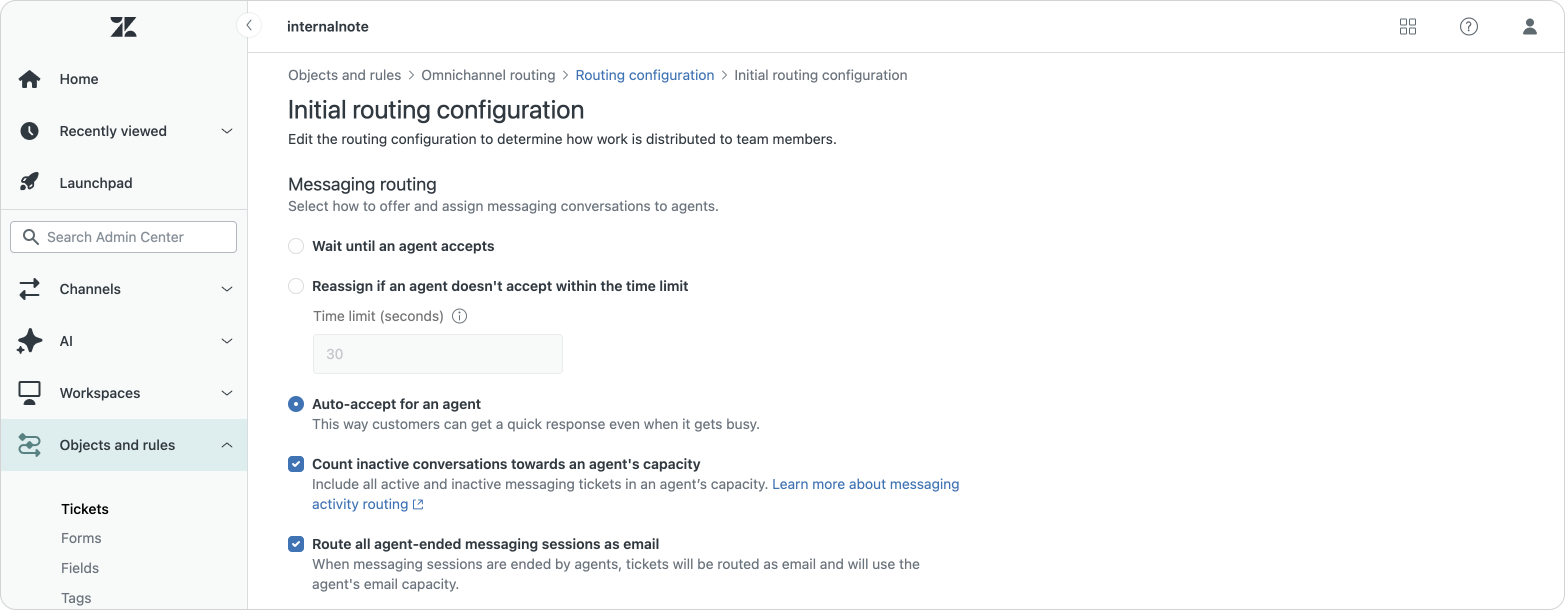
Additionally, you can enable an option to "Route all agent-ended messaging sessions as email". This is useful for scenarios where agents end a conversation but want to keep interacting with the customer over email. This will make sure it uses the right capacity of an agent.
Auto-release capacity
The other method is to enable auto-release capacity in Messaging settings. This will set any inactive conversation's ticket (time configurable) into a pending or solved state.
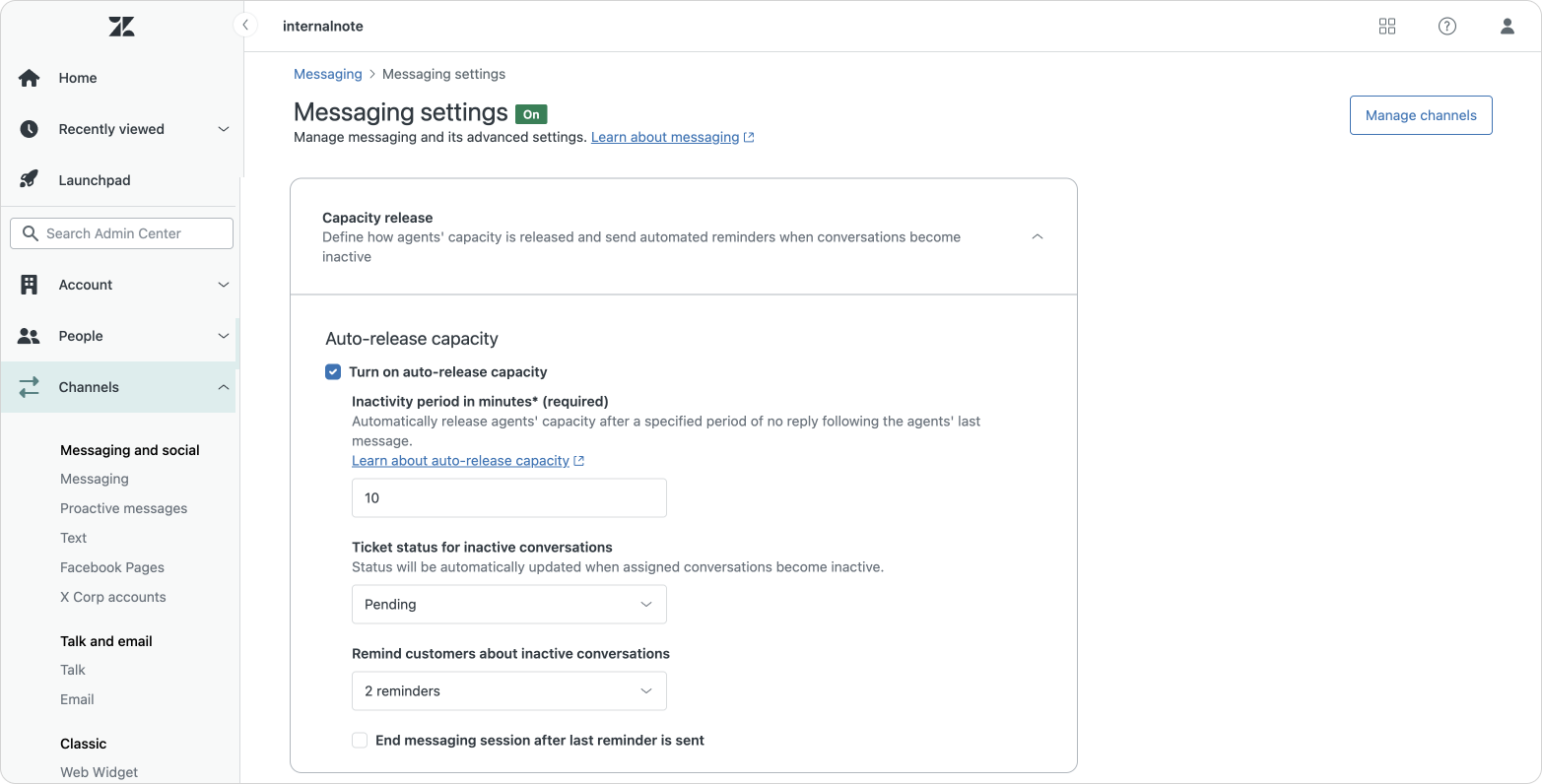
The solved state is particularly useful here if combined with Omnichannel's Reassignment for reopened tickets. If a customer replies to that conversation, it might get reassigned to another team member if the original agent is working at capacity. It does have the downside that tickets might get reassigned a lot, so pending is a more neutral approach.
Aside from just changing the state we can also send out reminders to customers over Messaging. This will prompt them to respond, and if they don't react we can decide to either end the conversation, or keep the conversation open but solve the ticket. If the customer does reply the conversation turns active and the ticket reopens, and if they don't the ticket will be closed automatically and the conversation ended.
The Agent Workspace conversation lifecycle
This might all sound overly complex, but it's actually a pretty logical once you combine this all into one flowchart
If we go over the full lifecycle as discussed in the previous parts of this article, the flow looks a little bit more like this:
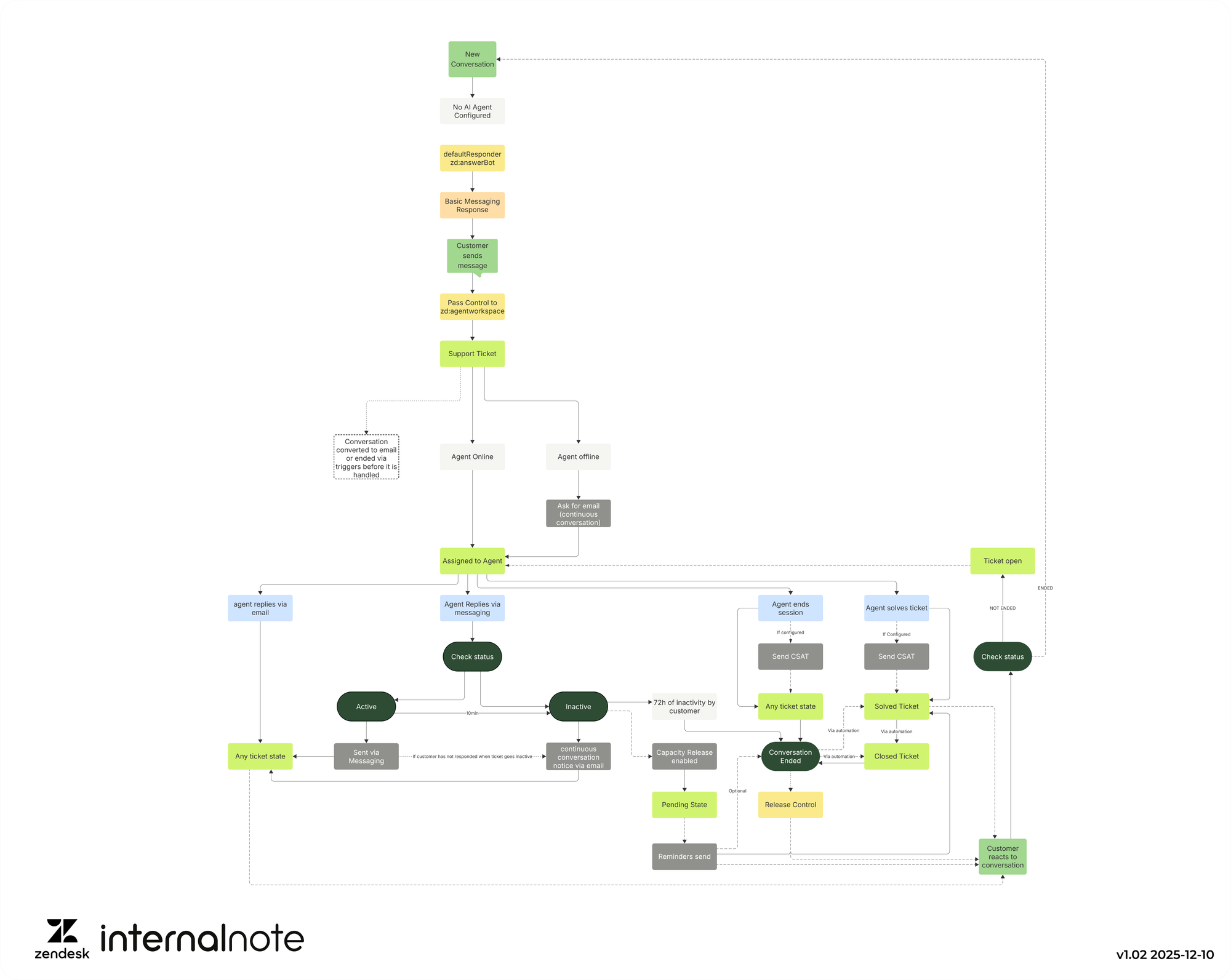
Agent Workspace Flow
- A ticket is created in Zendesk
- It gets assigned to an agent, or if no agent is available, we ask for an email address to use continuous conversations
- An agent than handles the ticket and can do any of these things:
- Reply via messaging
- If the agent reply via messaging, the comment goes to the customer, and if the conversation turns inactive, it's also send via email.
- Reply via email
- End the conversation
- If configured, we send out a CSAT survey
- This might solve or close the ticket via automation later
- Solve the ticket
- If configured, we send out a CSAT survey
- A customer replies to the conversation via messaging
- If the customer responds to a not-
endedconversation the ticket is reopened and the comment is added the the conversation.
- If the customer responds to a not-
- If the customer does not reply to the conversation
inactiveconversations might get released from capacity and reminders might be send out to the customer. If the customer does not react, we canendthe conversation and/orsolvethe ticket.solvedtickets turn to aclosedticket which alsoendsthe conversation,
- Customer reacting via messaging to
endedconversations always create a new conversation and ticket.
AI Agents
So far we've expanded the traditional ticket model to a more complex model that takes Messaging conversation states into account. But that's only half of the story. While some customers still allow for a direct escalation from the web widget to agents, most customers opt for a smarter approach that leverages AI Agents to automate customer interactions. This means that all conversations are handled by AI Agents first, and only some are escalated to Agent Workspace to be replied to by your team.
If we want to add this setup to our lifecycle, there are a few core elements we need to understand first.
- How AI Agents handle messaging conversations
- How tickets get passed to Agent Workspace
AI Agents and conversations
If we add AI Agents to our setup, new conversations no longer create tickets in Agent Workspace, but are assigned to our AI Agent first. Or more specifically, the switchboard, part of our Sunshine Conversations platform, has our AI Agent set as the firstResponder . For AI Agent Essentials this is defined as zd:AnswerBot and for Advanced it's ultimateai (funny how these older names still reside in the product if you dive deep enough)
The AI Agent reacts with a welcome reply. If the customer replies to that message we get an active conversation. This also triggers the creation of a AI Agent ticket in Agent Workspace that will contain the entire conversation between the customer and the AI Agent.
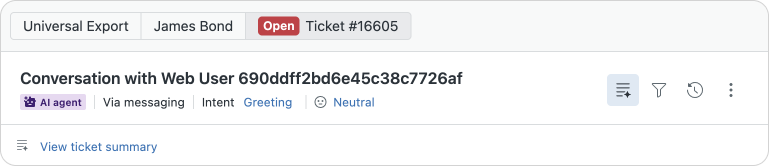
Four things can happen now.
- The AI Agent detects a specific use case and fires of a procedure, dialogue flow or replies with generative replies bases on knowledge sources
- The AI Agent determines that the interaction is resolved and marks it accordingly. This could trigger a BSAT or CSAT survey.
- The AI Agent decides it needs to escalate the conversation to a human agent.
- The customer abandons the conversation.
Ending a conversation
If the customer does not react to a resolved conversation within two hours, or they abandon the conversation for more than 4 days, the AI Agent ends the session. Not reacting or abandoning the conversation is identical to an inactive conversation in our Support tickets.
The AI Agent releases control of the conversation and we do a passControl back to the switchboard. When this happens the AI Agent ticket in Agent Workspace gets solved, and automations in Admin Center will close the ticket after some time.
If the customer replies to such a conversation, this will trigger a new reaction from the AI Agent, and a new AI Agent ticket will be created in Agent Workspace.
Interacting with Agent Workspace
AI Agent Essentials runs very similar to its Advanced sibling, but misses some features like procedures and dialogue flows. You can't choose when to transfer a conversation within those flows but you can only offer an escalation options to customers via a button.
With AI Agents Advanced we can decide when to transfer the conversation to a human Agent. This is done via a Escalation step in our procedure or dialogue flow. During this escalation we can pass additional metadata via actions, useful as context for Omnichannel Routing or Agent Copilot.
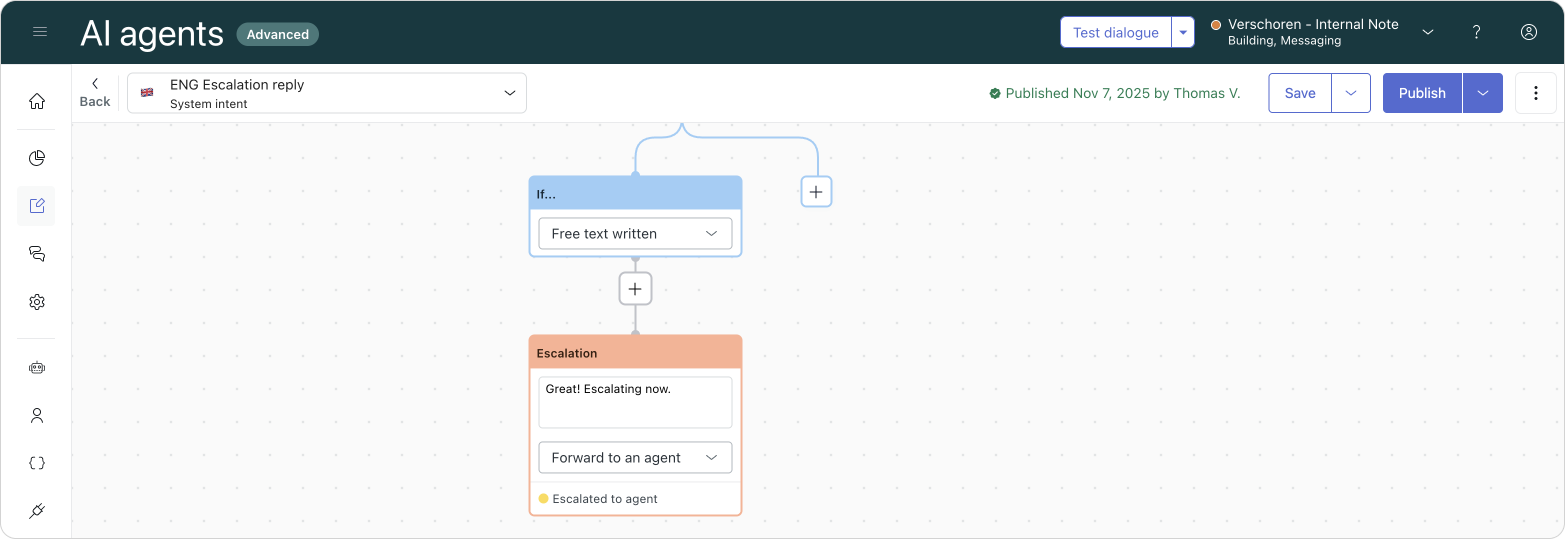
When a transfer happens it initiates a passControl to the nextResponder, in our case Agent Workspace. At the same time our AI Agent ticket gets converted into a regular Support Ticket and gets assigned to a human agent.
From this moment onwards the flow is identical to the one we described earlier.
Well, identical up to the point where customers start reacting to ended conversations. Previously we stated the following:
Customer reacting via messaging to ended conversations always create a new conversation and ticket.This was only partially true. What actually happens is that when we end a conversation in Agent Workspace, we passControl back to the switchboard just like an AI Agent might. If the customer reacts to that conversation, switchboard routes the conversation back to its firstResponder. In our first flow without an AI Agent, the firstResponder was Agent Workspace, so the conversation was transferred and a Support ticket created.
With AI Agents enabled, the firstResponder is actually our AI Agent, and instead of a reply to an ended conversation triggering a new Support ticket, we create a new conversation that's handled by the AI Agent, with an associated AI Agent ticket. Only when the AI Agent escalates the conversation, does the Support ticket flow start again.
This is also why the distinction between a solved ticket and an ended conversation is so important. A human agent can solve a messaging ticket. This will not automatically end the conversation, but will allow customers to reply to the ticket (and thus reopening it) until an automation closes the ticket. This way, if an agent deemed a question resolved but the customer has some additional feedback, that feedback can still end up in the original ticket. It's only when the ticket is closed and the conversation is ended that any new comments from the customer will be handled by our AI Agent.
The AI Agent conversation lifecycle
If we combine all these elements together we get a flow that looks like this:
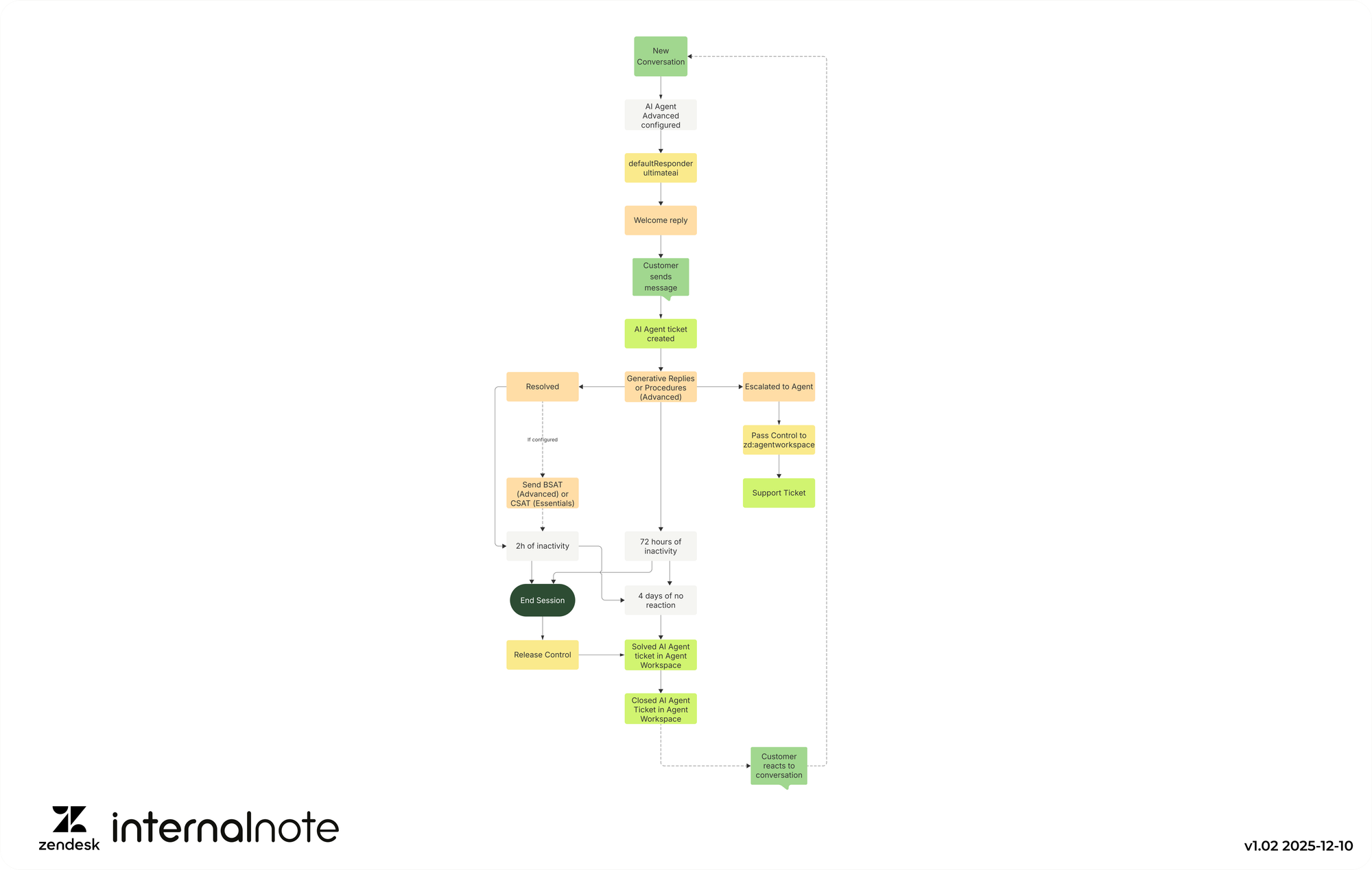
AI Agent Flow
- A conversation is started
- The AI Agent gets the conversation and sends a welcome reply
- The customer asks their question
- This creates an AI Agent ticket
- The AI Agent reacts by either
- Starting a procedure or replying with knowledge and interacting with the customer
- Escalating to Agent Workspace
- If the procedure ends we can send out an optional BSAT
- If the customer does not react anymore
- After 2 days for a resolved conversation we end the session.
- After 72h for an ongoing conversation we end the session.
- After 4 days we solve the AI Agent Ticket.
- If the customer reacts again we start a new conversation.
The full lifecycle of a messaging ticket
If we combine the AI Agent ticket and Support ticket flows into one basis diagram we get a flow like this:
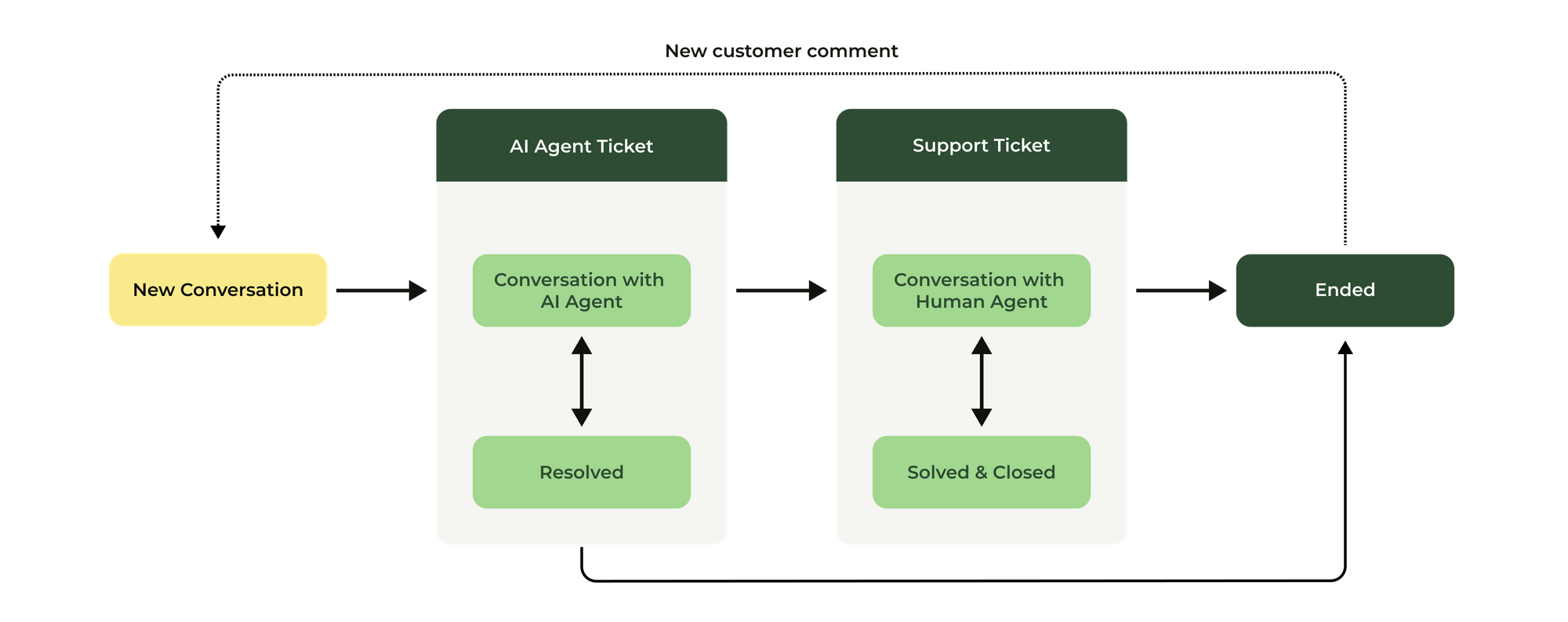
But this is not the full picture, the actual diagram has a lot more steps.

And while this might seem like an overwhelming diagram at first, there is actually just one fact and two basic flows you should understand, and all other steps derive from those.
The fact:
The conversation lifecycle and ticket lifecycle are two independent but connected elements.
The flows:
A conversation starts and ends, and takes an active/inactive state into account to structure what happens. The conversation can be owned by either an AI Agent, or Agent Workspace with human agents.
A ticket goes from new to closed. A ticket starts as an AI Agent ticket, and can be turned into a Support ticket upon escalation. A closed ticket triggers a conversation's end.
Final thoughts
This article is an almost complete overview of a messaging conversation's lifecycle.
One of the elements I ignored are older setups that don't make use of the powerful new capabilities the platform offers. Customers that still use legacy Flow Builder bots will see a very similar flow, but the way AI Agent tickets are handled might slightly differ.
I also assume customers are using Omnichannel Routing. If you don't use it you can ignore some steps in the Support ticket flow, but you also loose ways to manage workloads, and smartly react to customers' inactivity.
Third part chatbots are still supported on the platform but I left them out if this article because they each handle conversations differently, with some leveraging the full Sunshine Conversation APIs, and others doing poor ticket escalation integrations.
As our new AI Agent tickets capabilities evolve, so will this flowchart. For now doing a manual transfer from AI Agent to human agent from within Agent Workspace is not (yet) possible, but once that capability arrives, it'll impact the flow chart by adding a transfer step between the two ticket types.
Similarly, for now only the system or agents can end conversations. If and when customers will be able to do the same, we'll need to add a few additional branches to our flow.
And finally (I promise): this flow focuses on our web widget and mobile SDK channels. Customers using social messaging channels can map the entire flow on those channels with one exception, customers can only have one concurrent conversation instead of multiple.