
Building complex Action Flows with Custom Agents
Building complex Action Flows with Custom Agents

On this page
Zendesk’s Resolution Platform is designed to do more than capture knowledge and procedures. It also provides the tools to manage and run actions across conversations, tickets and wider business processes.
Action Flows provide the execution layer for that work. They can retrieve information, update records, connect to external systems and coordinate multi-step processes. Custom Agents add a layer of reasoning to those processes, allowing a workflow to interpret documents, compare conversations or determine whether something is genuinely resolved.
Action Flows and Custom Agents are complementary. An Action Flow provides the structure: it determines when a process starts, which systems it should touch, what conditions it should evaluate and what actions it should perform.
A Custom Agent handles the parts that require interpretation. It can read an attachment, compare two tickets, decide whether something is still outstanding or explain why two pieces of information are similar.
 Thomas Verschoren
This article looks at three examples of new types of flows you can build in the platform today:
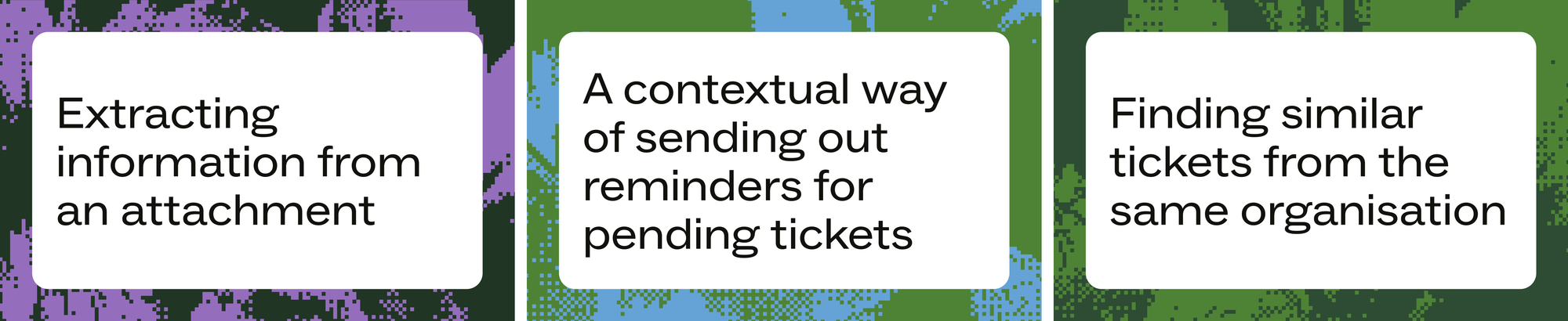
The examples demonstrate several recent capabilities added to Action Flows and Custom Agents, including wait steps, looping, parameters, execution logs and trace, audit-log support and the ability to clone existing flows.
Clone Flow is particularly useful when a new process resembles one you have already built. You can duplicate an existing flow, adapt its triggers and actions, and reuse proven configurations instead of starting from scratch.
Audit and run logs
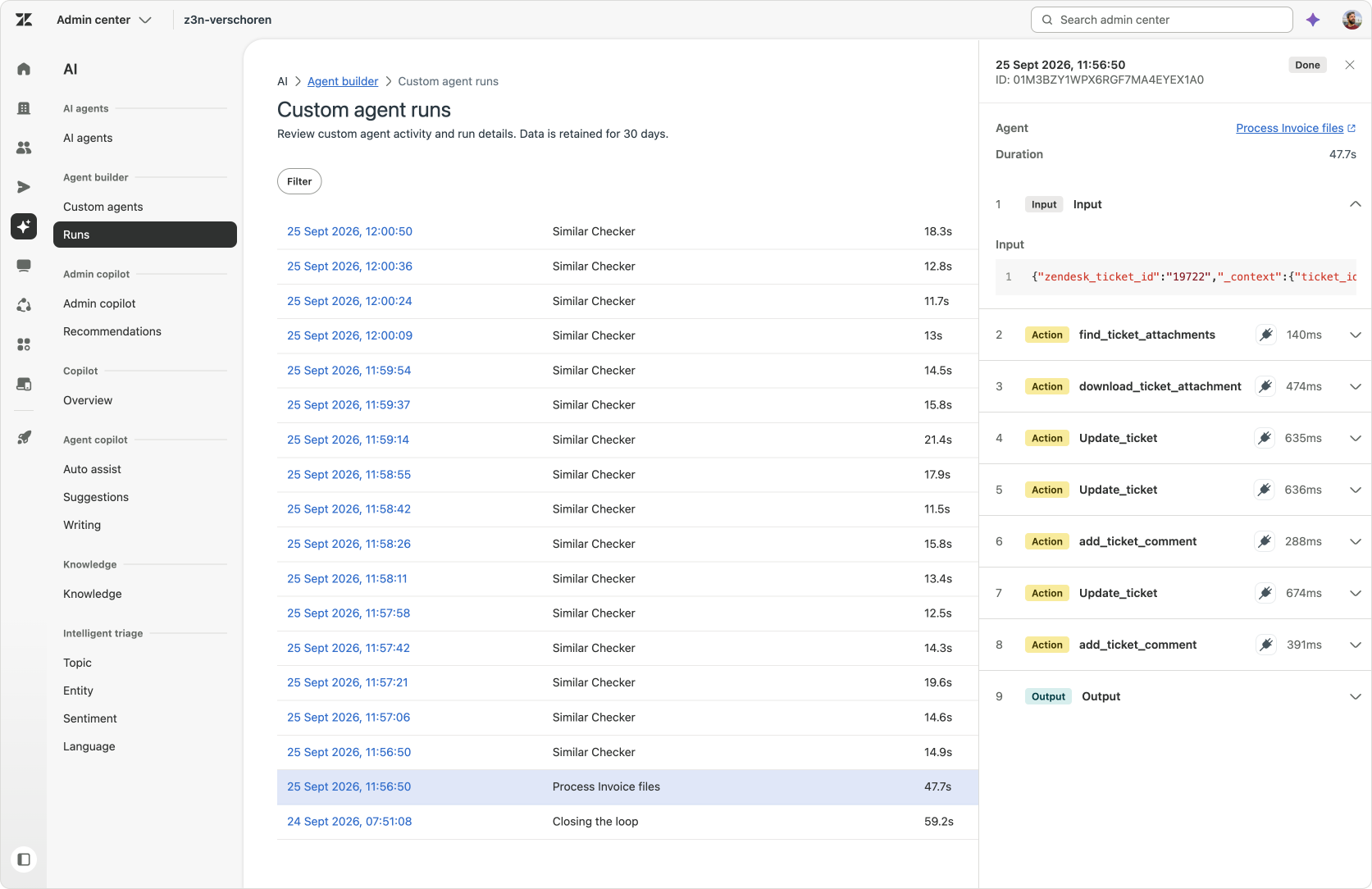
Execution and trace logs provide operational visibility into Action Flows and Custom Agents. The run history shows whether a flow is in progress, successful or failed, when it ran, how it was triggered and which steps it completed. Opening a specific run provides a step-by-step trace with timings, inputs, outputs, conditional evaluations and error messages.
- The Custom Agent run log shows when an agent was invoked, which inputs it received, how it progressed through the task and what it returned.
- The Action Flow run log shows the individual executions of a flow. It provides an overview of which runs are in progress, which have completed and which are waiting or have failed.
- The full Action Flow log provides the detailed execution history for a specific run. It shows the inputs and outputs of individual steps, making it possible to follow data as it moves through the workflow.
- The audit log covers a different kind of history. It records changes to the flow itself, including who created, modified, activated, deactivated or deleted it, and when those changes happened.
In other words, execution logs show what happened when a flow ran. The audit log shows how the flow’s configuration changed over time. These logs make advanced workflows easier to understand, test and maintain. They help answer practical questions such as:
Waiting inside an Action Flow
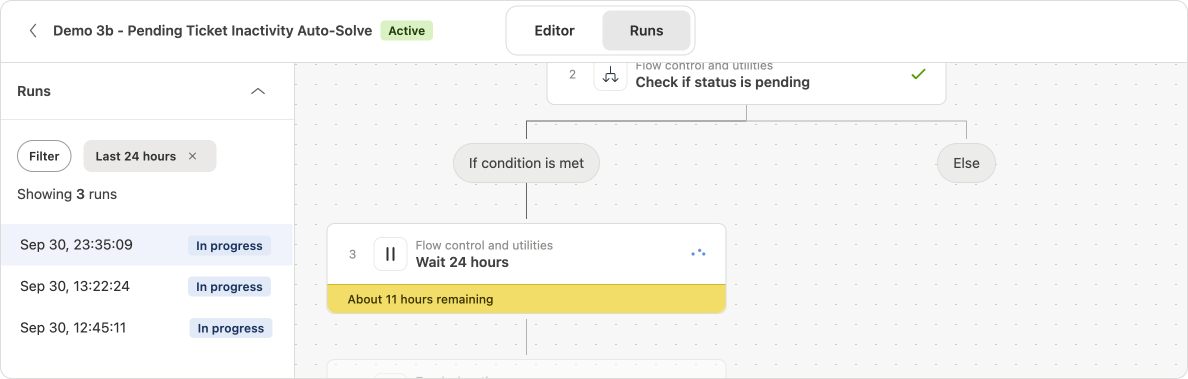
The Wait step allows an Action Flow to pause for a defined period before continuing. Wait times can range from one minute to 31 days, and the execution log records when the wait started, when the flow is expected to resume, how much time remains and when the wait is complete.


This makes it possible to represent processes that naturally unfold over time without splitting them across several automations or relying on external orchestration.

Wait steps can be used for a range of scenarios, like sending times follow-ups, rate limiting for APIs, sending out reminders or sending out phased notifications spread across time.
The wait is part of the flow’s state. Once the wait period has elapsed, the flow resumes automatically and continues with the next configured step. Which means that if you look at the run logs for your flows you might see flows that have been running for days just waiting until the configured wait time has passed.

Extracting information from an attachment
Using Custom Agent OCR capabilities
The first example uses a Custom Agent to extract structured information from an attached PDF.
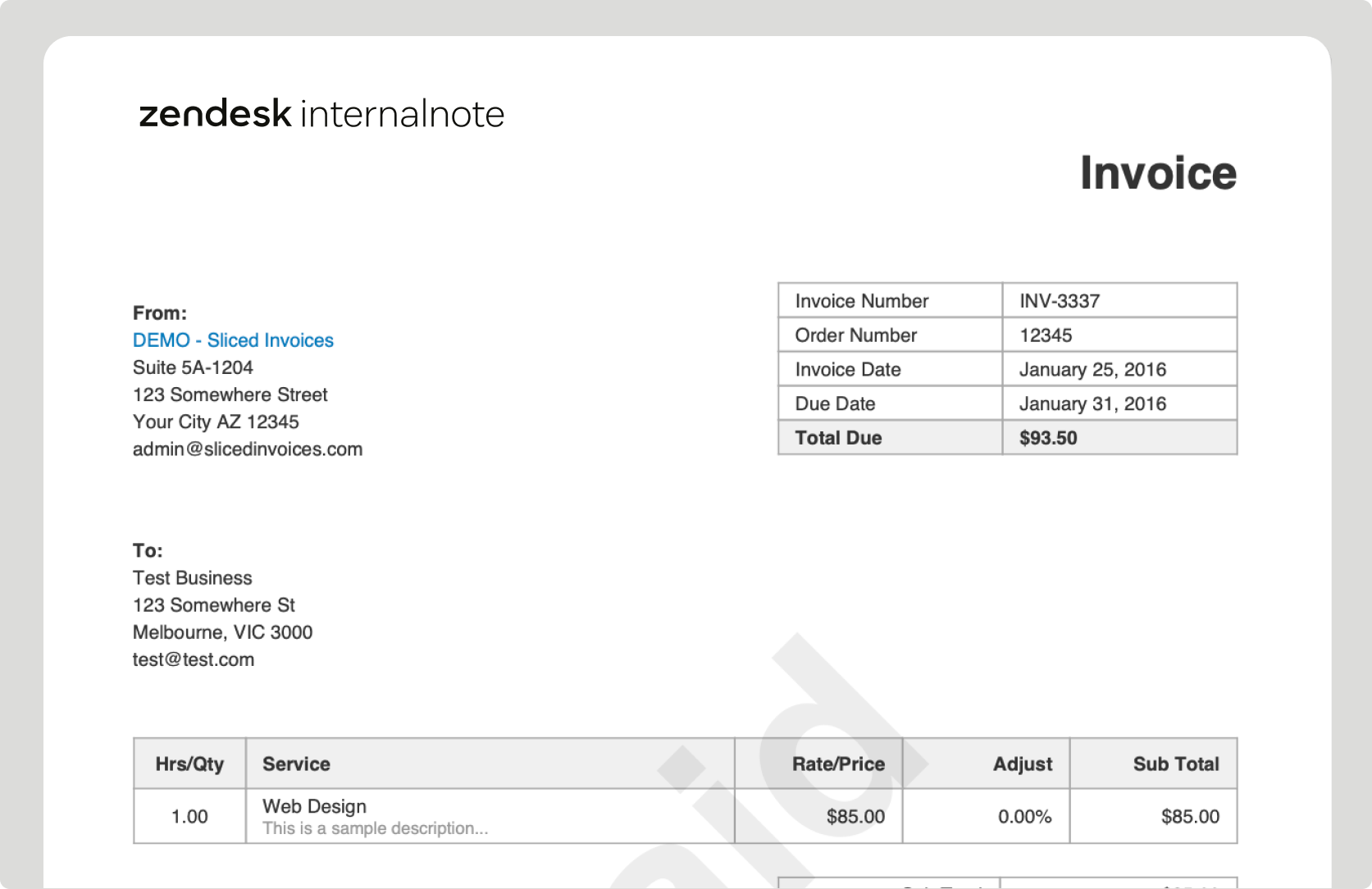
This is useful for processes where customers send documents containing information an agent would otherwise need to read manually. In this example, the attachment contains an order number, product name and purchase date.
Custom Agent
The Custom Agent receives the ticket and its attachments as input.
It downloads and reads the attached PDF, uses OCR to extract the relevant content and identifies the three fields we need: order number; product name; and purchase date. The agent then returns those values in a structured format, together with a short explanation of what it found.
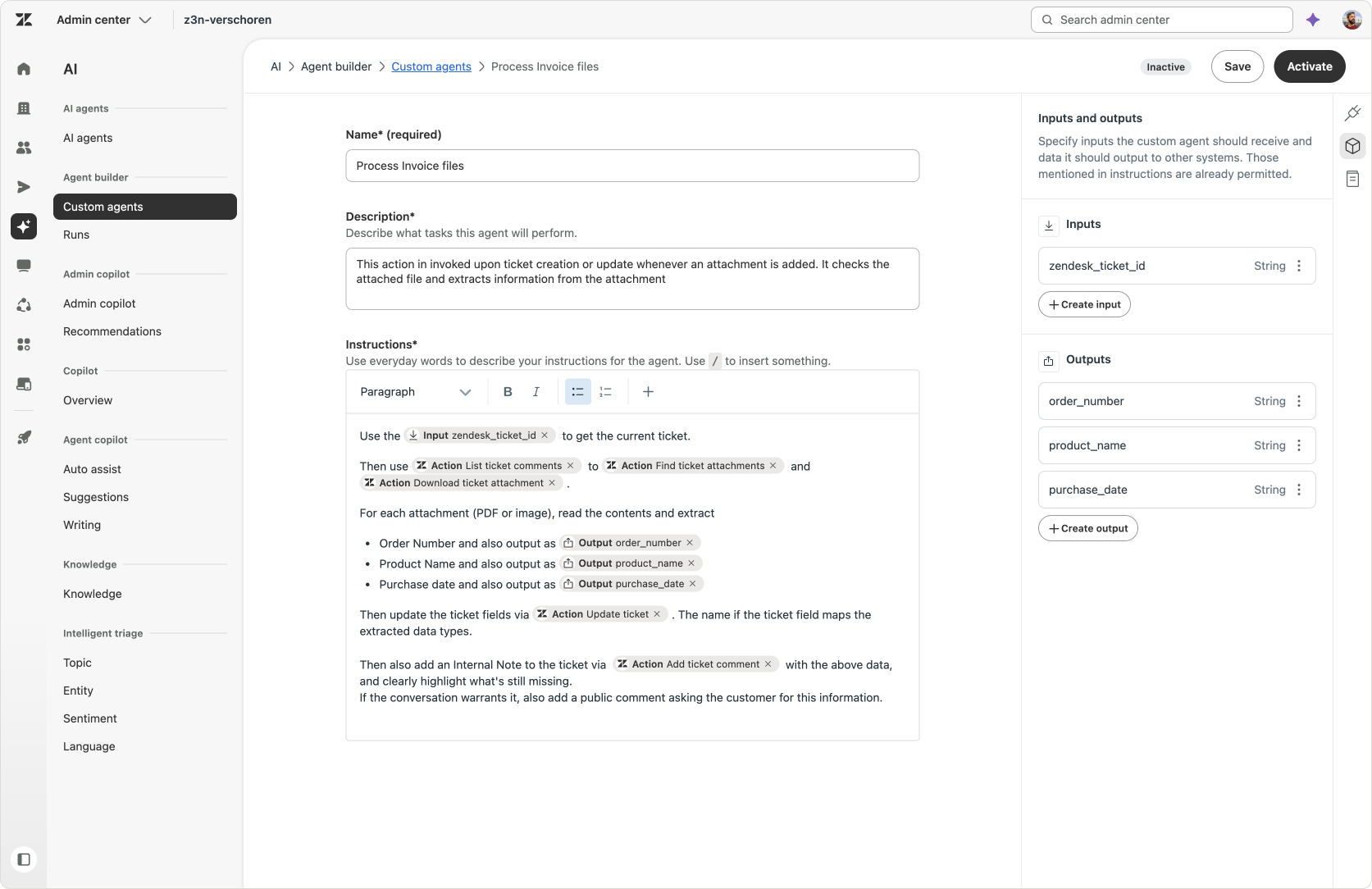
Process invoice files
Get the current ticket. Then use ActionList ticket comments to ActionFind ticket attachments and ActionDownload ticket attachment.
For each attachment (PDF or image), read the contents and extract
- Order Number and also output as
Outputorder_number - Product Name and also output as
Outputproduct_name - Purchase date and also output as
Outputpurchase_date
Then update the ticket fields via ActionUpdate ticket. The name if the ticket field maps the extracted data types.
Then also add an Internal Note to the ticket via ActionAdd ticket comment with the above data, and clearly highlight what's still missing.
If the conversation warrants it, also add a public comment asking the customer for this information.
Action Flow
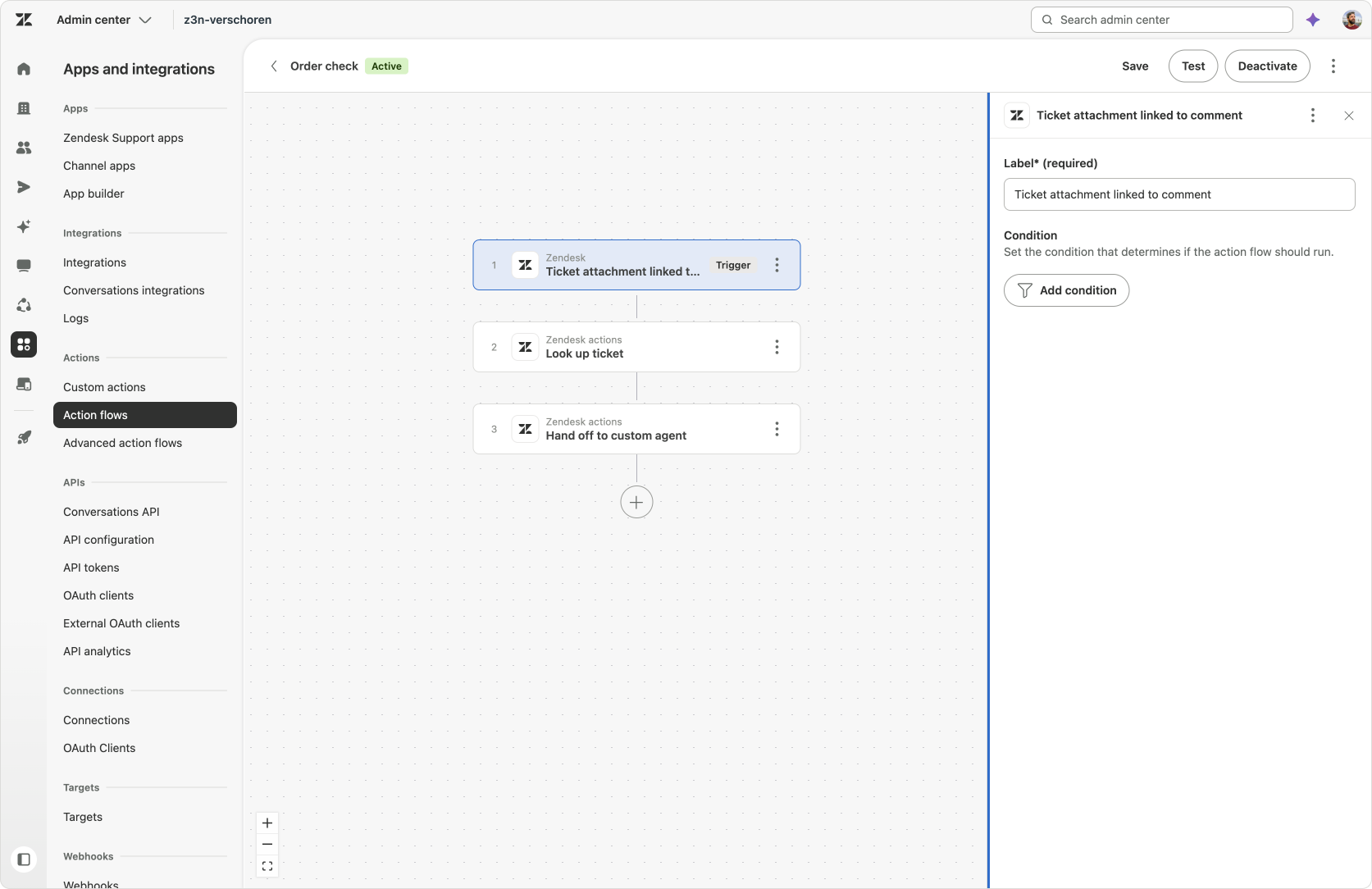
The Action Flow is triggered whenever a ticket contains an attachment.
It checks the ticket context and hands the relevant ticket information to the Custom Agent which updates the ticket fields and adds a comment.
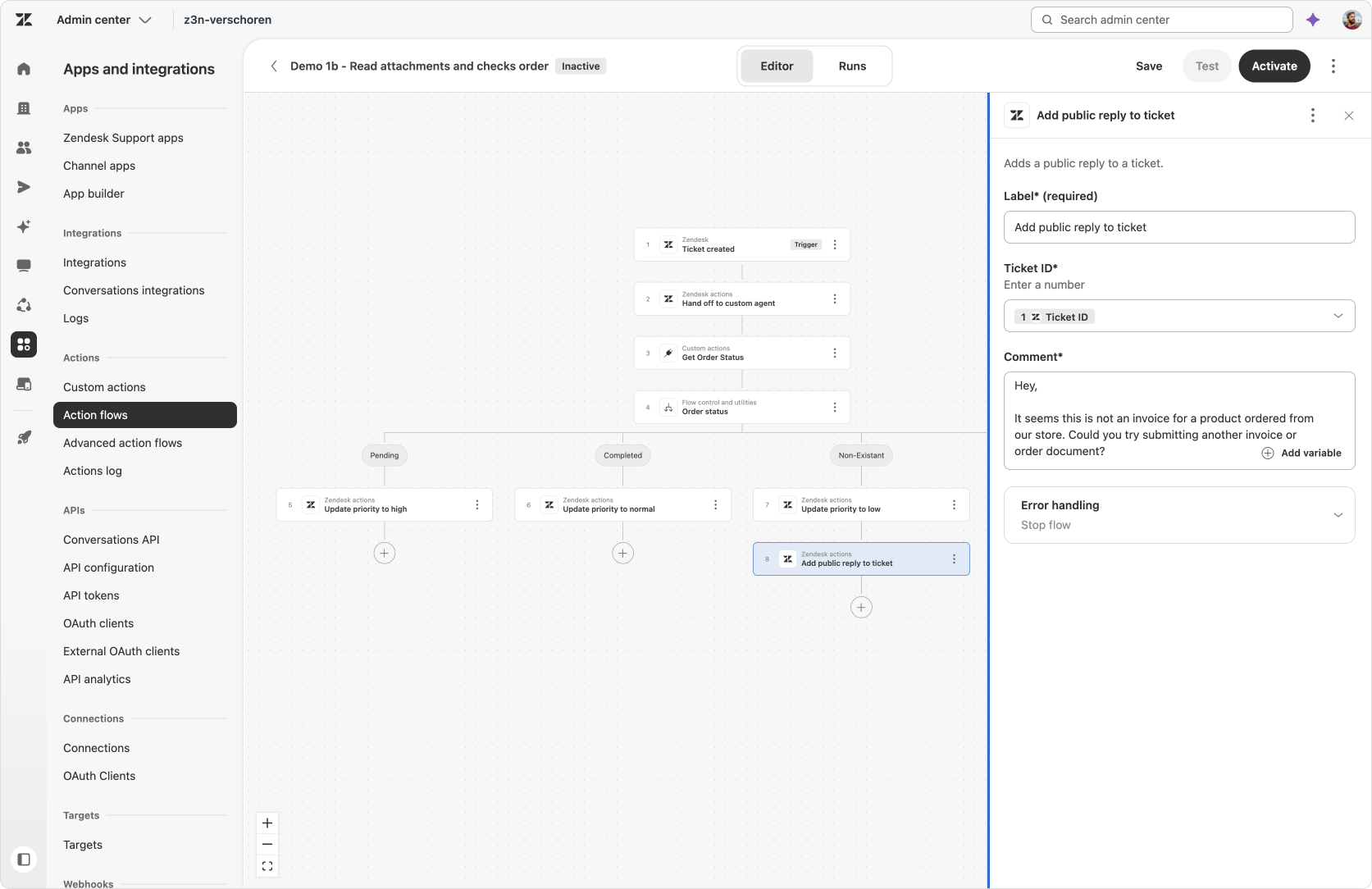
Optionally, we could expand this flow to check if the order number the agent extracted exists, and if not alert the customer and ask them to resubmit the invoice.
Result
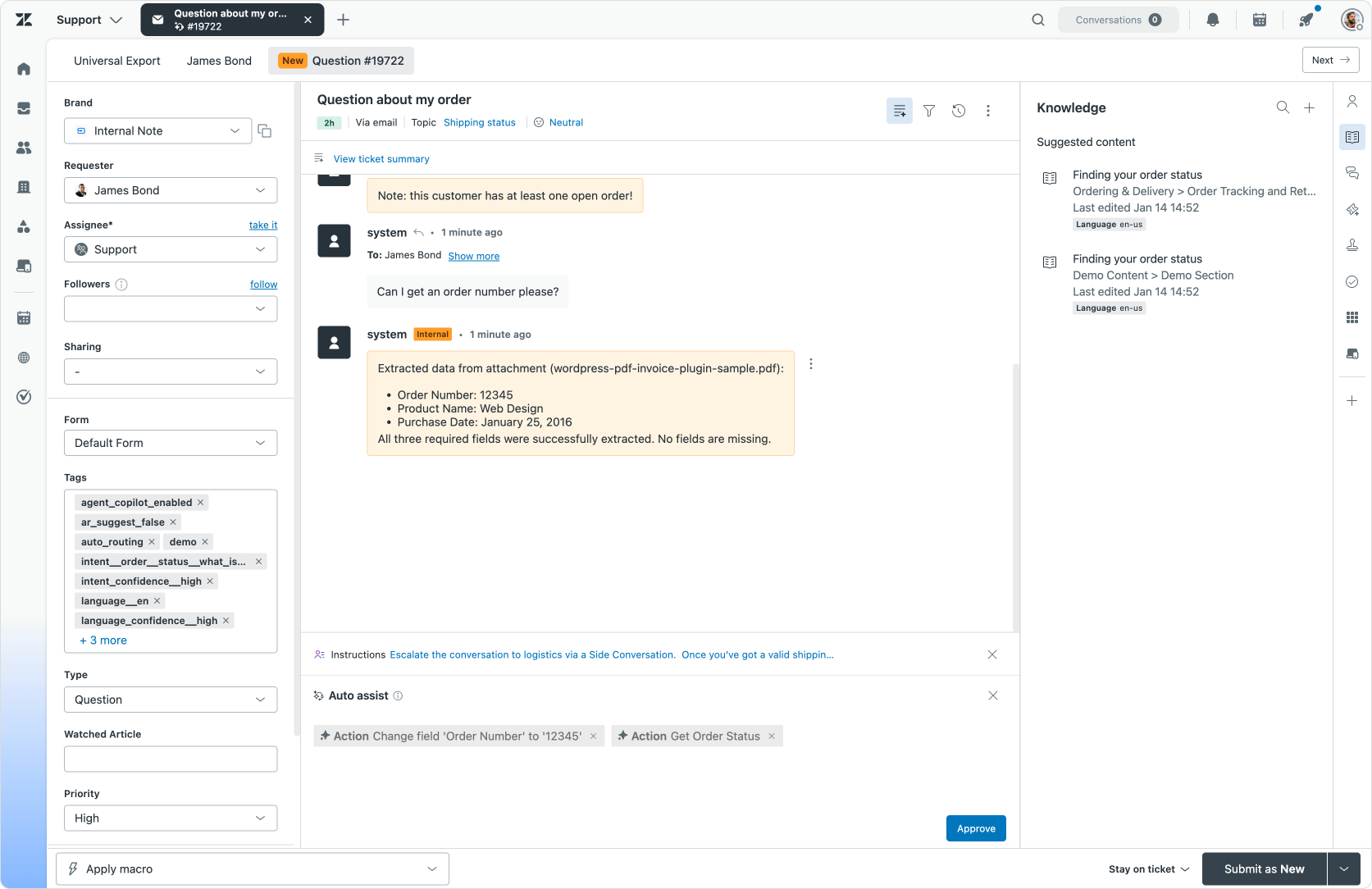
As the screenshot shows, the attachment has been processed and the extracted information is now available directly on the ticket.
Run Logs
At any time we can open the custom agent logs and see each step of the flow, validating what the Custom Agent did, what information it processed and what decisions it took.

Pending Tickets
Using the new wait capabilities of Action Flows
The second example builds on Closing the Resolution Loop with Custom Agents.
 Thomas Verschoren
The original flow checked whether an agent had completed all the required work after solving a ticket, and reopened the ticket to alert the agent of any pending items.
This new version expands the logic to include the customer’s outstanding actions as well, providing us with a more context-aware version of a reminder-reminder-autosolve flow many of us have built in Zendesk.
A ticket should not be solved simply because the agent has finished their part. If the customer still needs to confirm something, provide information or answer a question, the ticket should remain Pending. But if the customer does not respond, we should remind them and then solve where needed. For example, if we're just waiting for a confirmation the reboot worked, chances are they'll never reply if it worked.
By reading conversations and passing them to a Custom Agent, we can reason across the conversation and silently solve these types of tickets, while sending out reminders to customers with context where needed.
Custom Agent
The Custom Agent receives the ticket conversation and determines whether anything remains unresolved.
It checks both sides of the interaction.
- On the agent side, it looks for unanswered questions, incomplete work, missing actions or promises that have not yet been fulfilled.
- On the customer side, it checks whether the customer still needs to confirm something, provide information or respond to a request.
The agent returns a decision indicating whether the ticket can be solved and explains what remains outstanding when it cannot.
Closing the loop
Take a look at all the ActionList ticket comments.
Analyse the conversation and check if their are open items that are not addressed. The output returns a Outputsolved_status . If either of the checks below fails, its set to false.
Customer Side
This could be items open for the customer. Questions we are waiting for an answer for, things they need to confirm.
- If you find such items, set
Outputsolved_statusto false. - If all items are resolved, set
Outputthe solved_statusto true.
Agent Side
The same goes for items we promised but did not follow-up on, questions the customer asked but we didn't address and so on.
- If you find open items that are not addressed or answered, list them in an internal note and set the ticket status to open. If there are open items,
Outputsolved_statusis false - If all items are resolved, set the
Outputsolved_statusto true, unless the customer side check already set it to false.
Examples
- For example, a customer asks about a refund, opening hours and availability.
We only answer the refund and availability questions. This leaves a solved ticket with an open question about opening hours. - Or we tell the customer he's eligible for the refund, but nowhere in the conversation do we address actually refunding them.
- Or we ask the customer to confirm the proposed solution worked, and they never confirm it did, leaving the ticket stuck.
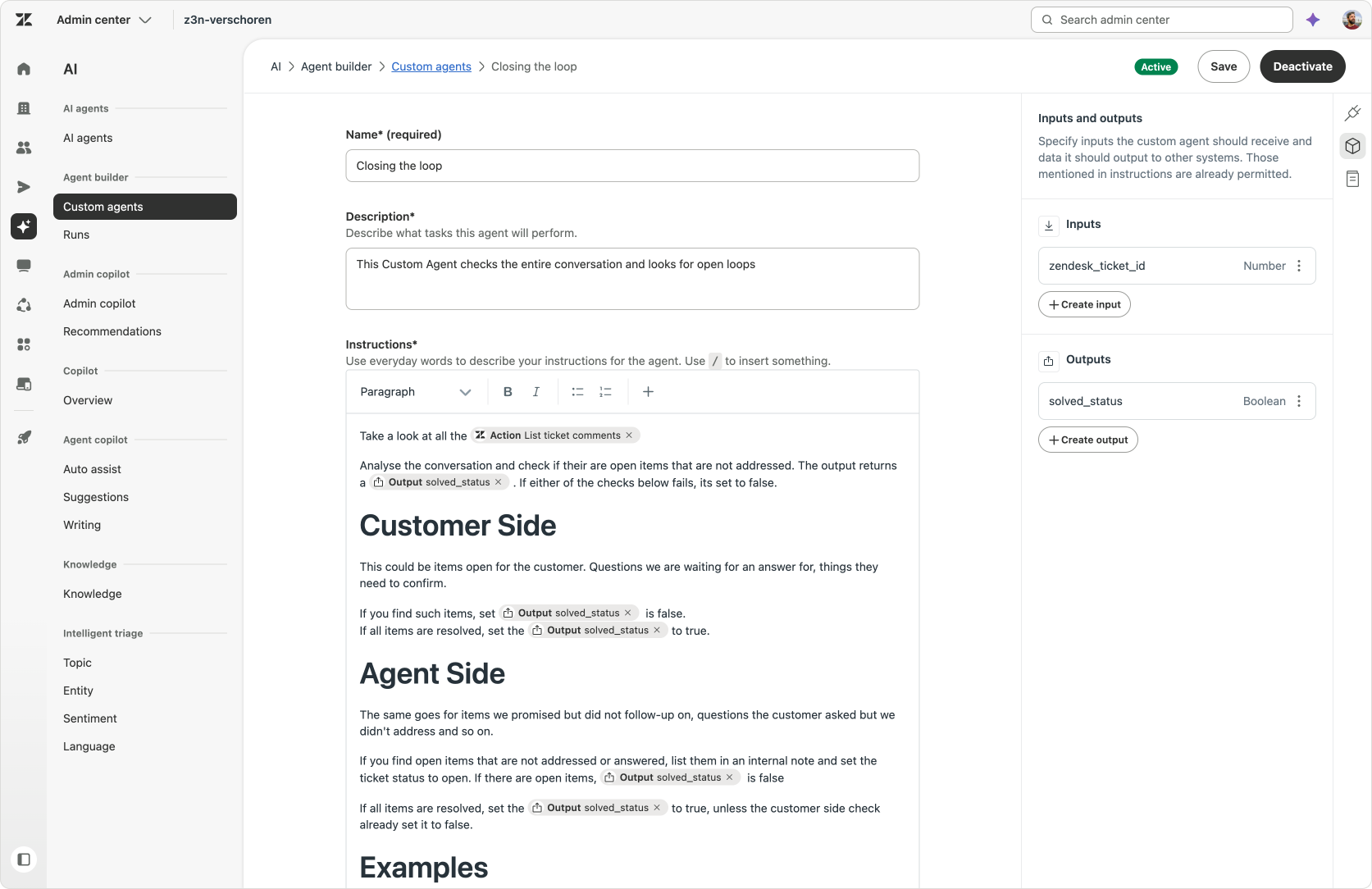
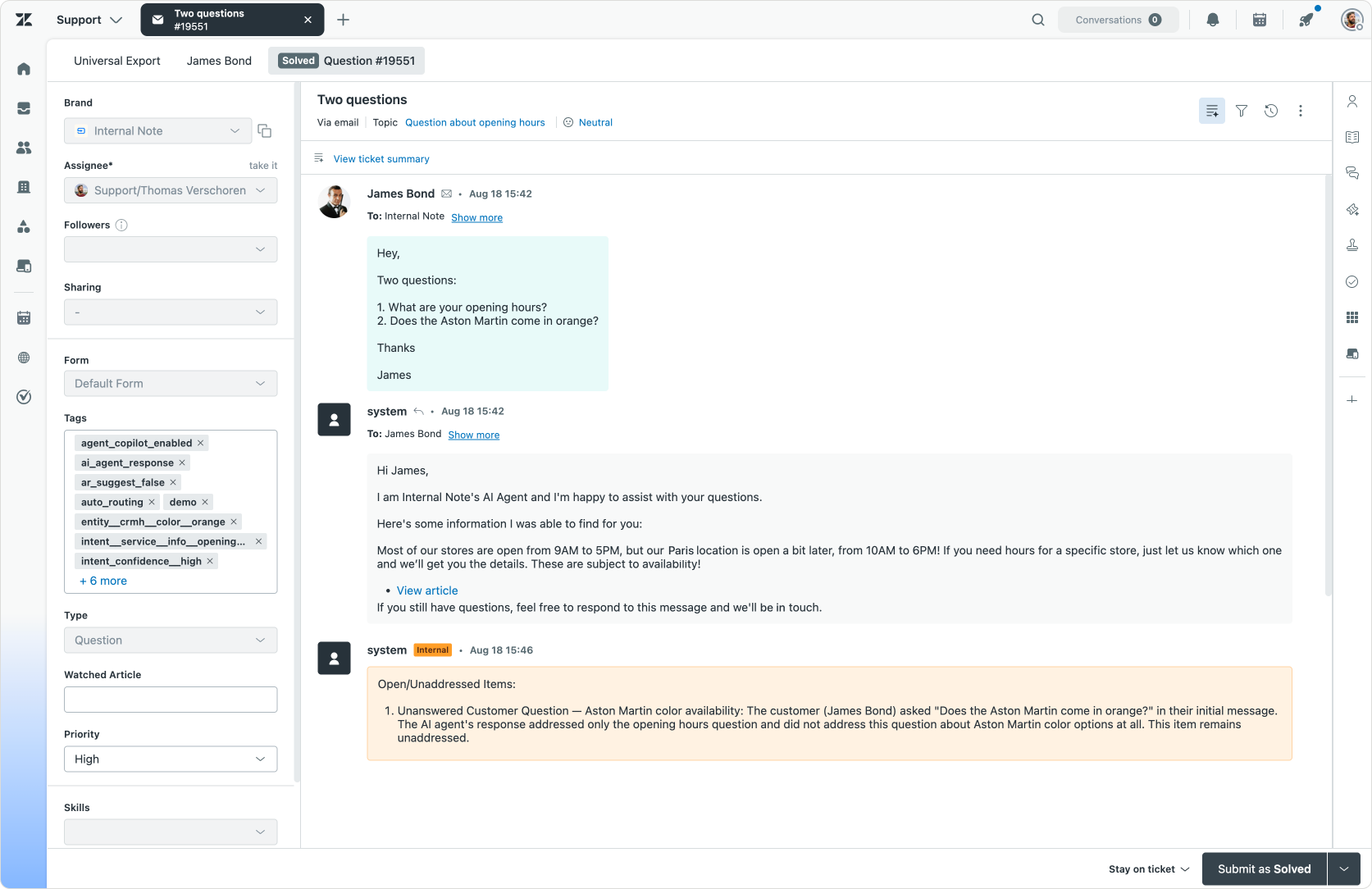
Example of our Custom Agent and the original simple flow.
Action Flow
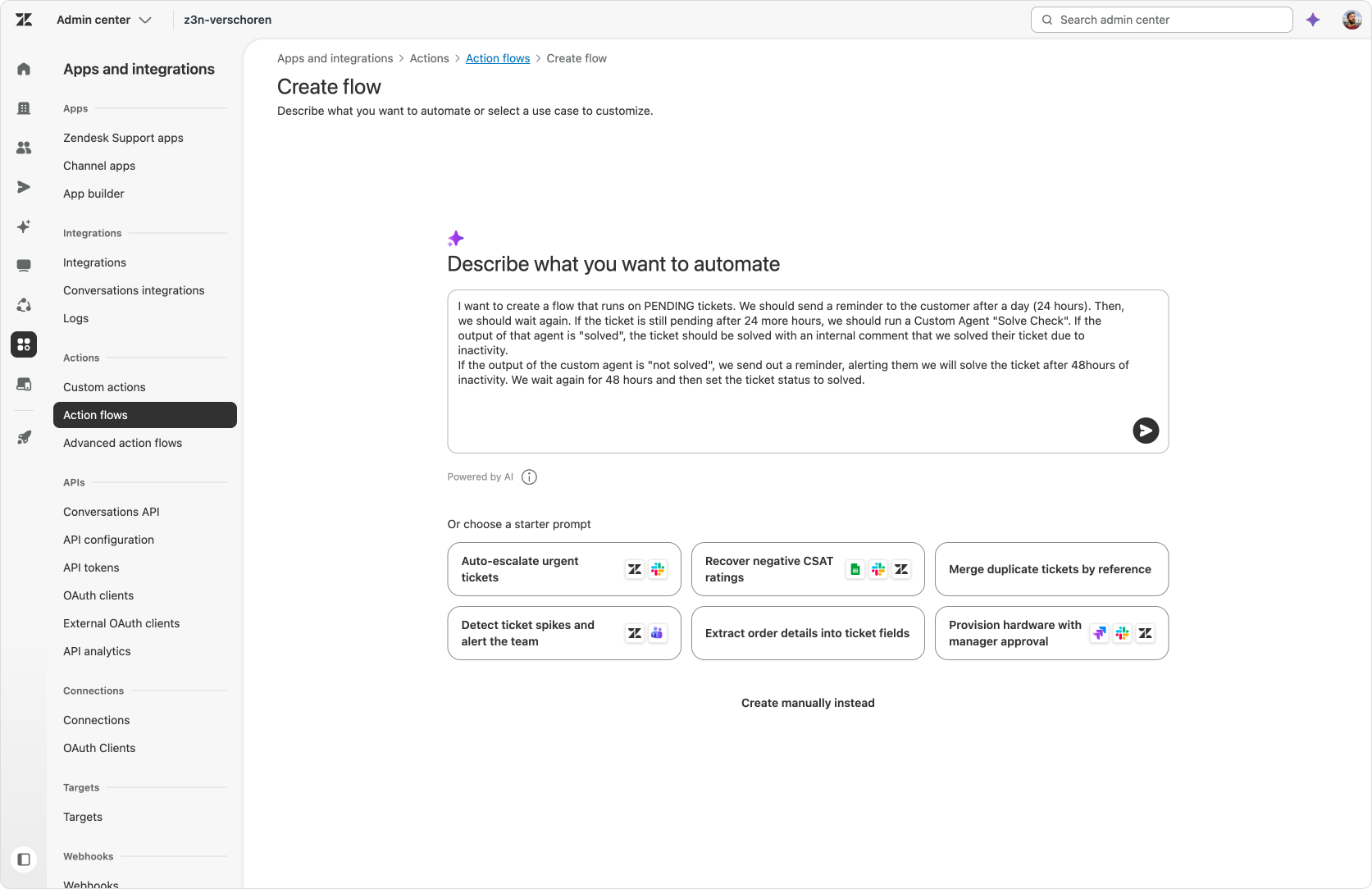
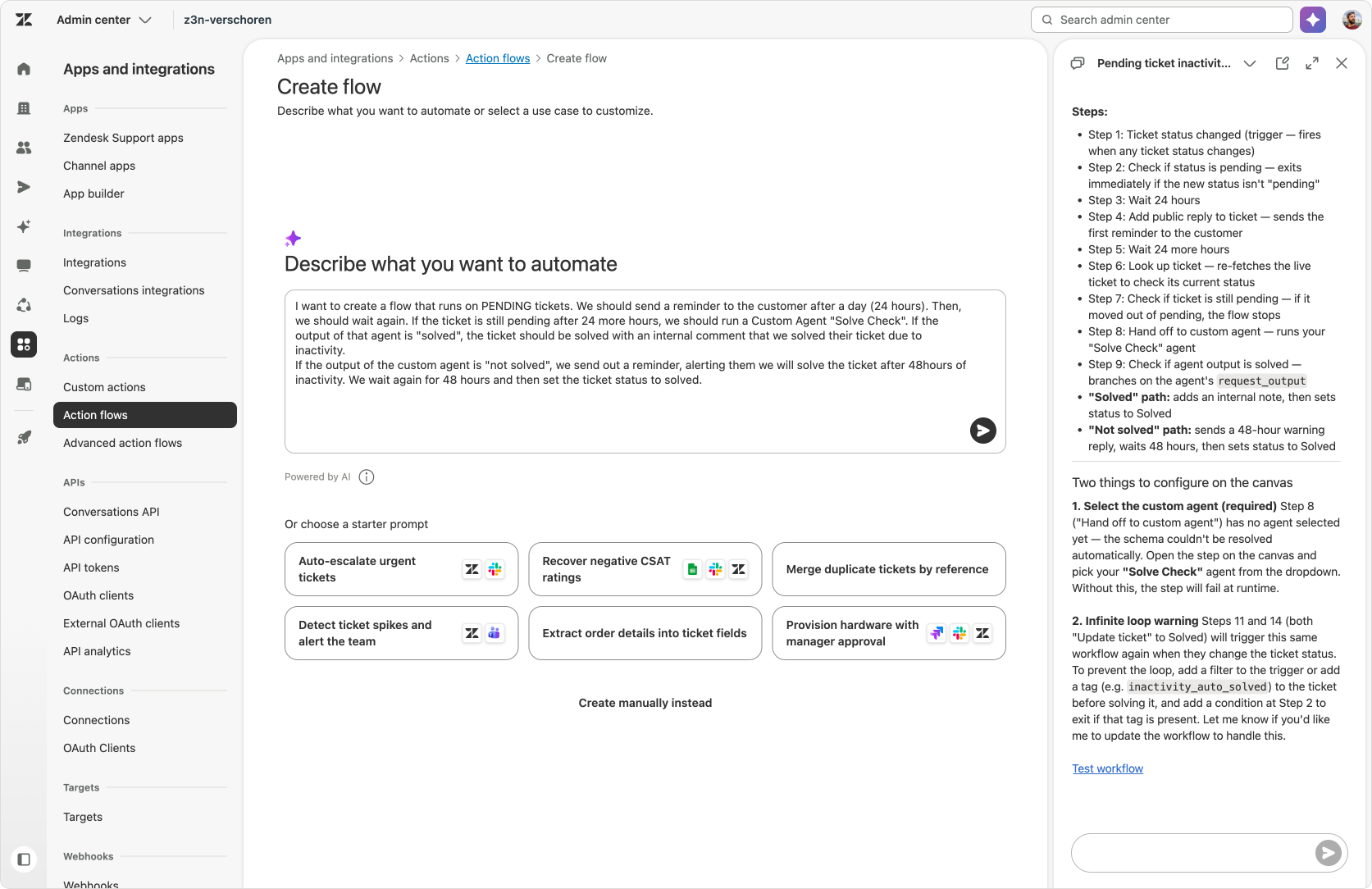
Since the Action Flow here is quite complex with plenty of steps, I leveraged Admin Copilot to build the flow for me.
Admin Copilot Prompt
I want to create a flow that runs on PENDING tickets. We should send a reminder to the customer after a day (24 hours). Then, we should wait again.
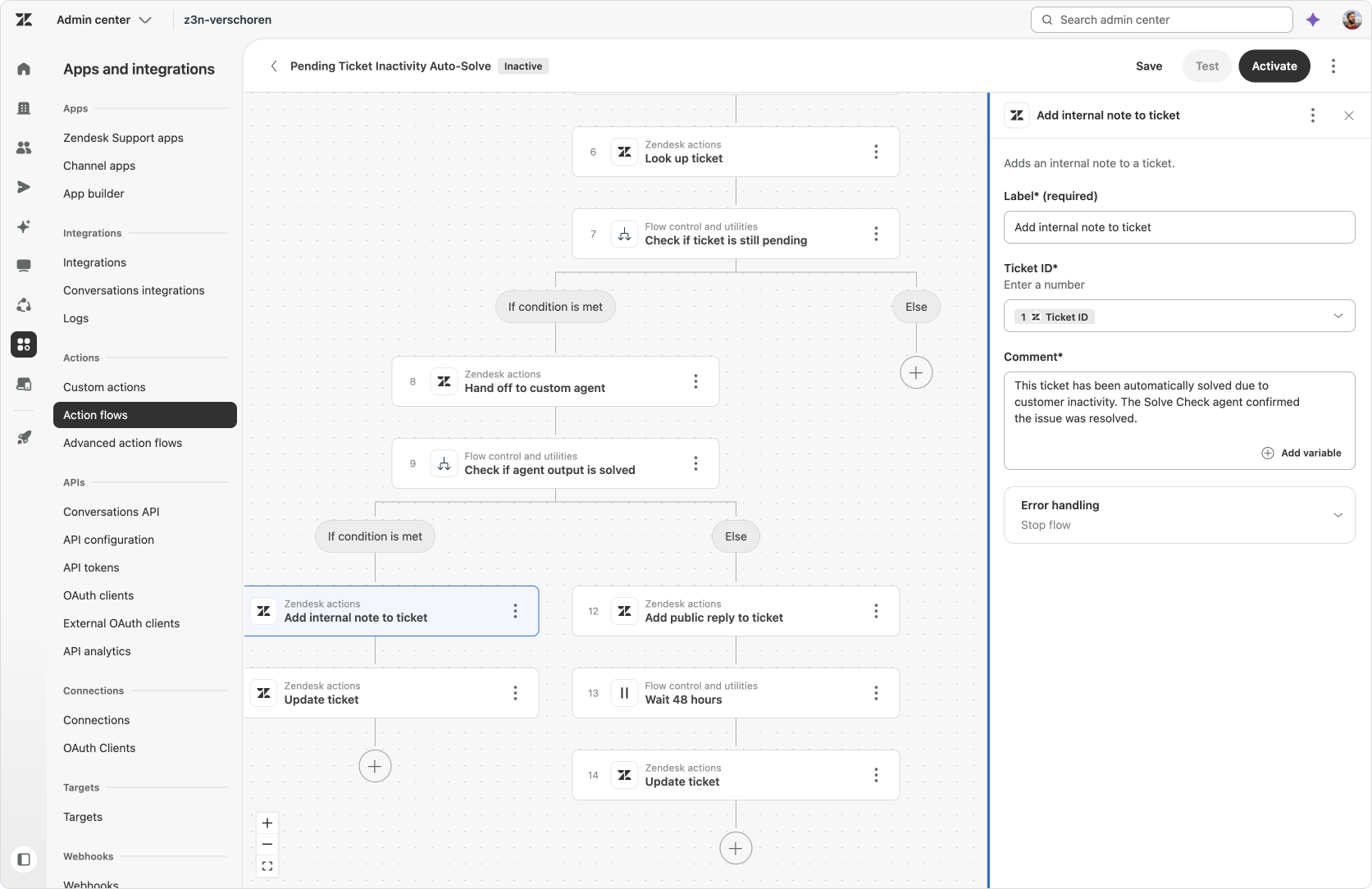
If the ticket is still pending after 24 more hours, we should run a Custom Agent "Solve Check". If the output of that agent is "solved", the ticket should be solved with an internal comment that we solved their ticket due to inactivity.
If the output of the custom agent is "not solved", we send out a reminder, alerting them we will solve the ticket after 48 hours of inactivity. We wait again for 48 hours and then set the ticket status to solved.
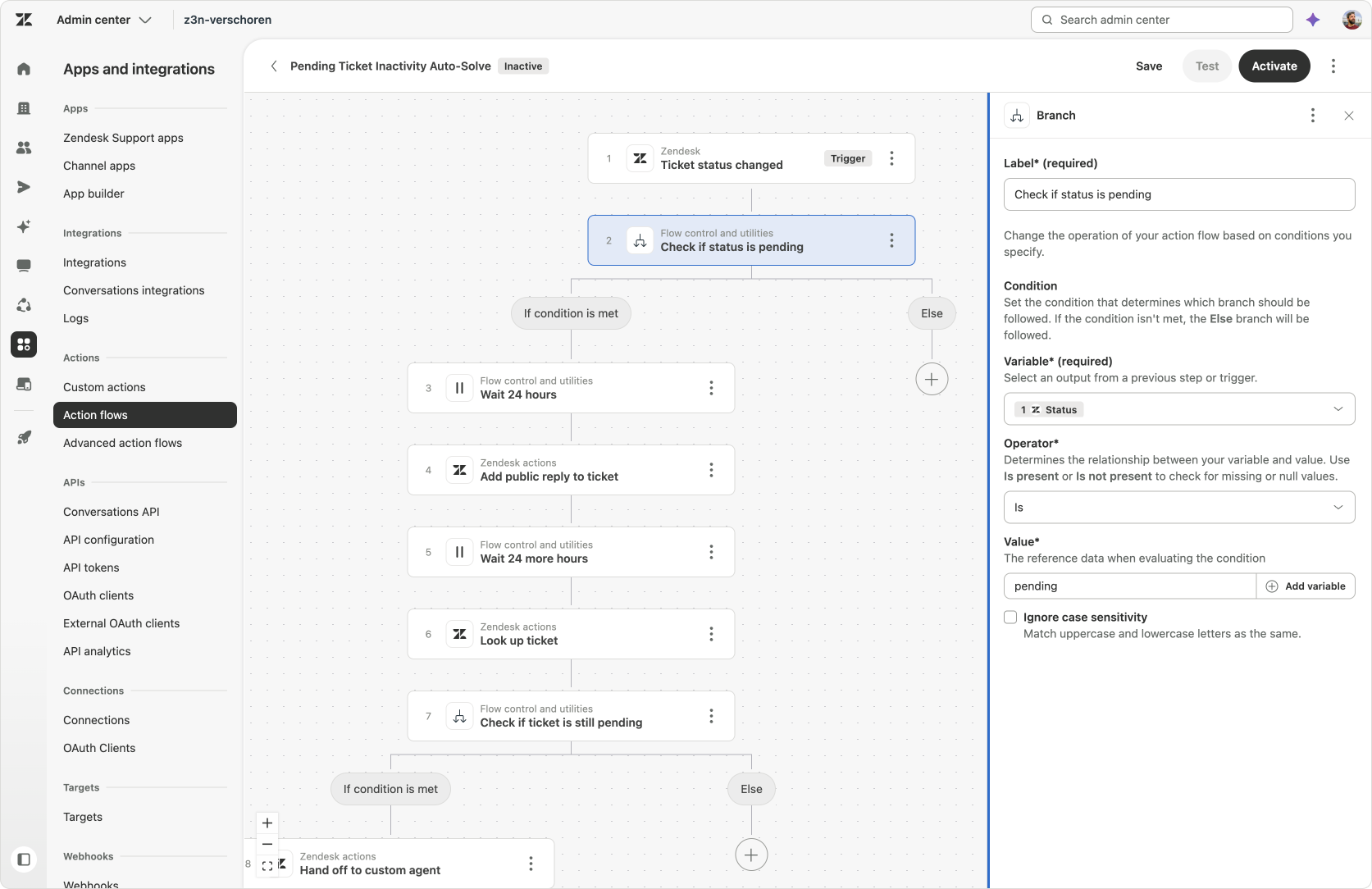
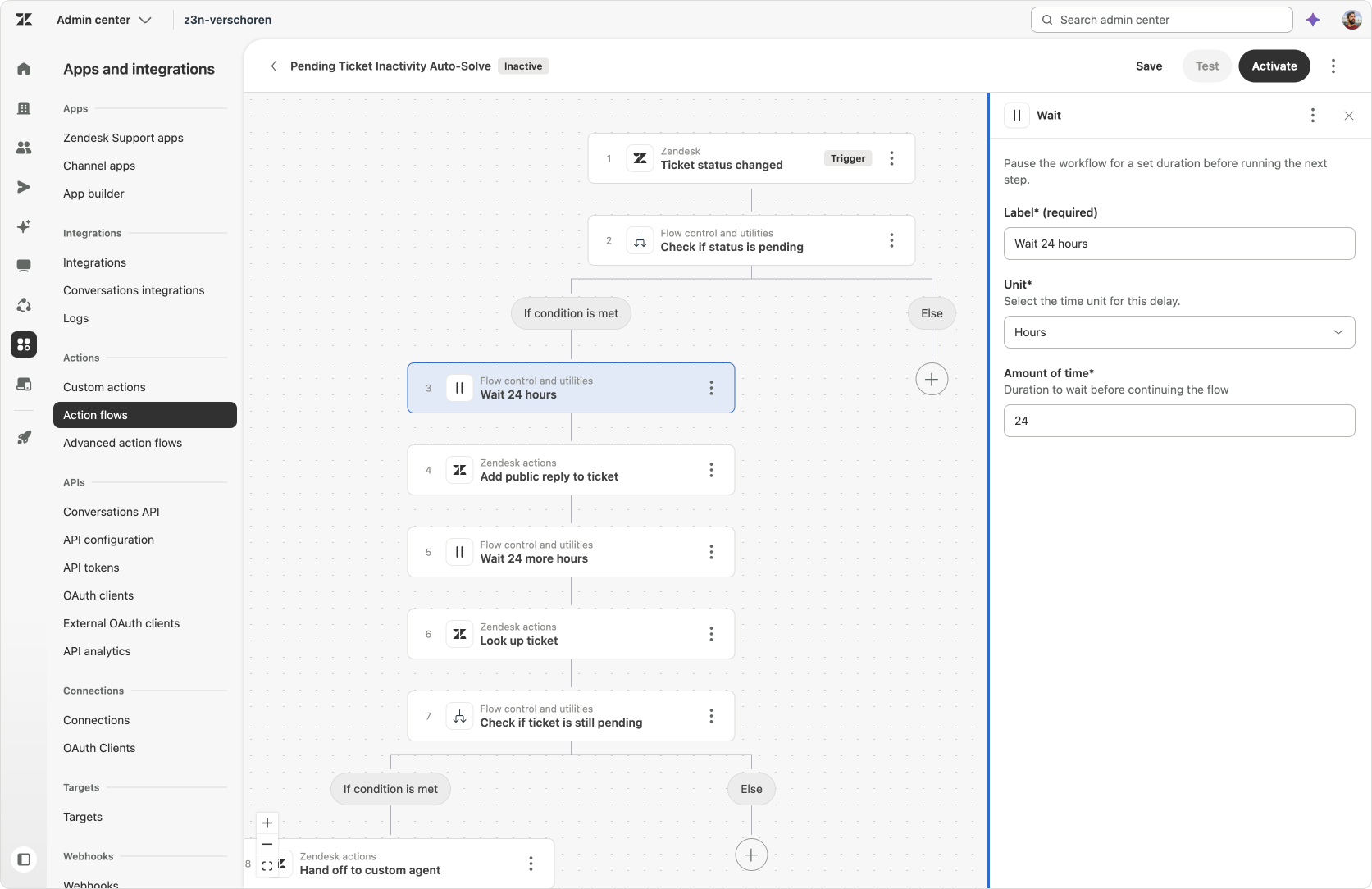
The Action Flow starts when a ticket is set to Pending.
- The first step is a 24-hour wait. After that period, the flow checks whether the ticket is still Pending.
- If the ticket is no longer Pending, the process stops because the conversation has already moved forward.
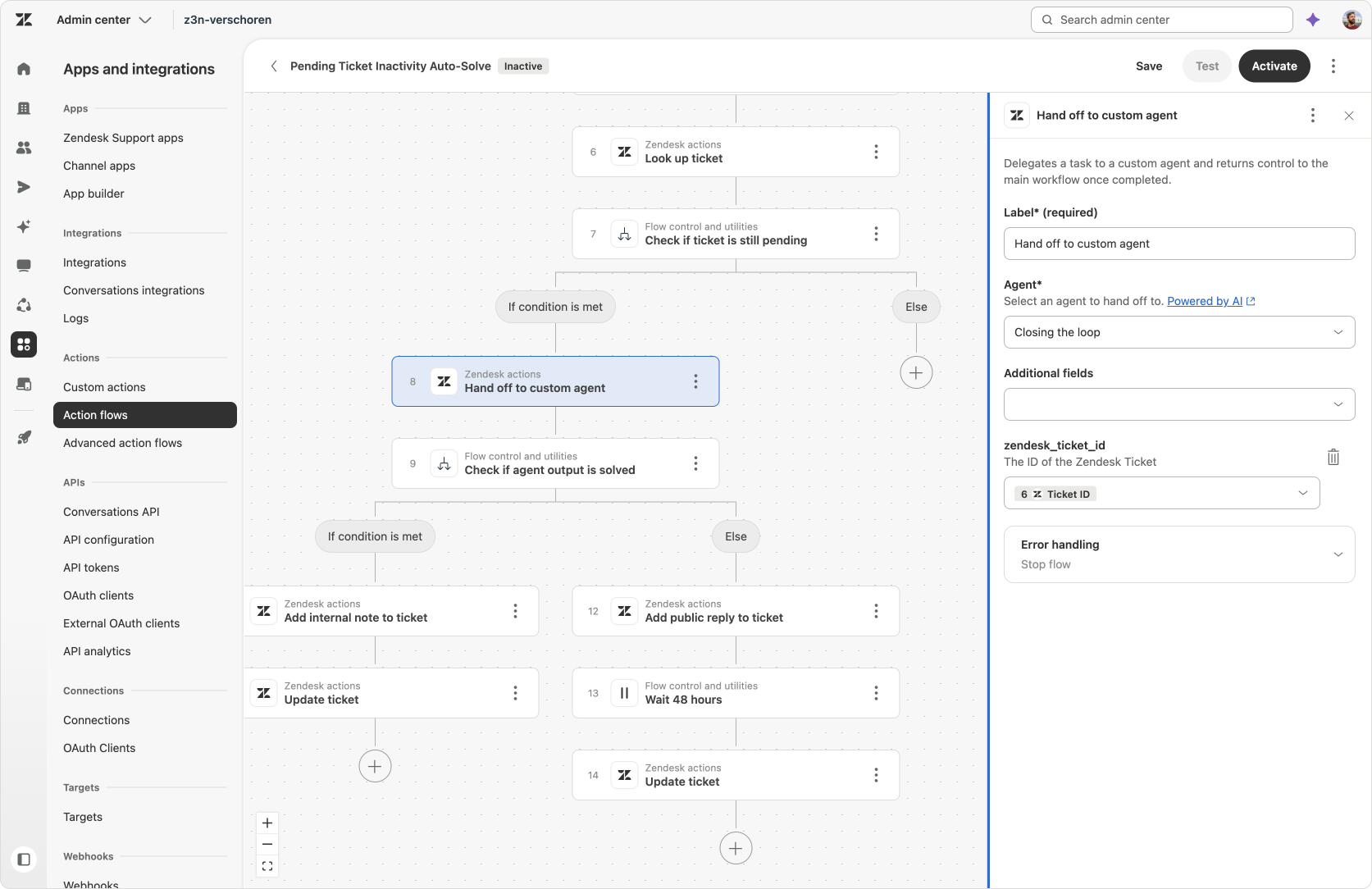
- If the ticket is still Pending, the flow sends a reminder and starts a second wait. After another 48 hours, it checks the ticket again and hands it to the Custom Agent.
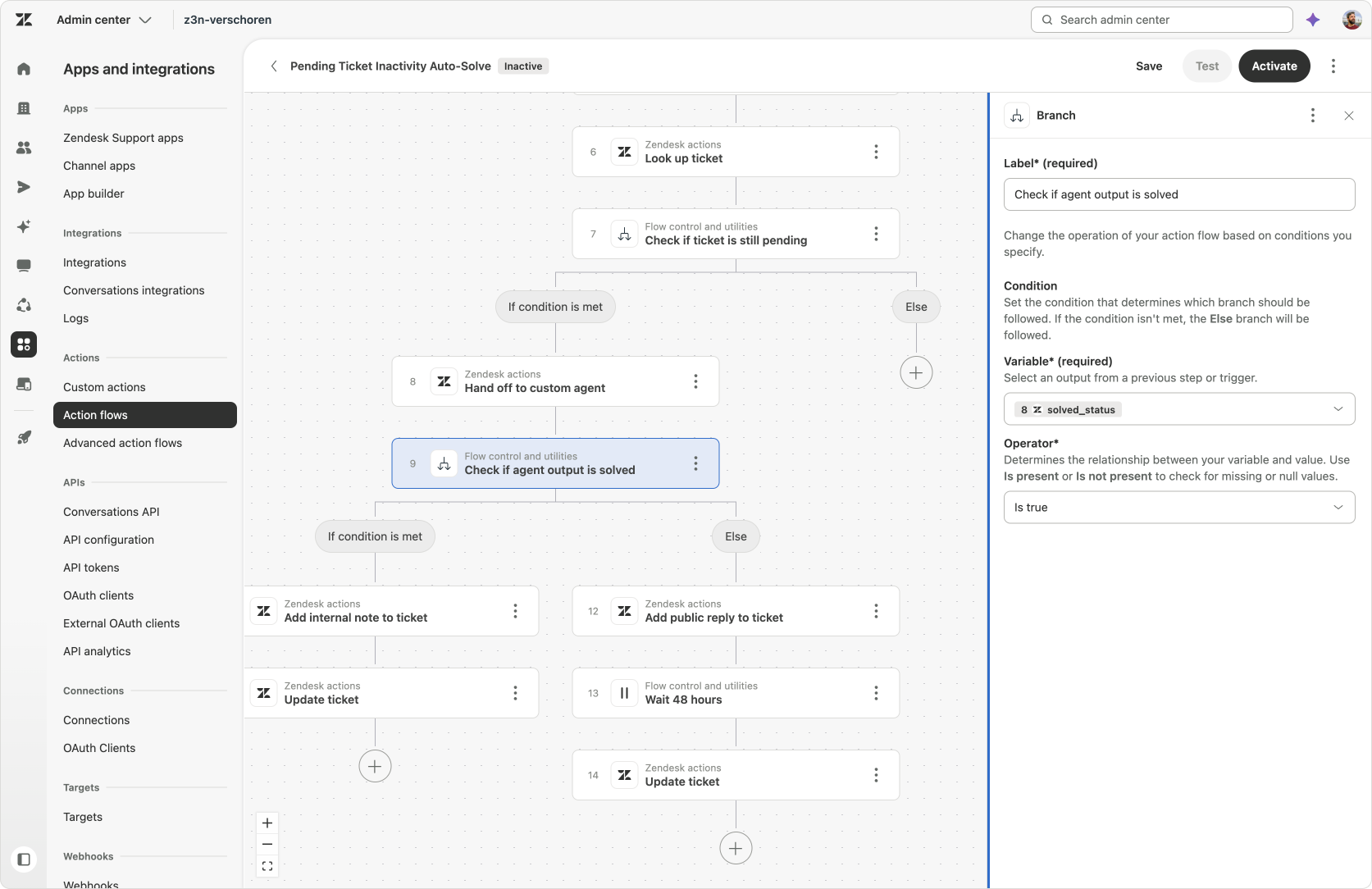
The Custom Agent evaluates the conversation and determines whether the ticket is genuinely waiting for something from the customer or whether the work is already complete.
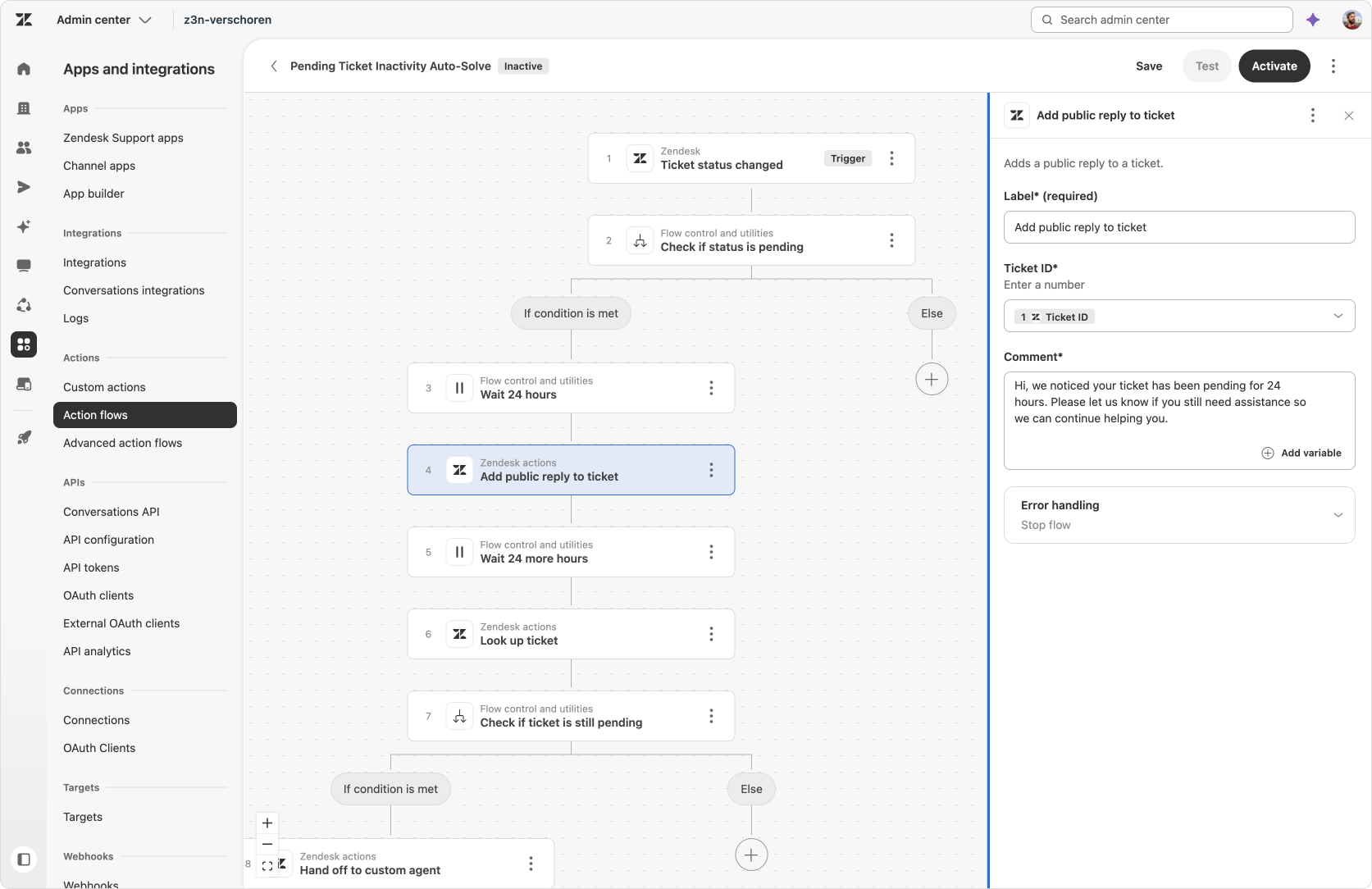
The flow can then:
- send a final reminder if the customer still needs to provide information;
- leave the ticket open if the agent still has outstanding work;
- solve the ticket if everything has been resolved and only a final confirmation remains.
Previously, this type of process would typically require several automations, triggers and intermediate fields. The Wait step allows the state of the process to remain inside one Action Flow.
Expanding on this concept
We can expand on this flow with an additional Custom Agent instruction. Instead of sending the customer the same reminder message each time, we can ask our Custom Agent to not only return a solved_state, but also add a public comment to the ticket to remind the customer of their specific outstanding actions.
Hey, we are still waiting for you to confirm your booking dates. Could you let us know? Thanks.
Similar tickets across an organization
Using the new "While" loop step, parameters and code blocks
The third example addresses a different kind of problem: several people from the same organisation reporting the same issue.
Zendesk already includes a Similar tickets feature in Agent Copilot. It detects similar tickets across your active conversations and lists them in Agent Workspace. In a support context this allows you to detect issues across customers, handle similar topics at the same time, or learn from how your handling other conversations to handle the one your looking at.
 Zendesk
This example Action Flow specifically limits the range to only tickets for a specific users' organisation. This is particularly useful in a B2B or employee-service environment, where several requesters may belong to the same organisation. If multiple people report the same problem, agents should know that before handling each ticket independently, while only work within the context of that specific organisation or department.
Custom Agent
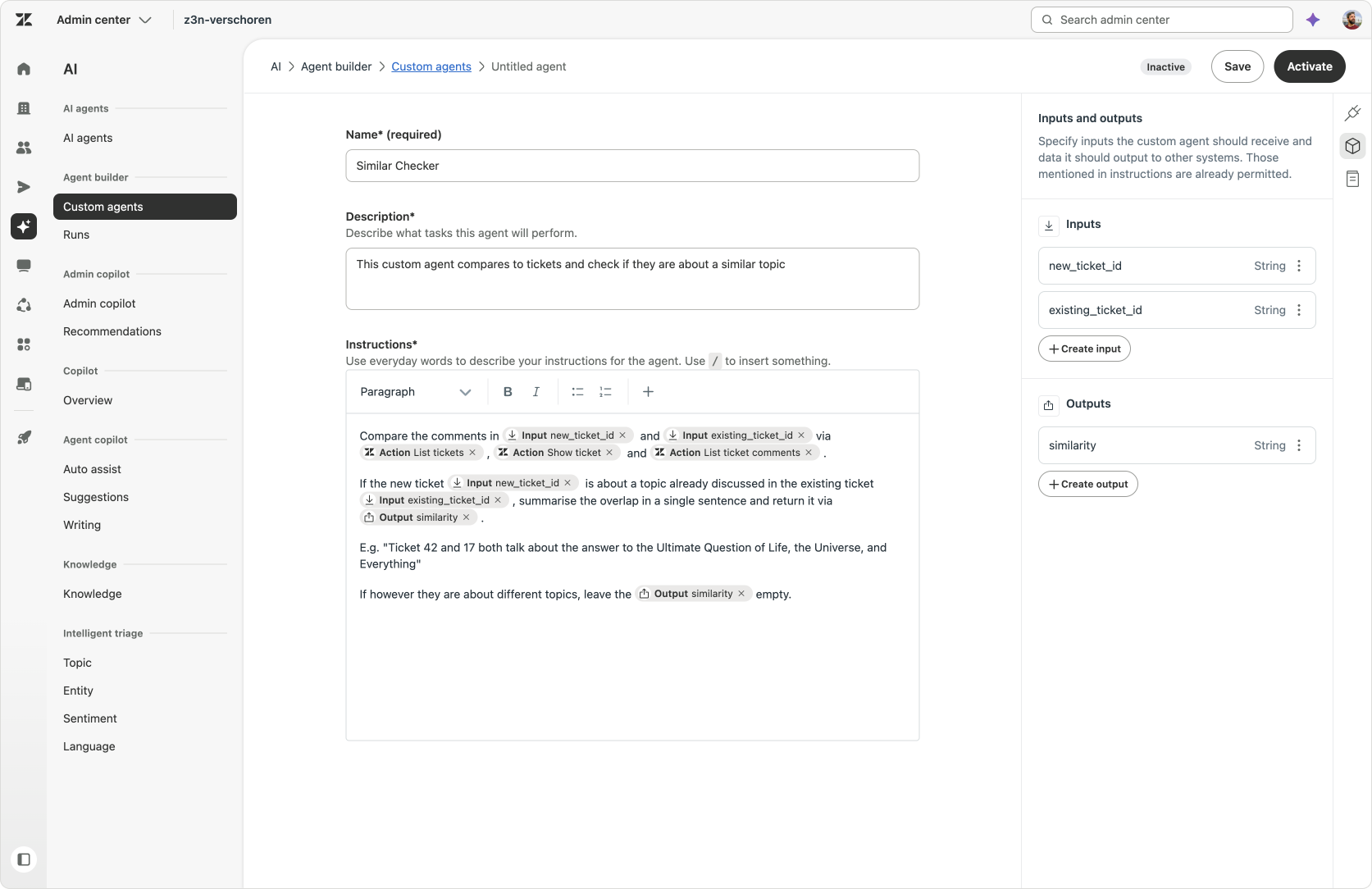
The Custom Agent receives two inputs:
- The
Ticket IDof a newly created ticket - A
Ticket IDof a previously created ticket in the organization.
It compares the two tickets and determines whether they describe the same or a closely related issue. If they are similar, it returns a short similarity note explaining why. If they are not similar, it returns no match.
The agent does not search the entire account itself. That job is handled by the Action Flow that calls the Agent. It focuses on comparing the two tickets provided by the Action Flow, which makes it reusable in other comparison workflows.
Similar Checker
Compare the comments in Inputnew_ticket_id and Inputexisting_ticket_id via Action List tickets , ActionShow ticket and ActionList ticket comments.
If the new ticket Inputnew_ticket_id is about a topic already discussed in the existing ticket Inputexisting_ticket_id, summarise the overlap in a single sentence and return it via Outputsimilarity.
E.g. "Ticket 42 and 17 both talk about the answer to the Ultimate Question of Life, the Universe, and Everything"
If however they are about different topics, leave the Outputsimilarity empty.
Action Flow
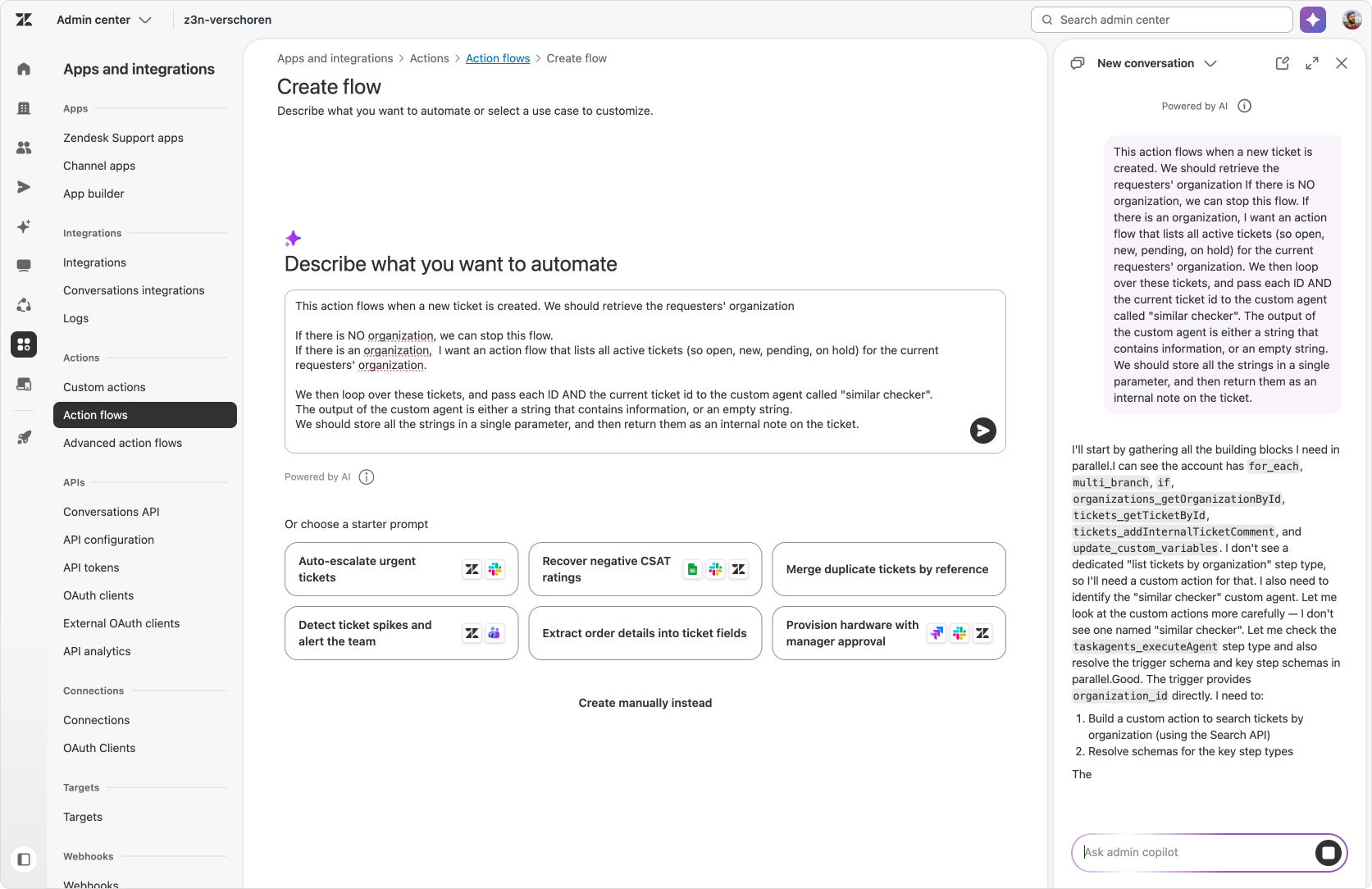
Here too, we leveraged Admin Copilot to quickly generate the entire flow.
Admin Copilot Prompt
This action flows when a new ticket is created. We should retrieve the requesters' organization
If there is NO organization, we can stop this flow.
If there is an organization, I want an action flow that lists all active tickets (so open, new, pending, on hold) for the current requesters' organization.
We then loop over these tickets, and pass each ID AND the current ticket id to the custom agent called "similar checker".
The output of the custom agent is either a string that contains information, or an empty string.
We should store all the strings in a single parameter, and then return them as an internal note on the ticket.
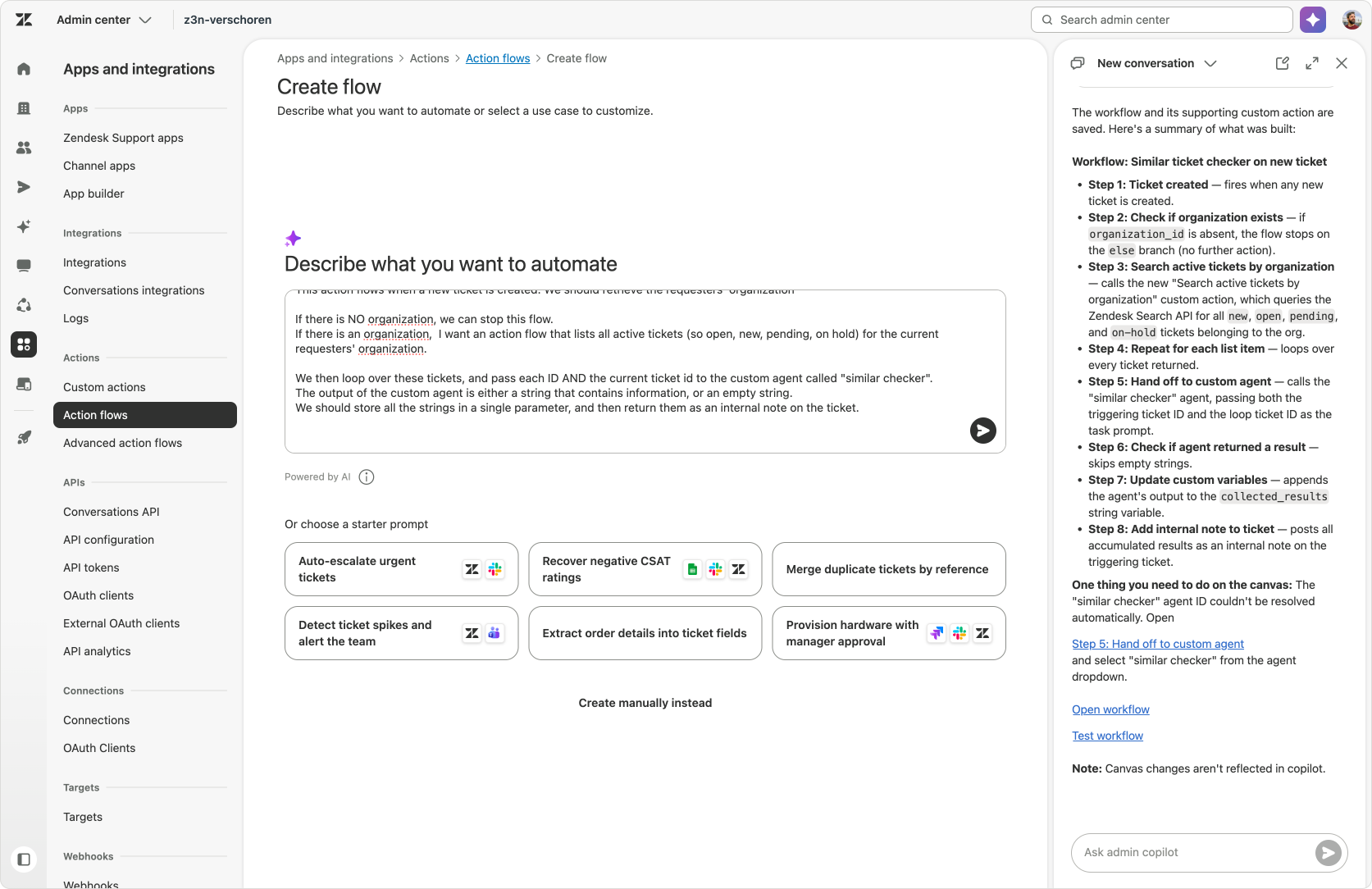
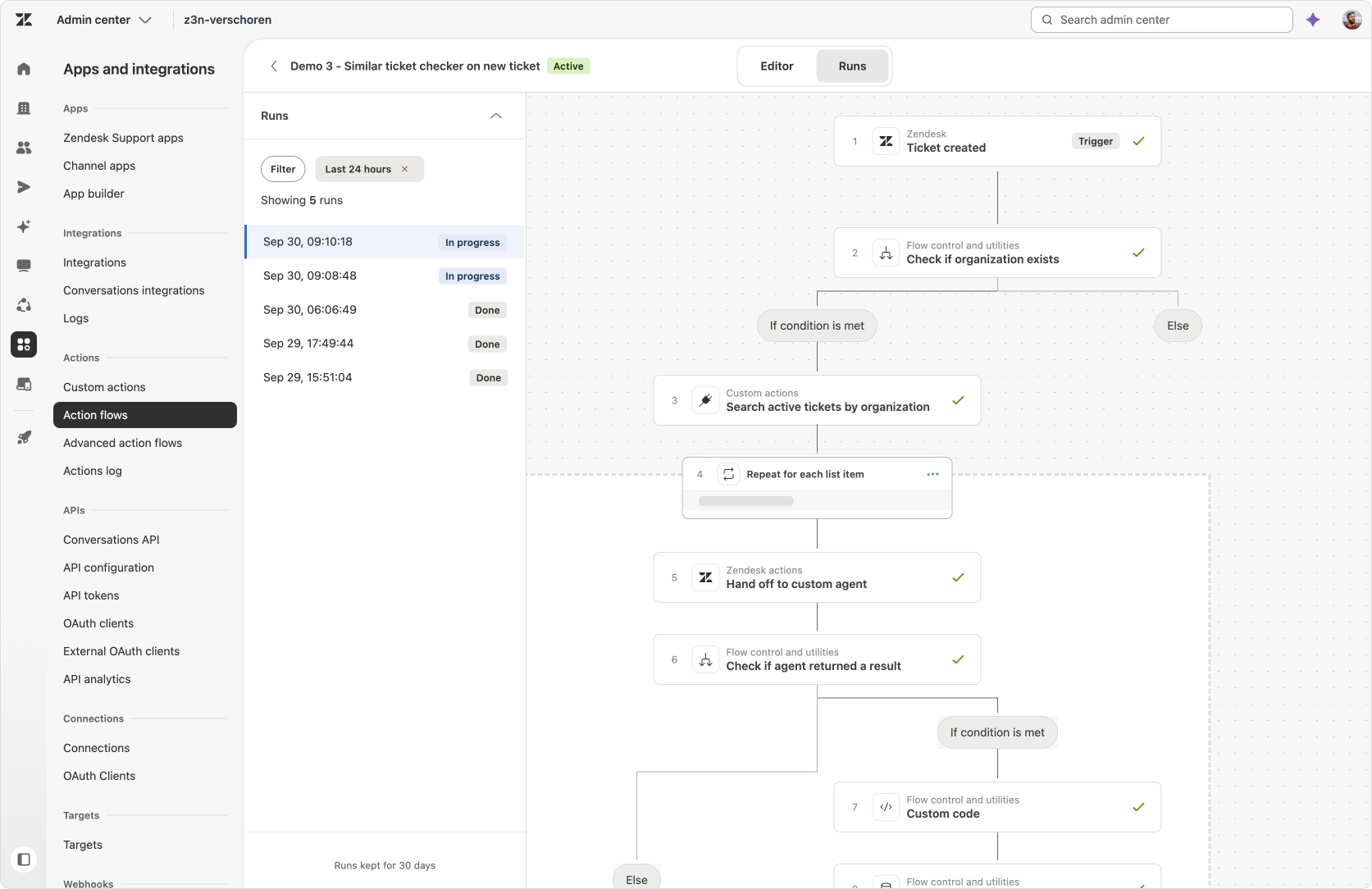
The Action Flow is triggered when a new ticket is created.
It first checks whether the requester belongs to an organisation. If there is no organisation, the flow ends because there is no organisation-level context to use.
If the requester does belong to an organisation, the flow looks up active open tickets belonging to that organisation.
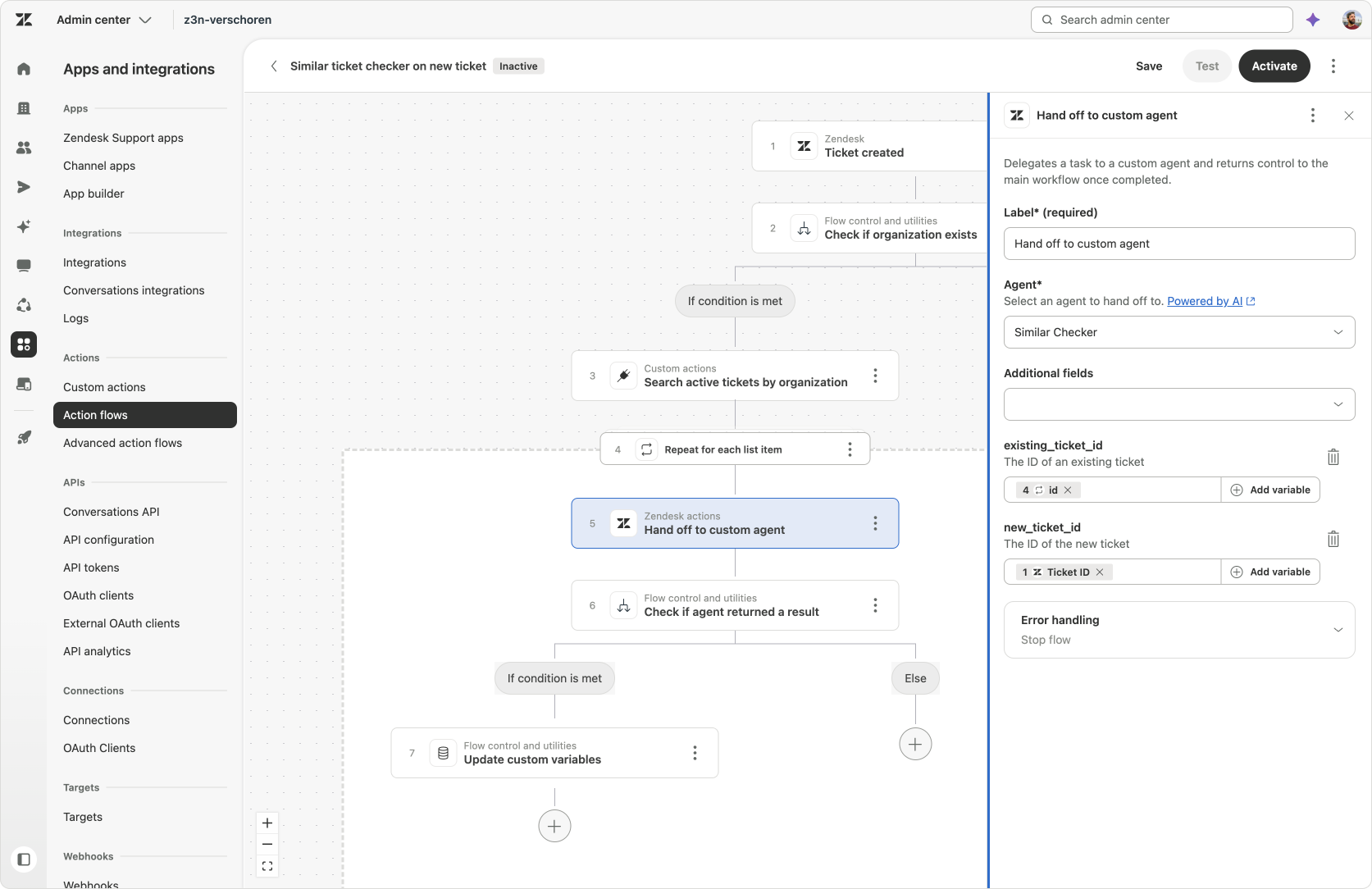
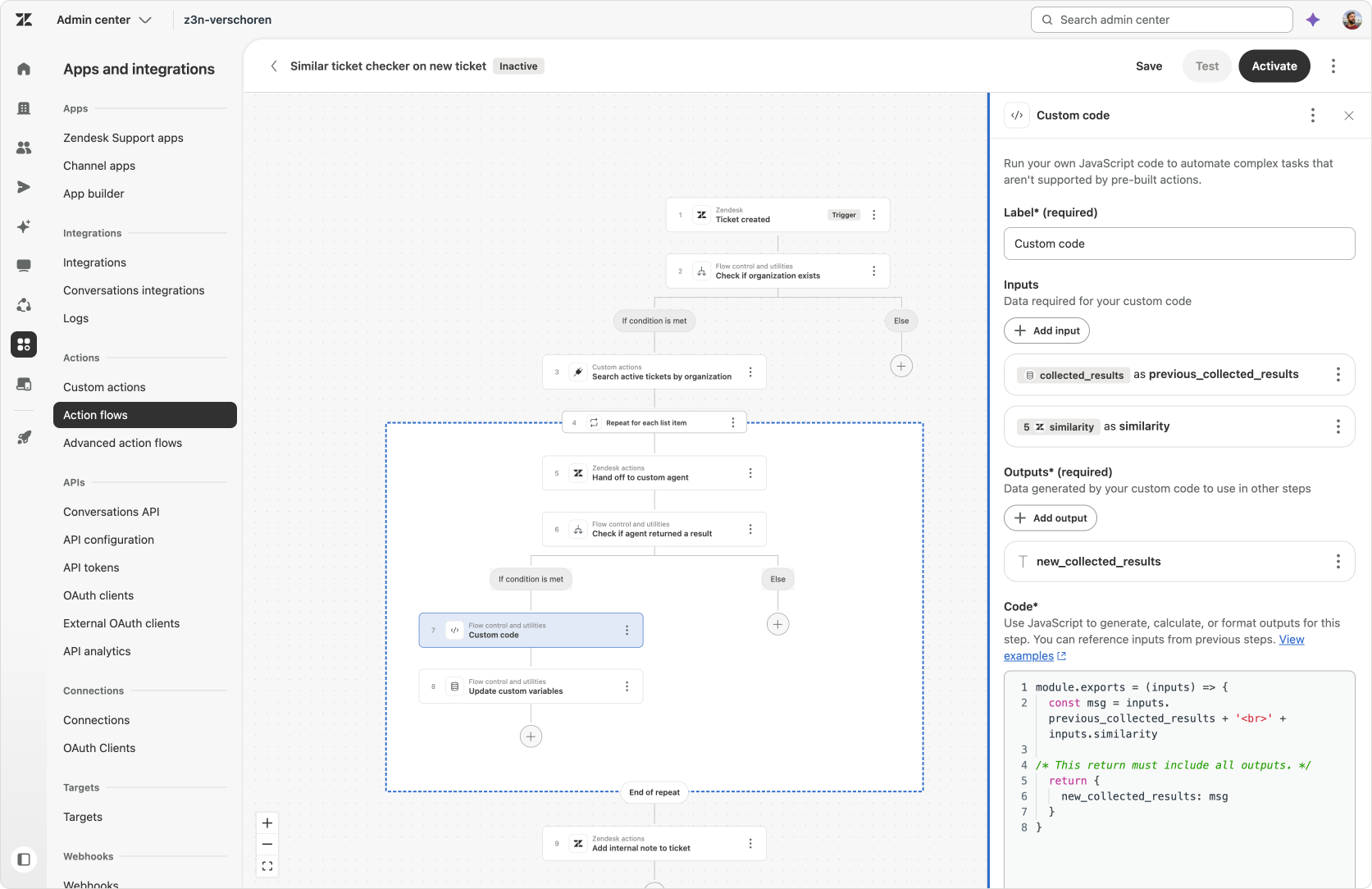
The new loop step then iterates through the list of tickets. For each ticket, the Action Flow calls the Custom Agent and passes the current ticket ID together with the new ticket ID.
The Custom Agent returns either a similarity note or an indication that the tickets are not similar.
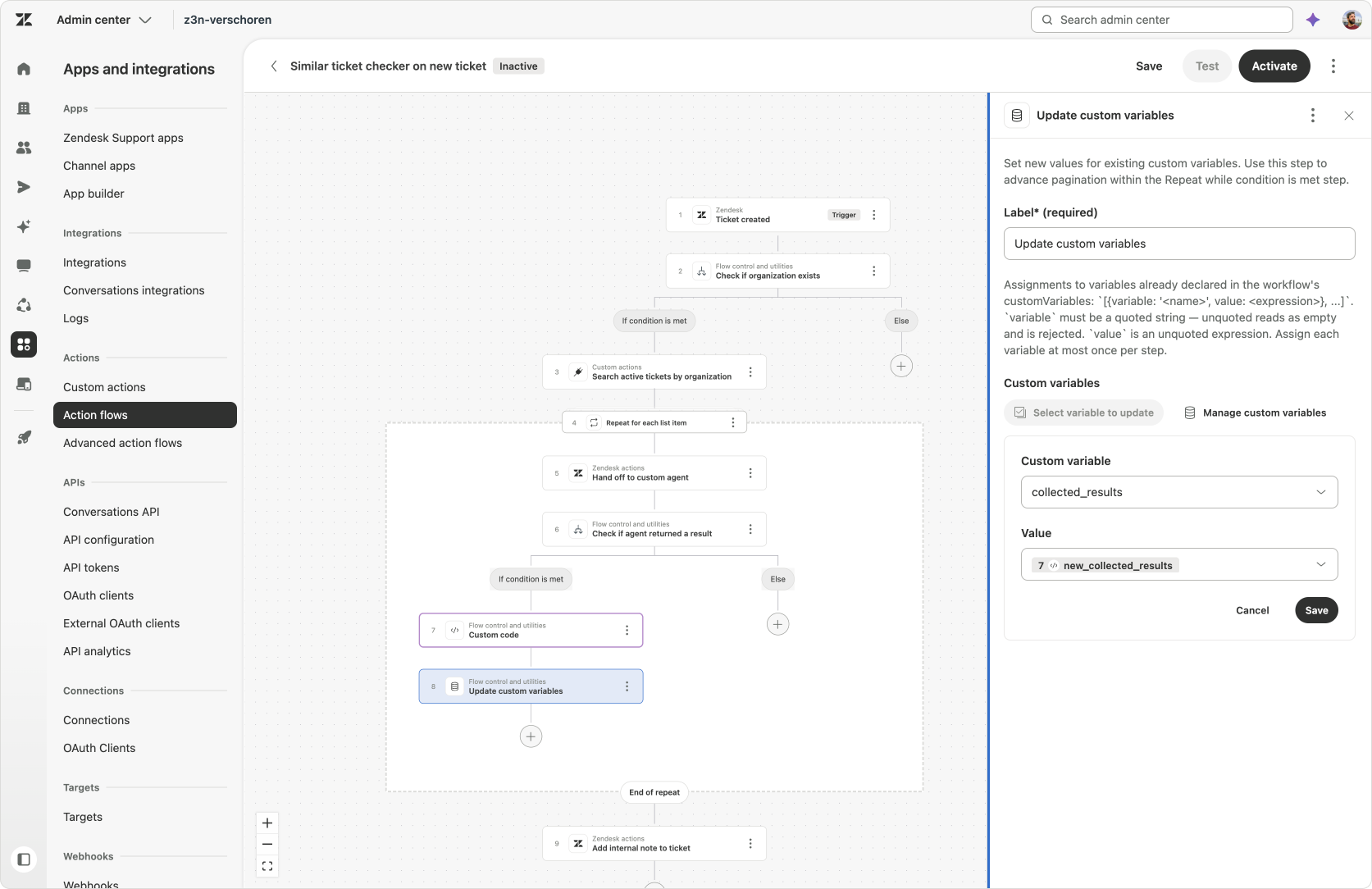
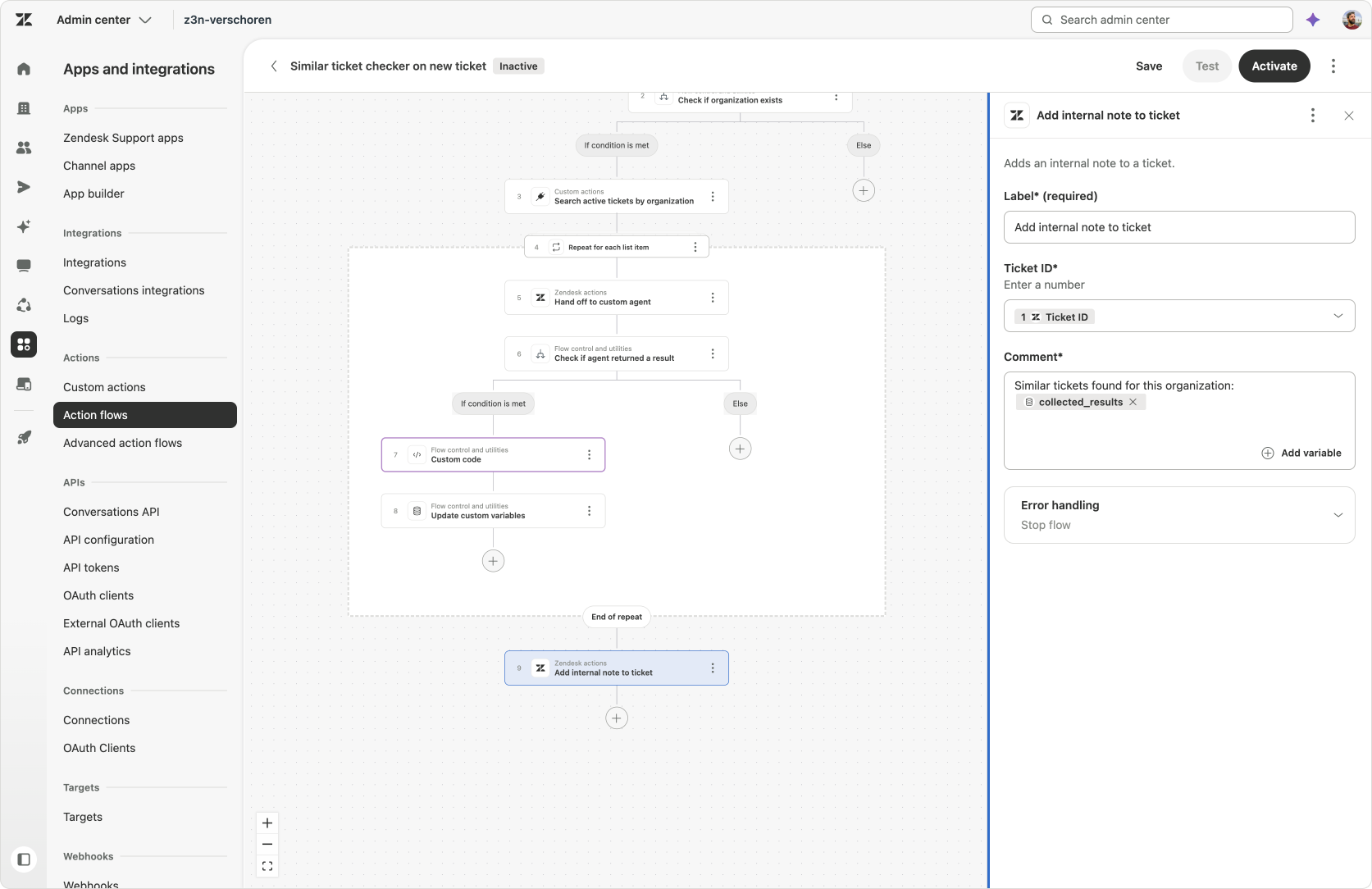
The flow uses a parameter to store the results. Each time the Custom Agent finds a similarity, the flow expands the parameter with the new result. By the end of the loop, the parameter contains a combined list of all the related tickets that were found.
The Action Flow then adds that list as an internal note on the new ticket.
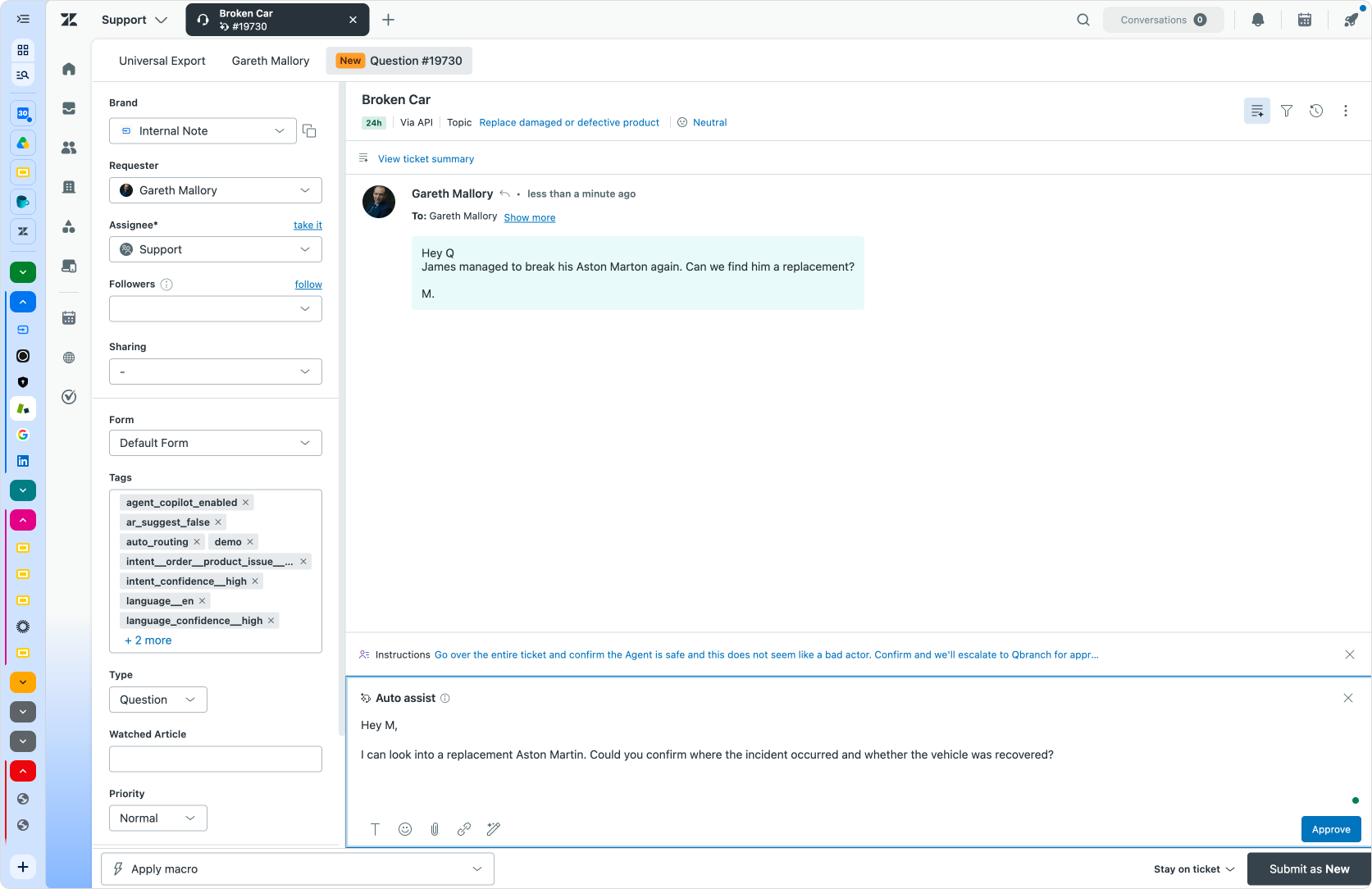
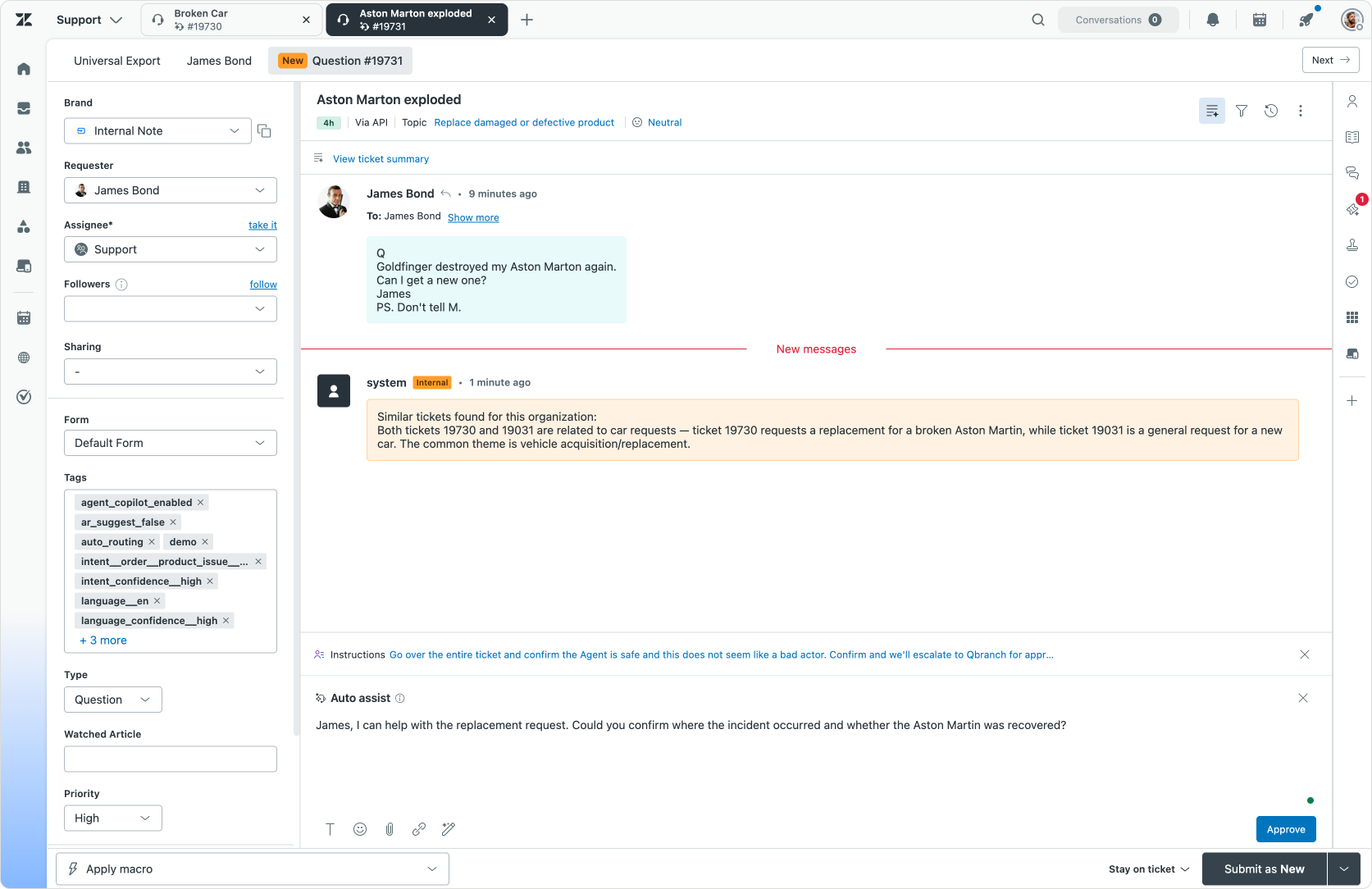
Result
The support agent can now see that other people from the same organisation have reported related issues. That context makes it possible to coordinate responses, identify a wider incident or avoid repeating the same troubleshooting steps across multiple tickets.
Action Logs
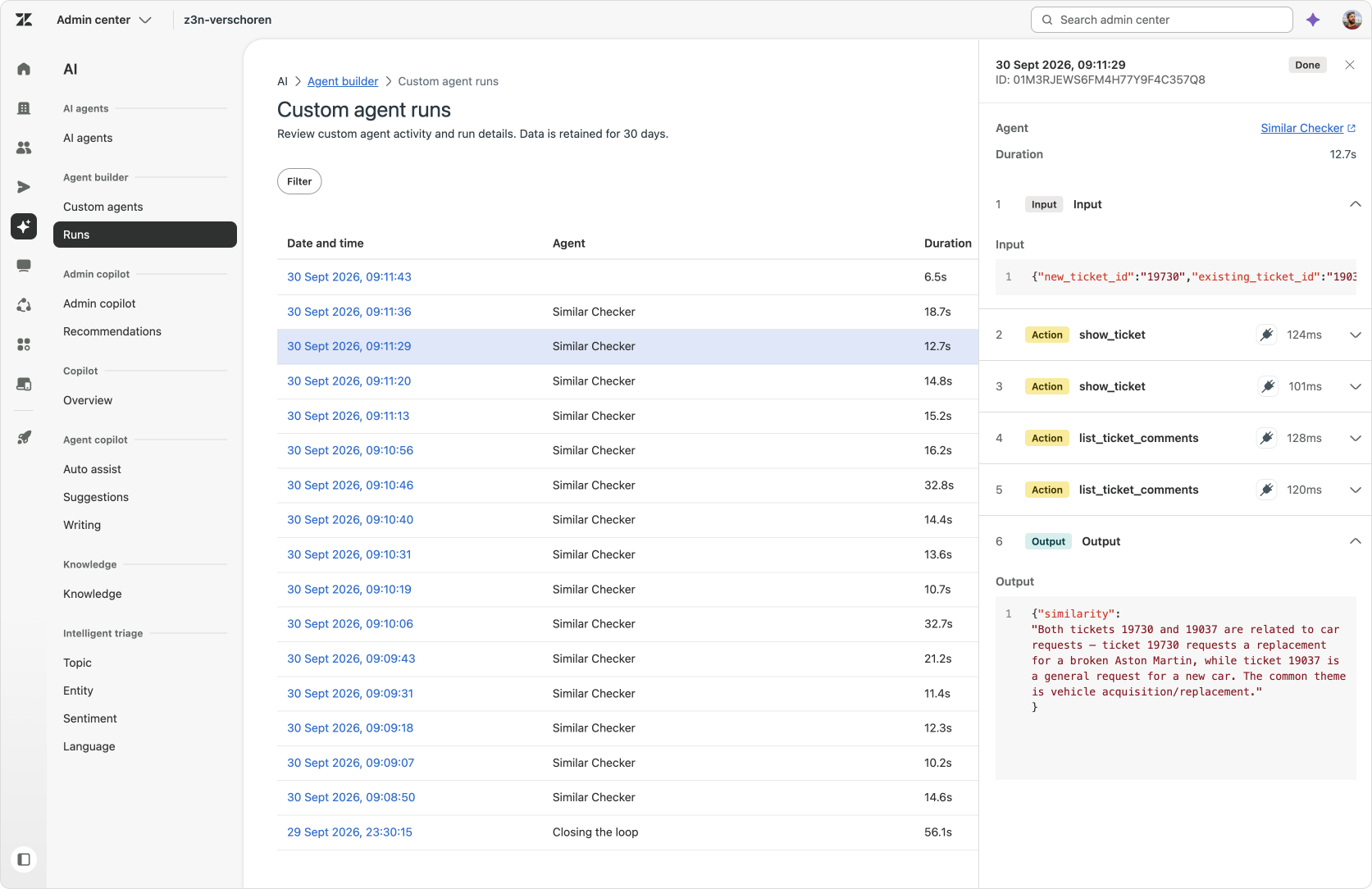
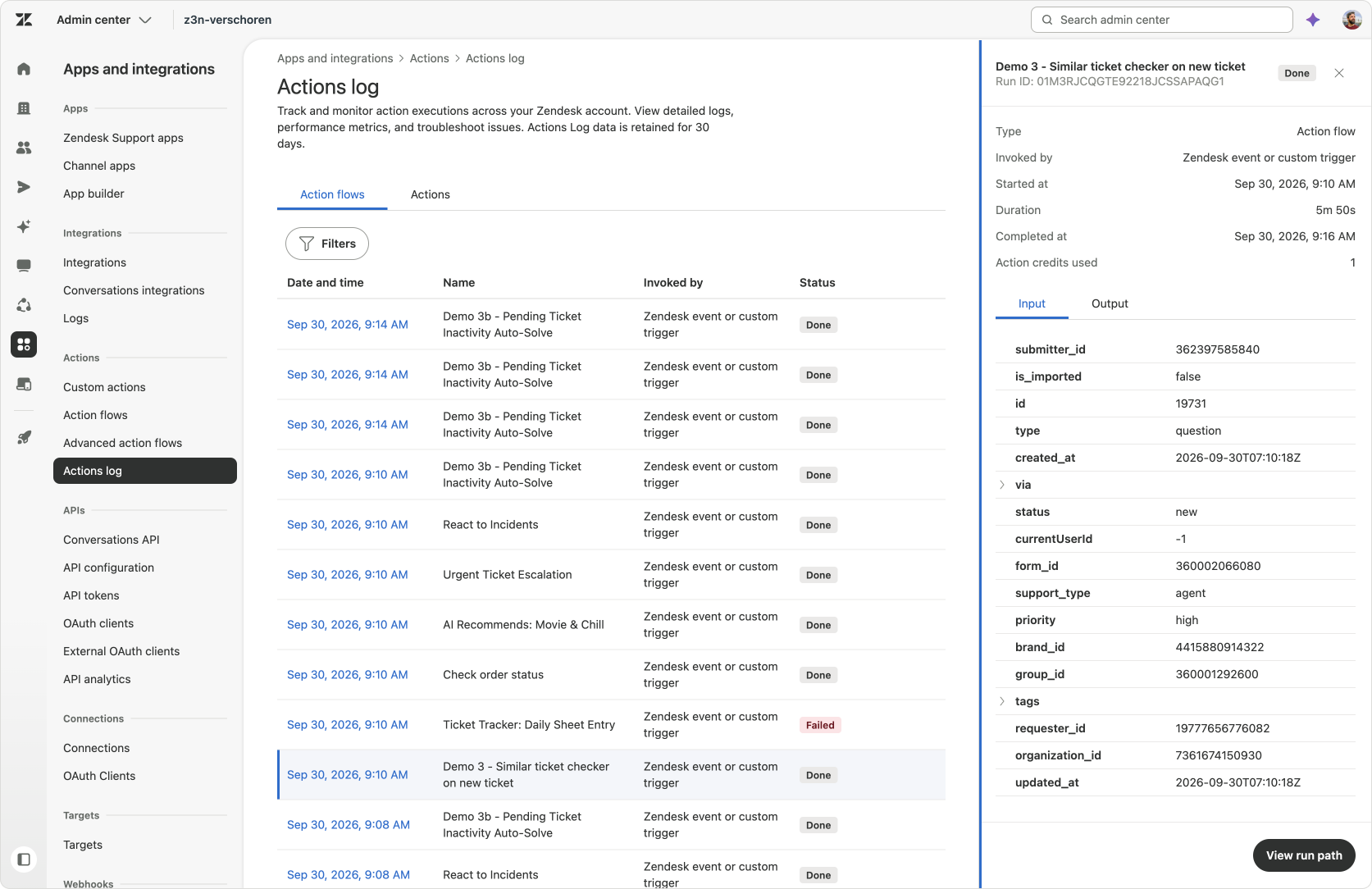
Since this is a complex flow that iterates across plenty of items, we can follow the flows' progress across all three log files:
- The Action Flow run log shows the overall execution and the flow progressing through the list of tickets.
- The Custom Agent run log shows the two ticket IDs it received and the similarity explanation it returned.
- The full Action Flow log shows the detailed inputs and outputs for each comparison, including the parameter as it expands with every similarity found.
Powerful business automations are now a core part of the Zendesk Platform
These examples show how Action Flows and Custom Agents can work together across increasingly complex processes.
The Action Flow controls the process: when it starts, which records it retrieves, how it loops, when it waits and what it updates. The Custom Agent handles the part that requires interpretation, such as reading a document, assessing whether a ticket is resolved or comparing two conversations.
The result is automation that is both structured and flexible.
Documents can be interpreted automatically. Pending tickets can be followed up without a collection of disconnected automations. Related tickets can be identified before several agents solve the same problem independently.
The new logs make these workflows easier to understand and improve. You can see what ran, when it ran, which inputs it received and what each part returned. The audit log also gives you a durable record of how the flow itself has changed over time, while cloned flows make it easier to reuse proven configurations for new use cases.
Together they allow you to automate more than just your conversations. You can use this same logic to import user data, to retrieve overdue orders and proactively reach out to the customer. You can lookup sales opportunities and alert your sales reps, or you can look for product feedback and add it to your user voice program. The possibilities are virtually endless.
So, what is the first flow you are going to automate today?