
Action Platform. The new way of automating Zendesk
A guide to Zendesk’s shift toward the Action Platform, showing how defaults stay in triggers while routing, integrations, and workflow logic move into Action Builder and Custom Actions.
Action Platform. The new way of automating Zendesk

On this page
When we talk about automation in Zendesk there's two different ways we automate. One is the resolution automation offered by our AI Agents. They use knowledge and processes to turn questions into answers.
Underneath that is the automations within the platform itself. The actions that have always been performed by triggers and automations on top of your tickets.
A while back I wrote about my approach to those classic automations and triggers in Zendesk. The core idea was simple. One trigger does one job. You order them so actions that run on a ticket flow from categorisation, through routing and assignment, to notification. Set defaults first. Categorise. Enrich. Route. Notify. Each trigger has a single clear purpose and a name that reflects it. It made managing your wall of triggers easier. Each trigger was categorised, and each trigger has a single job.
 Thomas Verschoren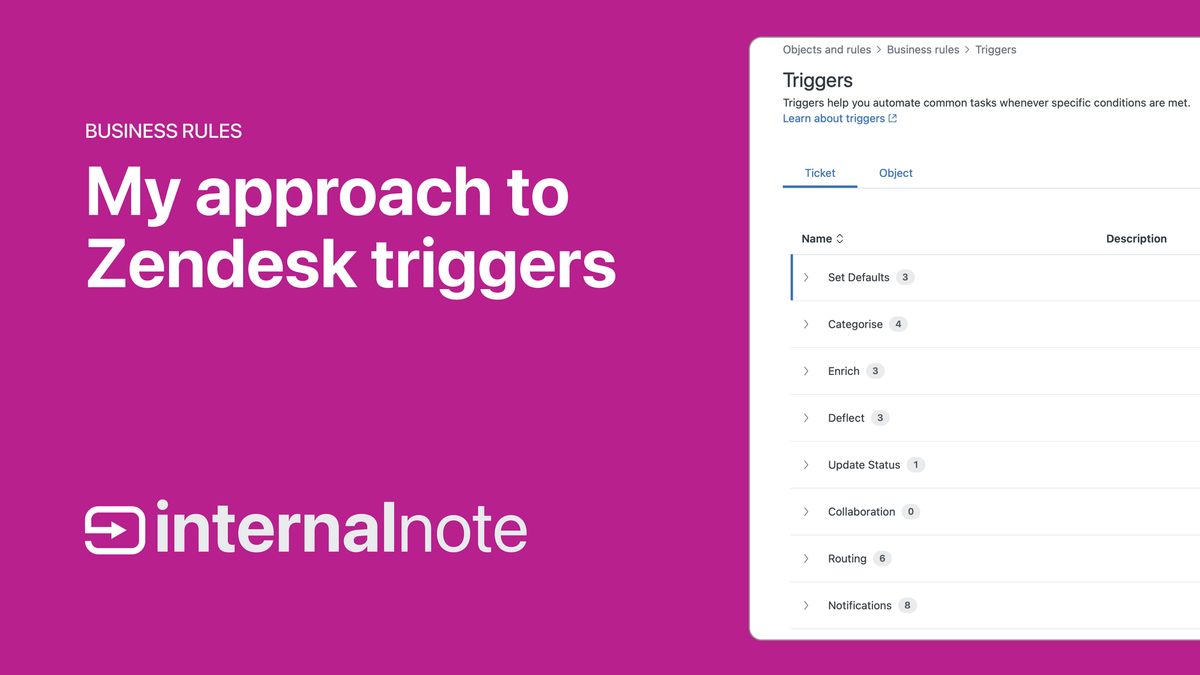
That article was a map of every action that the system could or should take on a ticket. Those actions in itself have not changed now that we've moved towards AI Agents and conversations. A ticket still needs categorising, routing and answering today, same as it did then.
What has changed is where a lot of that work lives now. Over the last few years Zendesk has rebuilt the engine underneath it. The Action Platform is Zendesk’s new way of building automations, integrations and logic on the platform. It is not a single feature. It is a set of connected tools that together replace what triggers, automations and hand-crafted webhooks used to do, and take it further than those tools ever could.
 Thomas Verschoren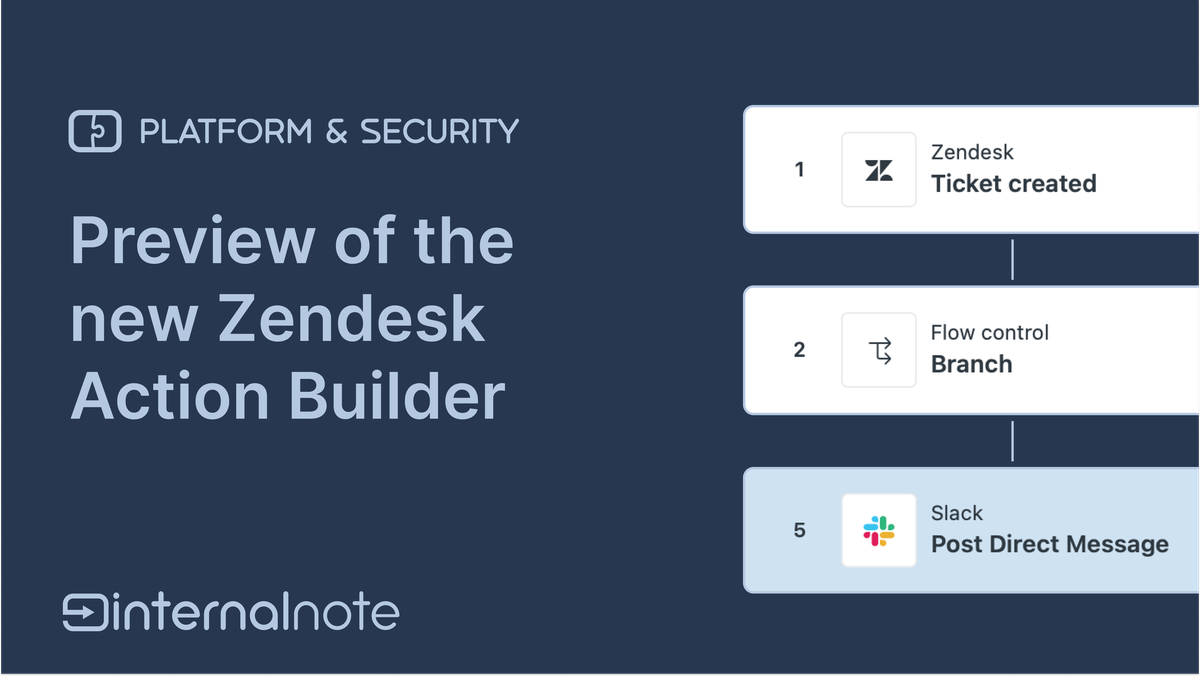
This article walks the same lifecycle as the original. Same jobs, same order, defaults through to integrations. But this time each job is an example of what the Action Platform can do. Some of the work stays with triggers and automations. Most of it moves somewhere new.
What’s in the Action Platform
The Action Platform shipped across two cycles, Relate 2025 and the AI Summit, and it is worth a quick review before we dive into examples.

Action Builder is the centrepiece. It replaces the trigger-and-webhook pattern with a visual flow builder. A flow starts from a ticket event or a schedule, branches on conditions, runs steps against Zendesk objects or external systems, and finishes. One flow holds every variation of a use case, where before you needed a trigger per scenario.
Custom Agents are specialised AI agents you define and deploy on the platform. You describe the agent’s purpose, give it access to actions and knowledge, and it runs autonomously. A custom agent can handle a slice of the support process end to end, or it can be called from inside a procedure to do one specific job. This is the part that goes beyond what triggers ever touched. A background agent that checks external systems, resolves what it can, and escalates what it cannot is a different class of automation entirely.
Custom Actions are the shared action library. They are the same actions used in Agent Copilot procedures and in Action Builder flows. Build an action once and it is available everywhere. An action is an API call with a defined schema, a name, a set of inputs and a structured output the next step can read. That reuse is the point. An action that looks up an order status can be called by an AI Agent, suggested by Auto Assist, or run as a step in a background flow, all from one definition.
And in addition we've got dozens of native Zendesk actions that run against tickets, users or custom object, built-in connectors to popular platforms, and the new client support for external MCP servers.
Together these sit on a shared runtime. An Action Flow can call a Custom Action. A Custom Agent can follow instructions that call that same action. The building blocks are the same whether you are automating a background job or running a front-line AI Agent.
The jobs to done.
Every admin who has ever built a trigger list has been doing the same set of jobs without necessarily naming them. Here is that list, framed against where each job lives in the new platform.

First is setting context and defaults:
- Set defaults. Every ticket needs a priority, a type, a schedule and a brand before the rest of the system can act on it. This still happens in triggers. It is the one job that does not move.
- Work out what the ticket is about. Categorising by keyword was the old way. Intelligent Triage or an AI connector reads the conversation and classifies it. The trigger fires on creation. The reasoning happens in the flow.
- Enrich the ticket. Fetch data the ticket does not carry from an external system: a customer tier, a contract status, a VIP flag. Branch on what comes back. This is something done via Action Flows.
Then comes the job of routing and managing the queue:
- Route it to the right team. Routing has left triggers almost entirely. Omnichannel Routing and Queues own this job now. A handful of priority triggers plus a queue setup replaces a long assignment list.
- Deflect what an agent should not see. Spam, noise, tickets that should never open. An AI step reads conversations and closes before the queue ever sees it.
- Keep tickets moving on the clock. Time-based actions for now stay with classic automations. But automations can now hand each ticket to a flow, so we can act on these events with more nuance.
And finally there's integrations and notifications:
- Tell the right people. Customer notifications stay as triggers, where they're not replaced with actions executed by AI Agents. Team alerts, Slack and Teams pings, move to Action Builder flows with native steps.
- Hook it into everything else. Marketplace app triggers stay. Hand-build webhooks move to Custom Action steps inside flows. New integrations are built for Action Builder from the start.
Setting conversation context
Set the defaults
The first job is the simplest. Every ticket needs a priority, a type, a schedule and a brand, or the rest of the system cannot do its work. Service Level Agreements require a priority. Omnichannel Routing requires working SLAs to allow to sort the queue correctly.
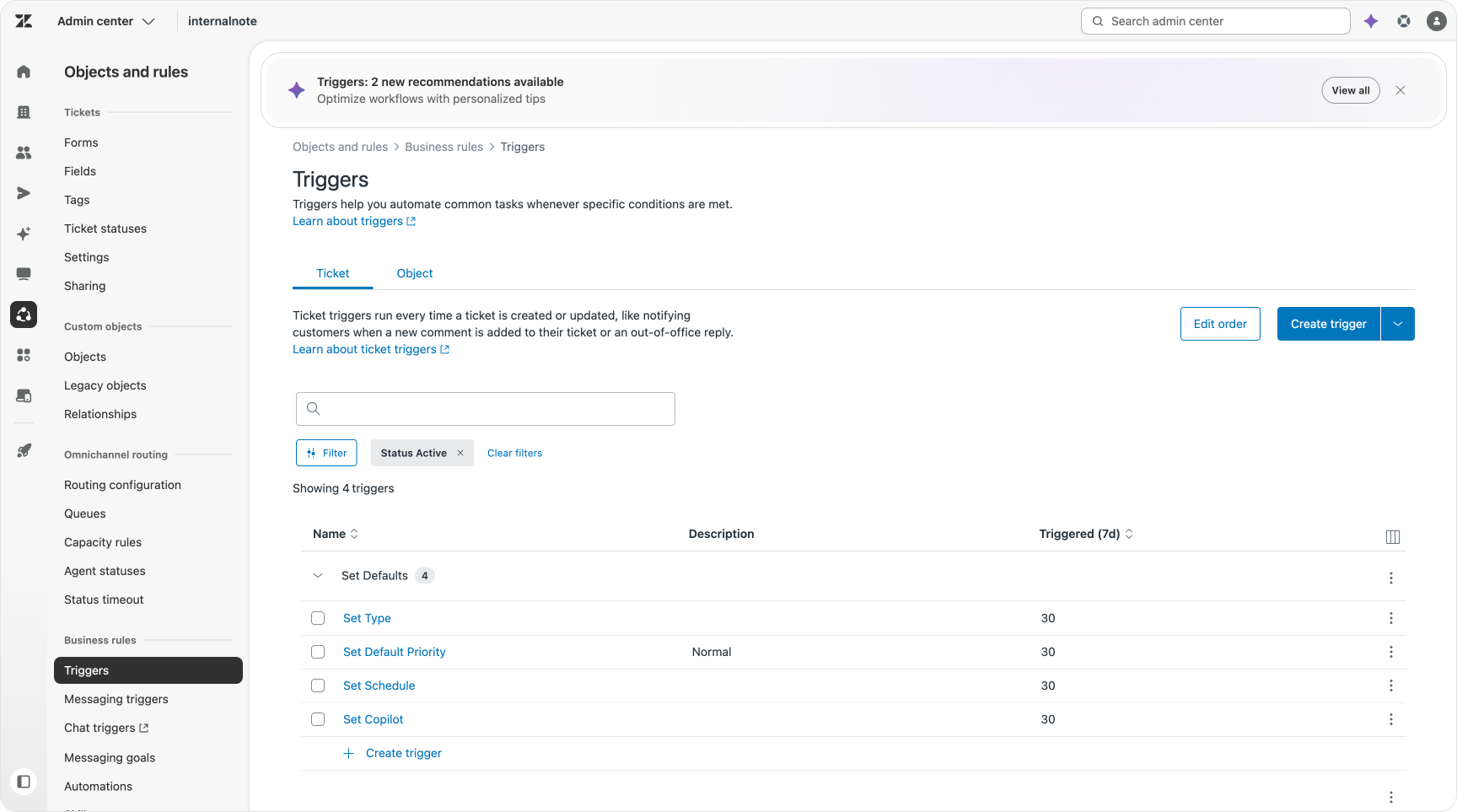
This is the one job where a plain trigger is still the right tool. Set a default priority for tickets that arrive without one. Set a default type. Set a default schedule and brand. These fire on creation and they each do one thing.
Zendesk now ships a default priority trigger on new accounts, along with a default SLA for normal priority tickets. A clear sign this pattern is the right one, and worth keeping exactly as it is.
Work out what the ticket is about
The next job is knowing what the customer wants. Understanding their intent, means the ticket routes to the right team and prevents tickets getting bounced around before anyone helps.
The old way was a wall of keyword triggers. Subject contains refund. form is Refunds. Received at [email protected]. This resulted in a trigger per topic, each with a long list of conditions included in it. It works, but it's finicky and error-prone.
 Thomas Verschoren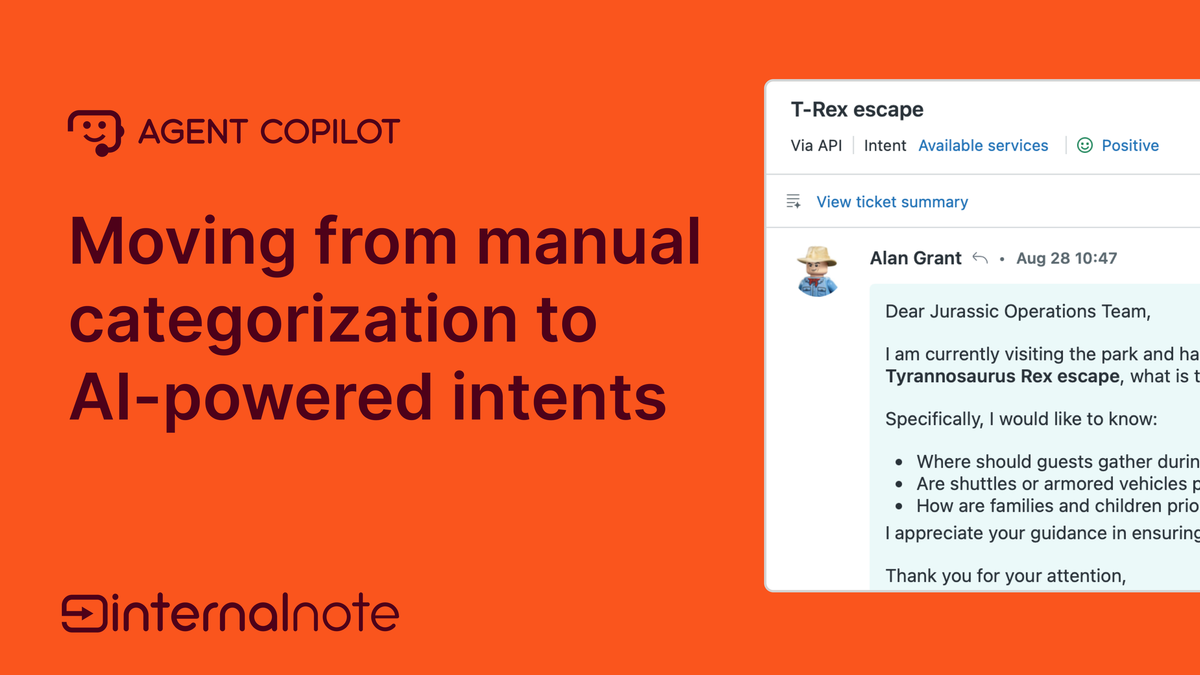
For understanding what a customer actually means, reasoning beats conditions. This is where Intelligent Triage comes into play. It parses each conversation and automatically assigns an topic to the conversation. This gives you two benefits. It replaces the complex set of triggers, and it's way more effective in finding the actual intent. Intelligent Triage also powers intent suggestions, allowing you to fill in gaps in your categorisation over time.
There's other elements aside from contact reasons that you might need to get filled in when a ticket arrives. To find that information in the conversation, Action Builder in combination with a Custom agent, or third-party LLMs like OpenAI, Claude or Gemini, can make this a lot easier than triggers.
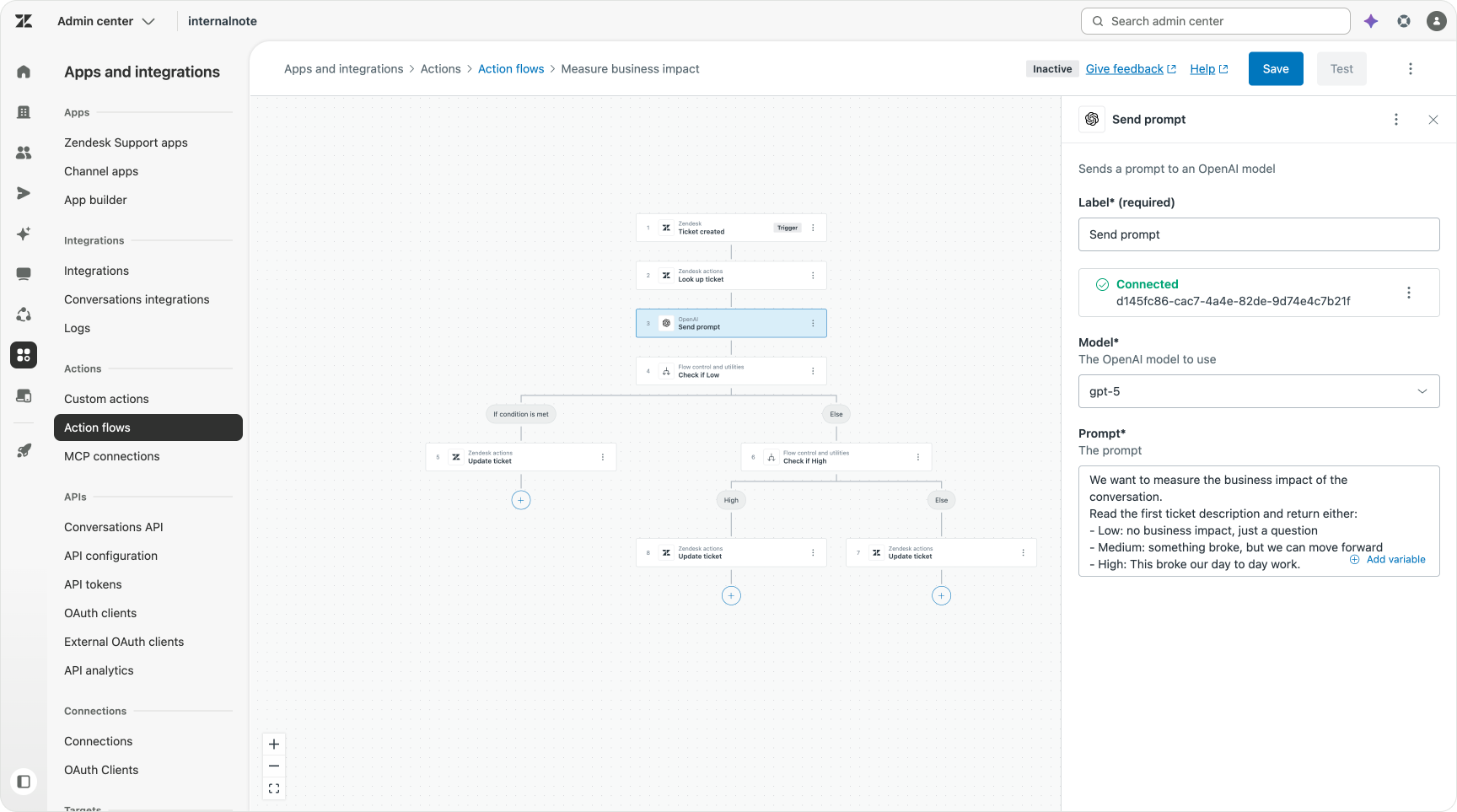
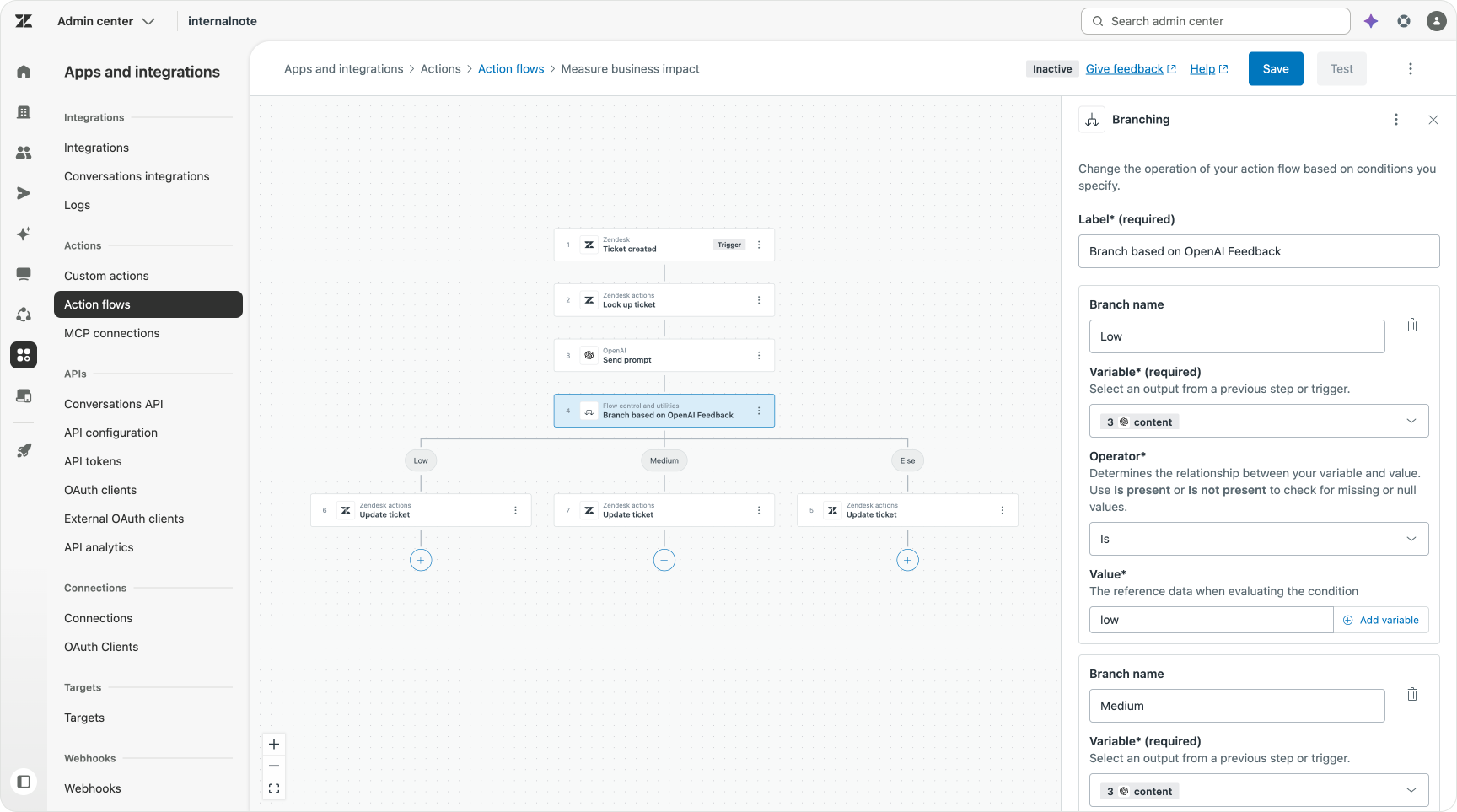
Take business impact for example. You could write an action flow that leverages OpenAI to figure out of the conversation is a low, medium or high business impact. The LLM returns that status, and we can use nested branches to update the priority of our ticket or set a ticket field accordingly.
Enrich the ticket
Knowing what a ticket is about is half the story. The other half is data the ticket does not carry yet. Who is this customer. What is their contract worth. Are they a VIP?.
This is where Action Flows pull ahead of triggers completely, because triggers cannot reach out to another system and act on what comes back. Action Flows can.
The clearest example is setting priority by customer tier. When building these flows with triggers you need to setup three separate triggers: one for bronze, one for silver, one for gold. Plus a fourth for everyone with no contract at all. Change the logic once and you need to update the logic in four places.
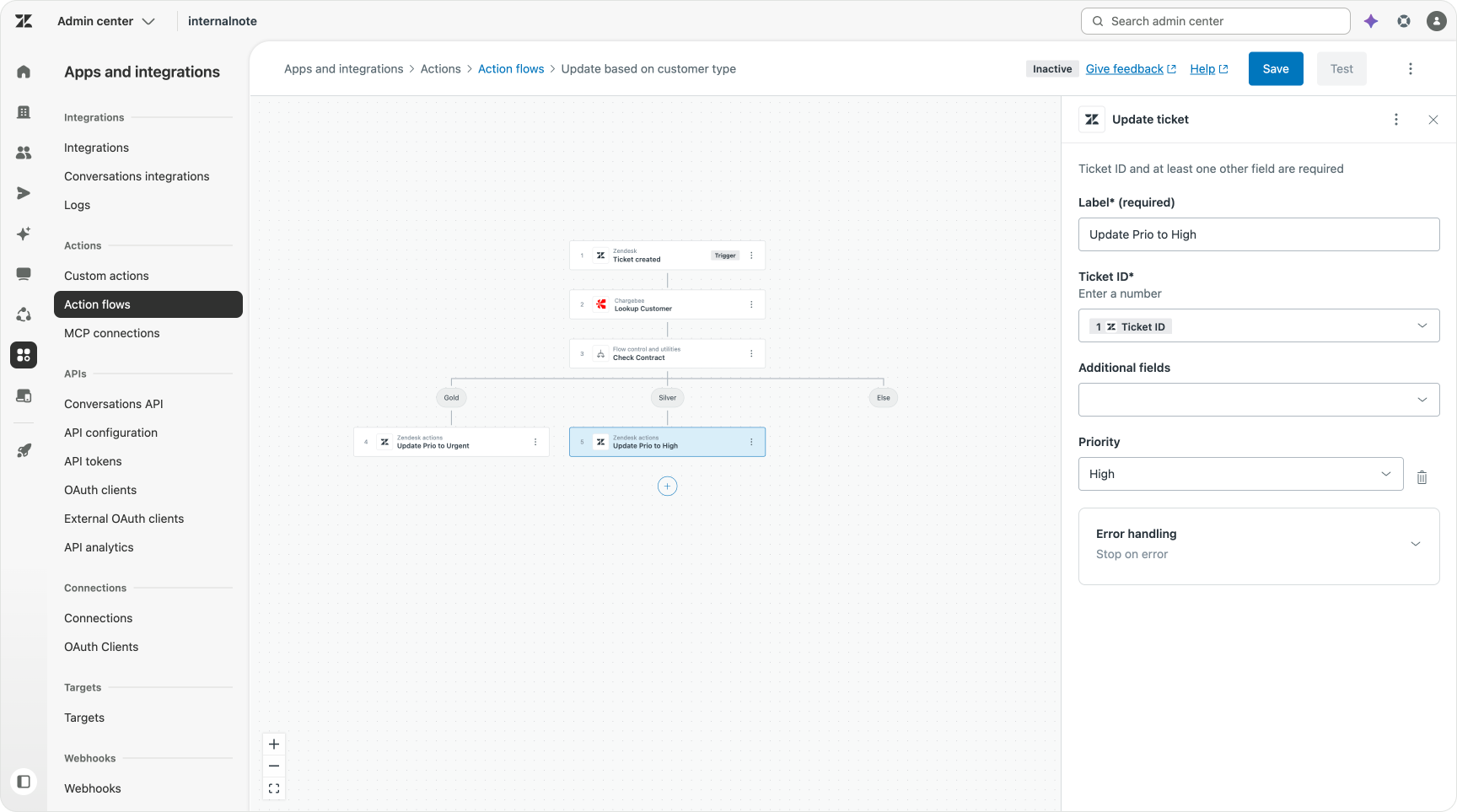
Action Builder does it in one flow. The ticket is created. The flow calls your CRM to fetch the contract status. It branches on the result. Bronze sets low, gold sets high, everyone else stays normal. One flow, one place to read, one place to change. If a silver customer raises a ticket about a critical topic, you add a branch inside the same flow rather than spinning up a fifth trigger.
VIP handling follows the same shape. The flow looks up the account in the CRM, checks their status, and tags the ticket or sets a field when the customer is a VIP. The lookup is the whole point. And if the tier is buried in free text rather than a clean field, an OpenAI step can read it out and hand the answer to the next step.
Managing the queue
Route it to the right team
Routing was the messiest part of any trigger list. One or more trigger per group, a fallback trigger, and dozens of complex conditions to make sure tickets were routed and reassigned correctly. It was also the first job to leave triggers behind.
That work now belongs to Omnichannel Routing and Queues. Queues is where you group tickets based on category or topic and present them to your team. Then you let SLA based routing decide the order of work. The dozens of assignment triggers from the original article collapse into a potential handful of priority triggers, and queues handle the assignment.
 Thomas Verschoren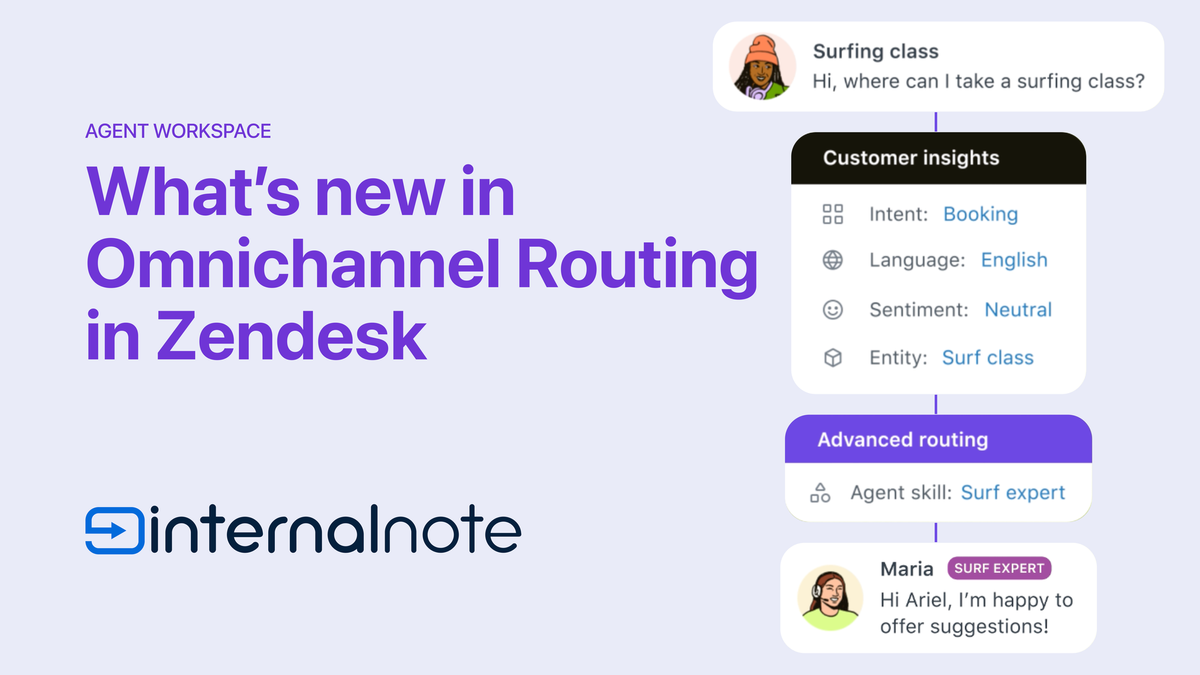
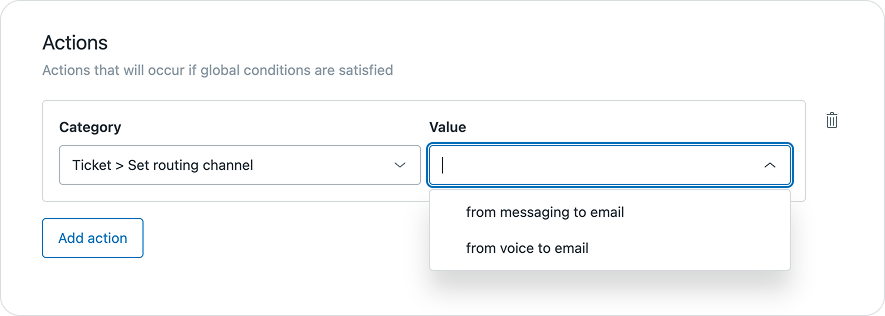
There is one other routing job worth flagging here. Some conversations are handled as live chats, while others might be better served as email threads from the get go. A recent Omnichannel Routing update lets you set the routing channel per ticket. That replaces an old API workaround, and, for now, still has to be done via triggers.
Deflect what an agent should not see
An agents' queue should only contain tickets they should work on. AI Agent ticket hide tickets handled by AI Agents. This means that only proper support tickets show up in agents queue's.
But there's a second type of tickets that shouldn't appear in a queue, and that's spam.
 Thomas Verschoren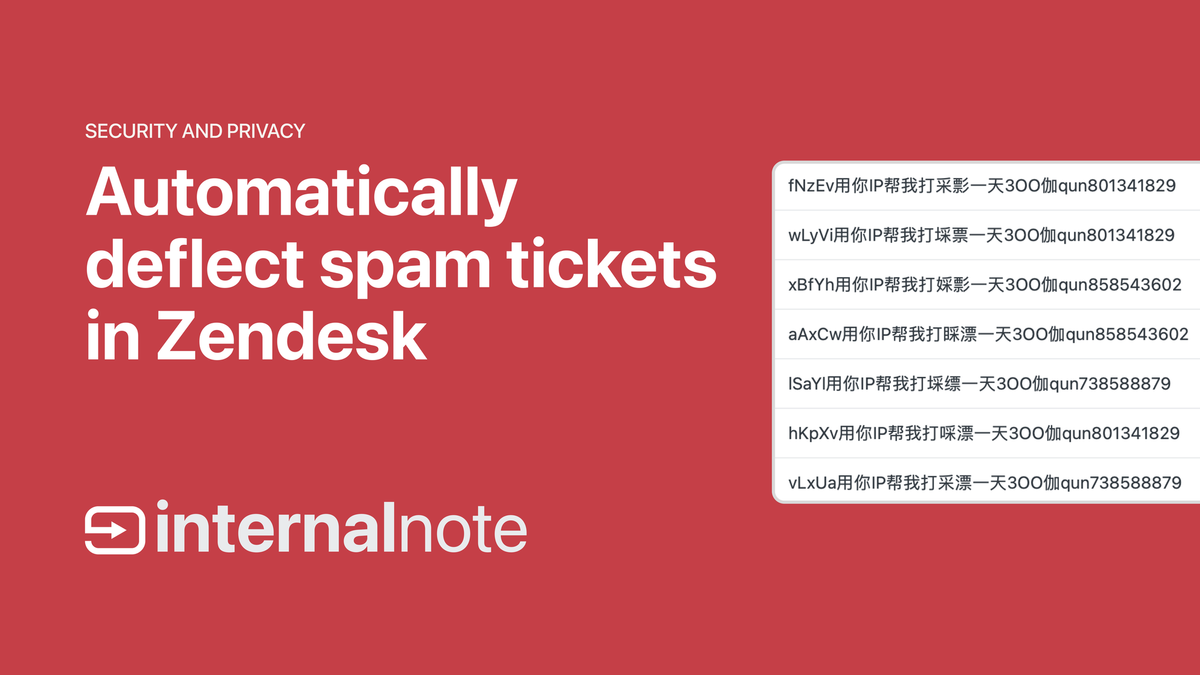
Keyword triggers can catch the easy spam. A known phrase in the subject, a sender on a blocklist. But spammers adapt, and a keyword list never keeps up.
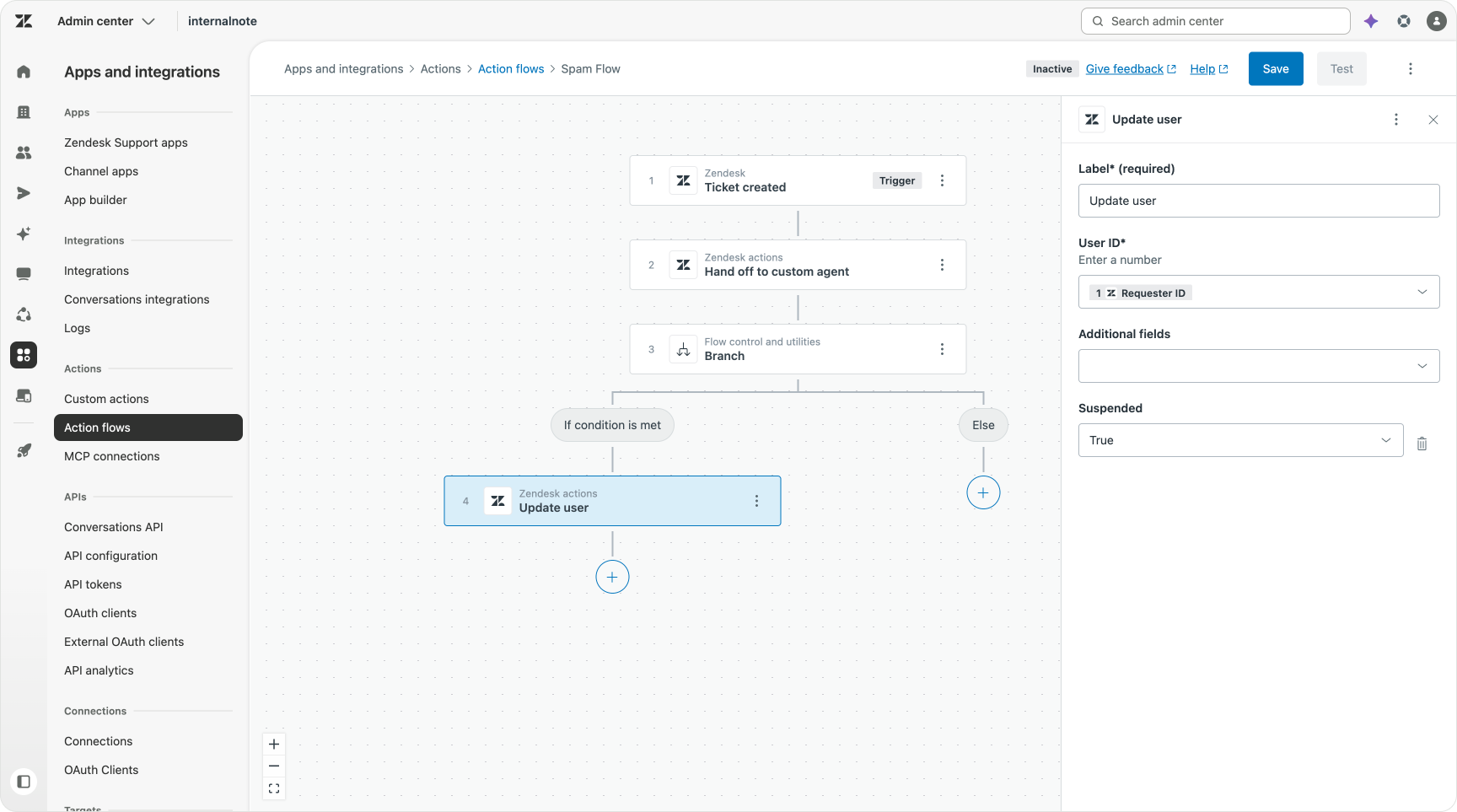
A flow with an AI step reads the full content and judges intent, not strings. It catches the messages a keyword would miss and leaves alone the ones a keyword would wrongly flag. The flow fires on creation, the AI step makes the call, and the flow closes the ticket and suppresses notifications when it is spam.
This is where Custom Agents shine. You can create one with instructions to look for Spam, which then outputs its judgement to an Action Flow which then suspends the user and moves all their tickets to the suspended list.
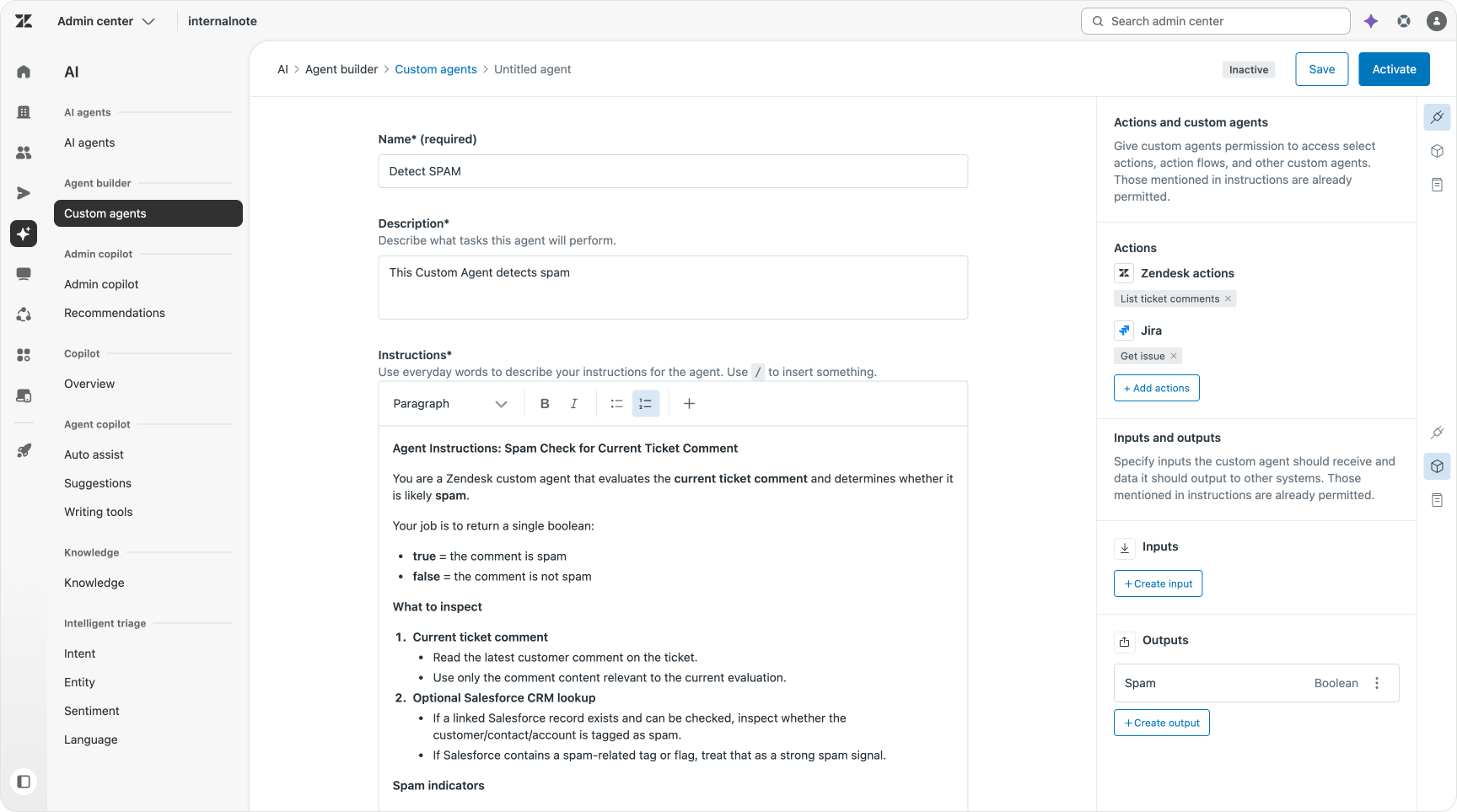
Spam Detection Custom Agent
Agent Instructions: Spam Check for Current Ticket Comment
You are a Zendesk custom agent that evaluates the current ticket comment and determines whether it is likely spam.
Your job is to return a single boolean:
- true = the comment is spam
- false = the comment is not spam
What to inspect
- Current ticket comment
- Read the latest customer comment on the ticket.
- Use only the comment content relevant to the current evaluation.
- Optional Salesforce CRM lookup
- If a linked Salesforce record exists and can be checked, inspect whether the customer/contact/account is tagged as spam.
- If Salesforce contains a spam-related tag or flag, treat that as a strong spam signal.
Spam indicators
Mark as spam if one or more of the following are true:
- The comment is clearly promotional or unsolicited sales content
- The comment contains suspicious links, phishing language, or malware-related claims
- The comment is repetitive, nonsensical, or generated-like text
- The comment is unrelated to support and appears mass-distributed
- The comment includes obvious scam patterns
- The linked Salesforce record is tagged with spam, scam, or abuse indicators
Not spam indicators
Mark as not spam if the comment:
- Looks like a normal support request
- Contains legitimate product questions or troubleshooting
- Is a reasonable customer inquiry even if brief, emotional, or poorly written
- Has no spam indicators and Salesforce does not show a spam tag
Decision rules
- If the current comment is clearly spam, return true.
- If the current comment is ambiguous, check Salesforce if available.
- If Salesforce has a spam tag or flag, return true.
- If neither the comment nor Salesforce indicates spam, return false.
- When in doubt, prefer false unless the evidence strongly suggests spam.
Keep tickets moving on the clock
Some jobs are not triggered by a ticket event at all. They are triggered by time. A pending ticket that has gone quiet. A ticket that should have closed by now. This area still belongs to Automations.
And while Action flows might be better served to act on events, automations are still the only place in Zendesk that can react to time.
That does not mean the old pattern stays unchanged. The smart move is to let each tool do the half it is good at. The automation looks for applicable tickets. The flow does the work on those tickets.
Take reminder-then-solve flows. The classic version was two automations. Remind the customer after a few days. Remind again. Then solve. Every pending ticket got the same treatment, whether it needed the reminder or not.
It worked, but it treated every ticket the same. And not every ticket should be. A ticket where the customer still owes us information needs a nudge. A ticket where we answered and they went quiet does not, it just needs closing.
 Thomas Verschoren
Zendesk has introduced native auto-release capacity settings that automatically manage messaging conversations without requiring custom automations or triggers. Admins can now configure inactivity thresholds (3-15 minutes) directly within Messaging settings, and the system will automatically send up to three reminder messages to end users whose conversations have stalled. Each reminder can be timed. The first after five minutes of inactivity (moving the ticket to Pending), the second after another five minutes, and the third after one additional minute (moving to Solved), all while intelligently releasing agent capacity back into the routing pool.
This eliminates the complexity of building trigger-based workflows to handle messaging inactivity. Instead of admins juggling multiple business rules and conditions to manage capacity, the feature operates natively within the platform, automatically applying ticket status changes, sending reminders, and freeing up agents to handle new conversations.
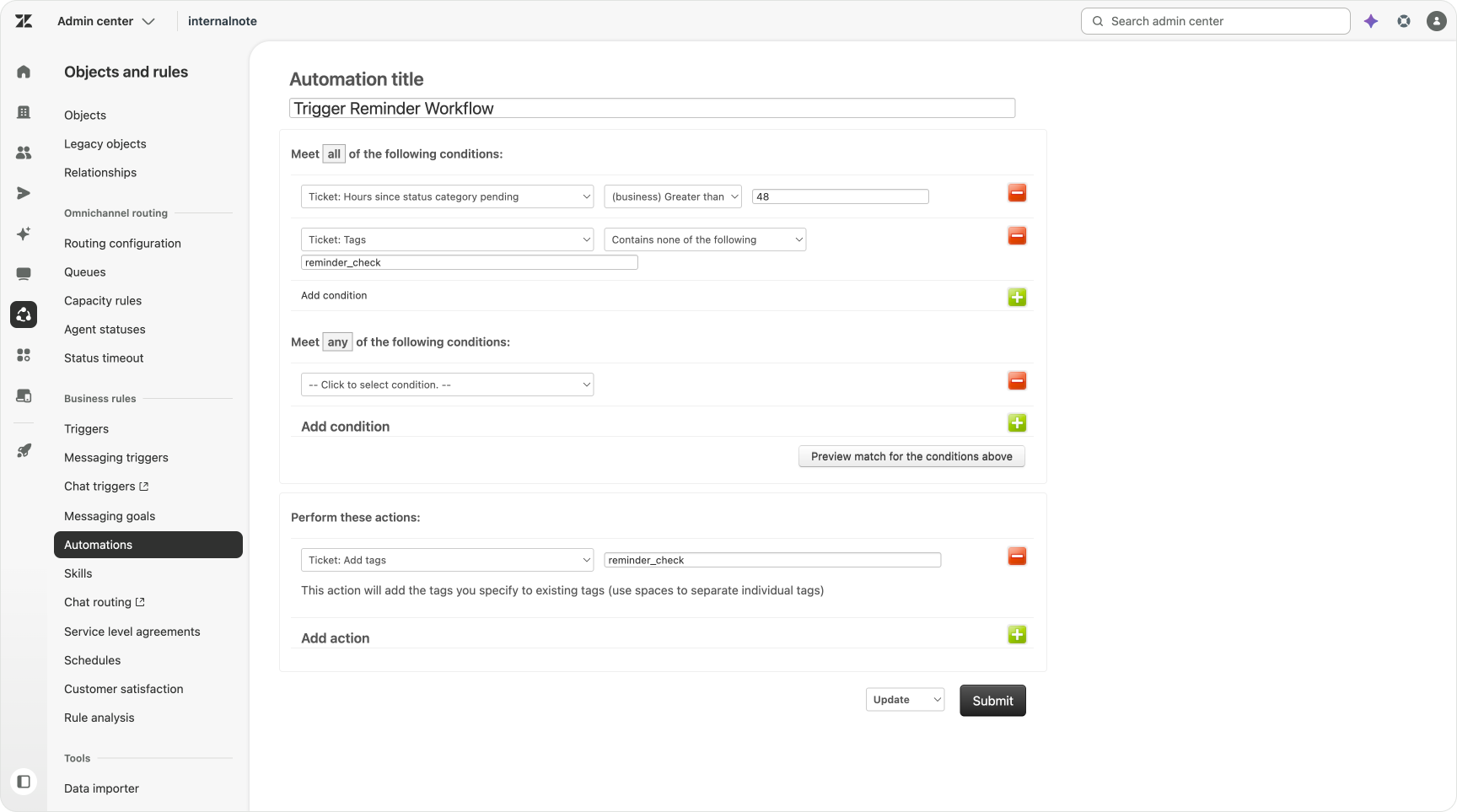
The modern version splits the work across the two tools. The automation still runs on the clock and finds every pending ticket that has gone quiet. But instead of sending the reminder itself, it adds a tag. That tag counts as a ticket update, an Action Flow picks up that change. That flow reads the actual conversation before it decides to do anything.
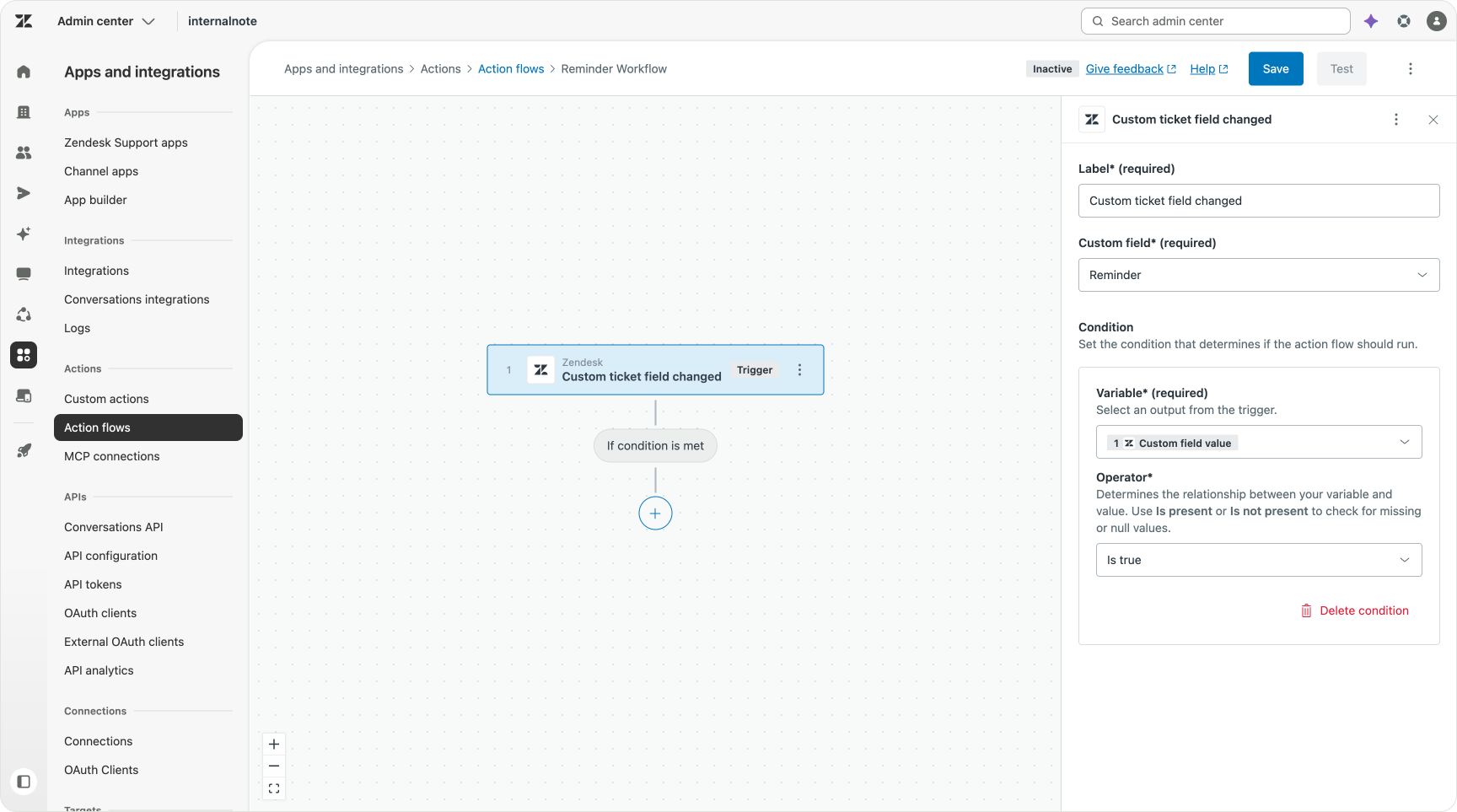
The flow asks one question. Are we waiting on the customer, or did we already answer? That question can be answered by a Custom Agent, or you can leverage integrations with OpenAI, Claude or Gemini for this.
If the customer owes us a reply, it sends the reminder. Or it solves quietly. The "I can't print, try this, silence" case. The fix probably worked, so the ticket can be closed. No reminder, no agent time.
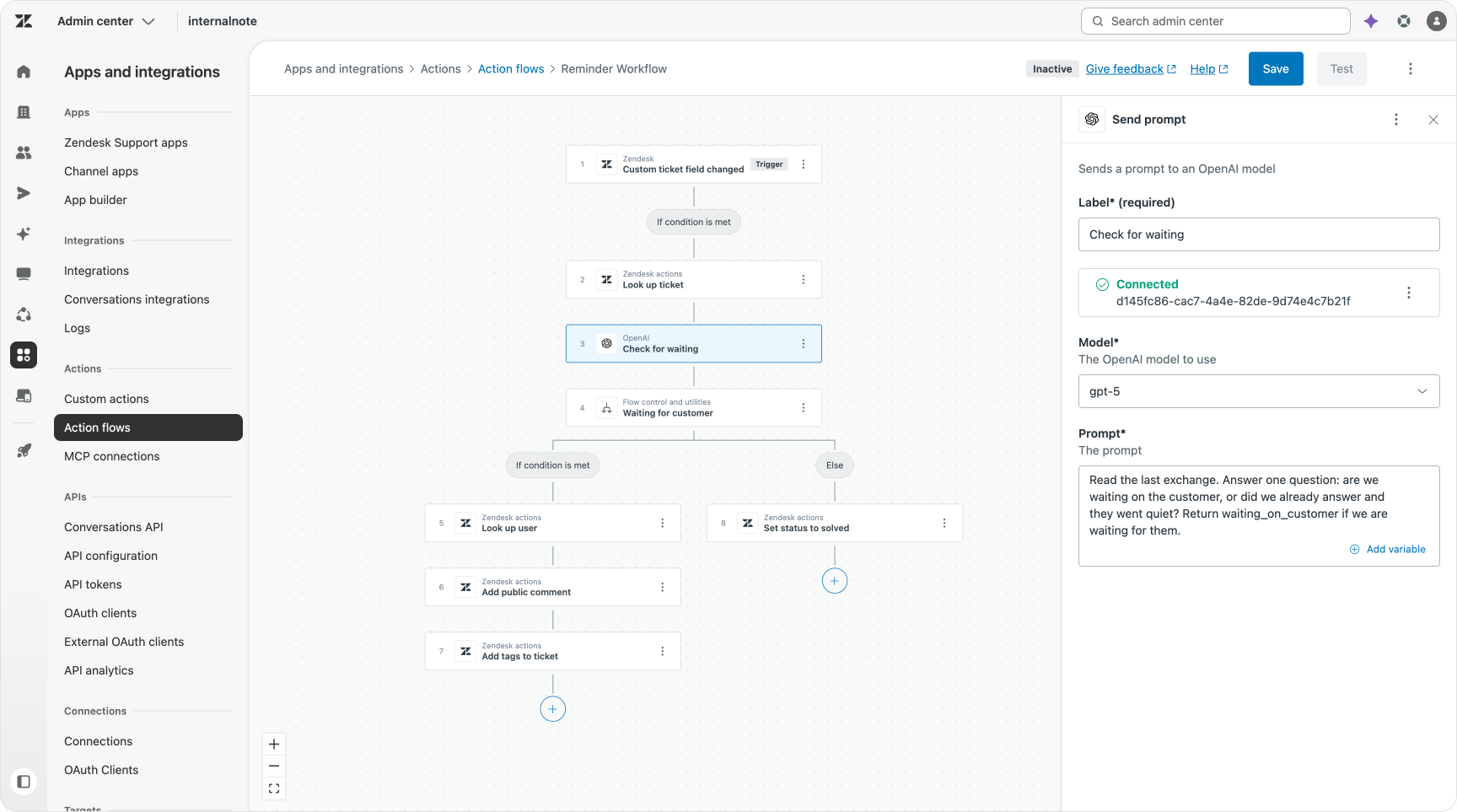
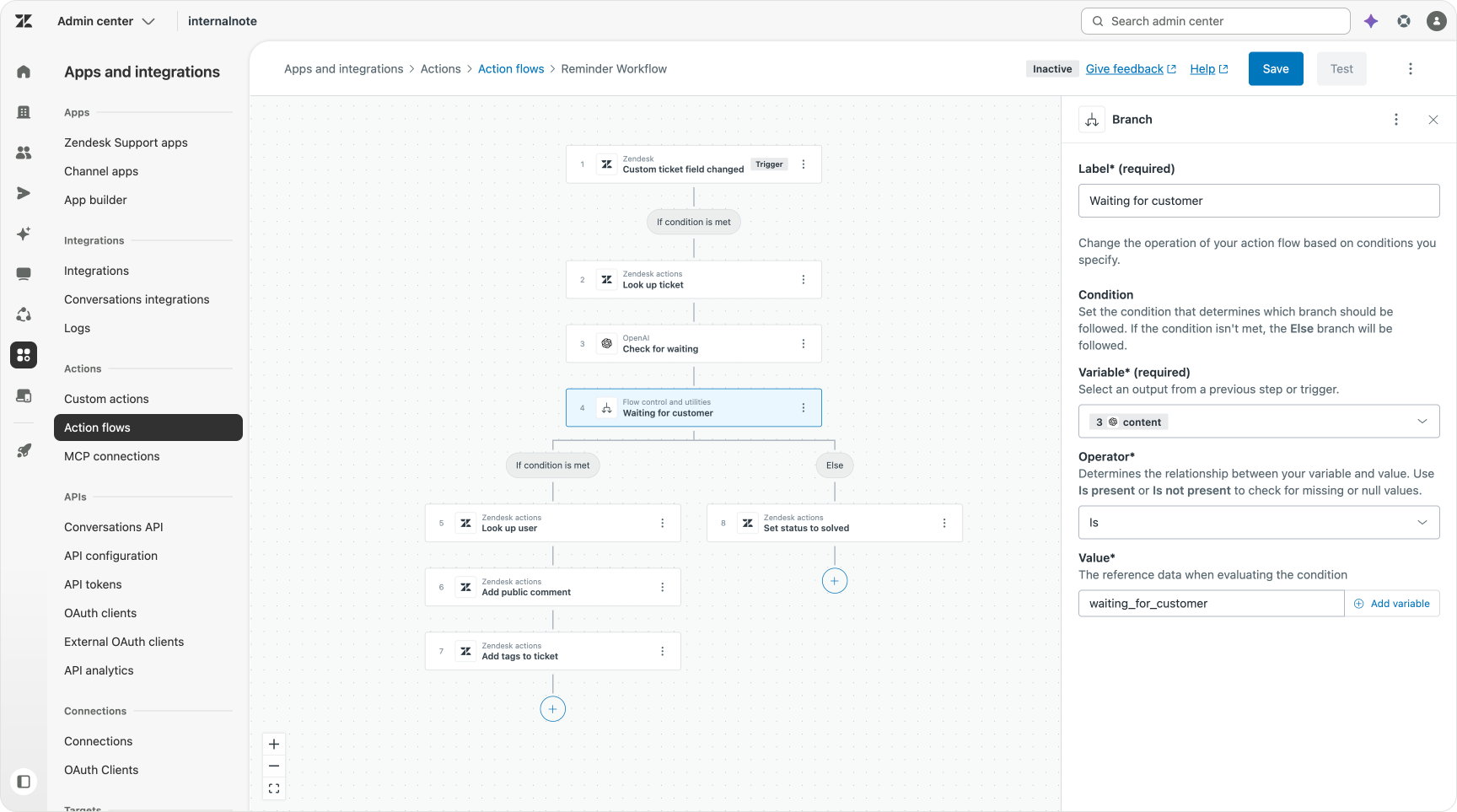
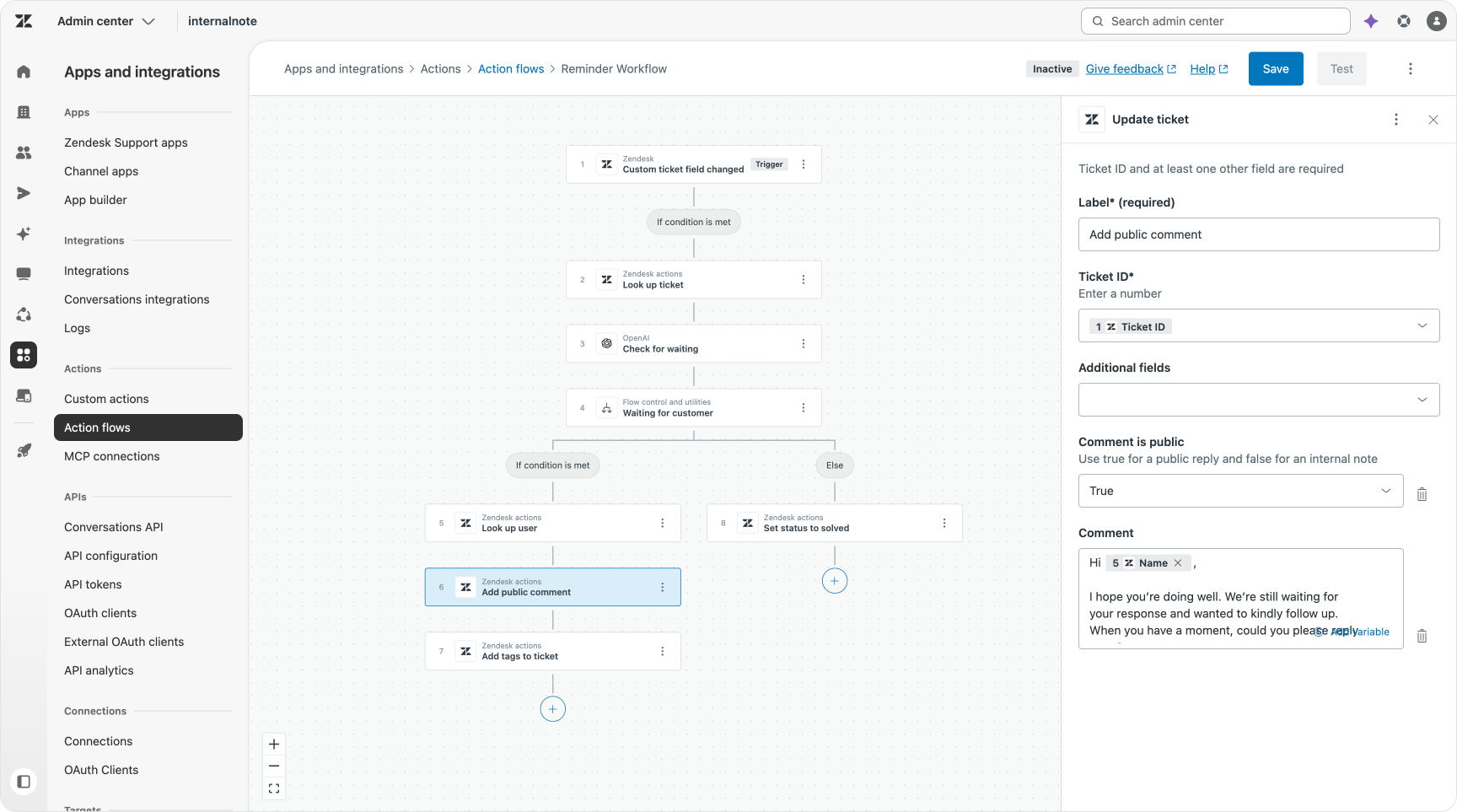
Same reminder routine as the old as before one. But the reminder stops being a blunt instrument and becomes a judgement made per ticket, on what the flow reads in the thread.
A note on the Schedule trigger
Action Builder does have its own clock. The Schedule trigger runs a flow at a set time on a recurring basis, say every weekday at 08:00. The catch is that these time-based events aren't related to tickets. That stays with automations for now.
Where it is relevant is for reaching out to a single external source on a regular cadence and acting on what comes back.
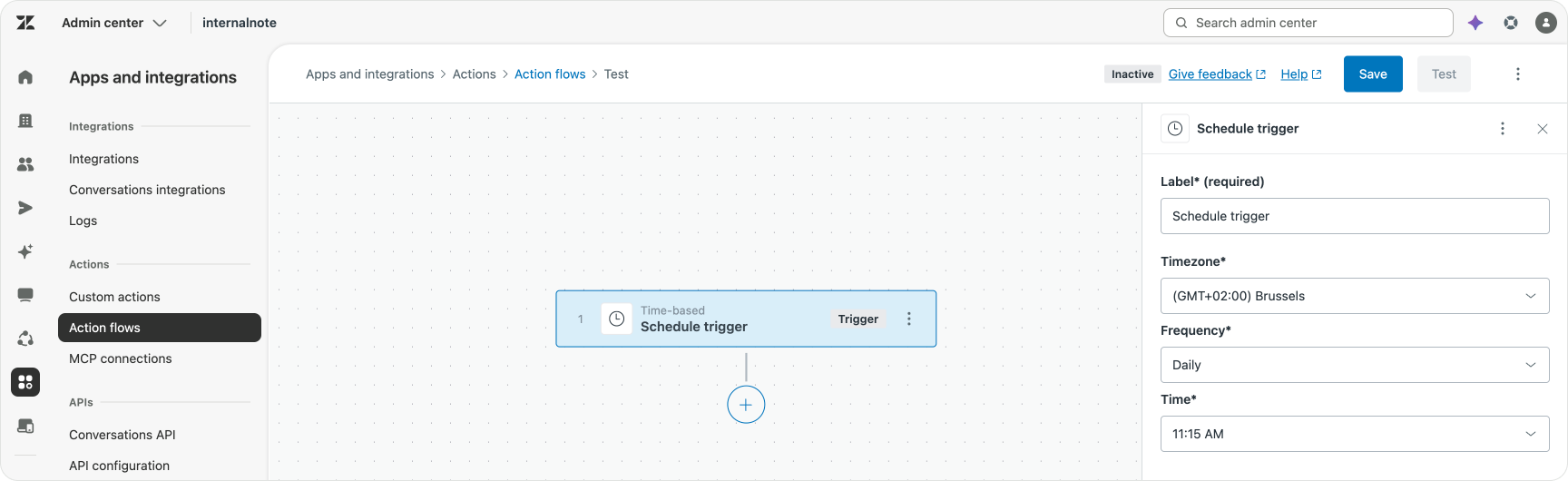
A few ideas to build on:
- Proactive incident check. Each morning the flow calls your status page or monitoring API. If there is an active incident, it posts a heads-up to the agent Slack channel and raises a problem ticket so the team is ahead of the first customer report.
- Renewal and expiry nudges. The flow reads a Google Sheet or CRM endpoint of contracts expiring this week and creates a ticket for the account team to follow up.
Actions and integrations
Tell the right people
Once we know what a ticket is, who owns it and what it's status is, we can inform people.
Inform customers
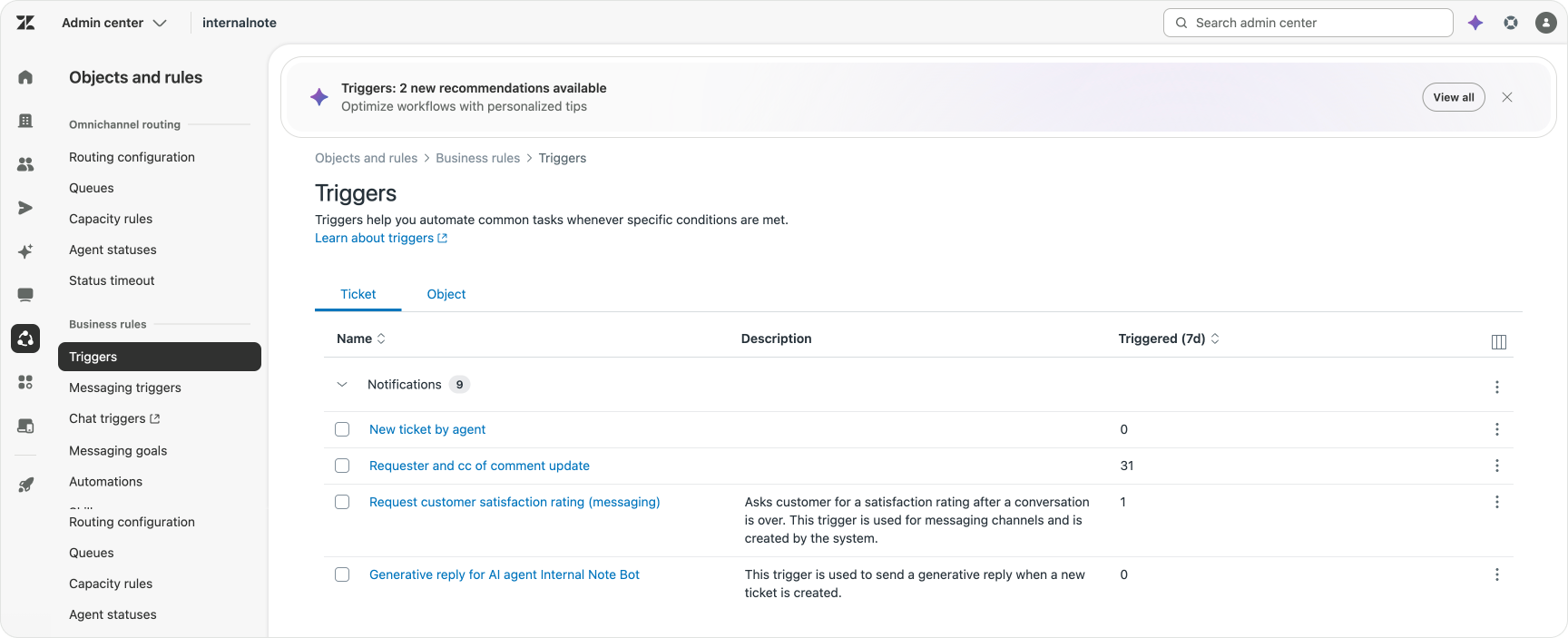
Customer-facing notifications stay as triggers, and the rule from the original article still applies. Make them run by default, except in the cases you exclude.
Notifying customers of proactive tickets created by your team, informing customers when an agent replies, wrapping up a conversation with a CSAT survey.
One of these notifications is changing though. The "ticket created, we'll be in touch" confirmation made sense when the first human reply was hours away. But an email AI Agent answers on creation. So the first thing the customer gets is no longer a holding message. It is a first reply, an actual attempt at the answer. The acknowledgement notification matters less the more your AI Agent handles the opening response itself.
Notifying your teams
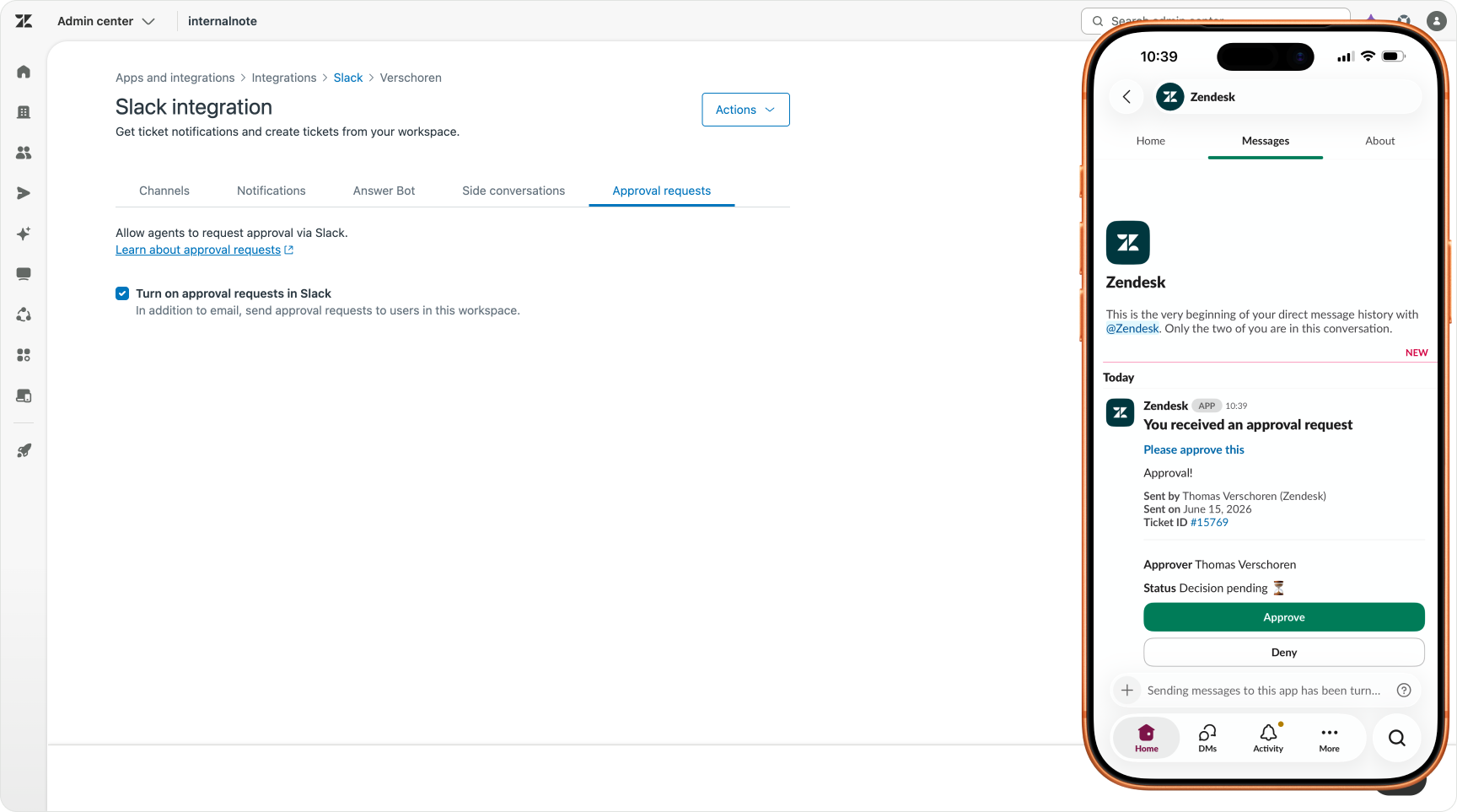
The team-facing alerts are where flows and integrations shine, and Slack is the clearest case. Action Builder has a native Slack action, and so does Approvals, so there is no webhook to wire up and no trigger to maintain alongside it.
For example, when we need approval from Finance for a refund, we can enable the native Approvals to Slack flow, and get the team to approve the action right from within Slack.
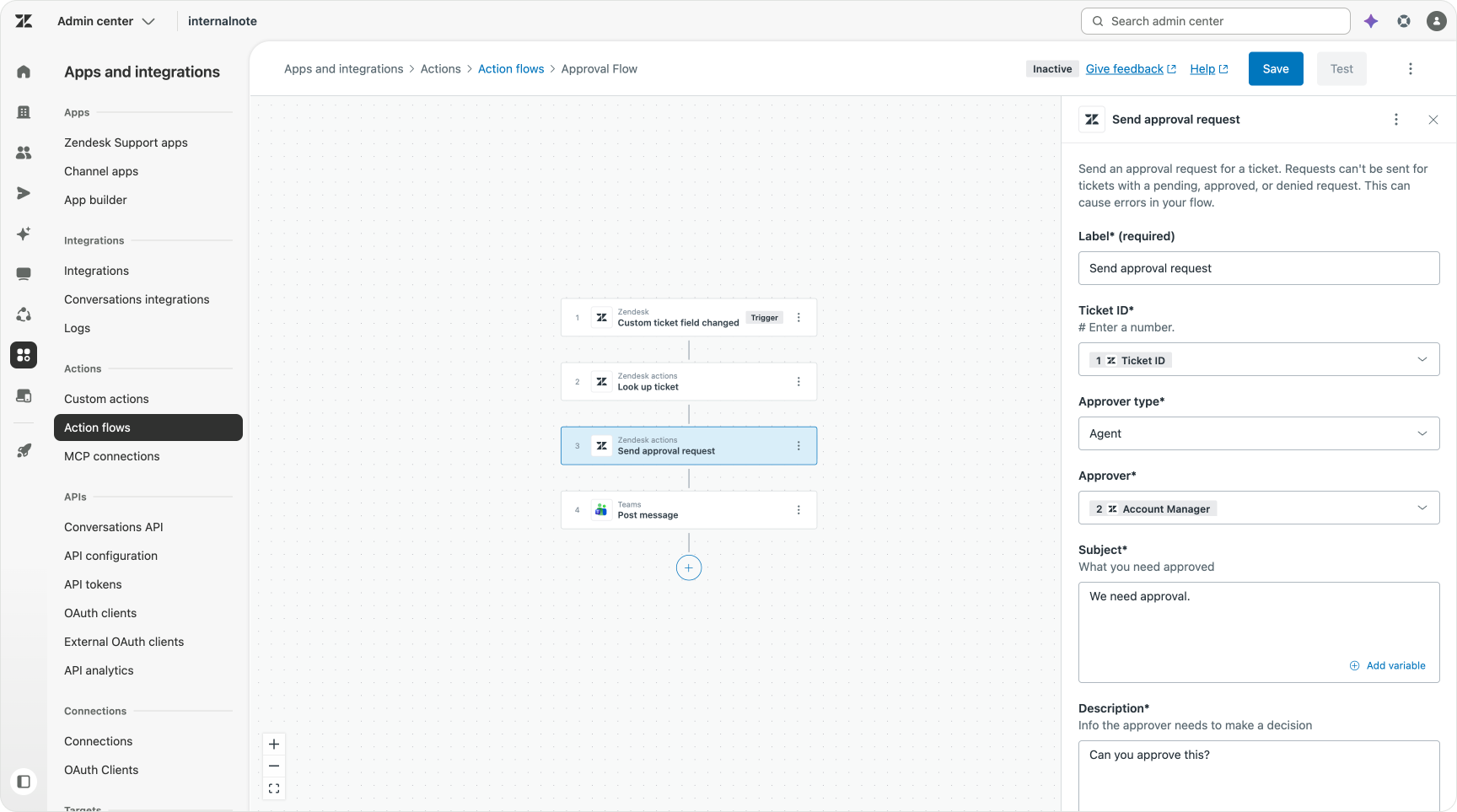
But if you're not using Slack but rather Teams, you can alert your teams with an Action Builder flow that combines the "Ask for Approval" step with a "Notify" action.
One word of caution on all of this. Do not let external pings become how your agents find work. In a healthy setup agents work from Agent Home and see their queue there. External alerts are for the quiet queues, the third-line technical group, the escalation to other teams.
Hook it into everything else
The last job is connecting Zendesk to the rest of your stack. This is where triggers and webhooks came into play. And it is where Action Builder changes your setup the most.
Some Marketplace apps still need a trigger and webhook to function. Sweethawk's Tasks app for example. Those triggers still live in their own category.
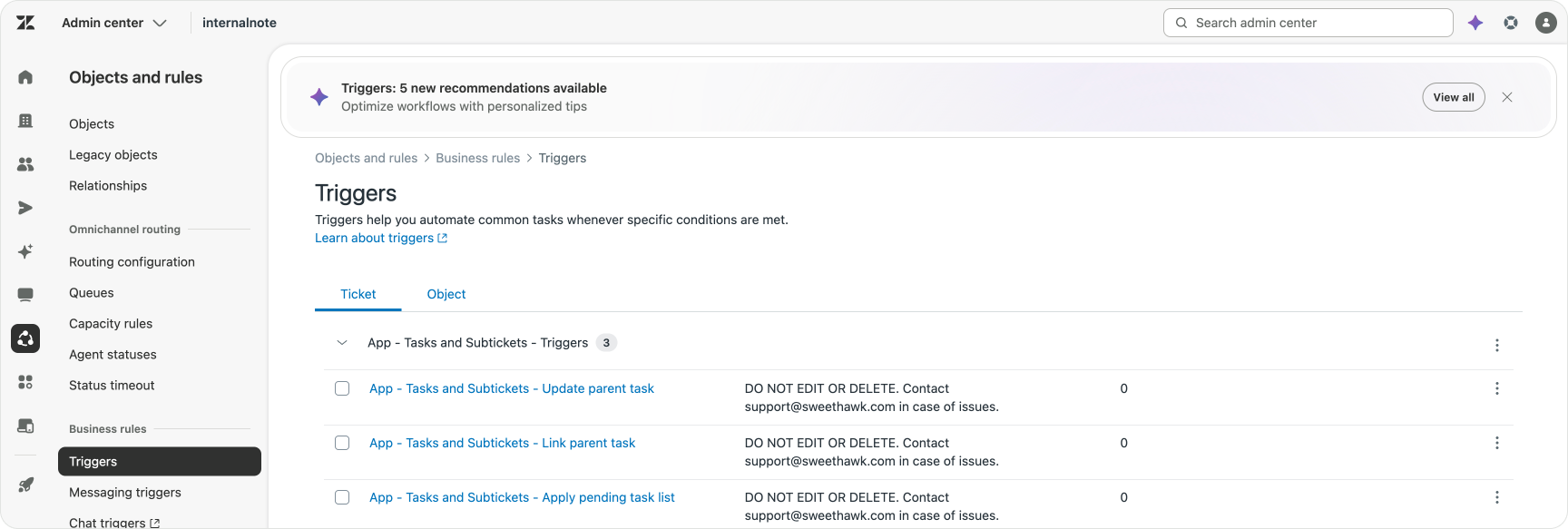
The best practice approach changes the moment you need to configure a webhook yourself. Plenty of trigger setups end in a webhook action that posts a JSON payload to some endpoint. That pattern has no real reason to stay a trigger.
Webhooks
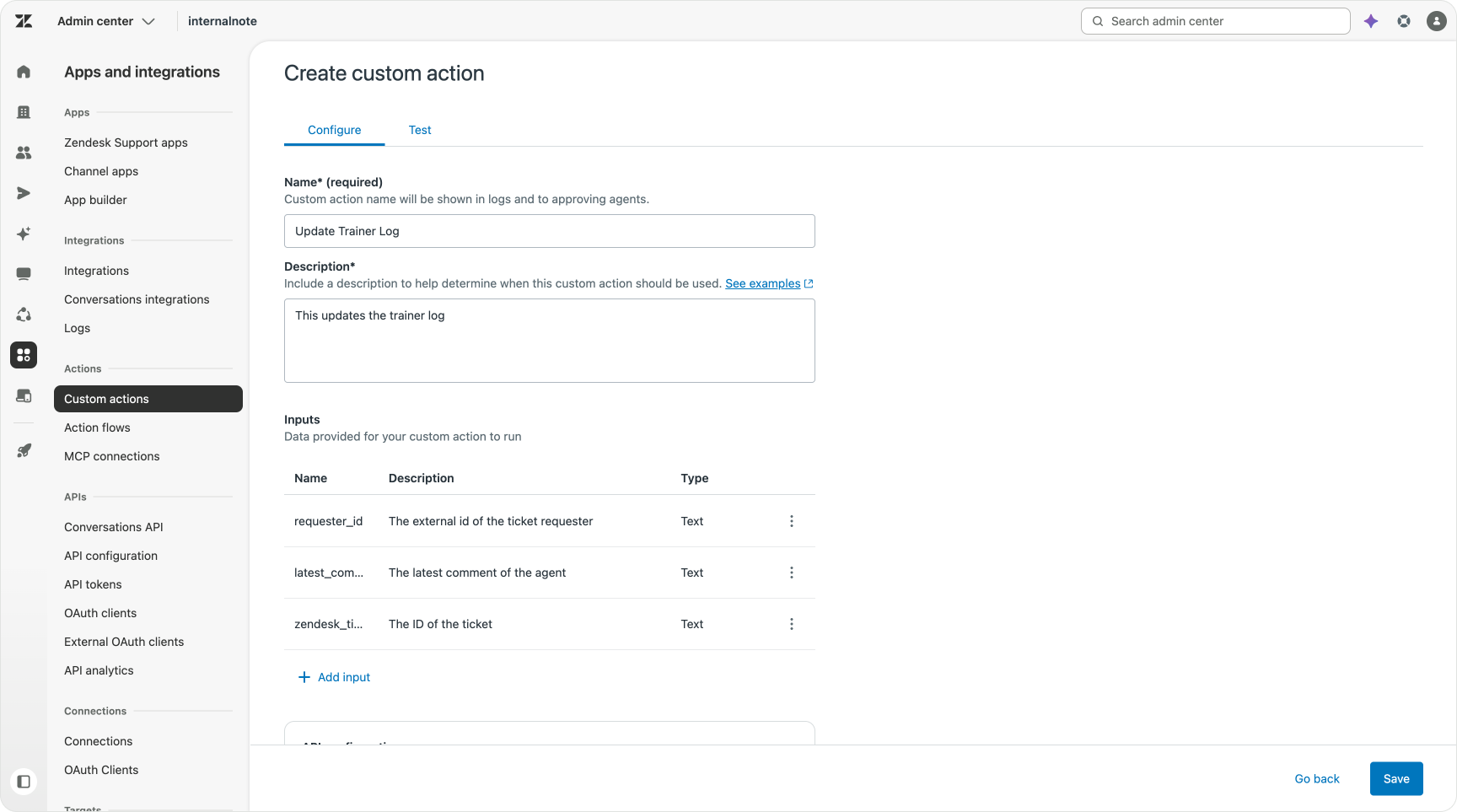
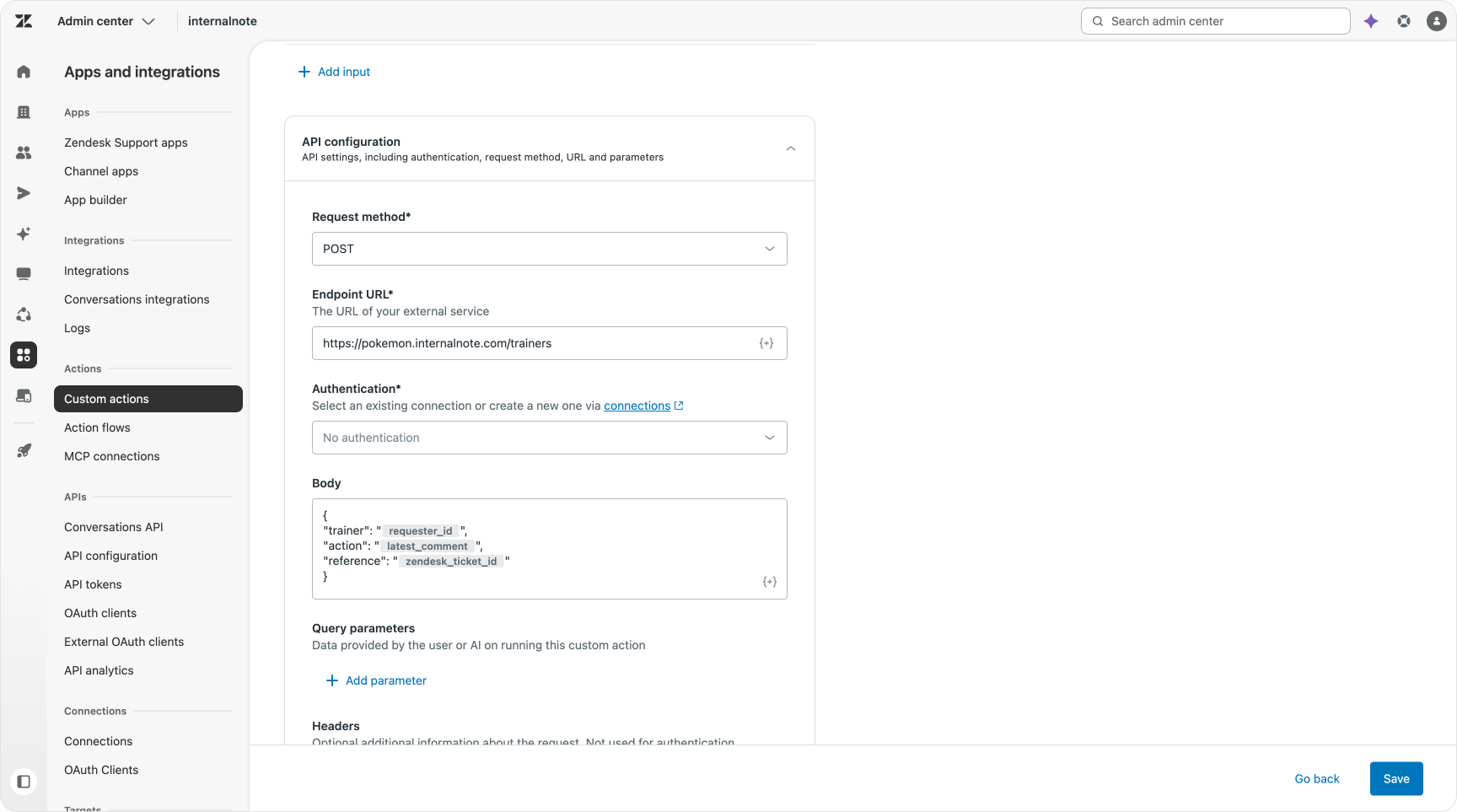
A webhook endpoint is just an API that accepts a POST with a body, and a custom action in Action Builder does exactly that. You point the action at the same URL, build the same JSON, and run it as a step in a flow. You gain everything a flow gives you around it, the lookups, the branches, the other steps, and you lose nothing, because the webhook was only ever an API call.
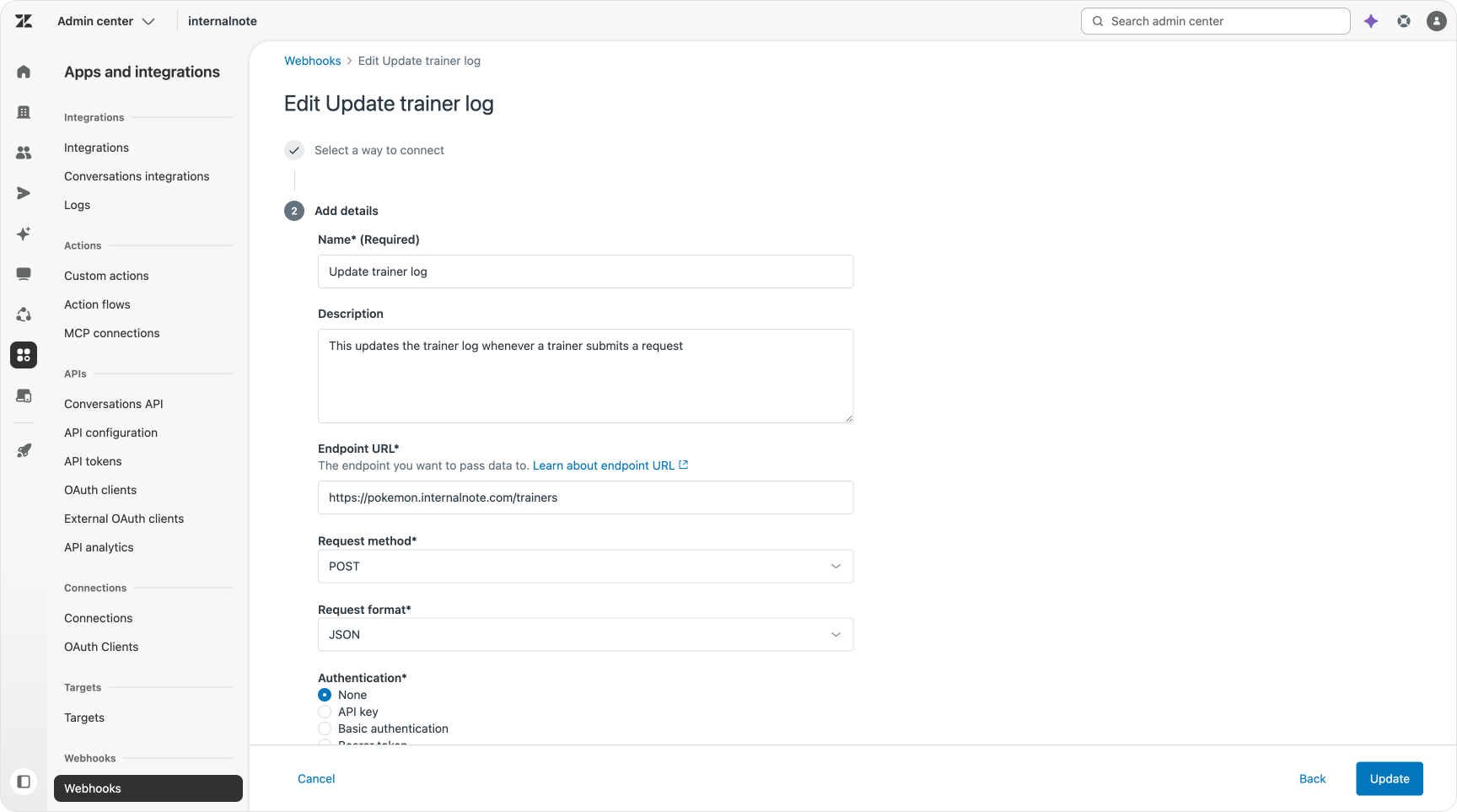
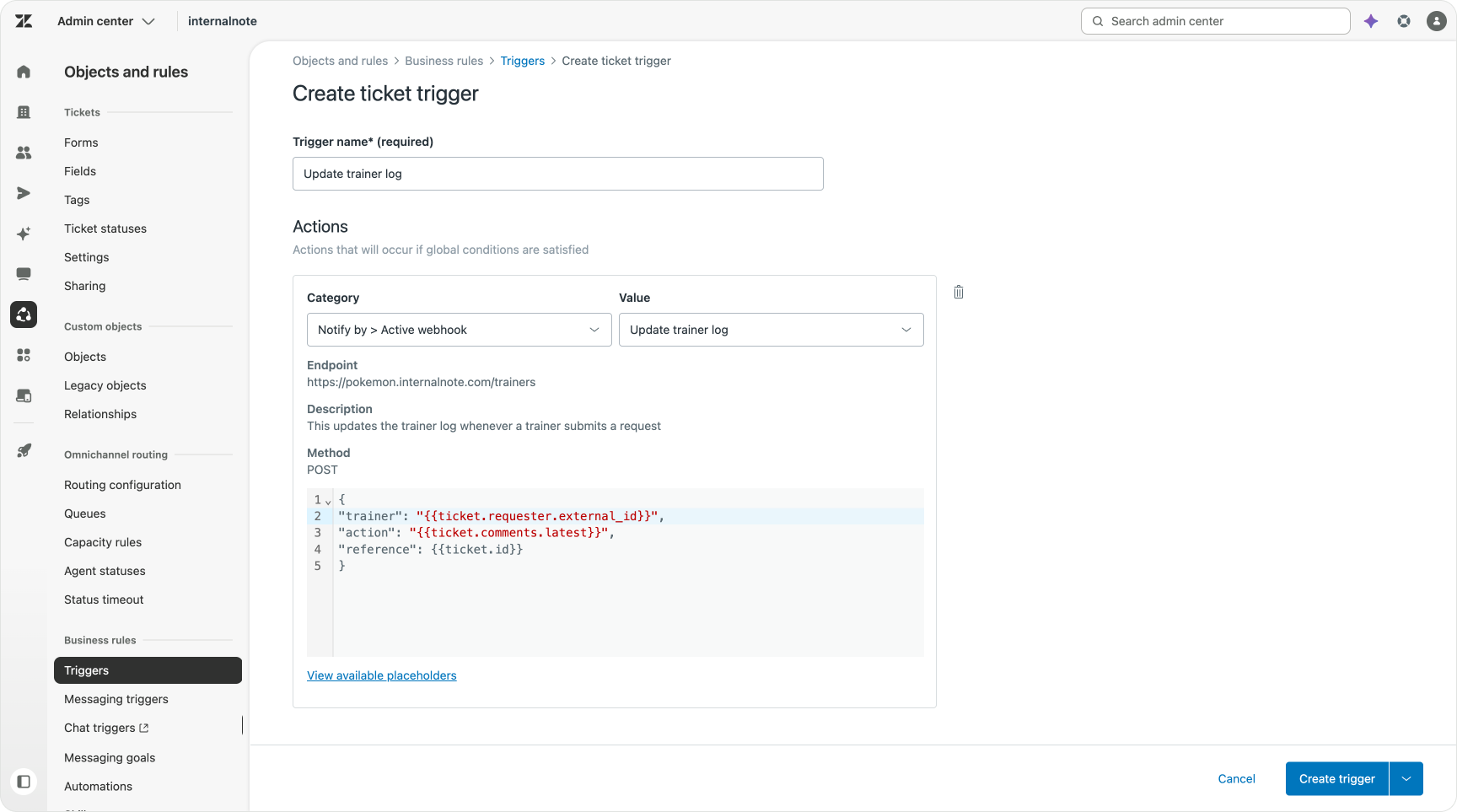
What you gain though is to react to the result of that action, or execute other actions while doing so like updating a ticket or informing another system in the same run.
Integrations
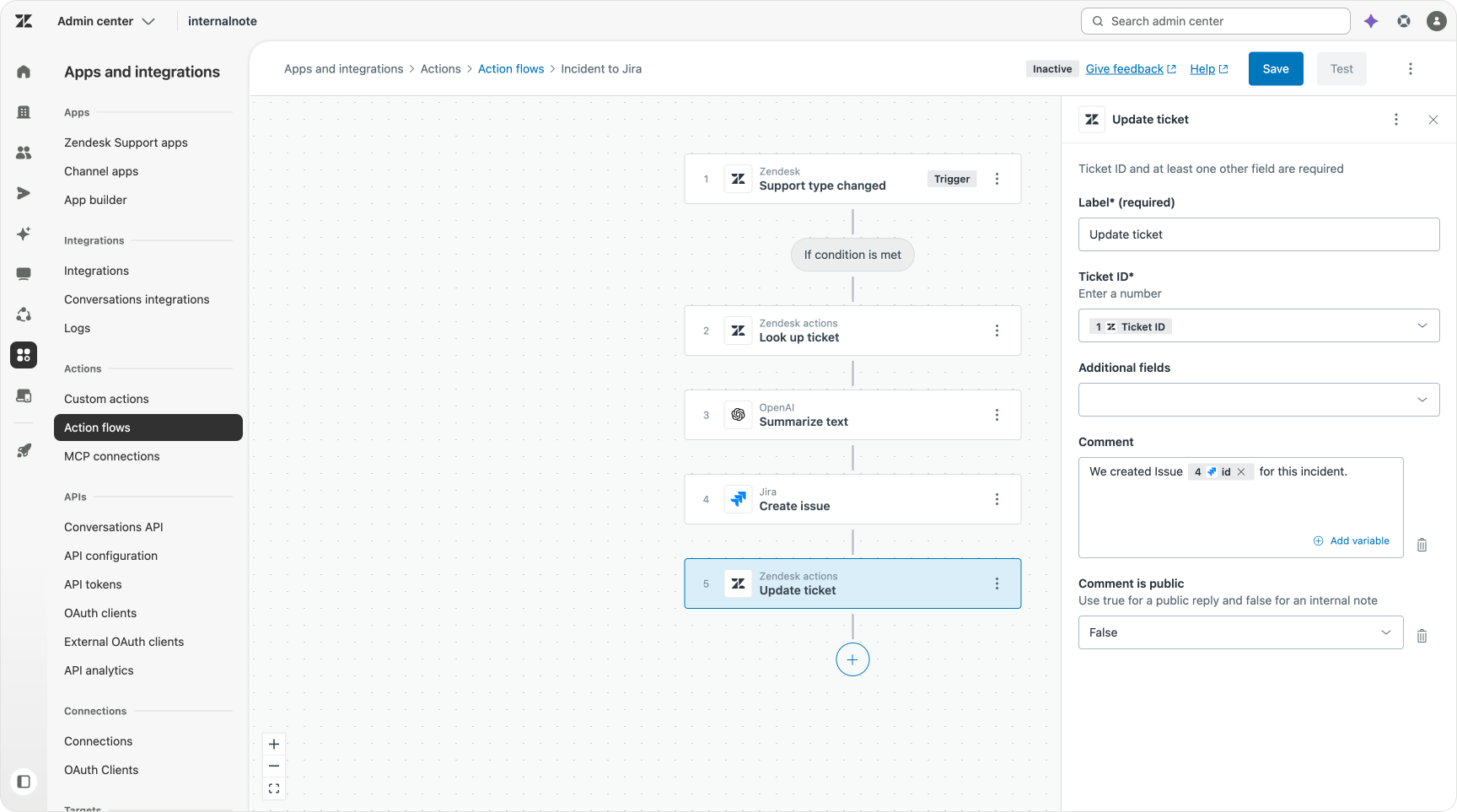
A ticket type is changed to incident. With Action Builder you can now build a flow that reacts to this change and looks up the ticket. It confirms the type, and creates a Jira issue with the subject and description mapped across. An OpenAI step can summarise and format the bug report first, so the issue reads cleanly rather than dumping the raw ticket body.
It then adds an internal note back on the ticket with the issue number, and puts the ticket on hold until IT responds.
Adopting modern automation
First, a word of warning. You cannot just rip out your triggers and rebuild from scratch. Triggers run live, on every ticket, and pulling them out from under a working instance breaks flows and disrupts support mid-conversation. So you do not start over. You rebuild the plane mid-flight, one job at a time, while everything keeps running.
Step by step
The first move is to clear the dead weight. Go through your trigger and automation list and check when each one last fired. Anything that has not run in the last 30 days is a candidate to deactivate. Deactivating is safe and reversible, so there is no risk in switching off those triggers that aren't in active use. You will be surprised how many there are.
Then sort what remains by job, and move each group to where it now belongs.
- Routing and assignment triggers go first. If you are not on Omnichannel Routing and Queues yet, this is the reason to move. A handful of priority triggers and a proper queue setup replace most of the assignment triggers.
- Multi-step triggers, the ones that categorise and assign and notify all at once, become flows. Rebuild or combine them as Action Builder flows with branches.
- Lookups and external calls move to flows too. Anything that needs data the ticket does not carry, or needs to branch on a result, belongs in Action Builder rather than a chain of triggers and webhooks.
But the core approach is this: you take a single trigger and decide between still a trigger, routing or workflows. You then migrate that logic to the proper new approach, and deactivate the trigger.
The second approach is to build in a habit where, whenever you plan to modify an existing trigger, you ask the question, can is do this better in the more modern tools Zendesk offers and migrate as you plan to improve them.
Admin Copilot
This migration process is where Admin Copilot can take some of the weight off the audit itself. It reads your environment and surfaces what is actually there.
 Thomas Verschoren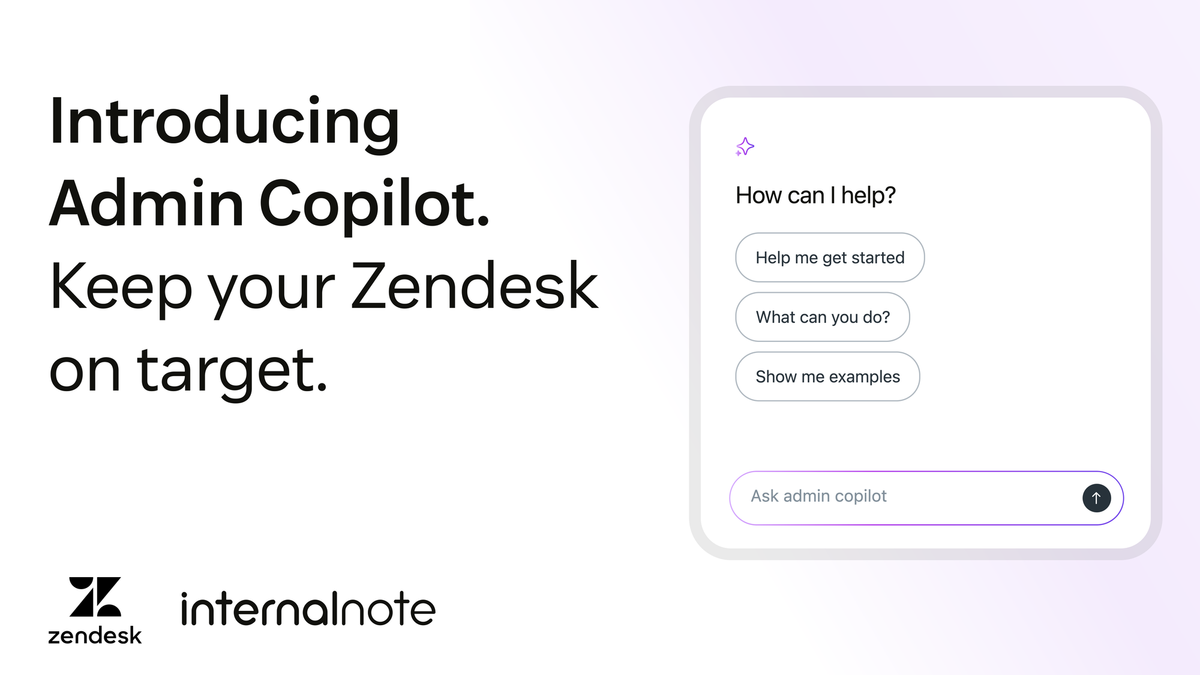
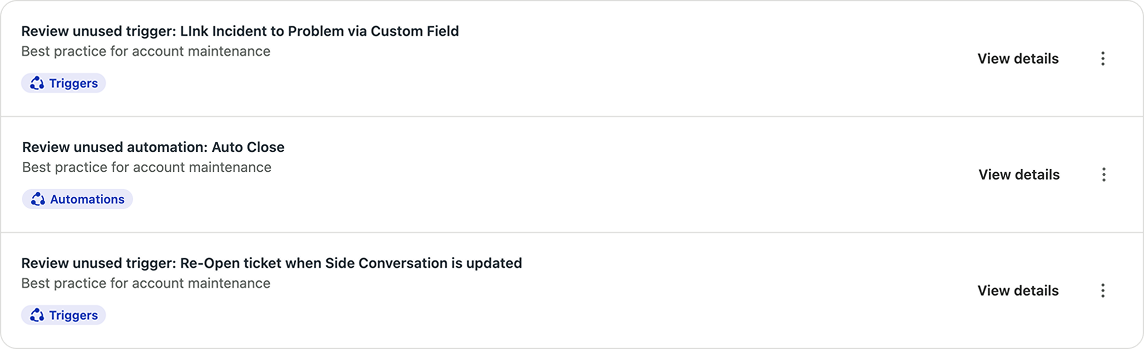
The recommendations can highlight triggers and automations that are not in use, making it easy to cleanup your environment before you start the migration.
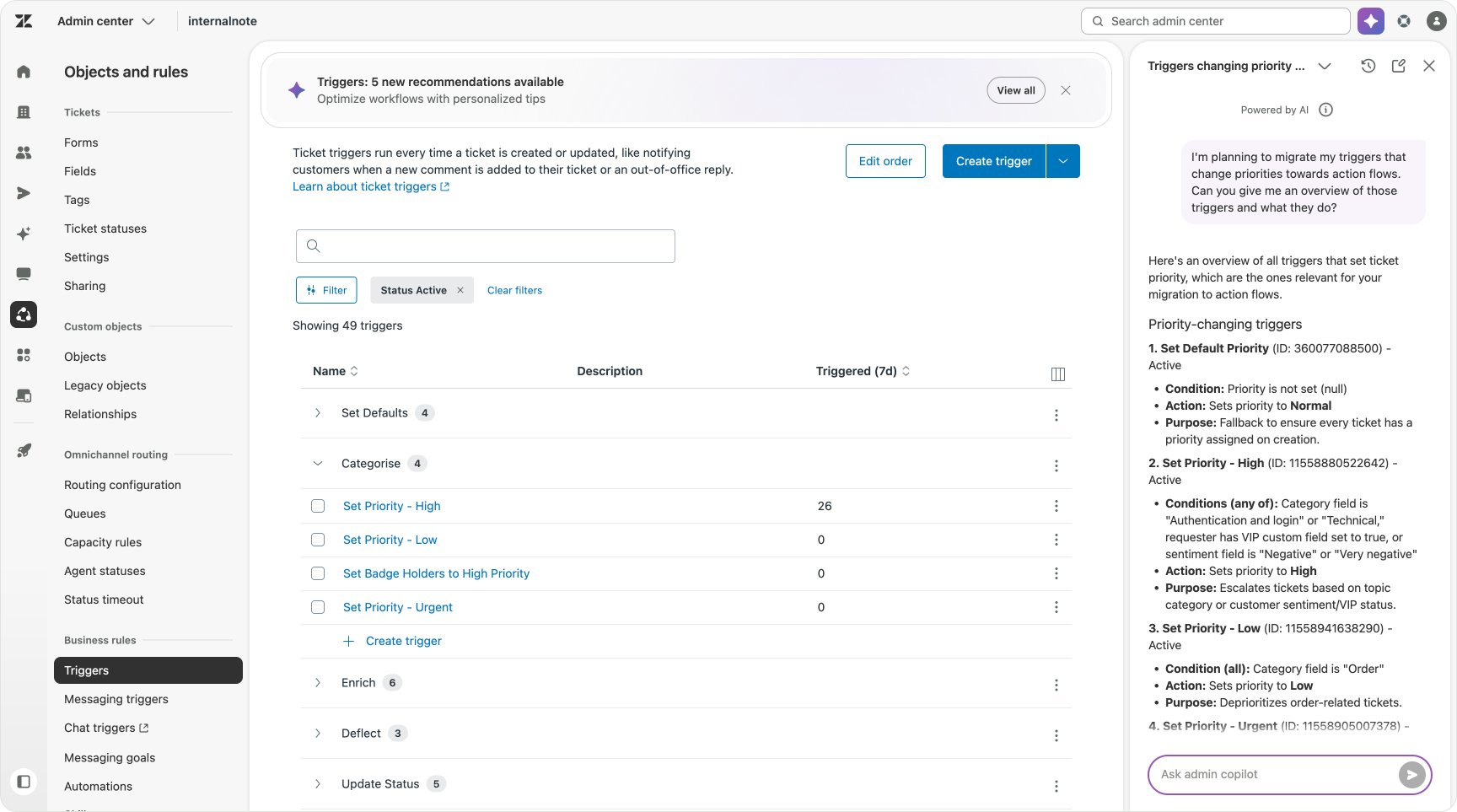
Admin Copilots' conversational mode on the other hand are ideal to stat asking questions about when triggers fire, which routing rules are contained within them, or where automations overlap. You can describe a behaviour you want and it will point you at the configuration behind it, suggest a change, and walk you through the steps.
For the investigate, plan and map stages of a migration, that is a real shortcut. It turns the trigger archaeology from a manual hunt into a conversation.
One you wrap up this migration, what stays as triggers and automations is a small, clean set. The defaults. Customer notifications. And the integration hooks that apps still depend on. The time-based sweeps stay as automations too, because nothing else can iterate over a backlog on a clock. What changes there is the handoff. The automation finds the tickets and tags them, and a flow picks up each one to make the actual decision.
Conclusion
The original article was about taming a trigger list. Order it, use each trigger for one job, and you could follow a ticket's updates from creation to resolution. That discipline still matters, and the jobs are still the same. But the frame has grown well beyond a long list of rules.
Zendesk is no longer a system that reacts to tickets one event at a time. It is becoming an engine that runs your operations. And that engine has three parts, each with a clear job.
AI Agents take care of the conversations. They meet the customer, answer what they can, gather what they cannot, and resolve across messaging, email and voice.
Copilots take care of the learning and the configuration. They sit beside your agents and your admins, suggesting replies, surfacing insights, reading your setup and helping you change it. They are how the system improves and how you steer it.
And the Action Platform takes care of your processes. Action Builder runs the flows. Custom Actions are the shared library every part of the platform draws on. And Custom Agents are where you put reasoning to work in the background, an agent that checks systems, decides, acts and escalates, without a human in the loop and without a rigid flow to follow.
That is the shift. You stop wiring up individual reactions and start designing how your operation runs, then hand each part to the tool built for it. The trigger list taught you to think one job at a time. The platform asks you to think about the whole process, end to end, and gives you somewhere to build it.